
How will Automatic GST and Tax Calculation work in Vyapar App?
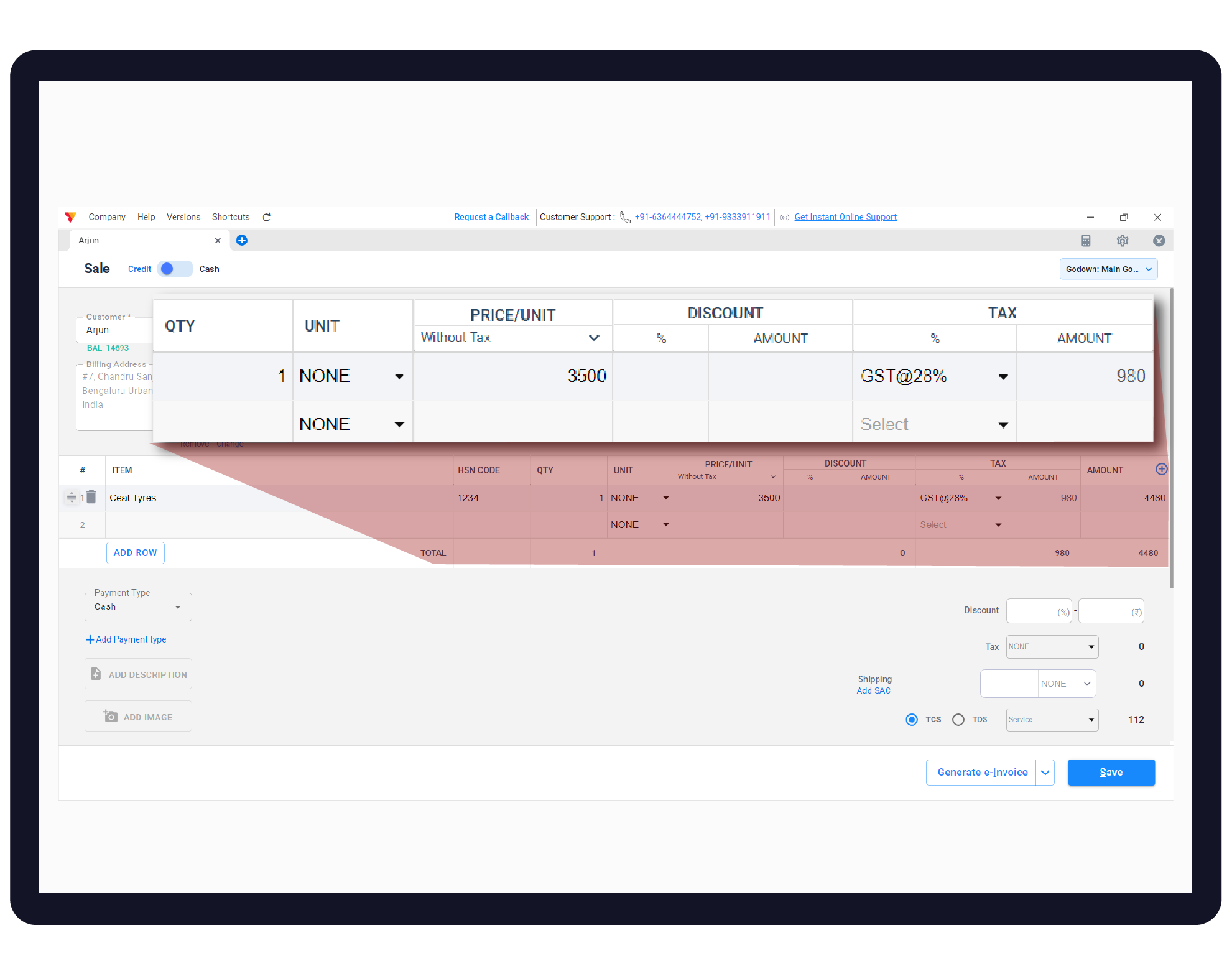
Vyapar eliminates manual errors by auto-detecting GST rates and applying the correct tax category (Intrastate or Interstate) based on your business and customer locations. This ensures your invoices are always professional, compliant, and ready for tax filing.


Before You Start

GST Settings Enabled: Turn on the GST option in the “Taxes and GST settings” to activate automation fields.
Business Profile: Save your company’s GSTIN and registered State in the business profile so the app knows your “Origin” state.
Item Tax Rates: Assign specific GST slabs (5%, 12%, 18%, 28%) and HSN/SAC codes to every product in your Item Master.
Step-by-Step Guide to Automatic Tax Calculation:
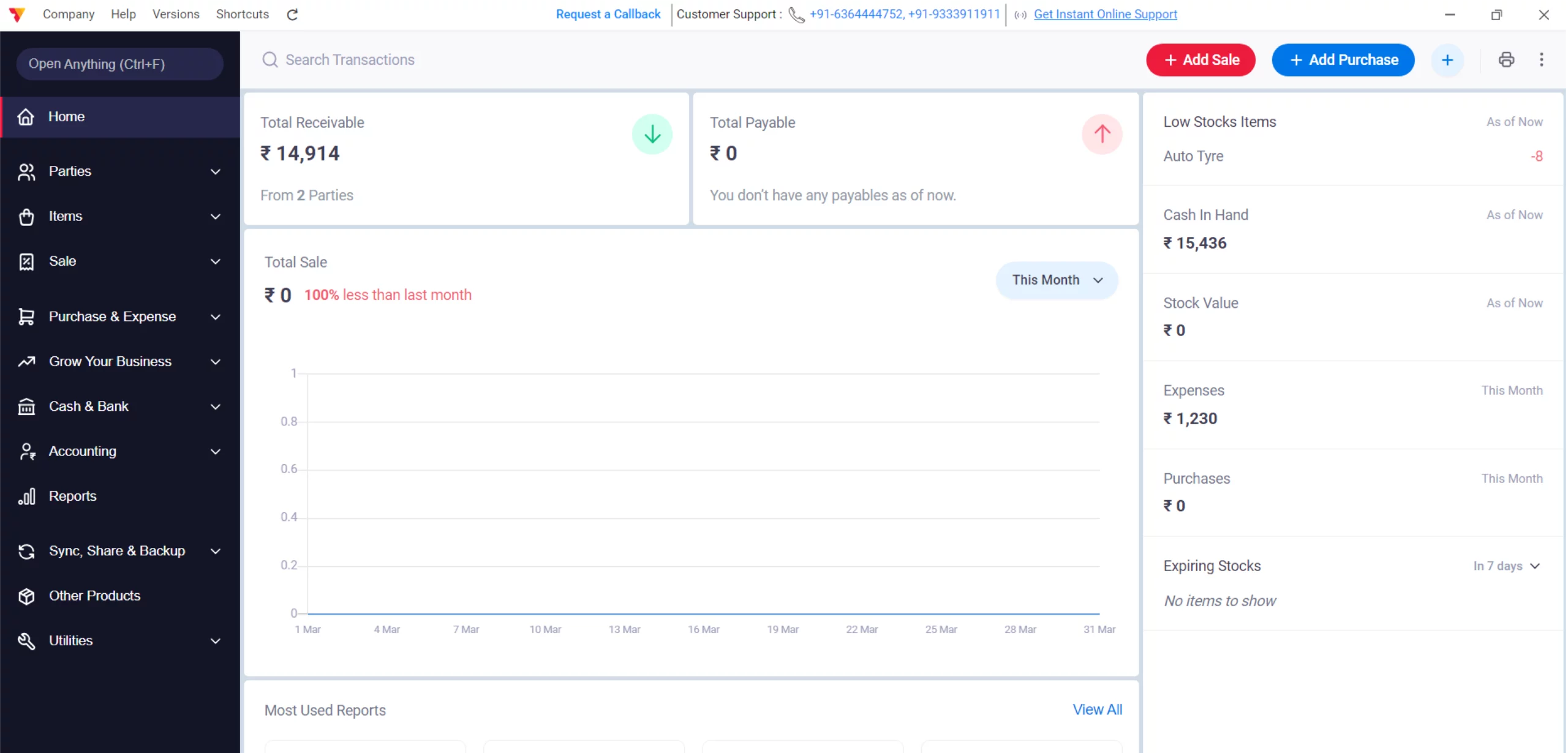
Open Vyapar App
Launch Vyapar accounting software on your Desktop.
01
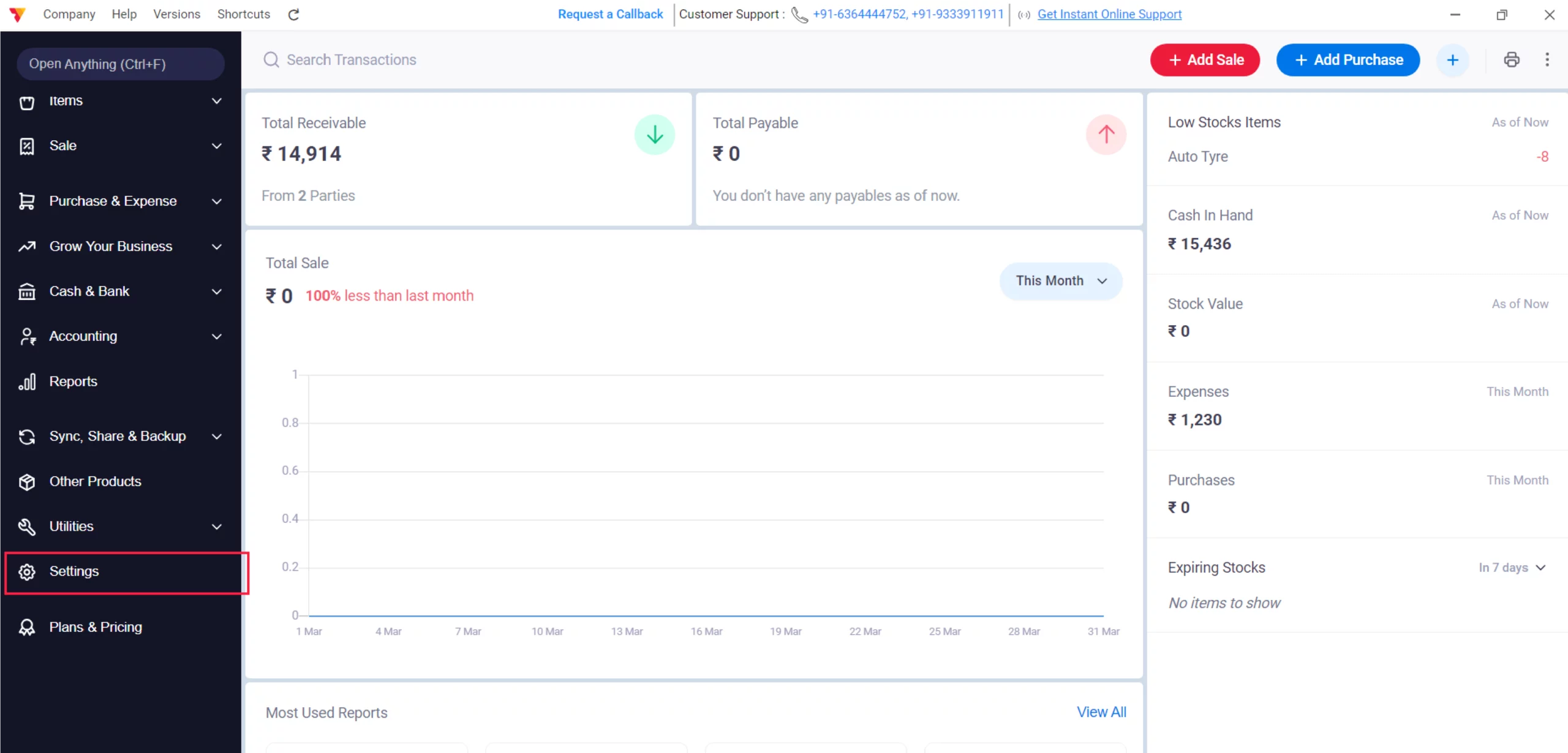
Access Settings
Navigate to the Left Menu, locate the Settings gear icon, and click it.
02
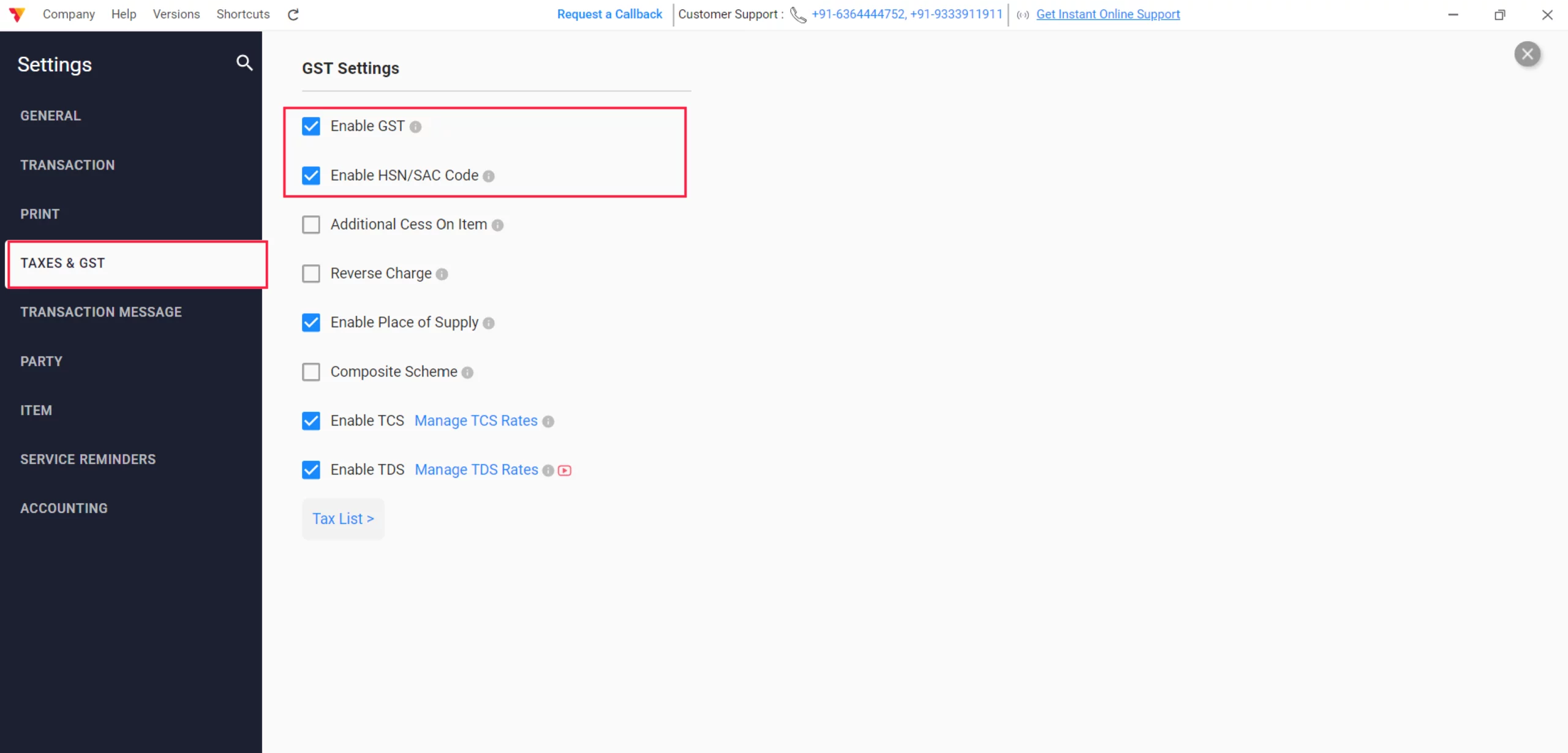
Enable GST
Click on Taxes & GST, check the GST button, and enable HSN/SAC Code and other GST details as per your business needs.
03
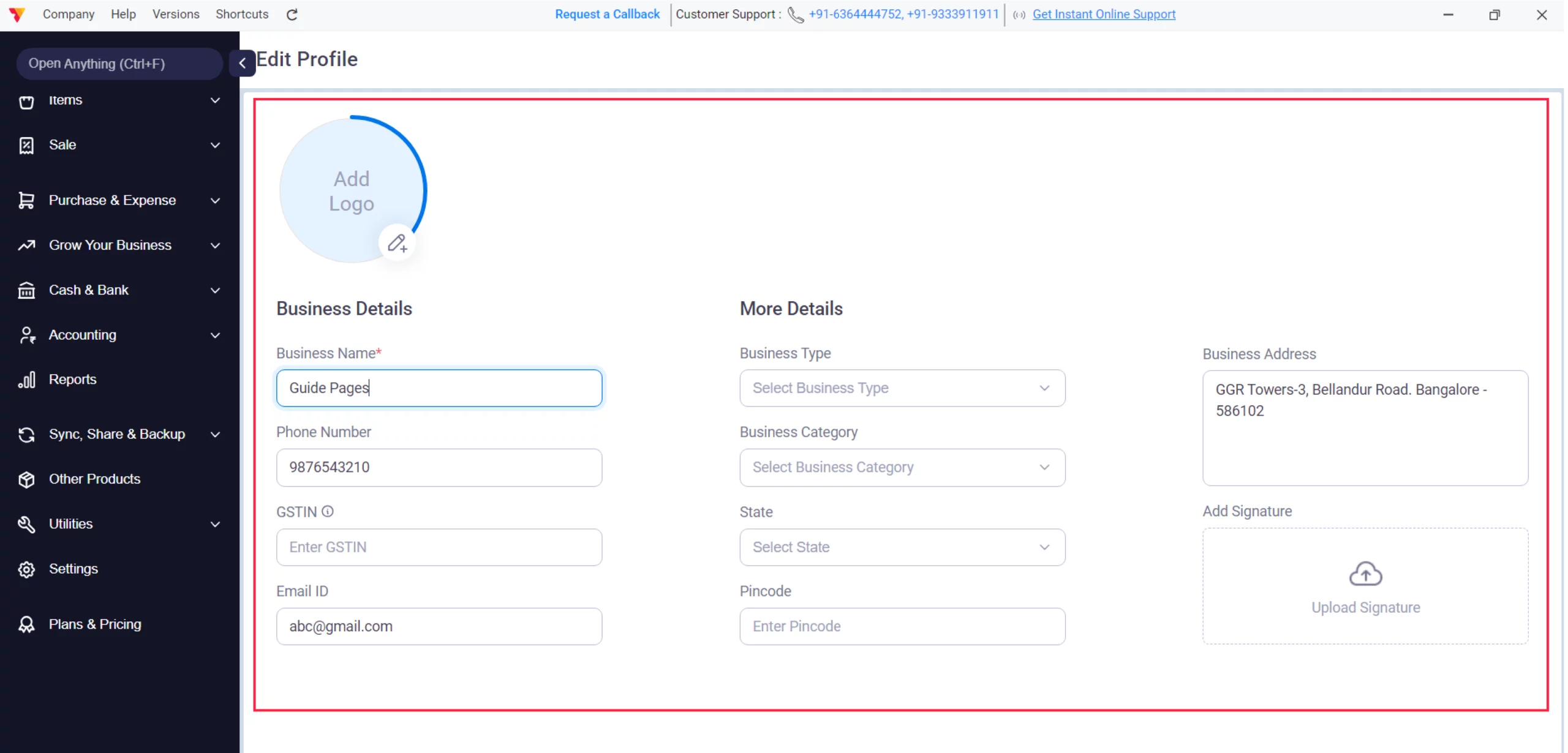
Record Your Business Profile
Click on your Business Name at the bottom-left corner and add your Business GSTIN, State, Pin Code, and Address.
04
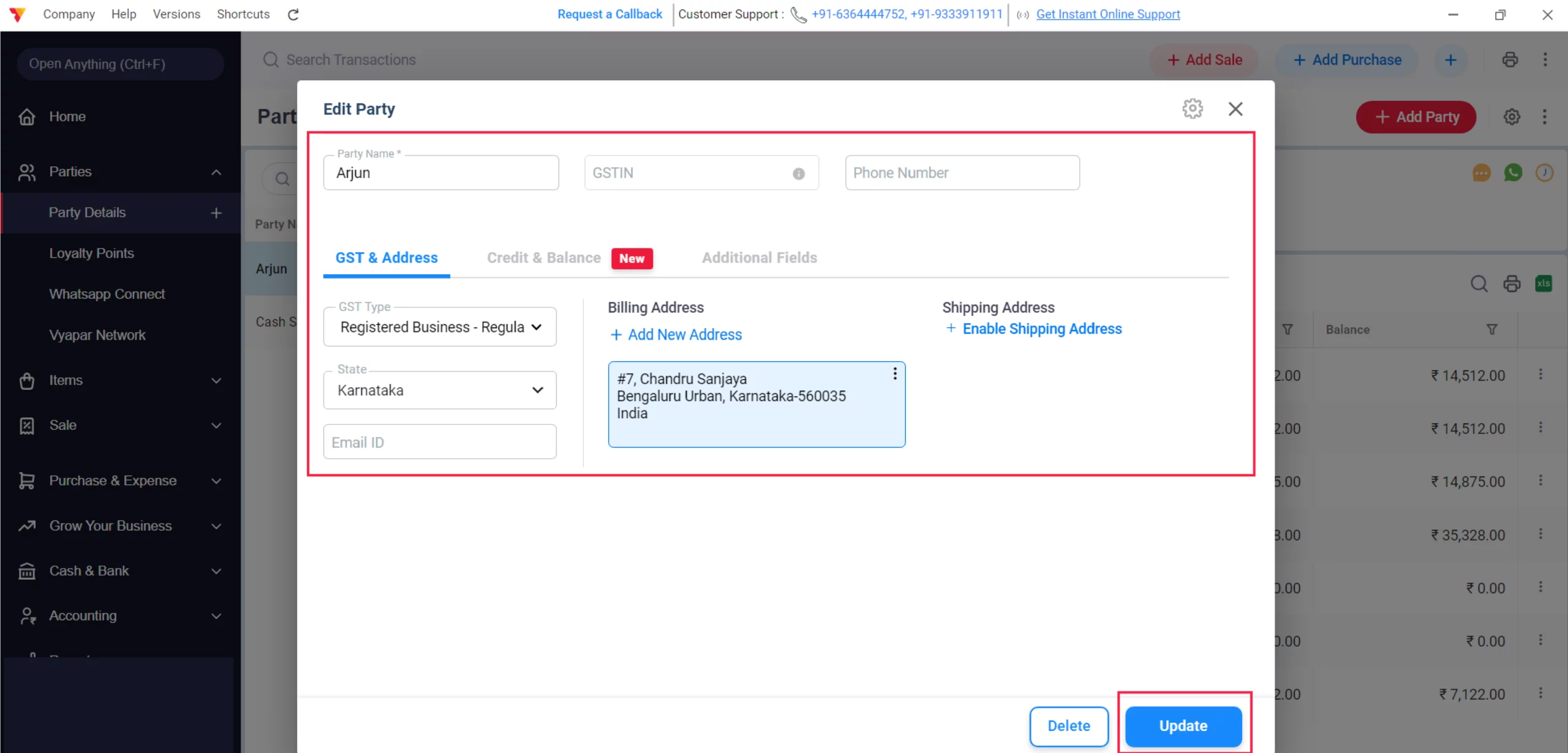
Update/Verify Customer Details
Go to the Parties section, select the customer, and ensure their GSTIN and State are entered accurately; click Update to save.
Why? This is how Vyapar decides whether to apply CGST/SGST (Local) or IGST (Interstate).
05
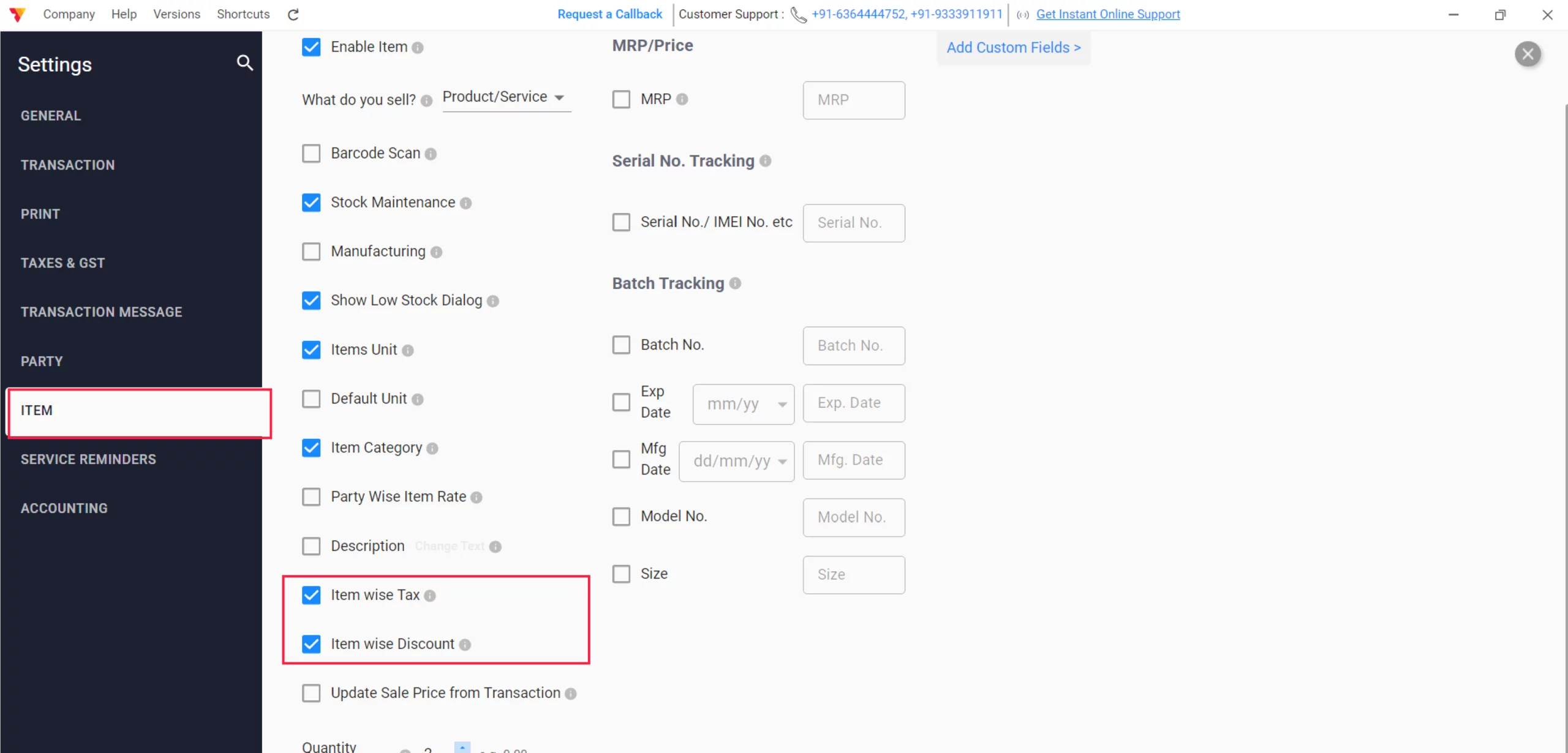
Setup- Item Settings
Go to the Settings, Click on Items. Ensure “Item-wise Tax” & “Item Wise Discount” are checked in. This allows the app to calculate different tax rates & Discounts on every product you are selling.
06
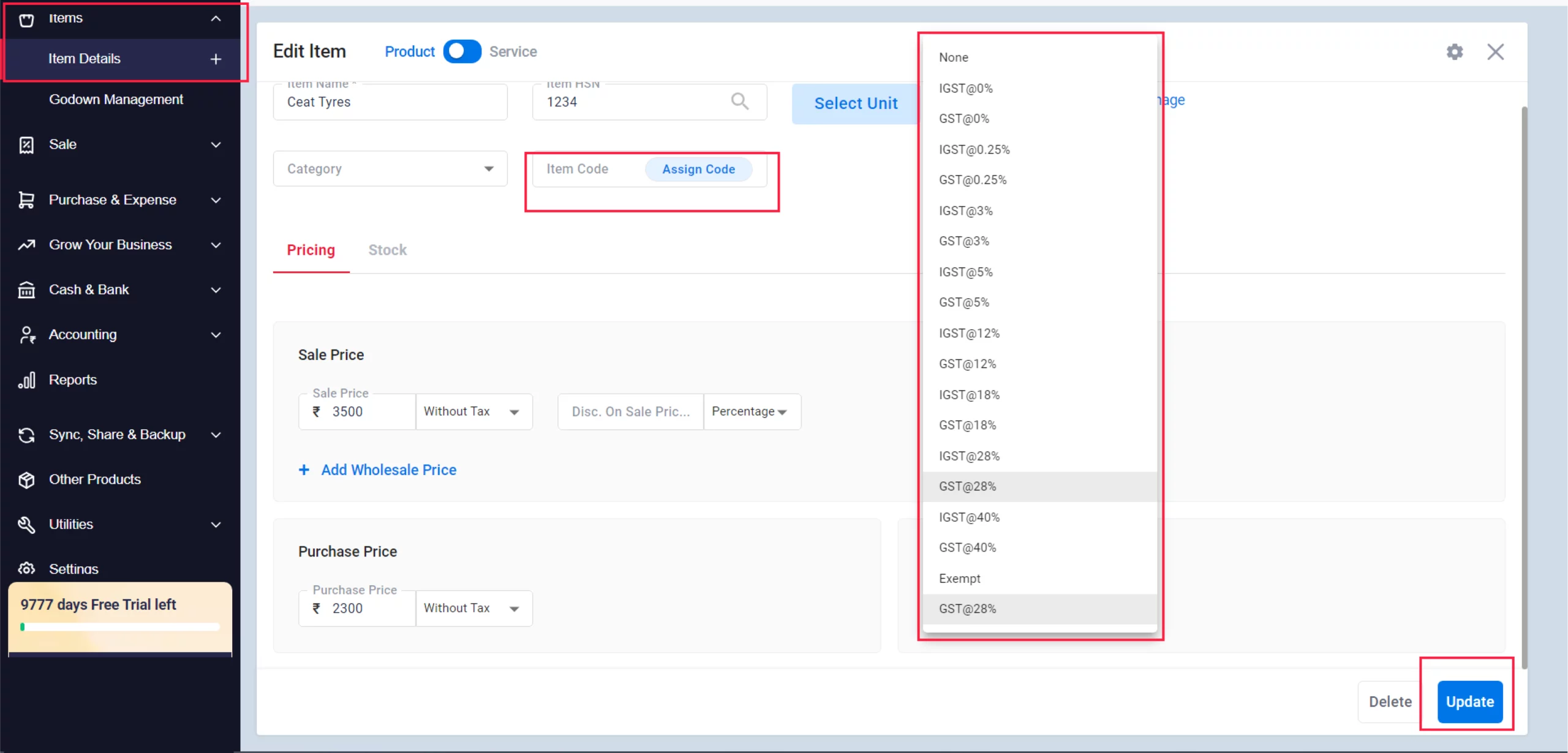
Item Master Configuration
Go to the Items section and click “Add Item” (or double click on the item). Under the Taxes tab, select the correct GST Percentage (5%, 12%, 18%, or 28%) and enter the HSN/SAC Code in the Item HSN Tab and click on the Update Button.
07
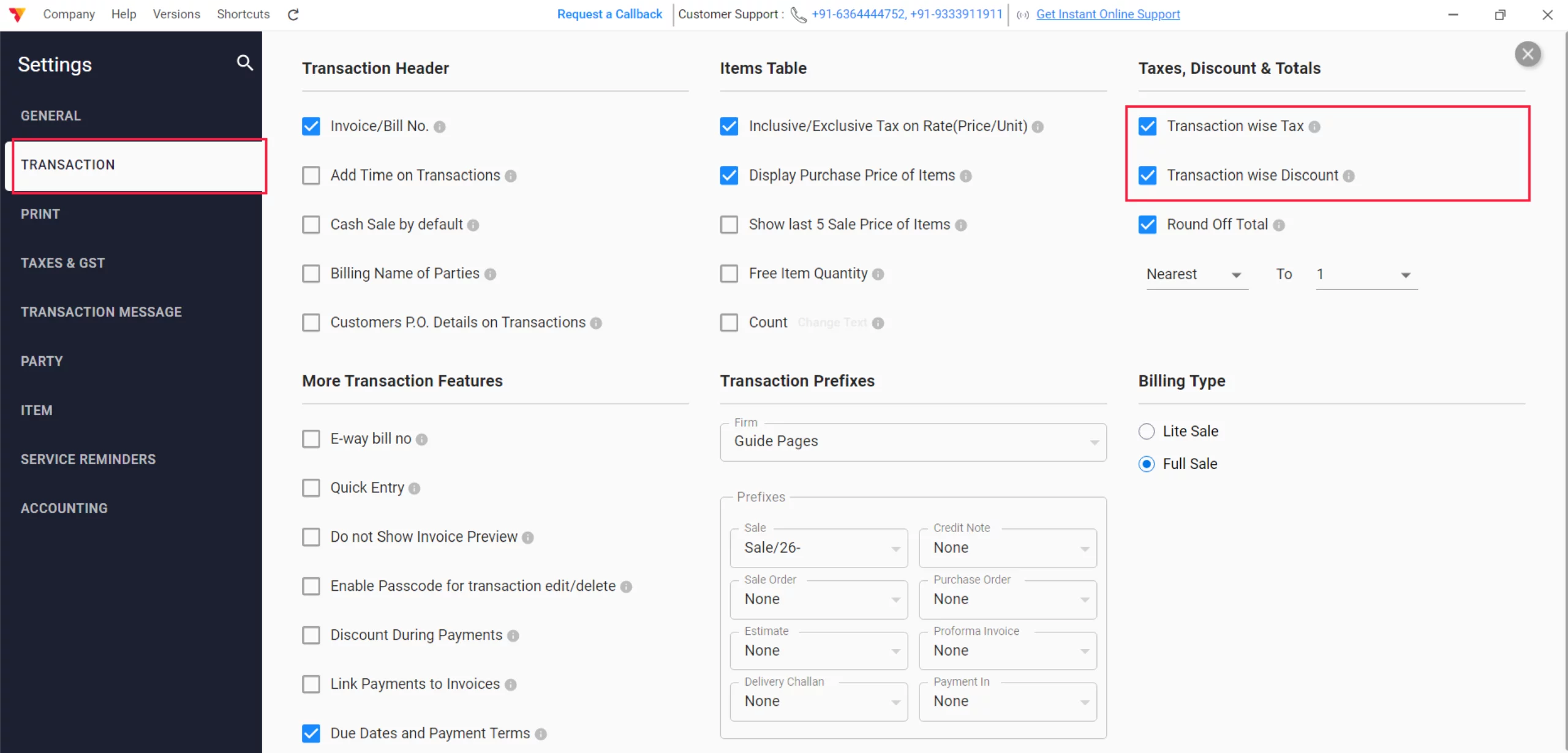
Setup- Transaction Settings
Go to the Settings, click on Transaction. Ensure “Transaction-wise Tax” & “Transaction Wise Discount” are checked in. This allows the app to calculate tax rates & Discounts on Complete transaction amounts.
08
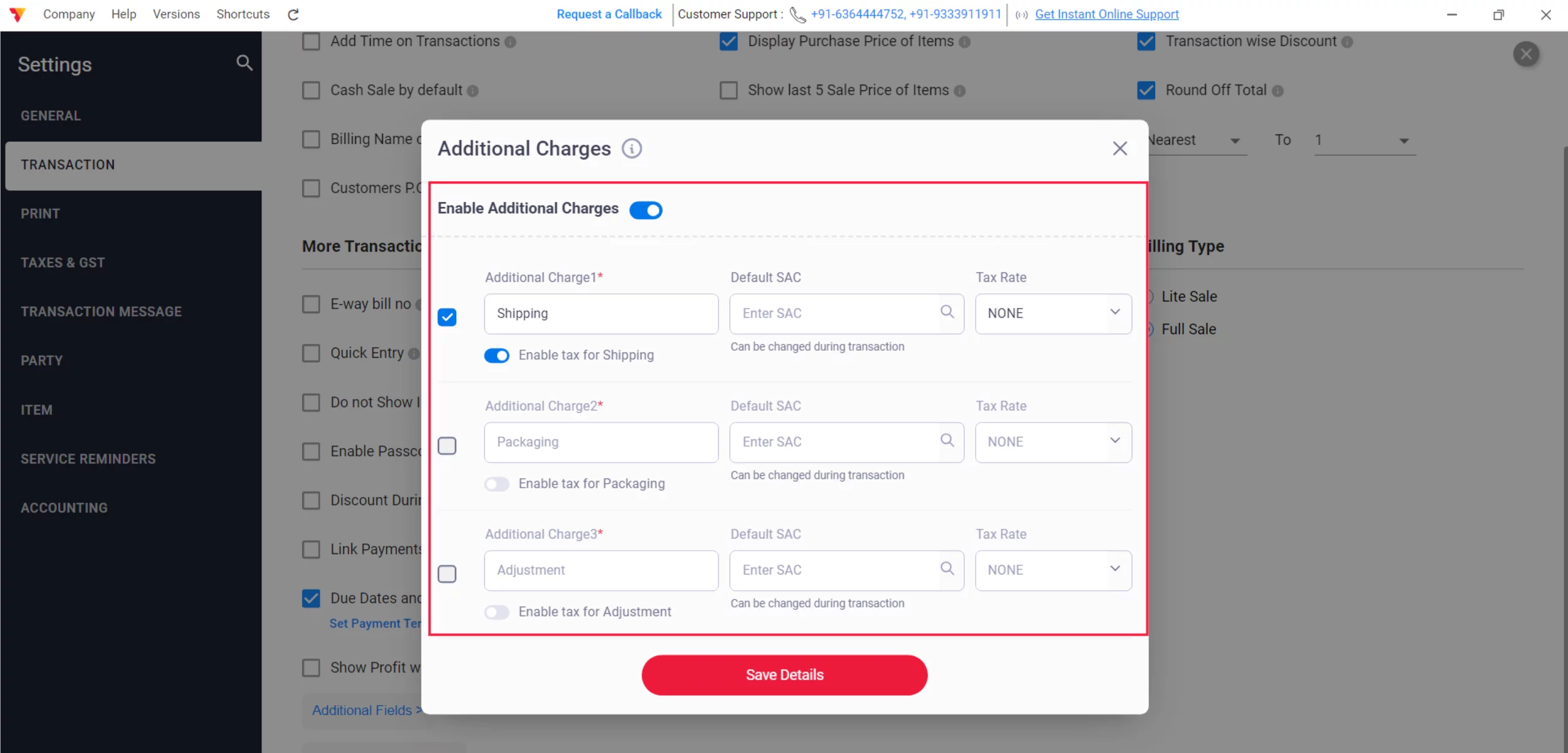
Set up Additional Charges
In Same Transaction Settings, scroll down for Additional Charges. Enable this to auto-apply GST on shipping, freight, or packing charges using their specific SAC codes.
09
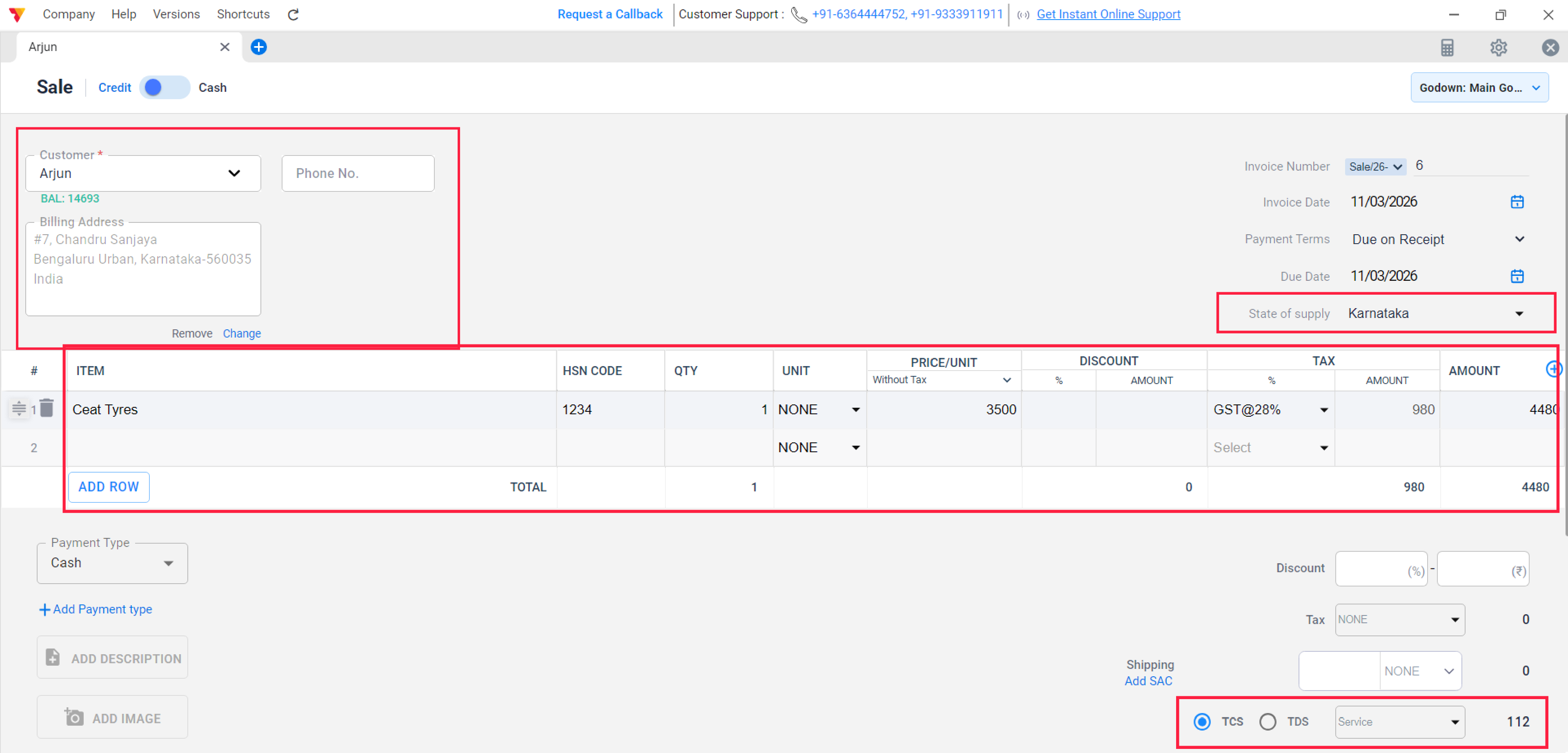
Create a Transaction (Sale/Purchase)
1. Select Party:
2. Add Items
3. If TDS, TCS and any additional charges are applicable, Add it.
4. The Auto-Calculation: * If States match, Vyapar displays CGST + SGST. * If States differ, Vyapar displays IGST in your Invoice with Totals
10
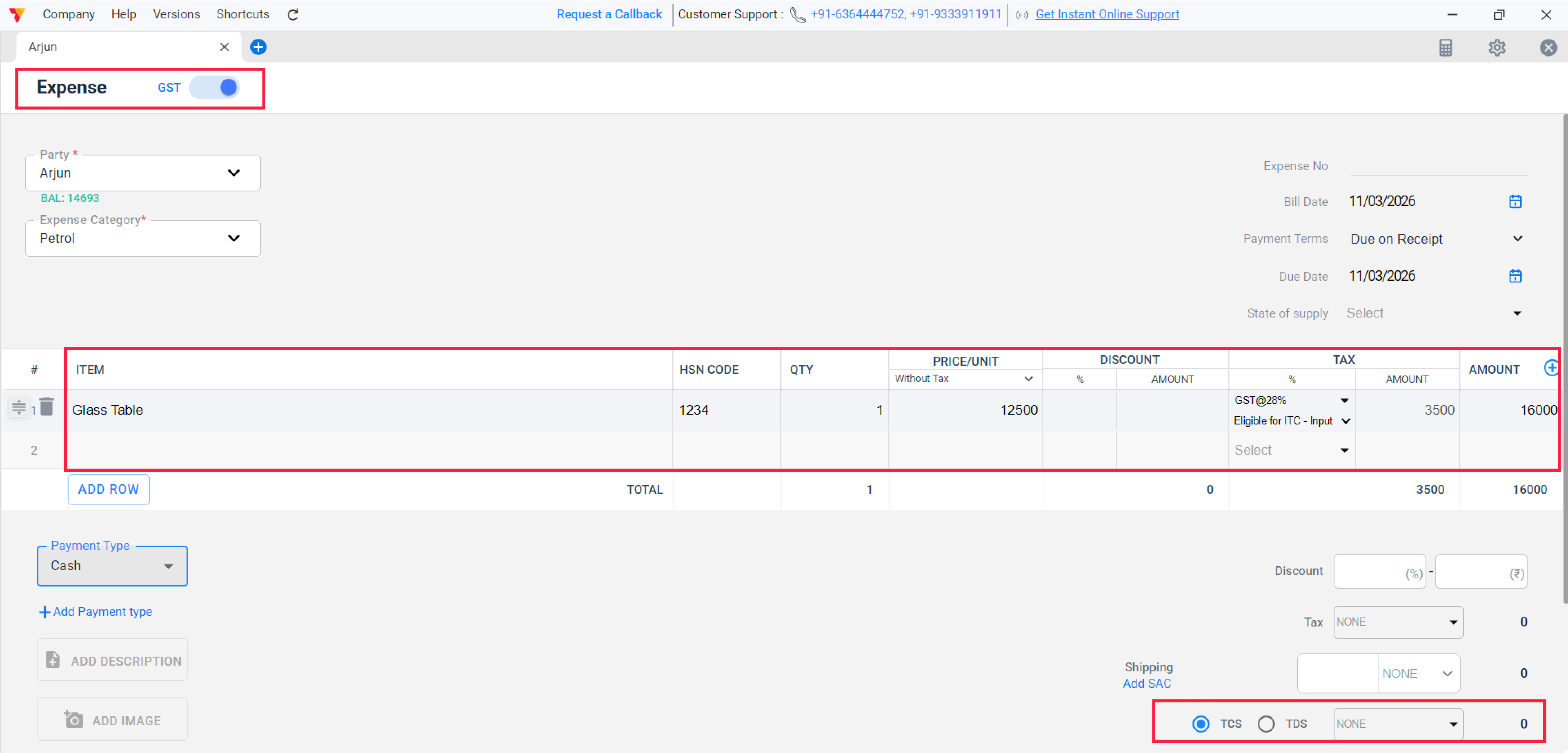
Create a GST Expense
Toggle on for GST at top left corner, after that add your item details, TCS or TDS and other additional charges to keep your records better.
11
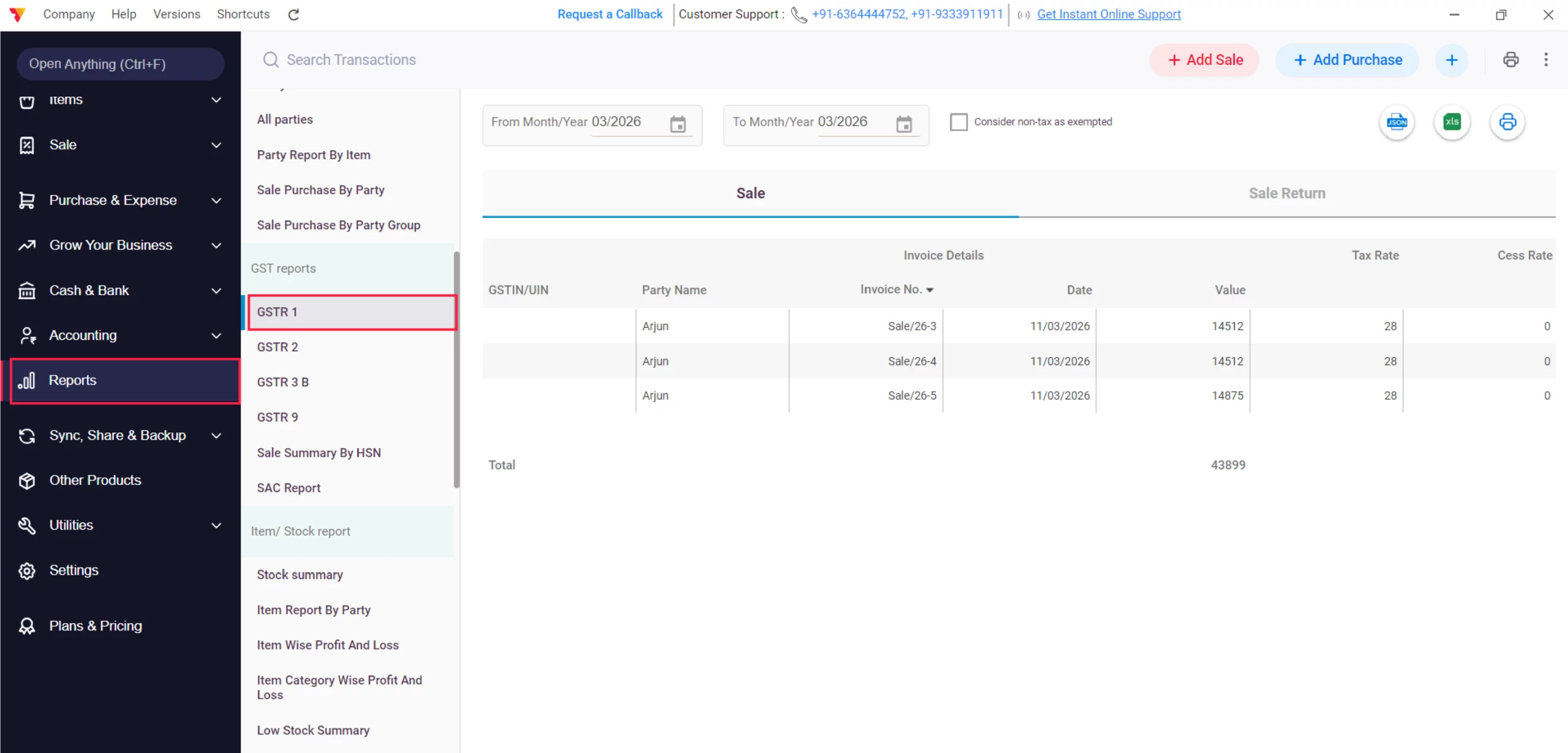
Verify Reports
Click on Reports in the left menu. Scroll down and validate your GST reports like GSTR-1, GSTR-2, Etc. They will be updated as per every transaction that you have created.
12
Watch Automatic GST and Tax Calculation in Vyapar
Automatic GST and Tax Calculation: Desktop Video.
Still stuck? Get help in minutes.
Our support team is ready to help you succeed.
 24/7 Support
Why Is This Important for Your Business?

Error-Free Billing
Automation removes the risk of manual calculation mistakes, ensuring your financial records are 100% accurate.
Legal Compliance
The app accurately determines the Place of Supply, protecting you from penalties caused by wrong tax classifications.
Seamless GSTR Filing
Accurate real-time calculations ensure your GSTR reports are always precise and ready for download.
Frequently Asked Questions (FAQs)
How does Vyapar distinguish between SGST and IGST?
It automatically compares your business state with the customer’s state; if they differ, it applies IGST; if they match, it applies CGST + SGST.


Does it calculate GST on the discounted price?
Yes, Vyapar calculates GST on the taxable value remaining after all discounts are subtracted.
What if my vendor doesn’t have a GSTIN for an expense?
You can still record the expense with the GST toggle OFF, but you will not be able to claim Input Tax Credit (ITC) for that entry.
Ready to Stop Manual Math?
Start automatic GST calculation today and cut billing errors by 100%.
 Download Vyapar Now





