
How to Add Journal Entries in Vyapar App
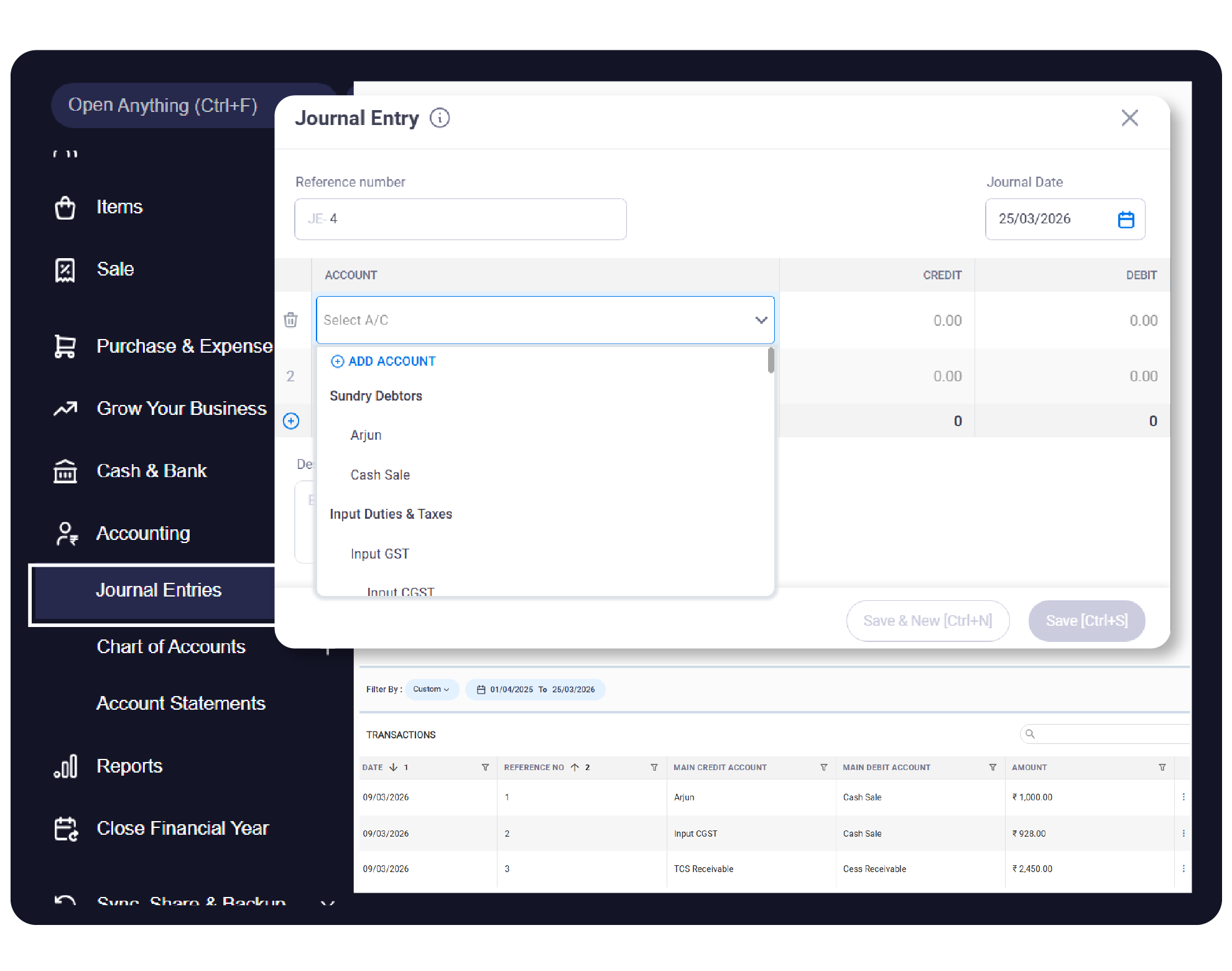
Journal Entries are essential for recording non-cash transactions, such as depreciation, bad debts, or adjusting entries between two accounts.
In Vyapar, the Journal Entry feature allows you to maintain double-entry accounting accuracy by manually debiting and crediting the relevant accounts.
Follow this guide to professionally manage your accounting adjustments on the Desktop app.


Before You Start

Double-Entry Knowledge: Ensure you know which account to Debit and which to Credit for your specific transaction.
Accounts Ready: The parties or bank/cash accounts involved must already be created in your Vyapar accounting software.
Financial Year: Ensure you are recording the entry within the correct active financial year.
Step-by-Step Guide to Add Journal Entries:
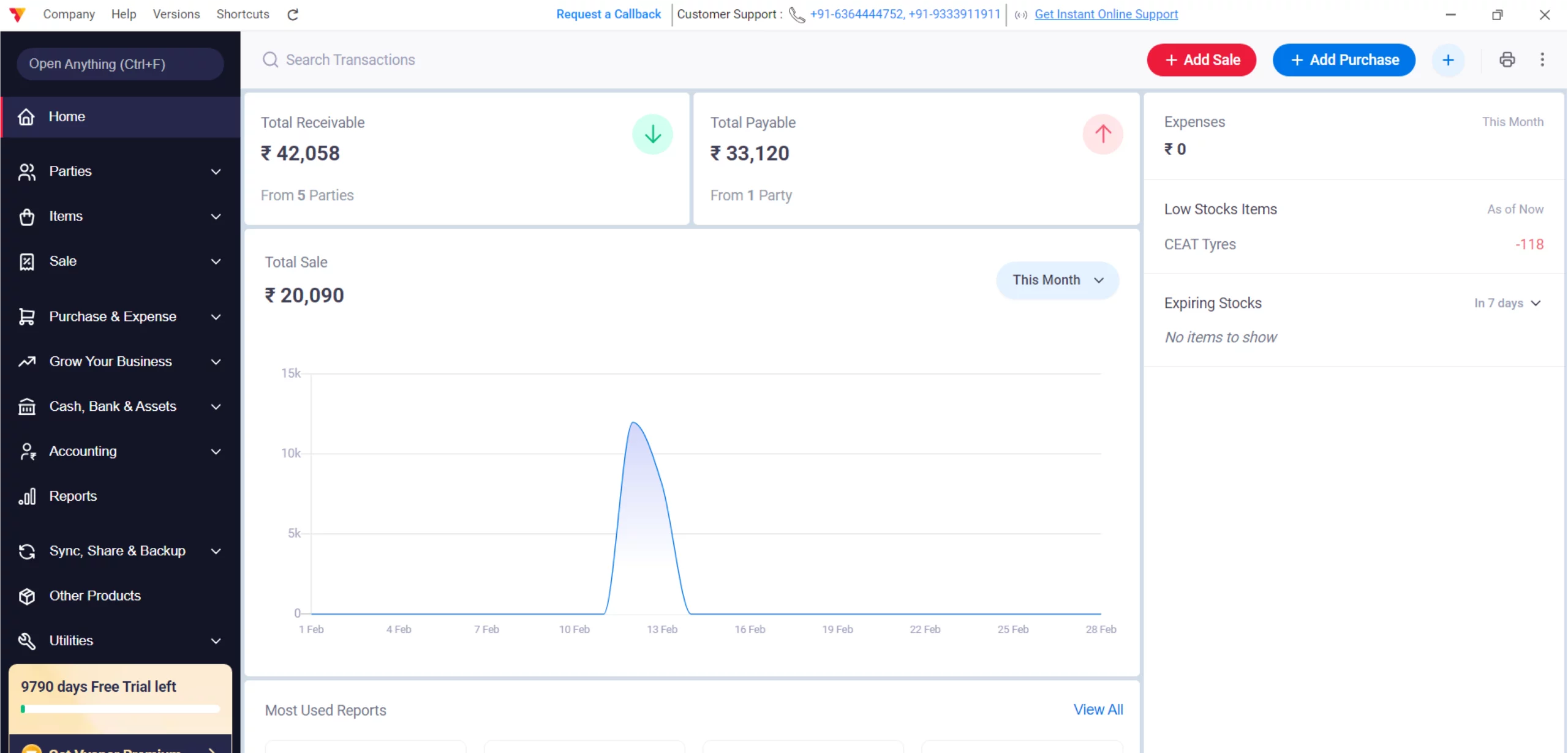
Open Vyapar App
Launch the Vyapar App on your Desktop device.
01
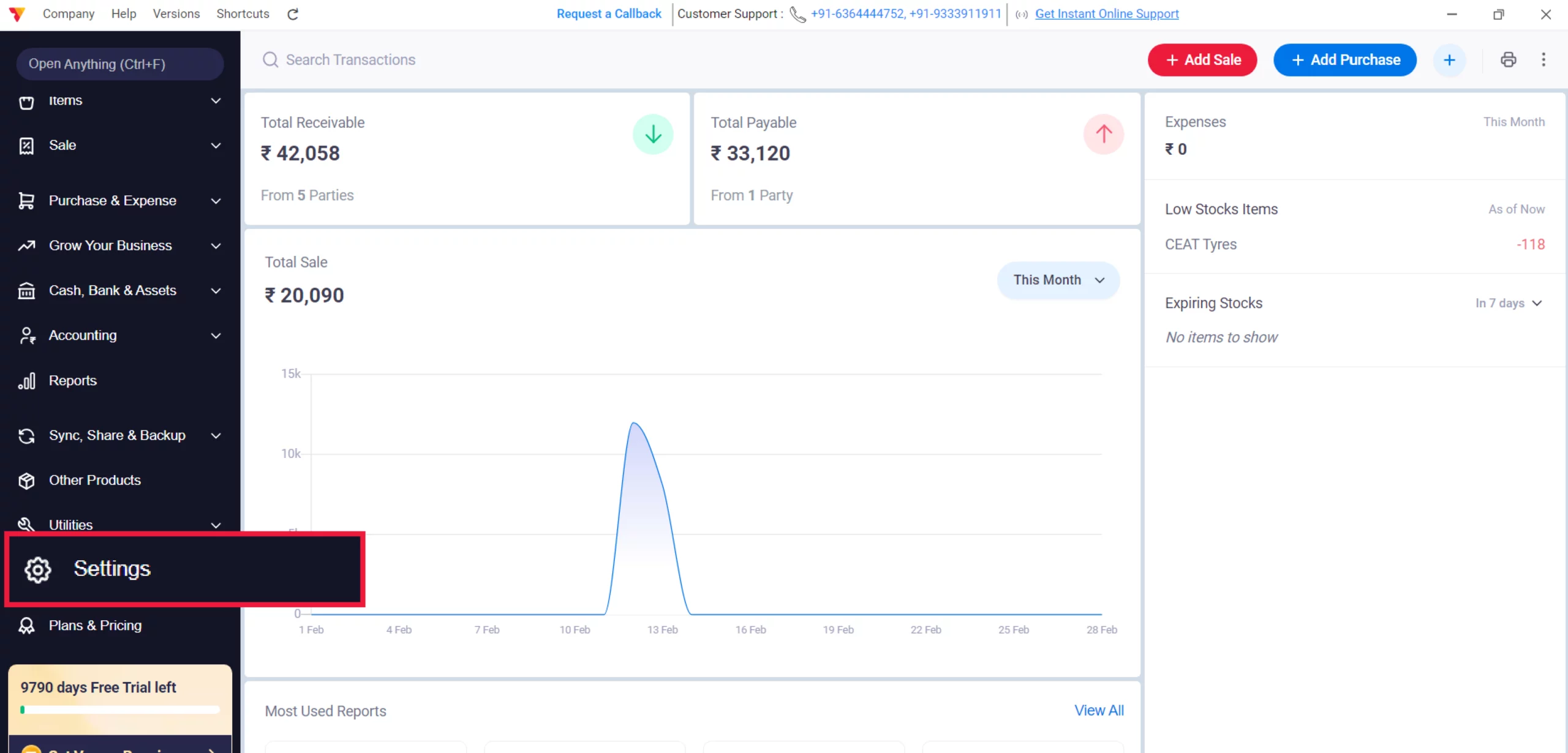
Access Settings
Navigate to the Left Menu, locate the Settings with the gear icon, and click it.
02
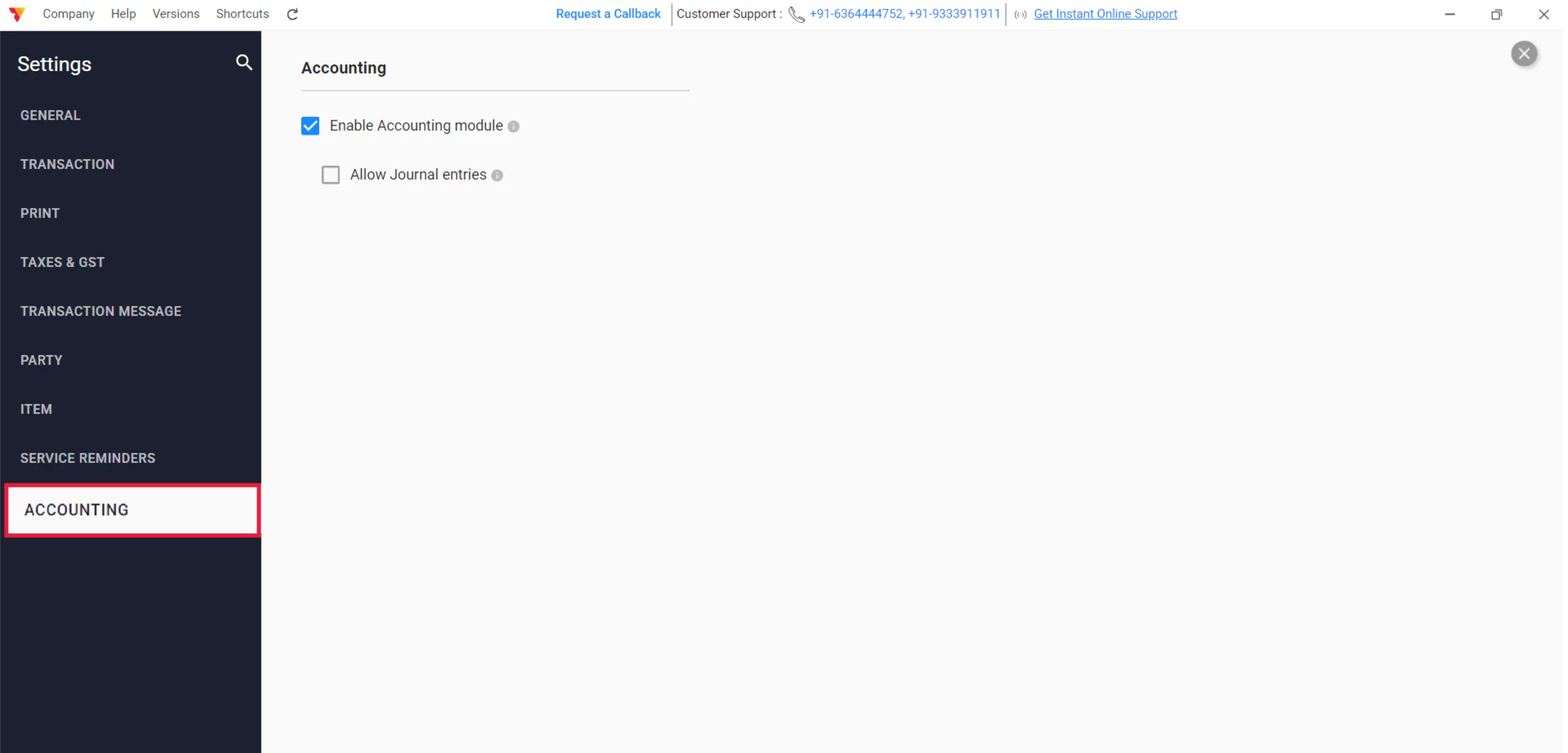
Enable Accounting Module
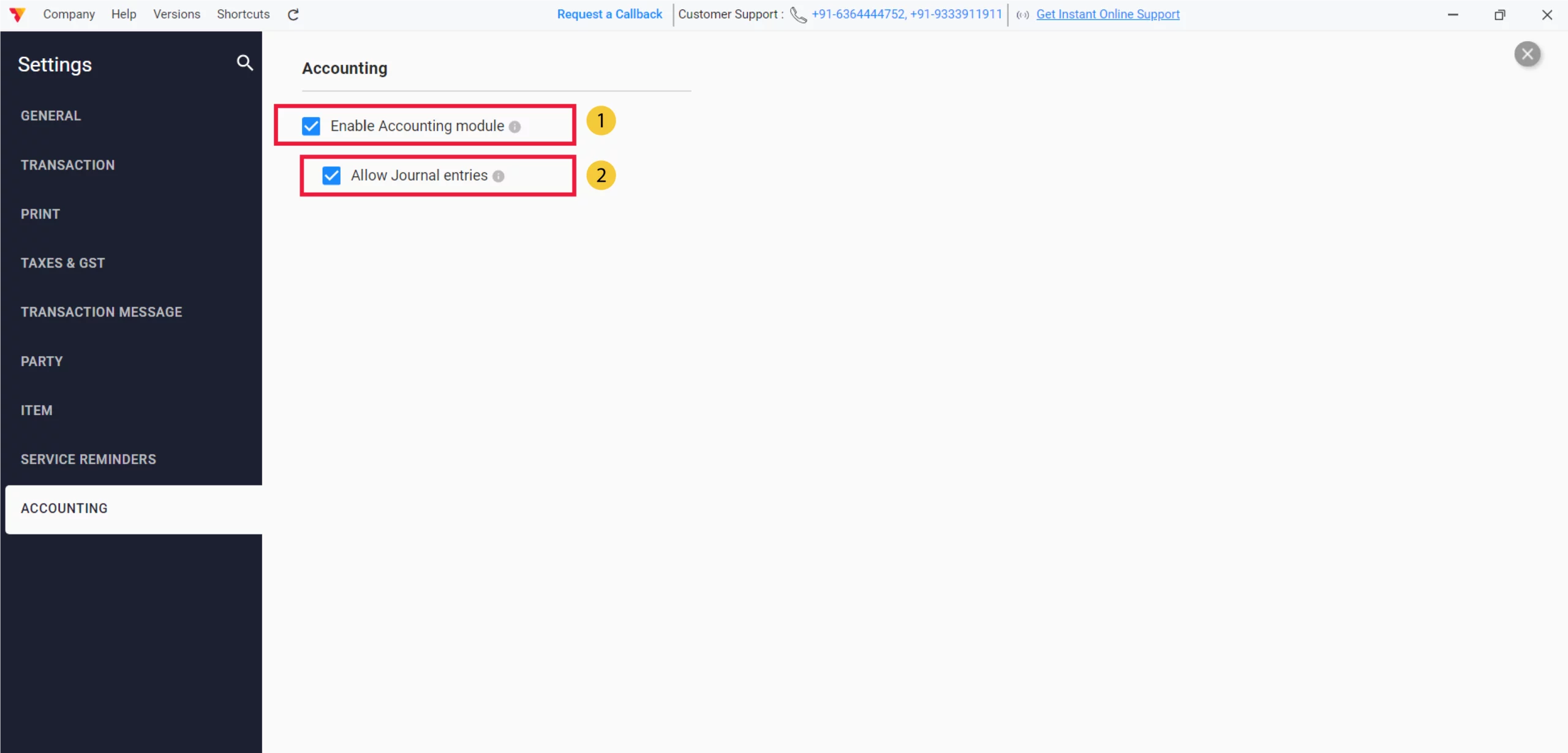
From the left-hand sidebar in Settings, select the ACCOUNTING tab.
03
Activate Journal Entries
Ensure the Enable Accounting module checkbox is selected, then check the box for Allow Journal entries and close the Settings.
04
Navigate to Accounting Menu
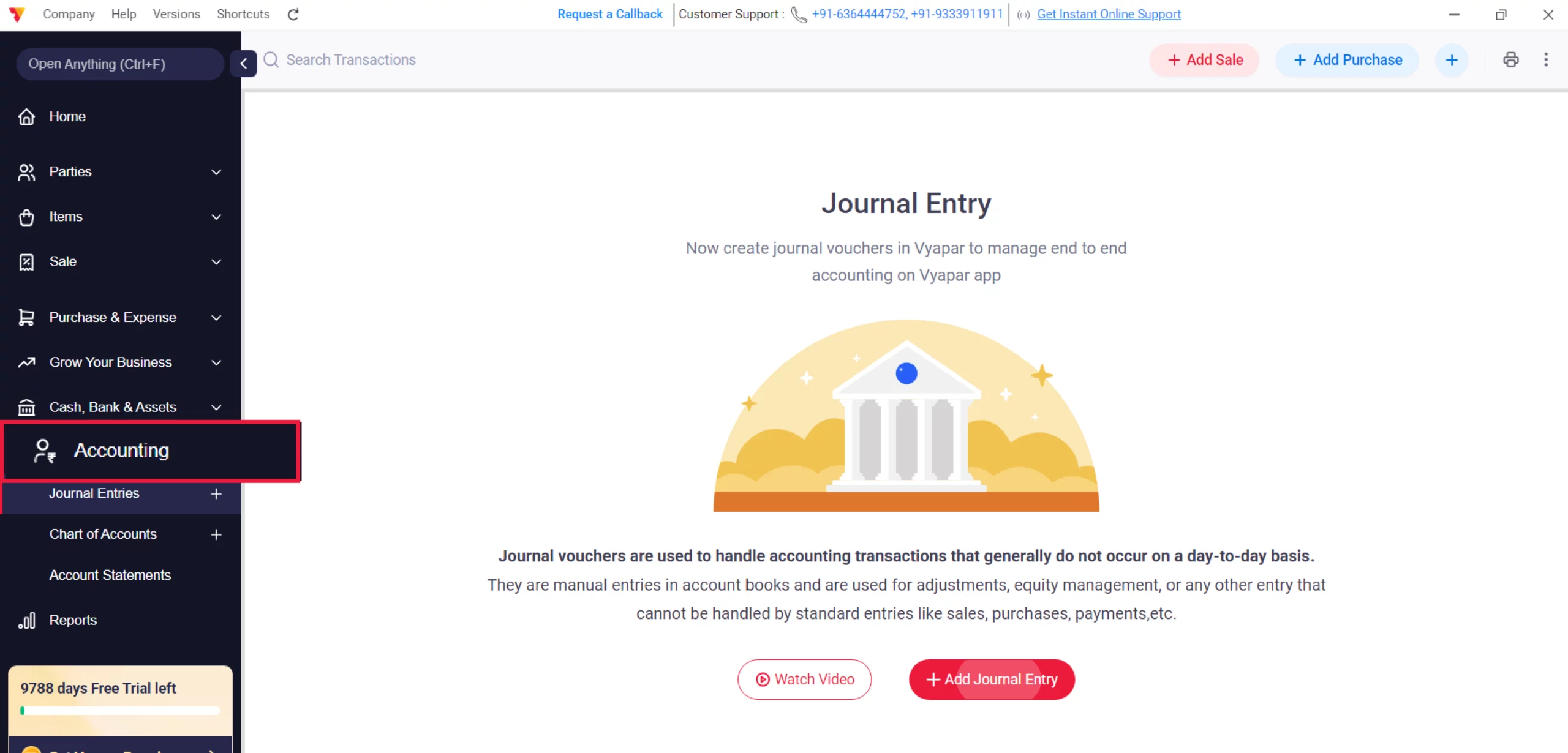
From the Left Menu on the main dashboard, click on the Accounting tab to expand your advanced financial options.
05
Select Journal Entry
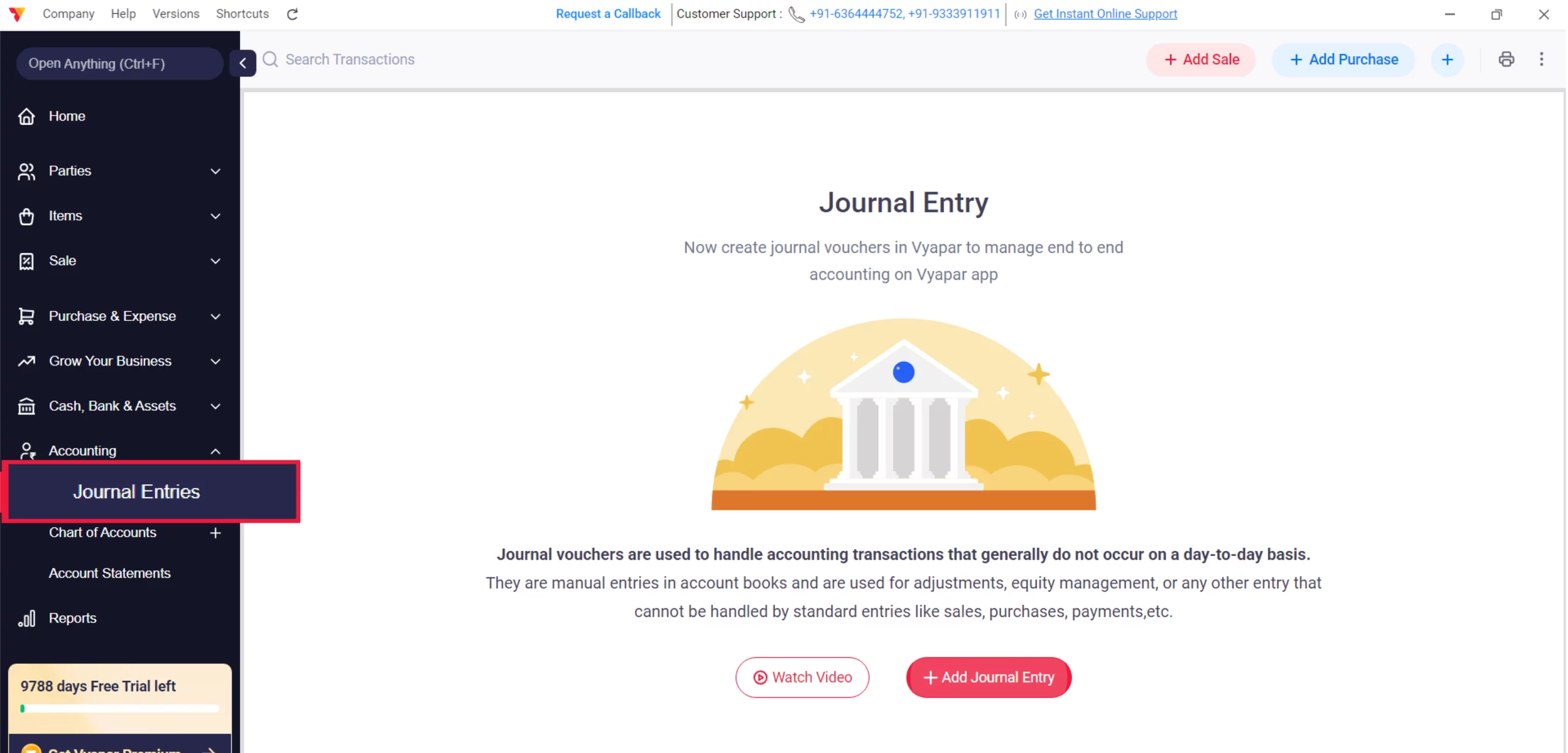
From the expanded list, click on Journal Entry.
06
Add New Entry
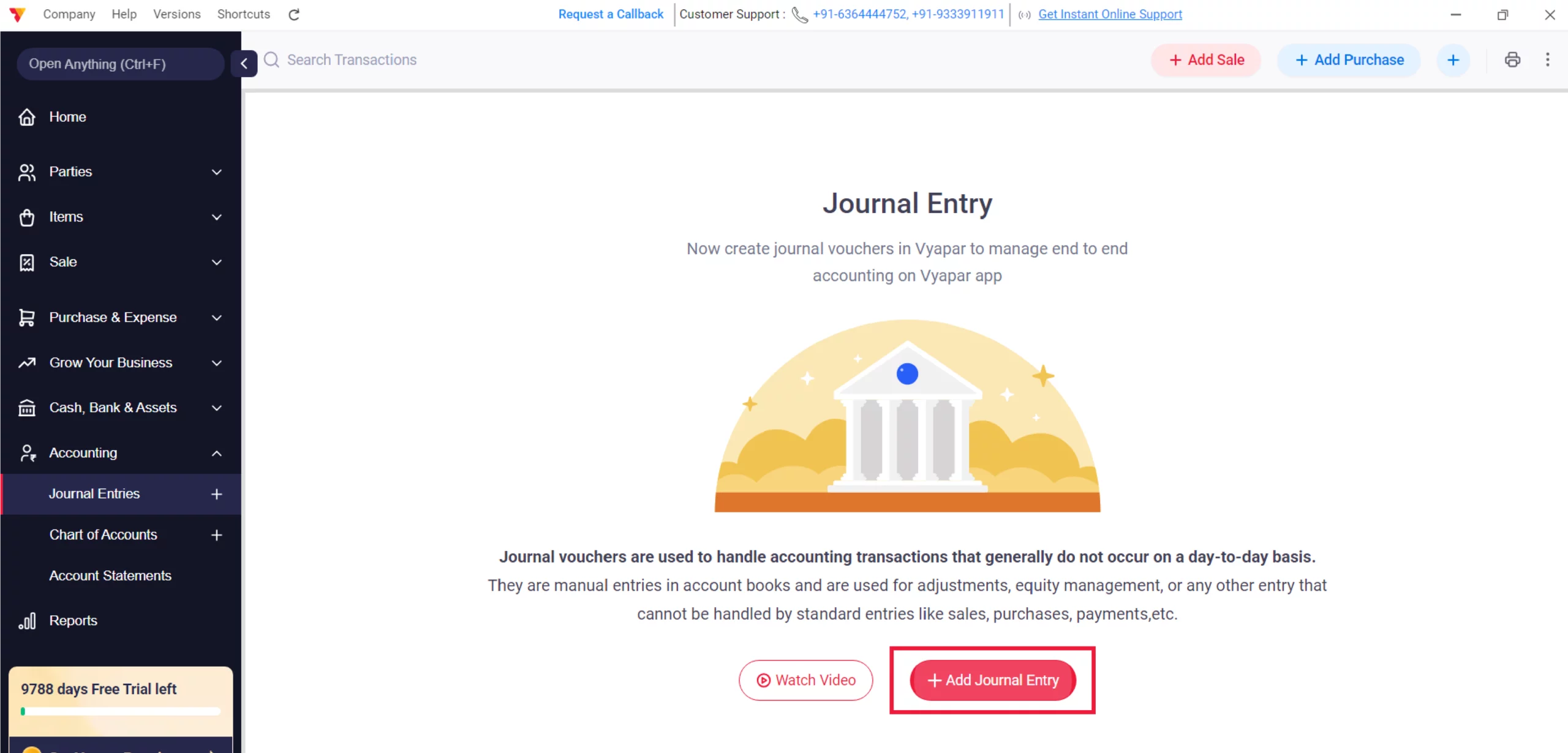
Click the “+ Add Journal Entry” button to open the entry dashboard.
07
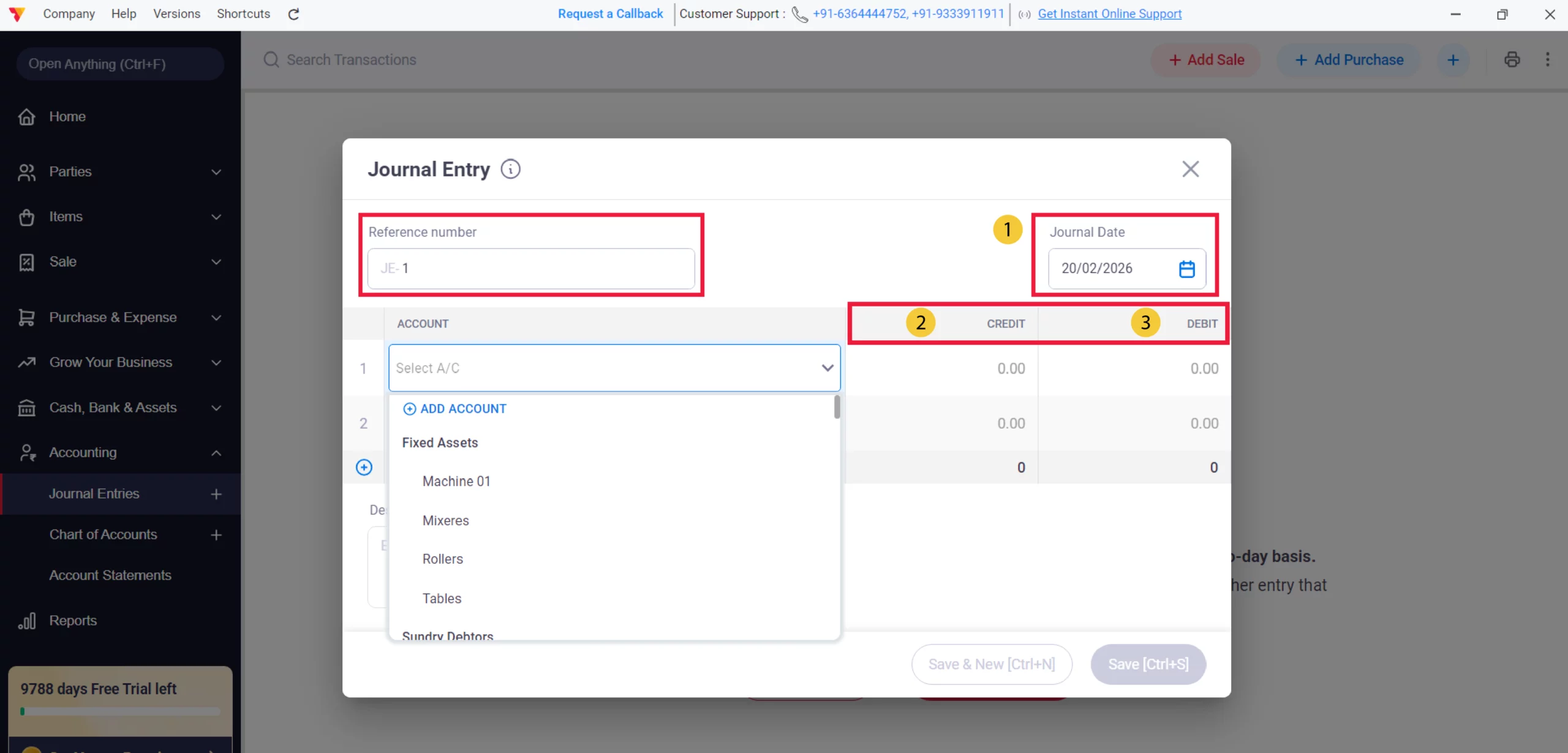
Enter Transaction Details
Select the Date, then choose your Debit and Credit accounts and enter the respective amounts.
08
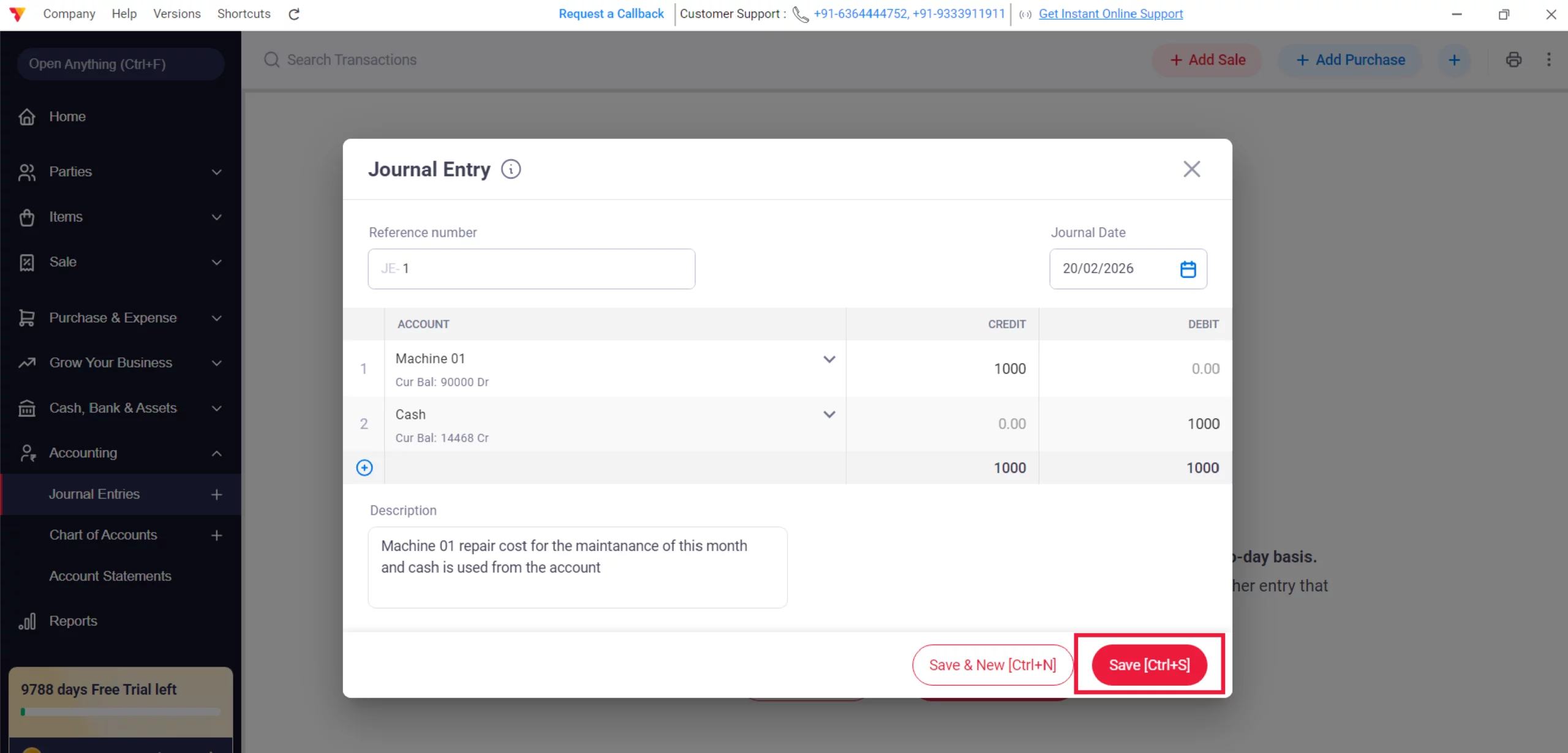
Add Narration & Save
Provide a brief description for the entry and click the Save button to finalise.
09
Watch Step-by-Step Video Guide to Add Journal Entries
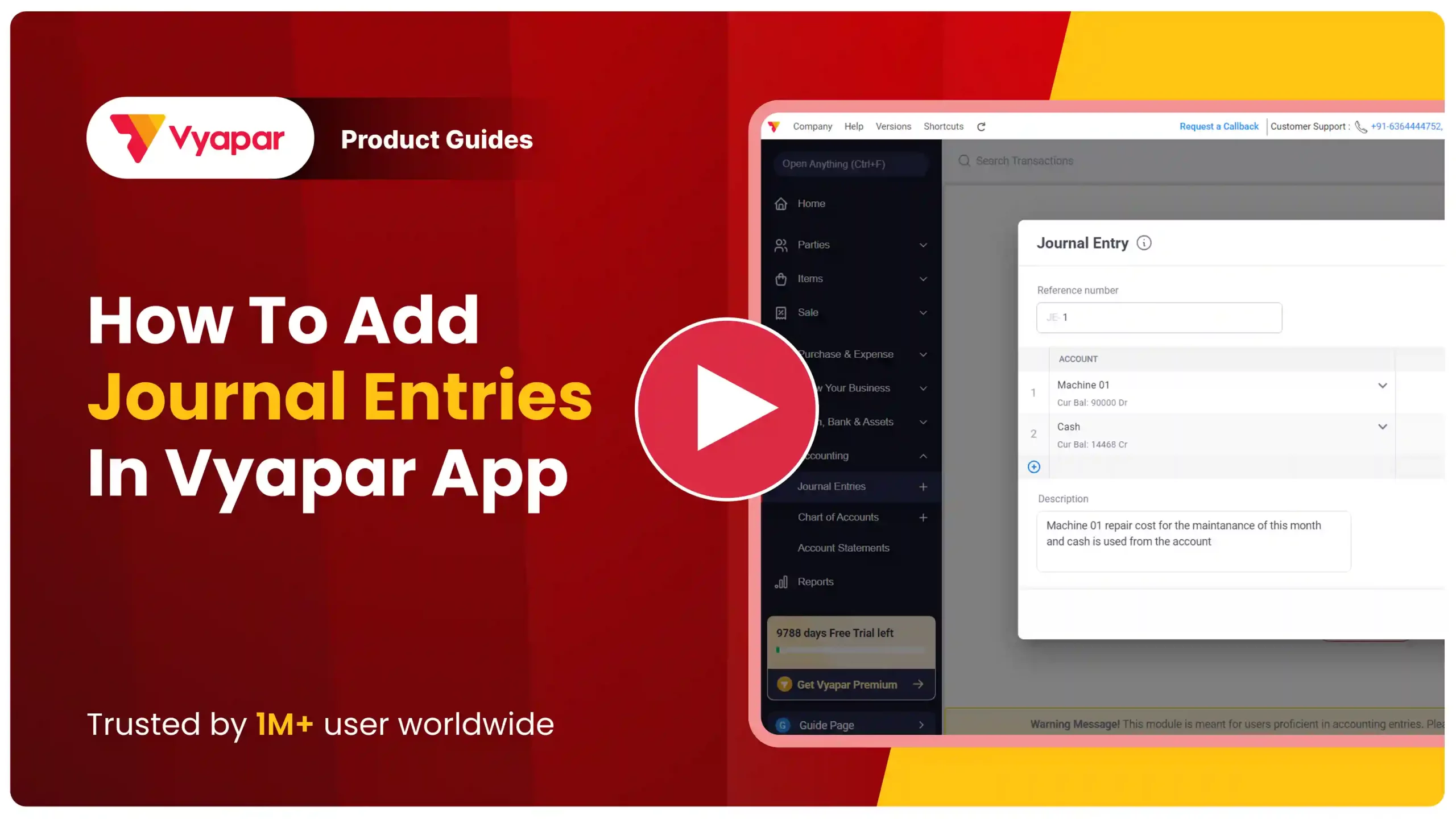
Add Journal Entries: Desktop Guide.
Still stuck? Get help in minutes.
Our support team is ready to help you succeed.
 24/7 Support
Where Will You Use These Details?
Once your Journal Entries are saved, they impact your financial health tracking in these areas:

General Ledger
Every journal entry is reflected in your Ledger reports, ensuring that manual adjustments are accounted for alongside automated invoices.
Profit & Loss Statement
Adjustments for expenses like depreciation or bank charges will accurately update your net profit figures.
Audit Trails
These entries provide a clear record for accountants or auditors to see why specific balances were shifted between accounts.
Frequently Asked Questions (FAQs)
Why can’t I see the Journal Entry option in my menu?
You likely haven’t enabled it yet. Follow Steps 02-04 to activate the Allow Journal entries feature in your Accounting settings.


Will Journal Entries affect my profit and loss report?
Yes. Any entry involving income or expense accounts will reflect in your Reports > Accounting Reports > Profit & Loss.
Can I use Journal Entries for cash sales?
While possible, it is recommended to use the “Add Sale” button for sales to ensure your GST reports and inventory are updated correctly.
Ready to Fix Your Books?
Start journal entries today and cut your manual errors by 100%.
 Download Vyapar Now





