
How to Change/Close the Financial Year in Vyapar App?
Are you preparing your business for the upcoming financial year?
Follow this step-by-step guide to seamlessly transition to the new financial year on both Desktop and Mobile without losing any data.


Before You Start

Sync Your Data: Ensure all your data is synced with the server to prevent loss ( If you are a Premium User).
Take a Back-Up before you Close the Financial Year. Go to the Main Menu > Sync, Share & Back-up > Back-up to Drive/Computer (Rename it for future reference) > Save the File.
Before closing the financial year, make sure all the entries are made. Once the close is finalized, you can’t do back-dated entries.
Guide to Change/Close Financial Year in Vyapar
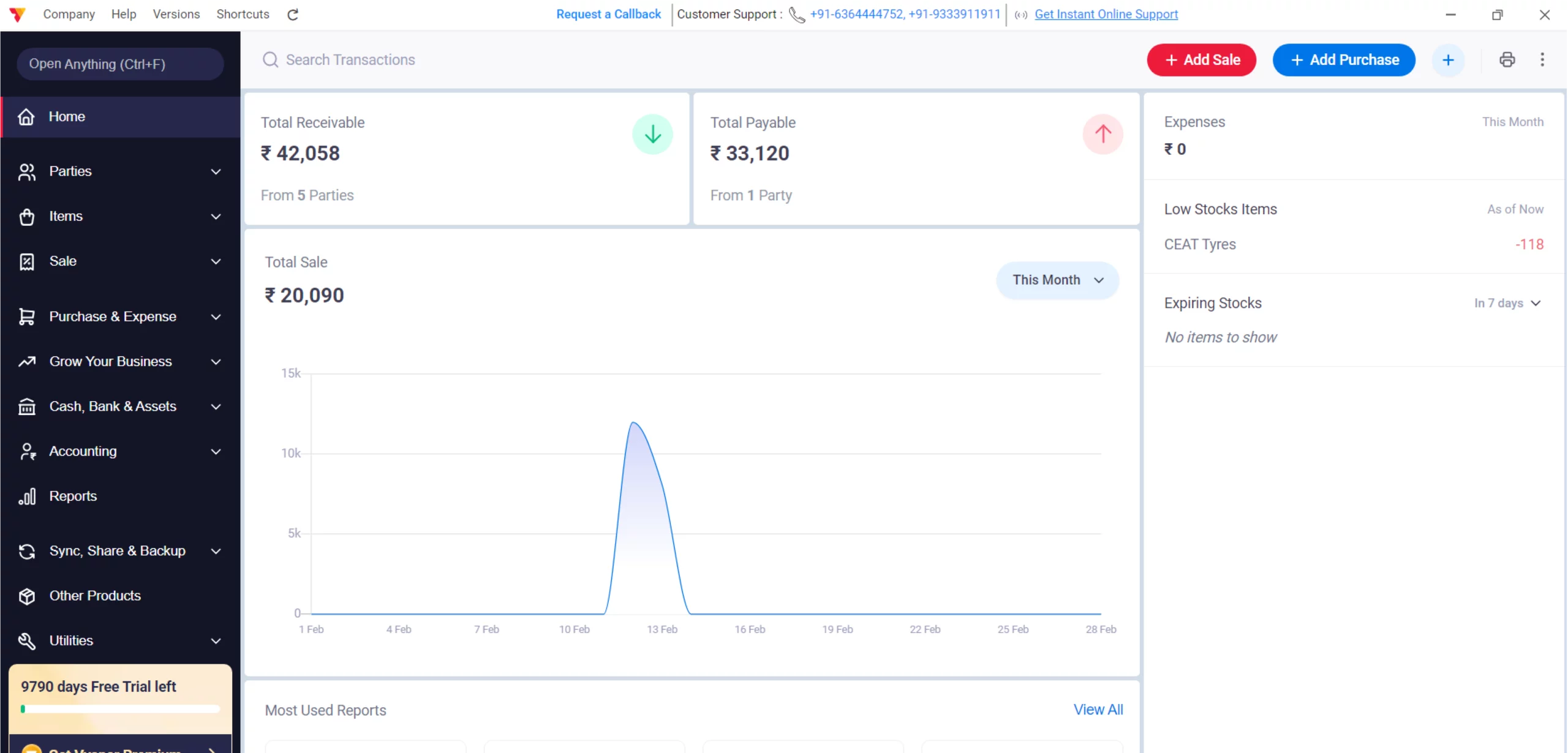
Open Vyapar App
Launch the Vyapar App on your Desktop device.
01
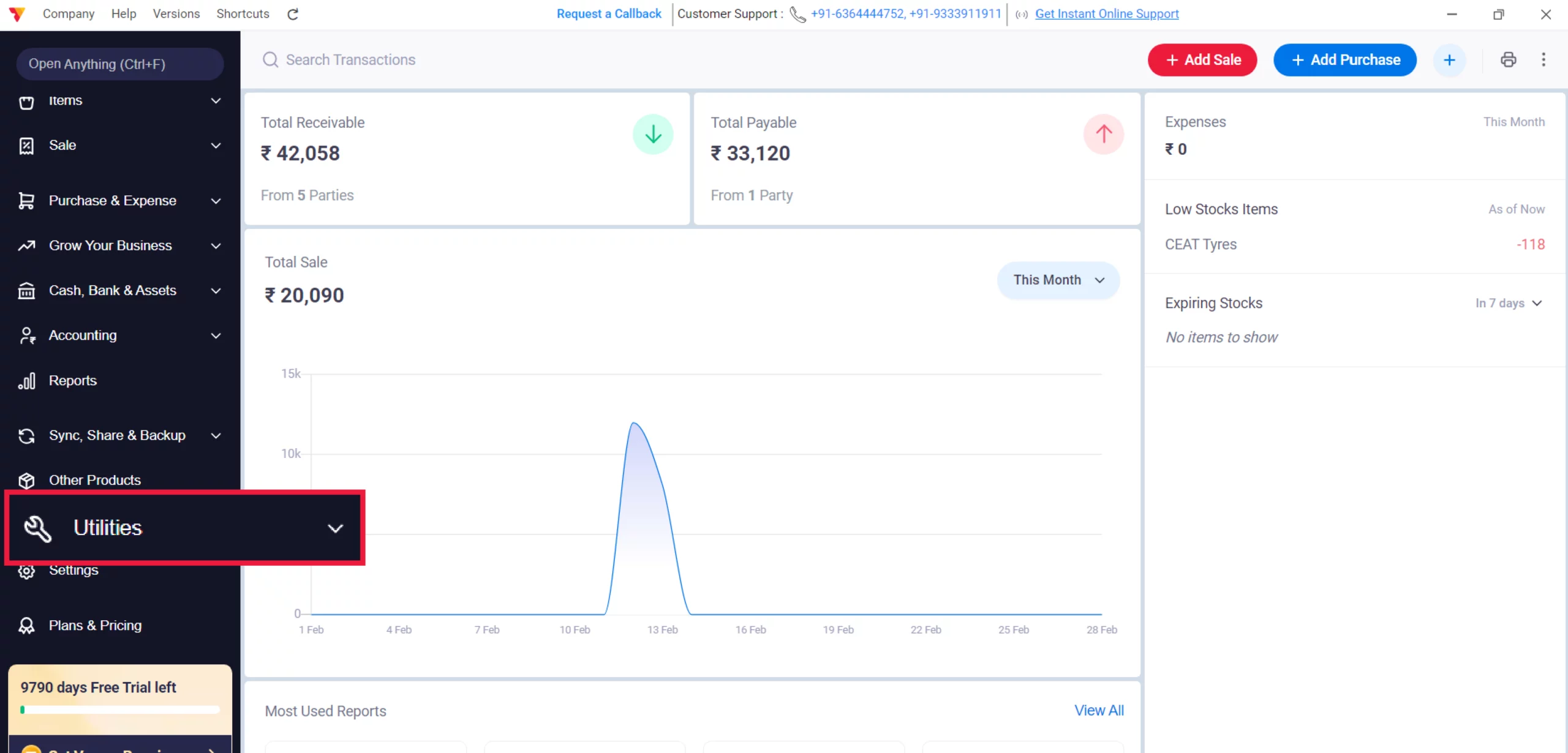
Access Utilities
Navigate to the Left Menu on your dashboard, locate the Utilities option, and click it.
02
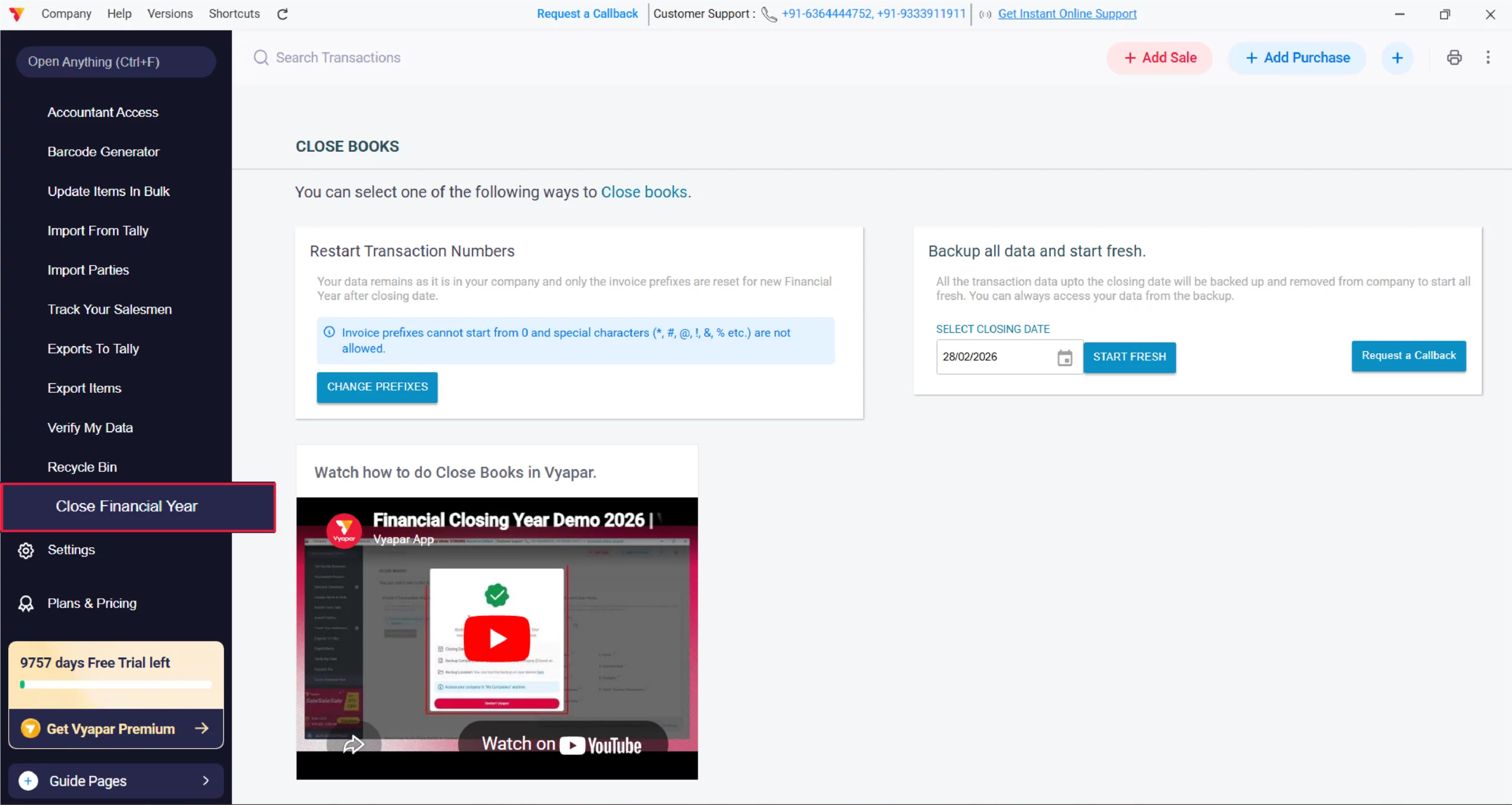
Select Close Financial Year
Scroll through the Utilities menu and click on the “Close Financial Year” option.
03
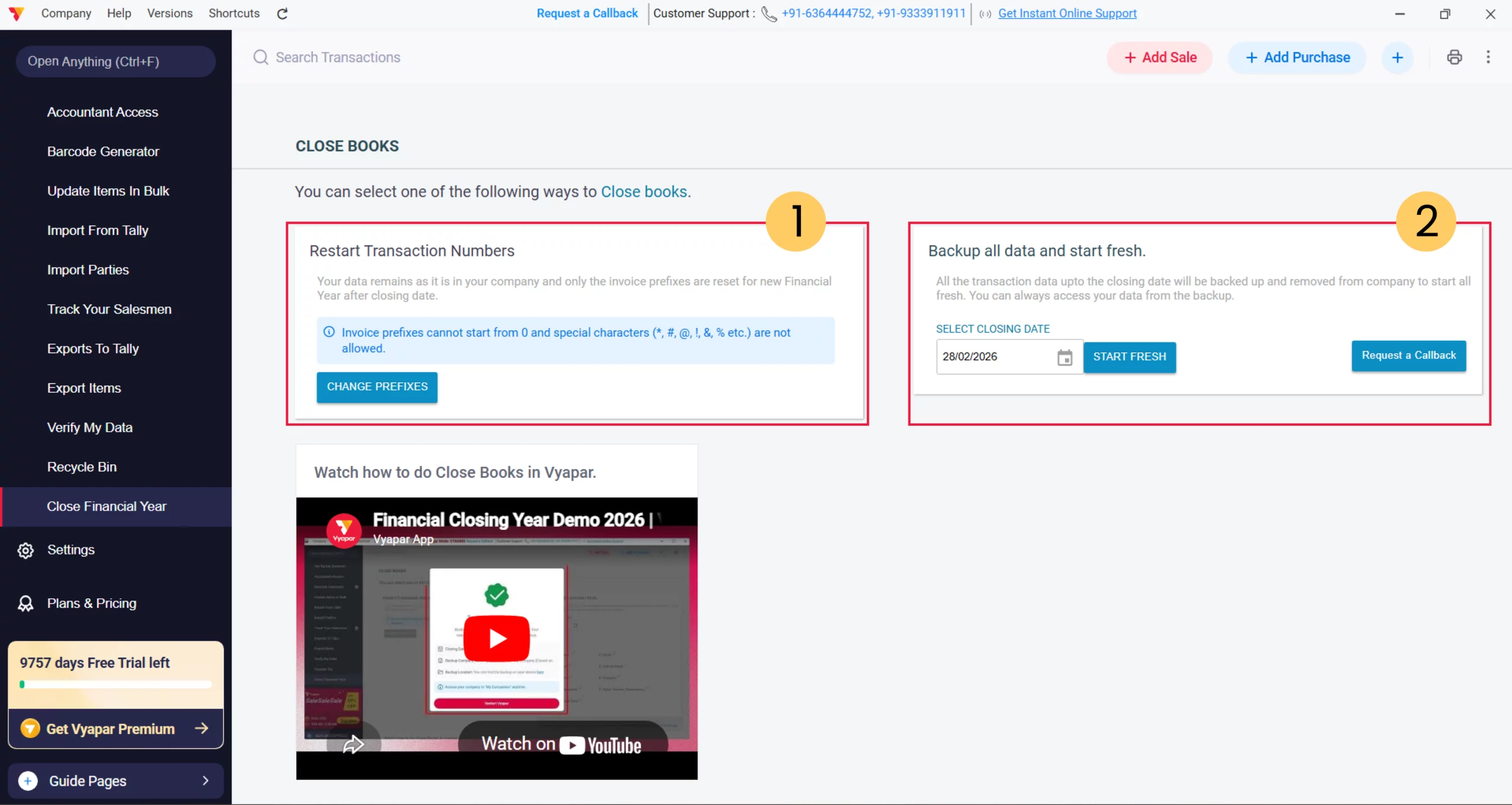
Choose Close Financial Year
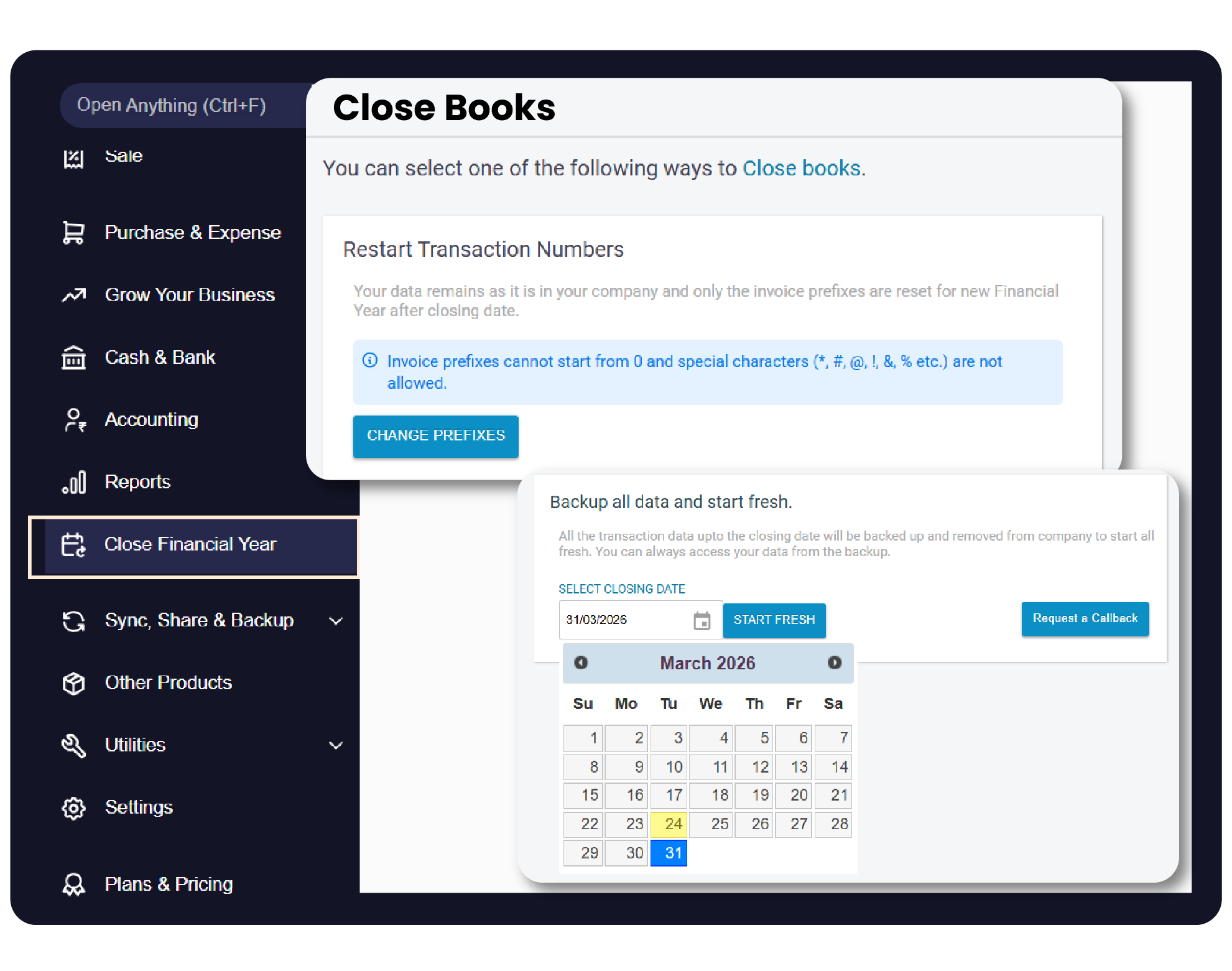
There are two options:
Restart with Transaction Numbers
Backup All Data and Start Fresh
04
Watch Step-by-Step Video Guide to Close Financial Year
Close Financial Year: Desktop Guide.
Scenario A: Restart Transaction Numbers (Recommended for Continuous Data)
- This method keeps all your historical data in one company file but resets your invoice numbering for the new year.
- In this method, you continue using your existing company file but simply reset your invoice numbering for the new prefix with invoice number 01.
How it works:
- You change your invoice prefix (e.g., from 25-26/ to 26-27/) and reset the starting number to 1.
What happens to your data?
No Data Loss: You stay in the same company file.
Full History: You can easily search and access all past transactions (sales, purchases, etc) from previous years.
Accounts Continuity: All accounts and balances continue seamlessly.
A
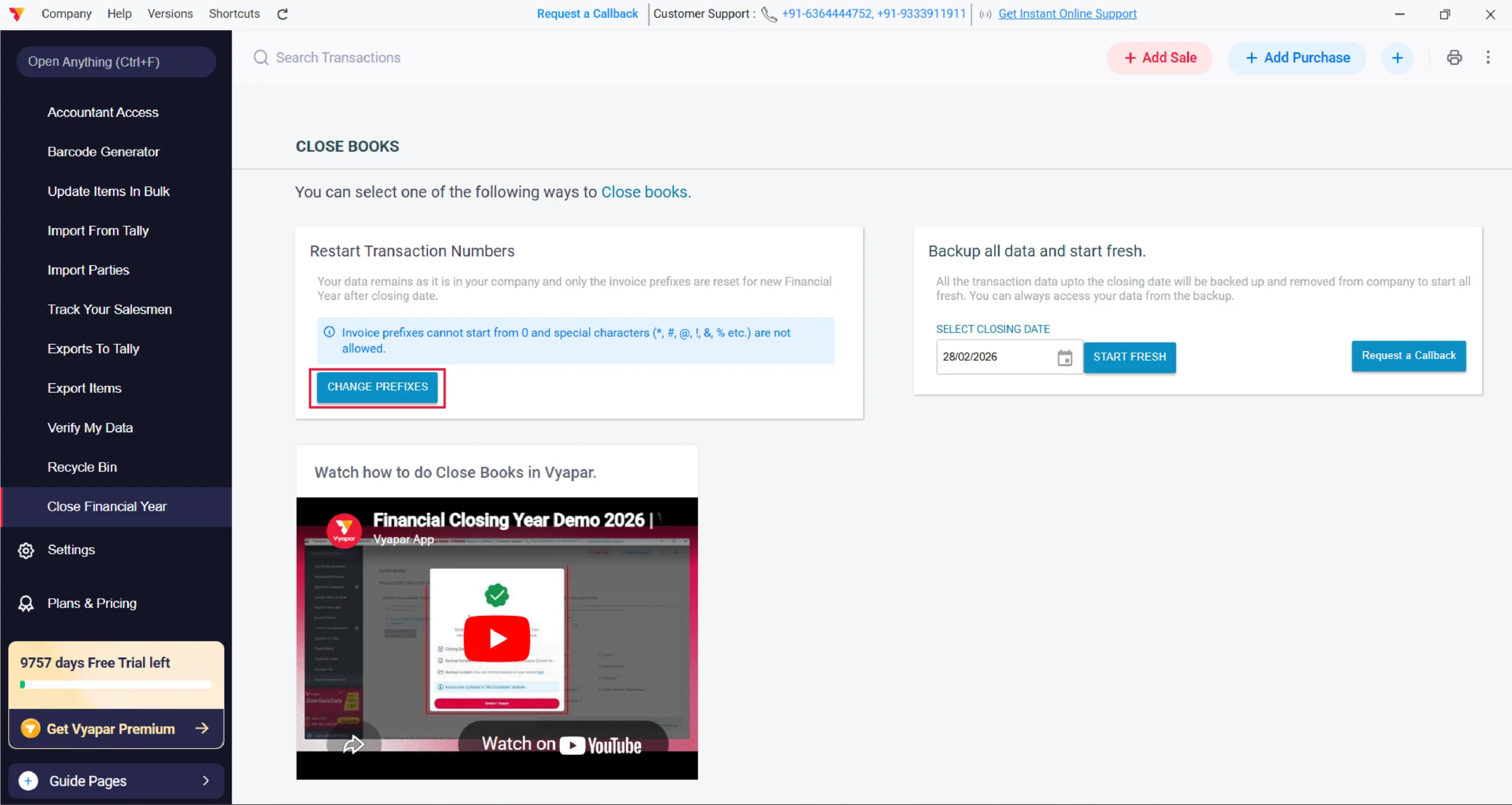
Select “Change Prefixes”
Click on “Change Prefix” if you are choosing scenario A
Tip: Use “/” or “-” signs in your prefix for better visibility.
Invoice prefixes cannot start from 0, and special characters (*, #, @, !, &, %, etc.) are not allowed.
5/A
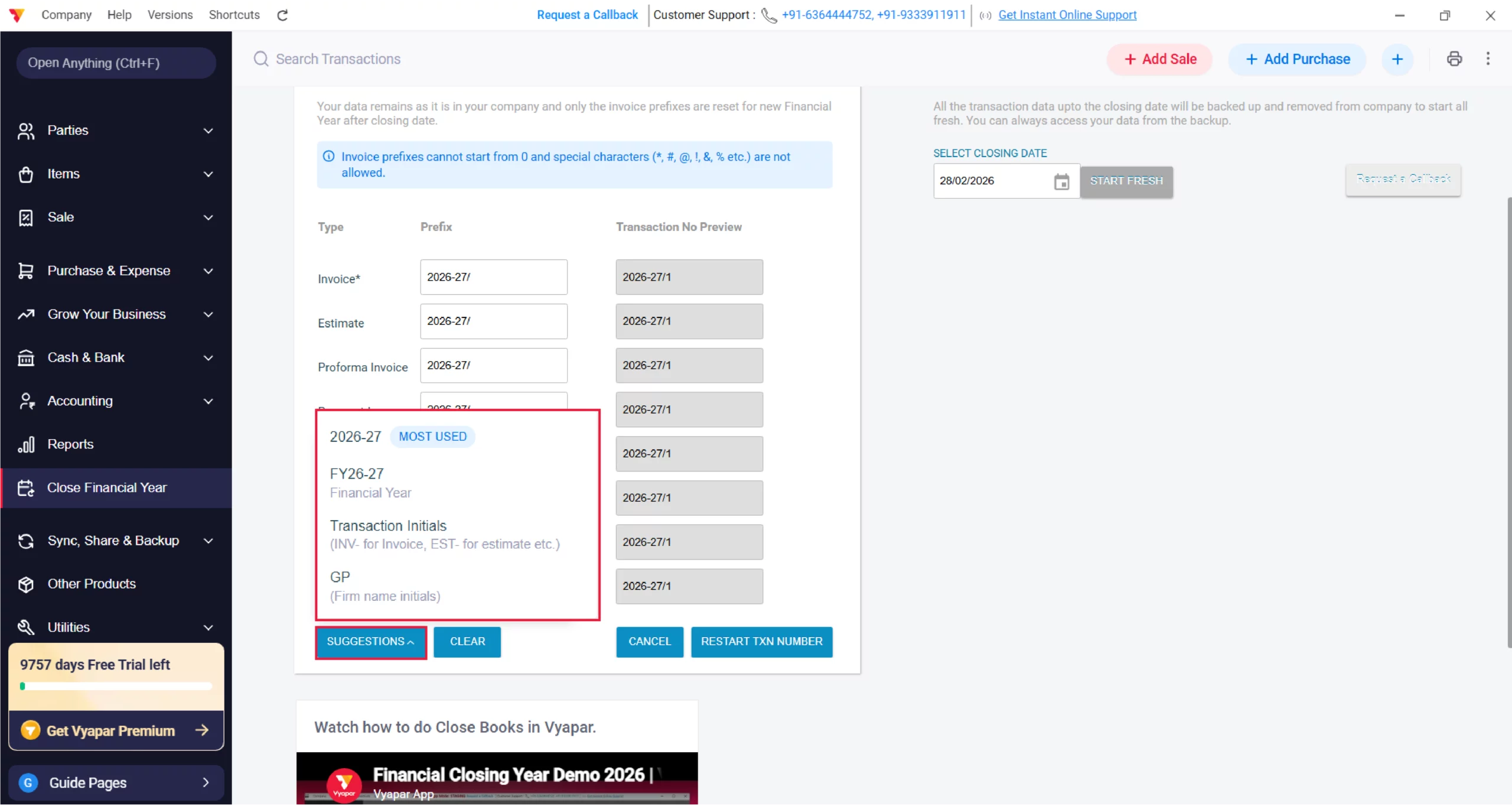
Customize Your New Sequence
Now you have two ways to set up your new numbering:
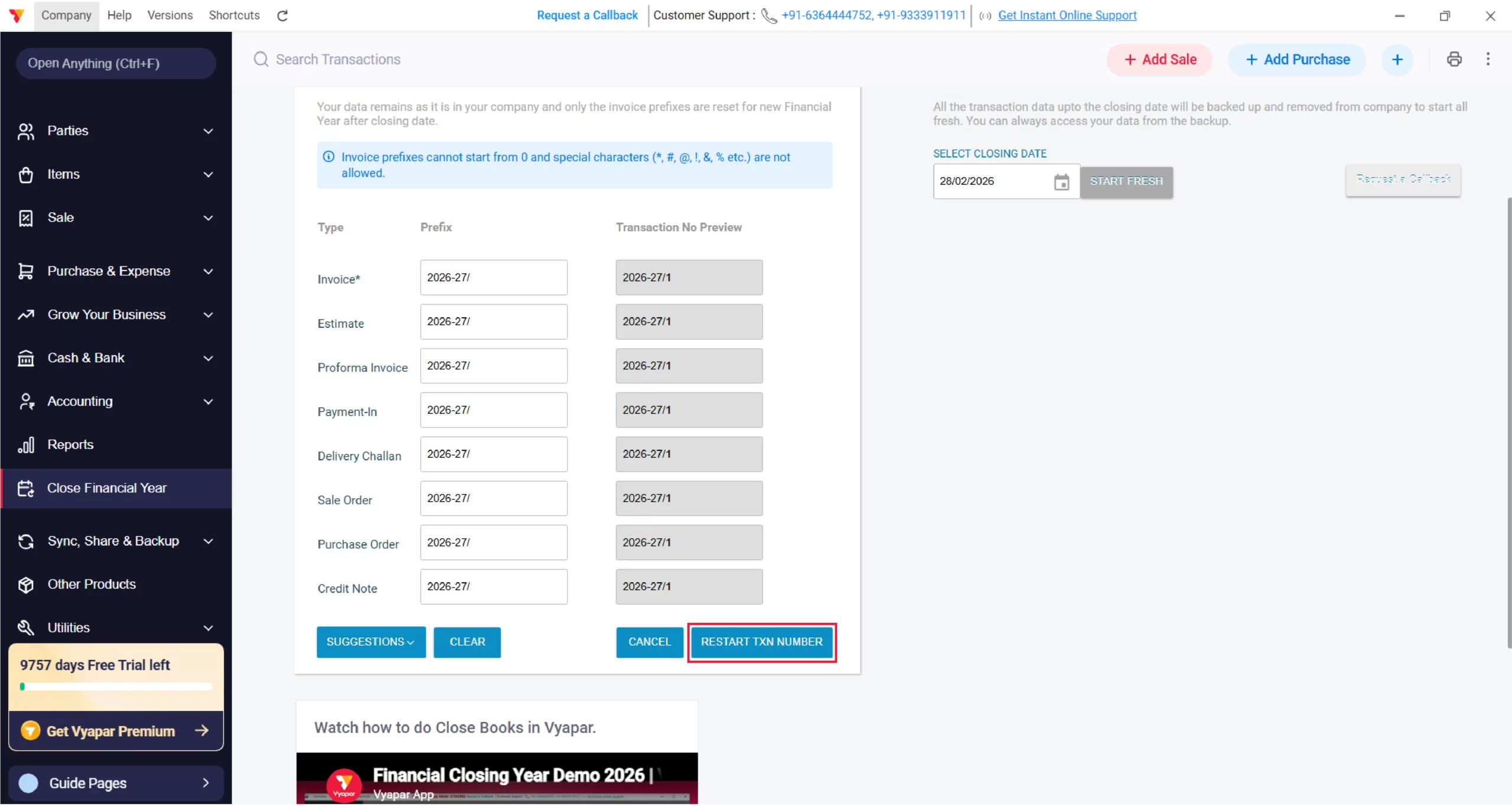
Use Suggestions: Click the SUGGESTIONS button to see recommended prefixes based on the new financial year (e.g., 2026-27/).
Manual Entry: You can manually type your preferred prefix (e.g., GP-26-27/) directly into the prefix boxes for Invoices, Estimates, or Payments.
Clear and Restart: If you want to start fresh or made a mistake, click the CLEAR button to remove all entries and try again.
6/A
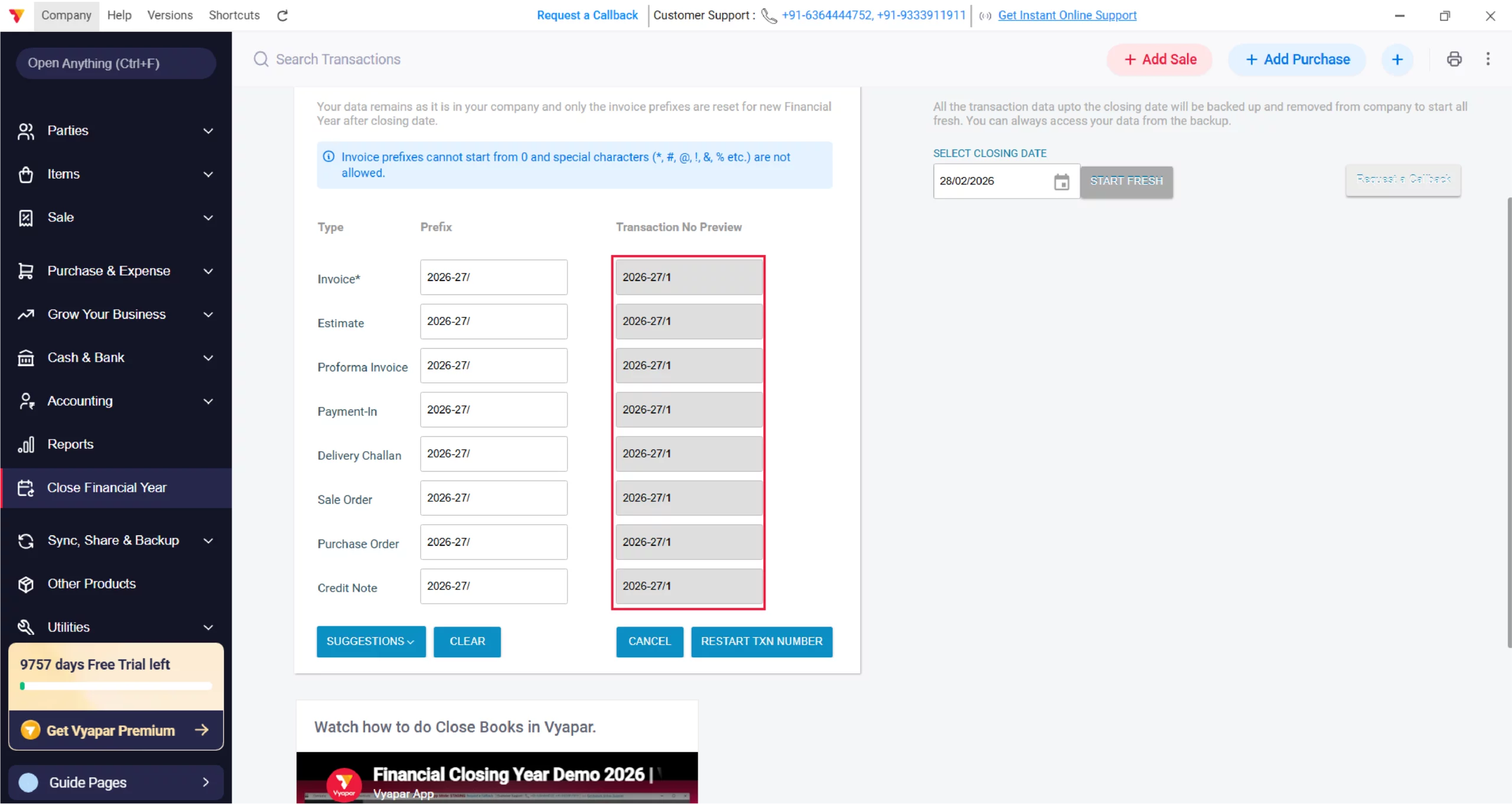
Preview Your Transaction Number
As you add prefixes, look at the “Transaction No Preview” column to see exactly how your first bill of the year will look (e.g., GP-26-27/1).
7/A
Confirm Changes
Once you are satisfied with the preview, click on “RESTART TXN NUMBER” to finalize the update.
8/A
Verify on Add Sale Screen
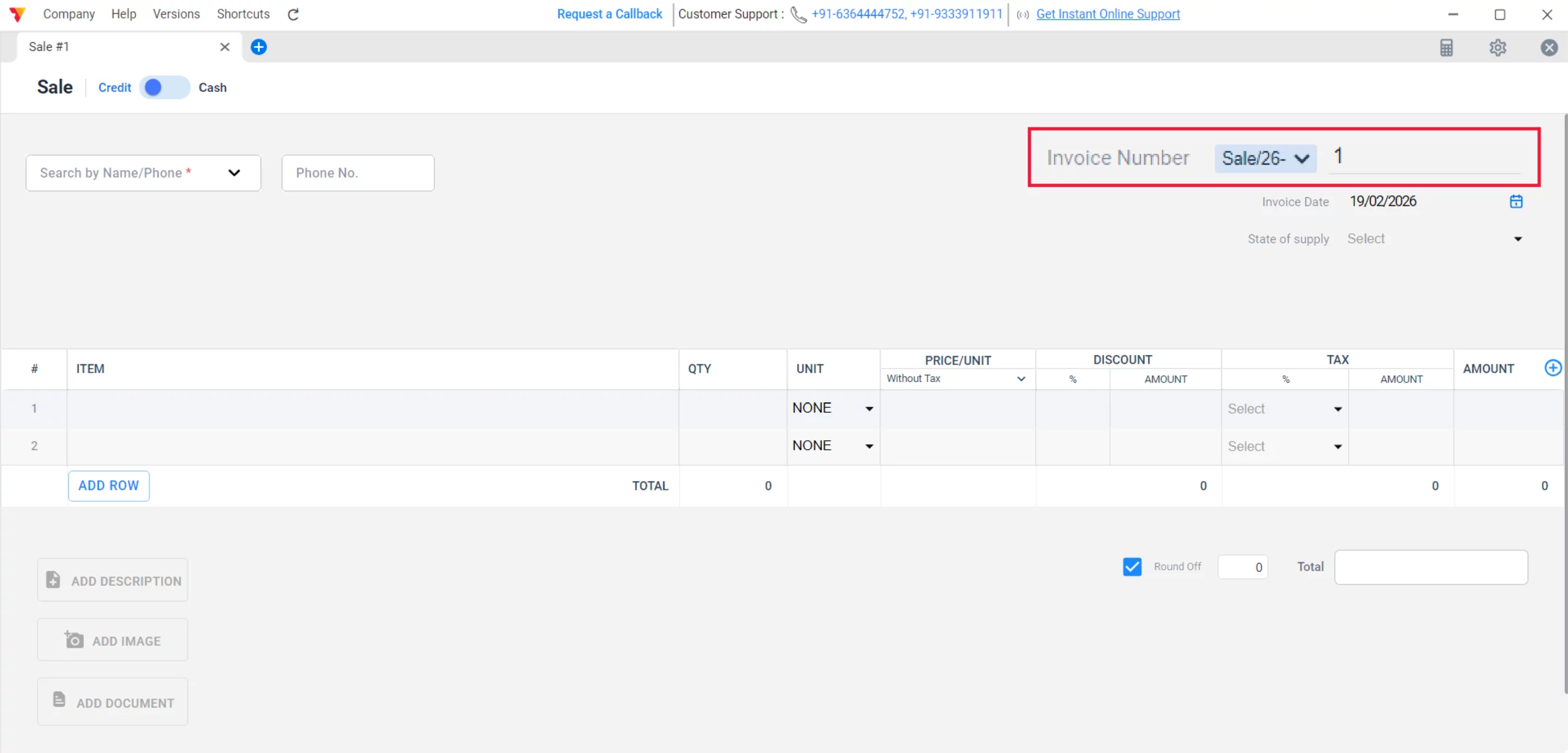
Go to the Add Sale screen to ensure your invoice number has successfully reset to “1” with your new prefix.
9/A
Scenario B: Start Fresh (Best for a Clean Start)
- All your old accounts will be closed, and you will start with a clean start. Your previous data is safely stored in a separate local folder, which you can restore at any time if you need to check old records.
- Check this before you close the financial year in “Vyapar App”
- Close all Sales & Purchase Orders
- Close Delivery Challans & Estimates
- Clear all pending cheques
Note: Changing the financial year does NOT delete your old data. You can switch back to view past records anytime.
What happens in the New Company?
Carried Forward: All your Parties, Inventory, and Open Cheques are automatically moved to the new financial year along with balances. (Opening and closing)
Fresh Start: Old Sales, Purchases, and other transactions will not appear here. It is exactly like closing your books for the last year and starting fresh.
B
Set Closing Date
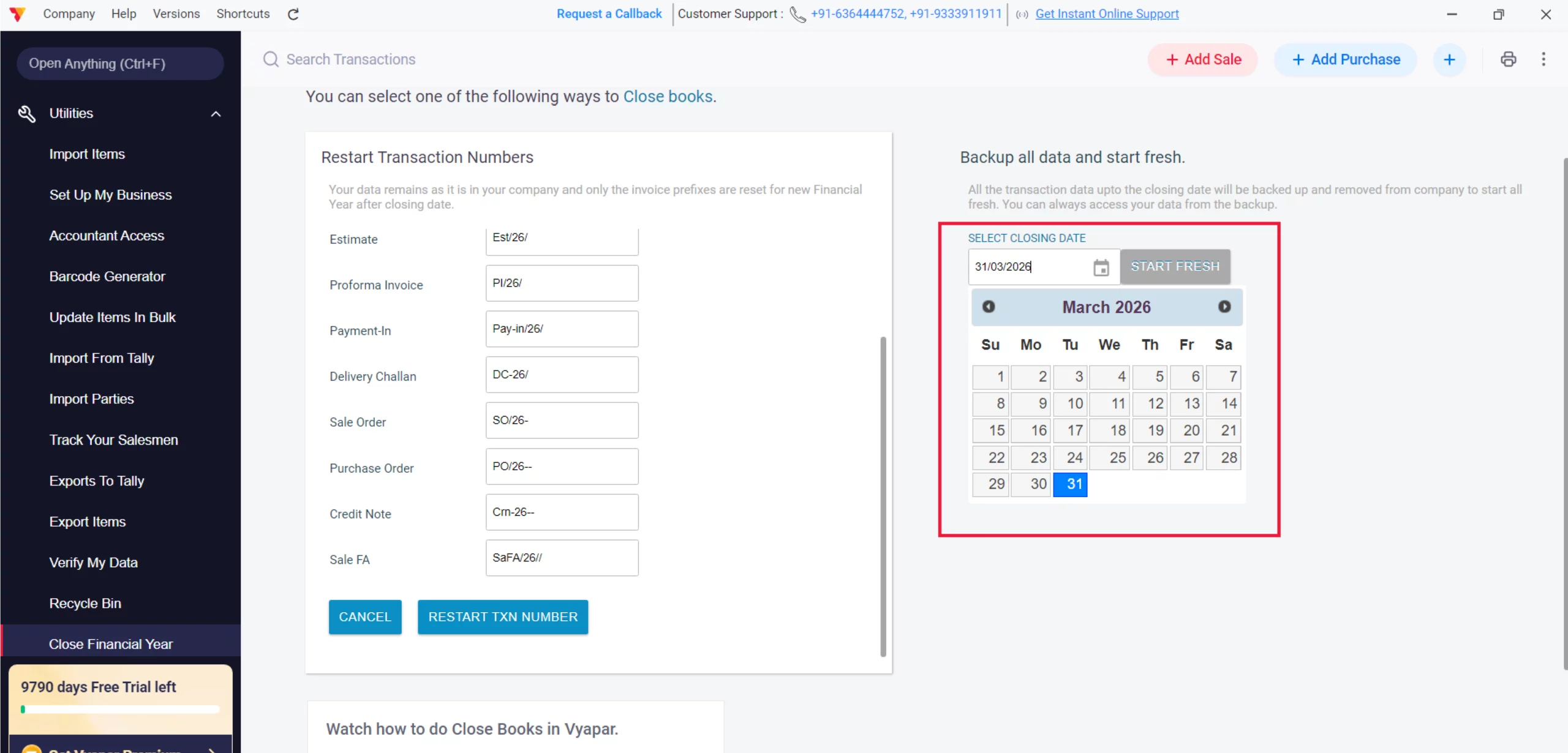
Select the option to “Backup all data and start fresh” and choose the date on which you want the financial year to officially close.
5/B
Save Previous Year Data
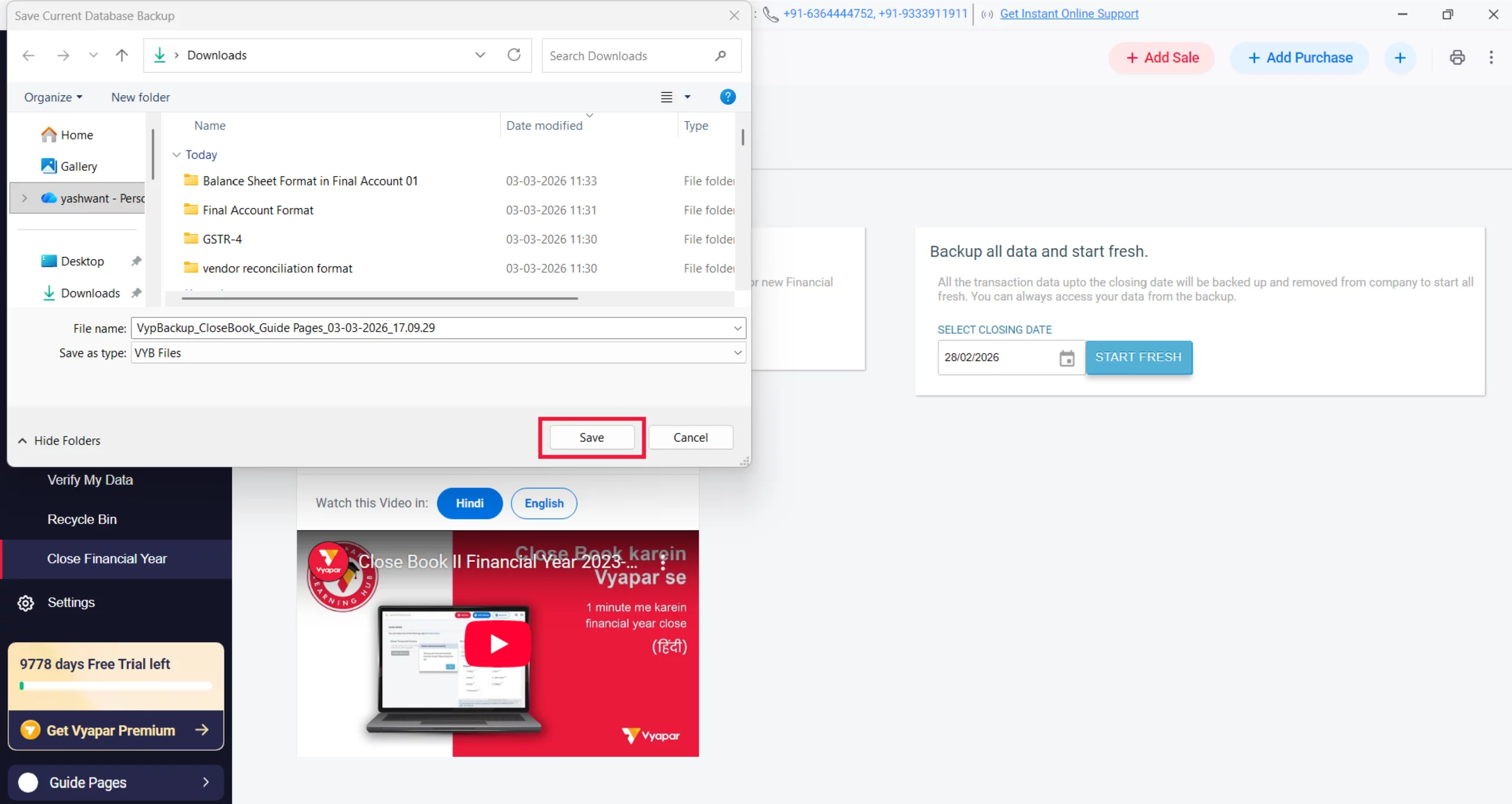
Choose a secure location on your computer to store the old data. Rename the file clearly (e.g., “Old_Year_Records”) and click “Save.”
6/B
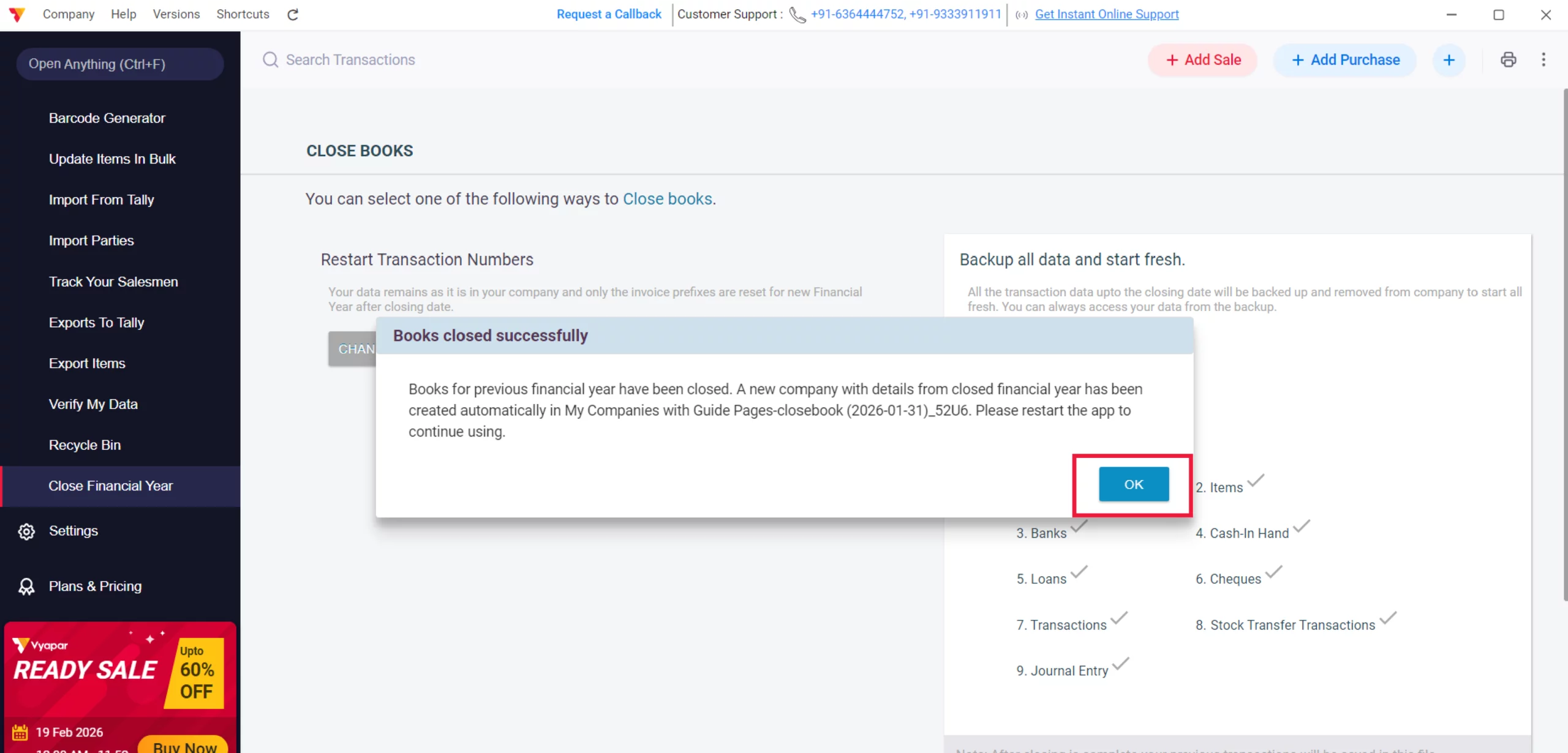
Finalize and Restart
Once the backup is complete, a confirmation box will appear stating “Books closed successfully.” This notification confirms that a new company has been created with your carried-forward details. Click “OK” and restart the app to begin working in the new financial year.
7/B
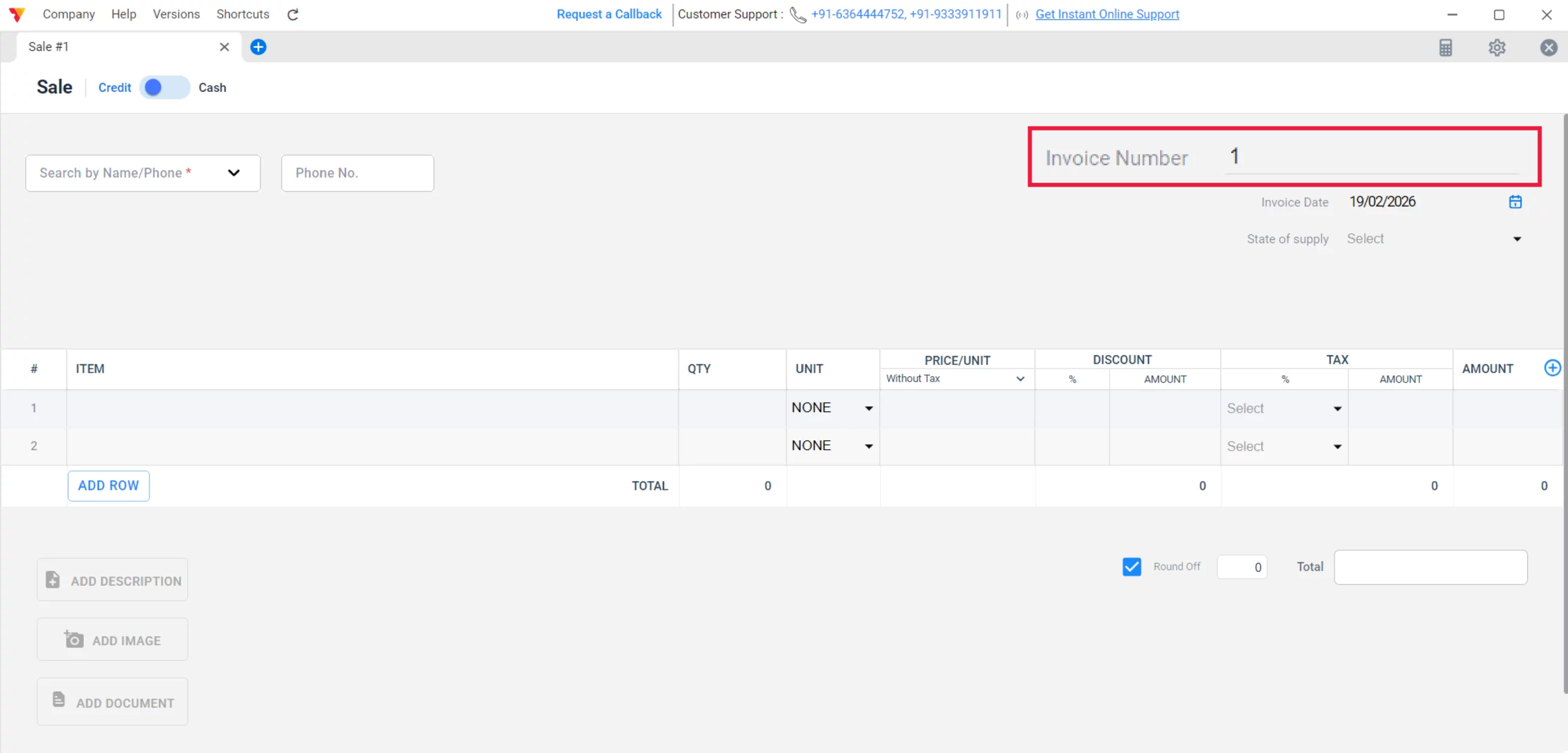
Begin New Billing
Once saved, your company file will refresh. You can now start fresh billing starting from Invoice Number 1.
8/B
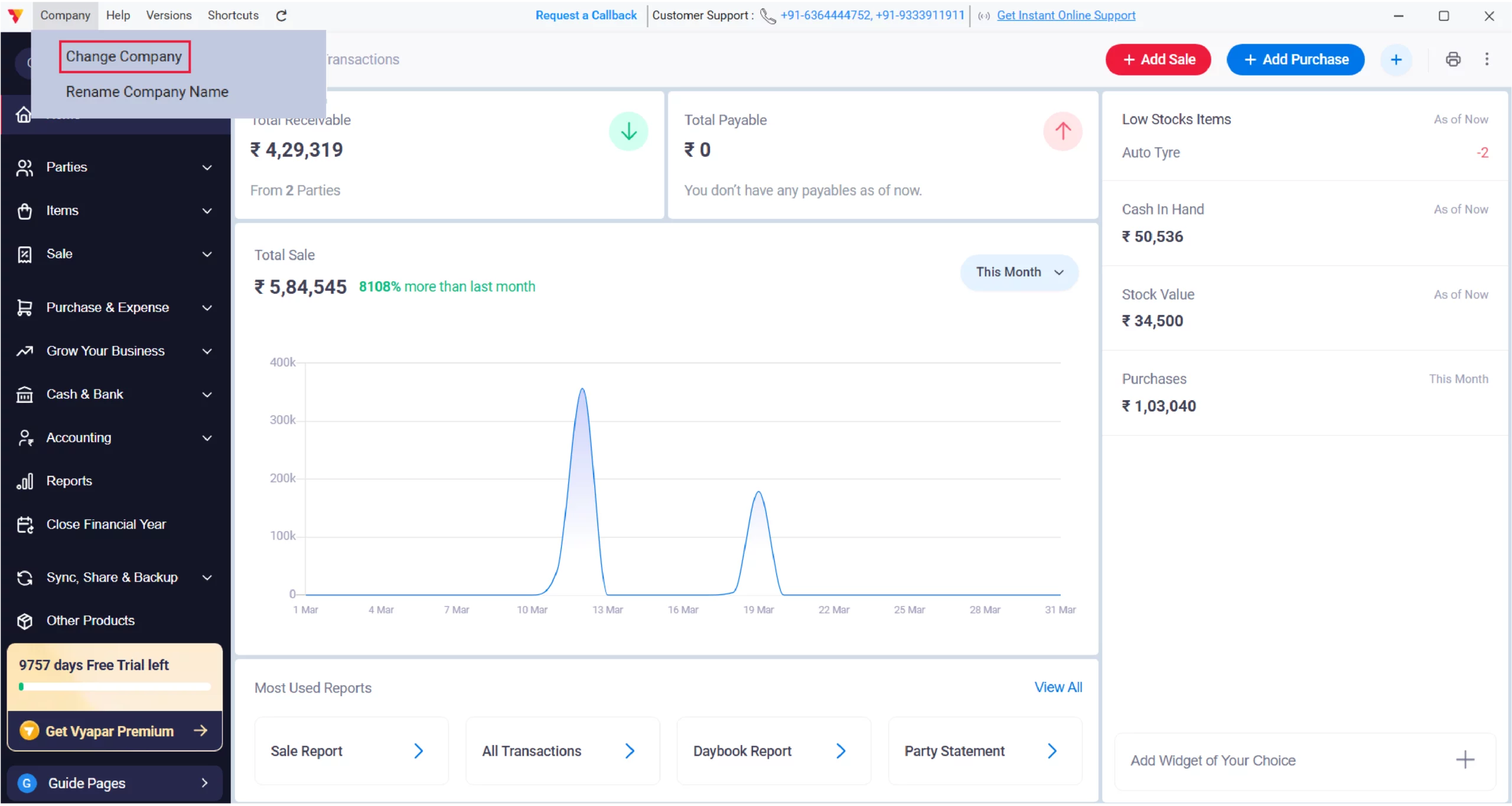
Open the Company Menu
In the top-left corner of your dashboard, click on “Company” and then select “Change Company” from the dropdown list.
9/B
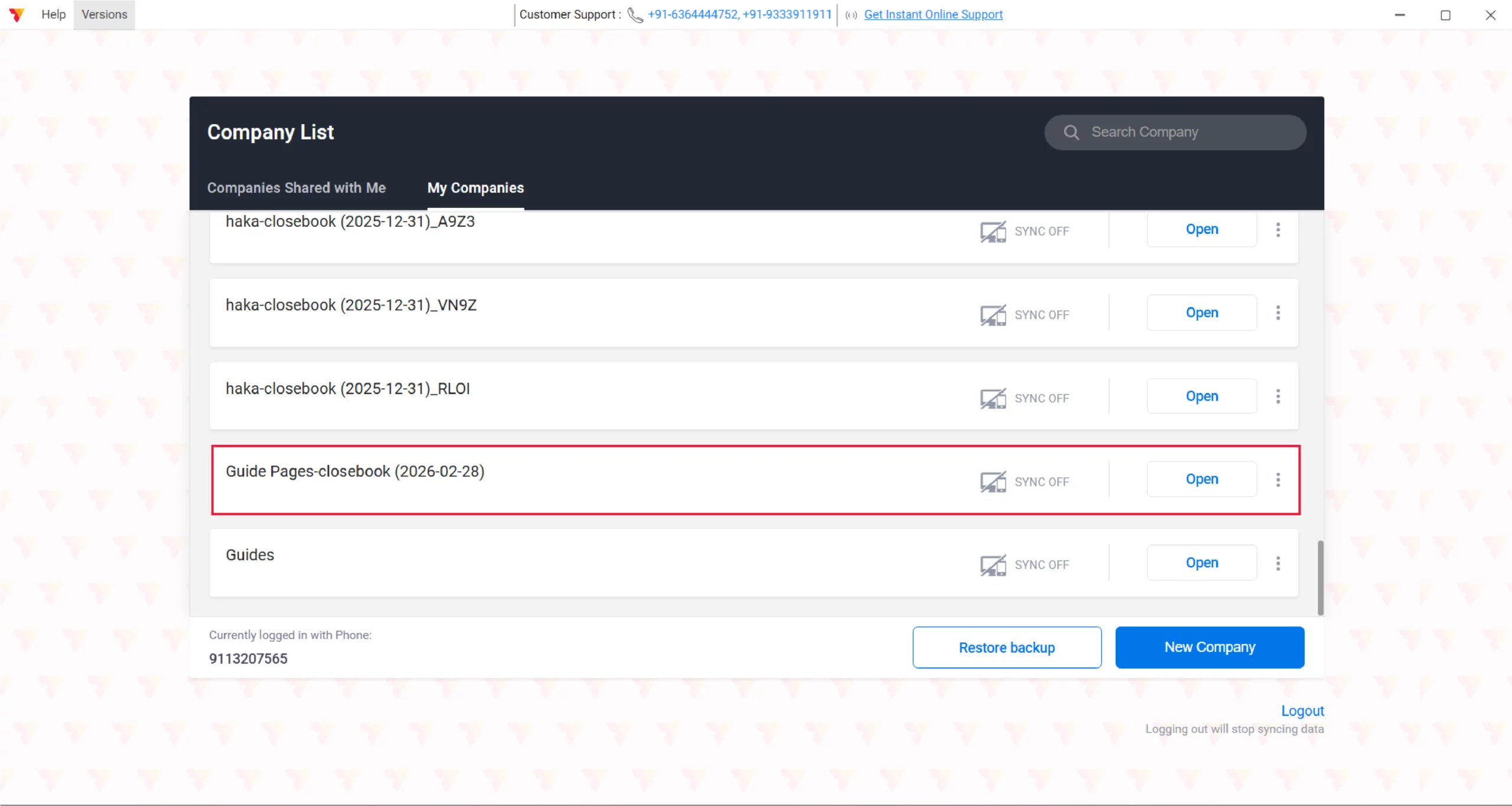
View Your Old Data
A list of all your companies will appear. Scroll down to find the file that has “closebook” and the closing date in its name (e.g., Guide Pages-closebook (2026-02-28)). Click “Open” to view those old records.
If you are a sync user, don’t forget to enable the sync for closed financial companies.
Important Note: After viewing the old data, make sure that you are switching to the new company whenever you are billing.
10/B
Other Related Video
Close Financial Year: Mobile Guide.
Still stuck? Get help in minutes.
Our support team is ready to help you succeed.
 24/7 Support
Why Is This Important for Your Business?
Properly transitioning your financial year ensures long-term operational health and legal accuracy:

Tax Ready Reporting
Properly closing the year ensures your Sales Reports and GST returns for the new period are not mixed with historical records.
Organized Documentation
Resetting invoice numbers with a new year-specific prefix makes it significantly easier to track documents during an Audit Trail or tax inspection.
Balance Accuracy
The transition process ensures that your Total Receivable and Total Payable are accurately carried forward, so you start the year with a clear picture of your cash flow.
Frequently Asked Questions (FAQs)
Will I lose my old data if I choose Scenario B?
No. Your old data is safely stored in the backup file you created. You can restore it anytime via Menu > Sync, Share & Backup > Restore Backup to view records.


Will my customer balances (Outstanding) move to the new year?
Yes. In both scenarios, Vyapar automatically carries forward your Party balances, Inventory quantities, and Open Cheques as “Opening Balances” for the new year.
Can I switch between the old company and the new company?
Yes. If you restore an old backup, you can view it. Just ensure you are switched back to the “New” company file before creating any new current-year bills.
Ready to Start the New Year Fresh?
Close your financial year today and get your books ready 3x faster.
 Download Vyapar Now





