
How to Create an Estimate/Quotation in Vyapar App?
Create and share professional estimates and quotations with Vyapar App in just a few steps. Give customers clear pricing upfront, win their approval, and convert quotes into sales orders or sales invoices effortlessly.

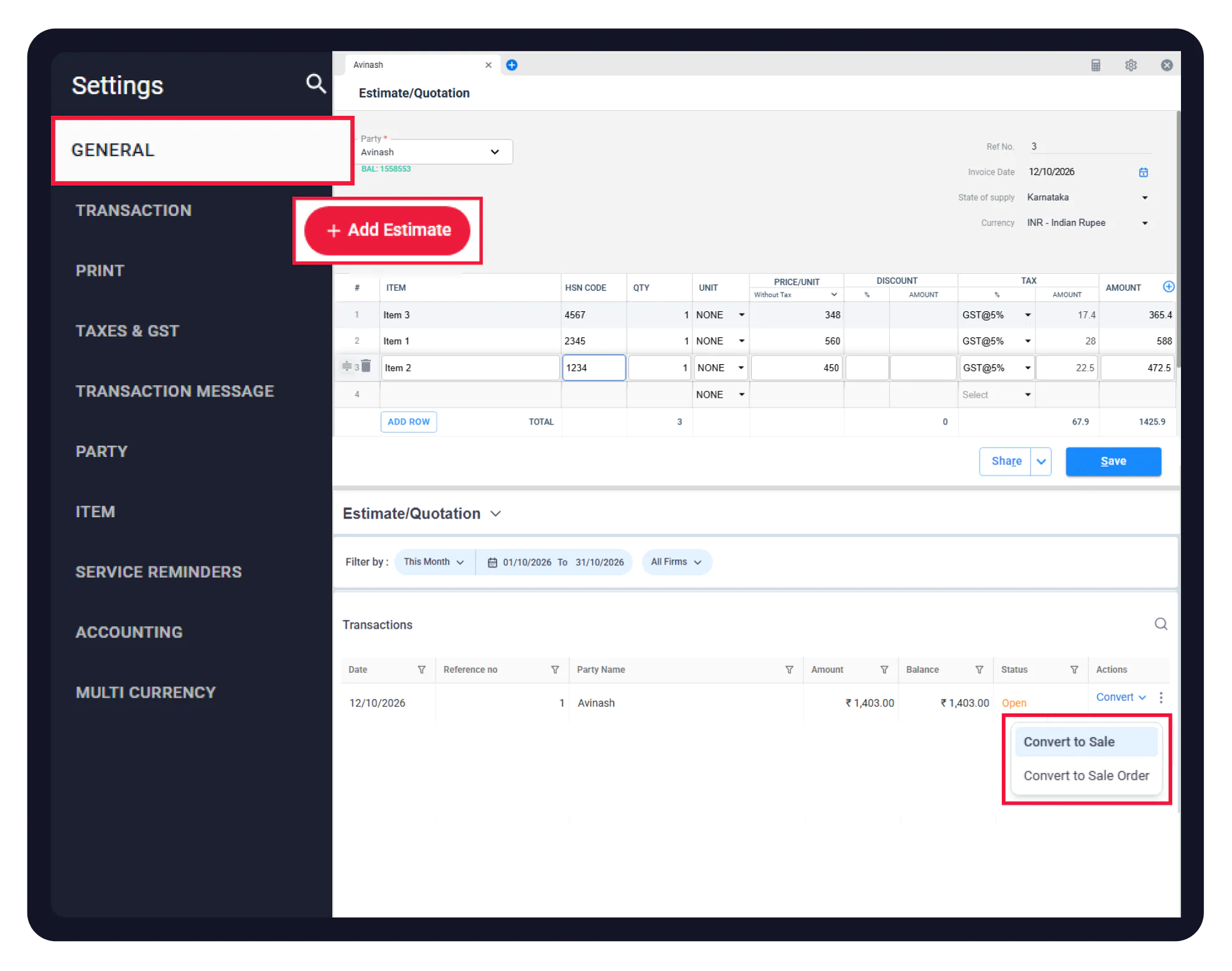

Before You Start

Active Subscription/Plan: Make sure you have an active Vyapar license attached to your system.
Item Details: Make sure your product or service details, including prices, units, quantities, and applicable GST rates, are ready or already saved in the Vyapar App.
Party Details: Make sure you have your customer’s details ready or have already added them to the Vyapar App.
Guide to Create an Estimate/Quotation in Vyapar App:
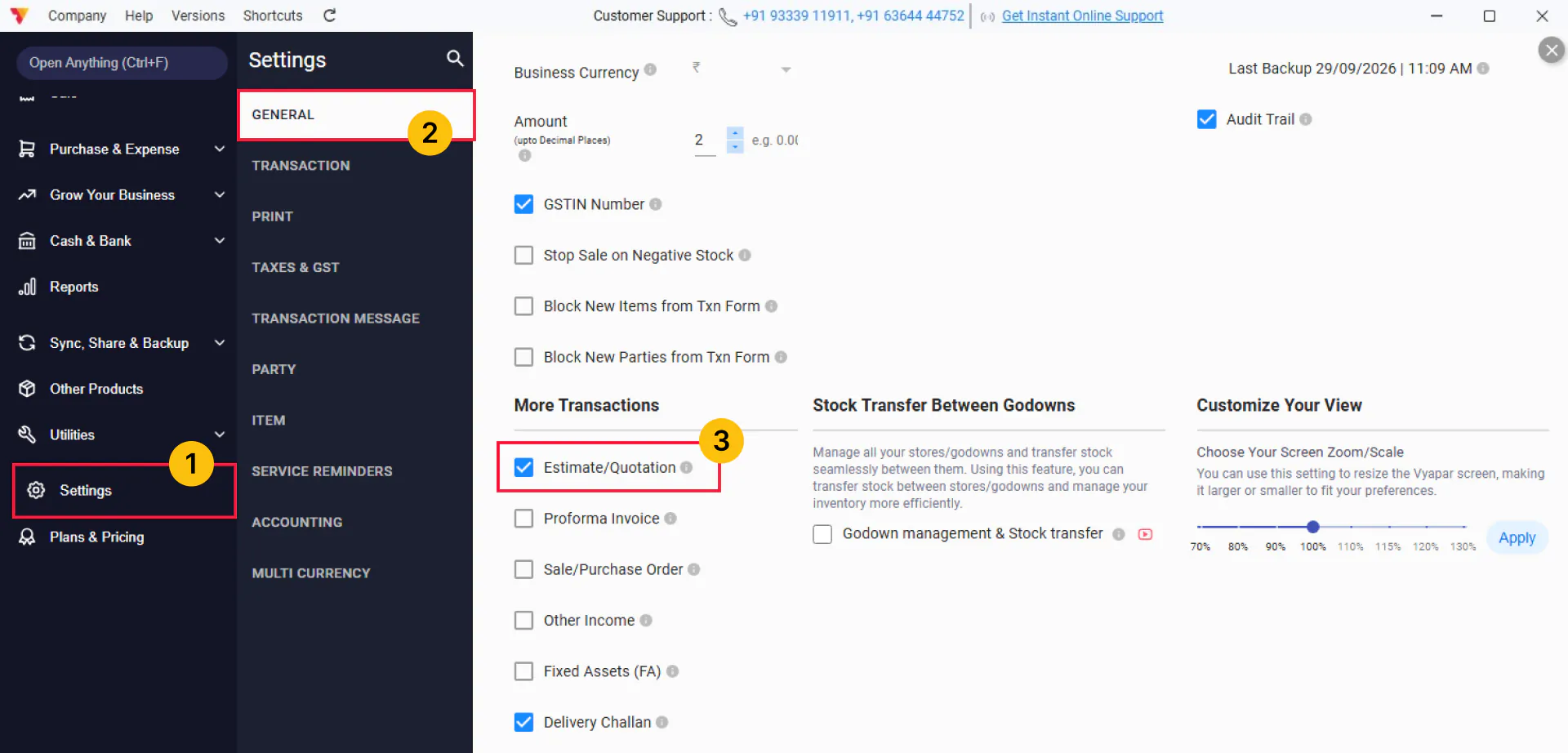
Enable Estimate/Quotation
Open the Vyapar GST billing software, go to Settings > General, and enable Estimate/Quotation under More Transactions.
01
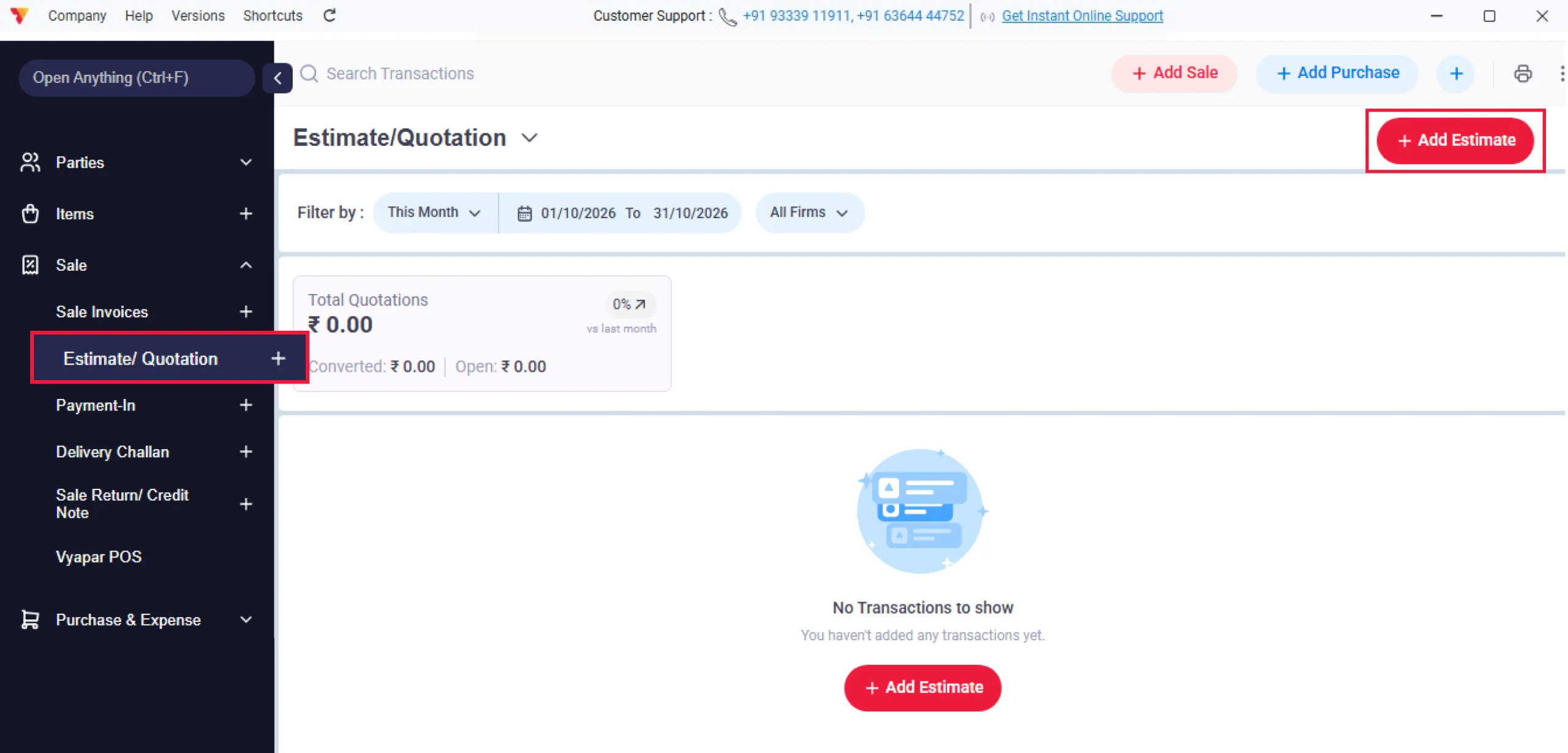
Go to Estimate/Quotation
After enabling the feature, go to Sales > Estimate/Quotation from the left-side menu and click Add Estimate in the top-right corner.
02
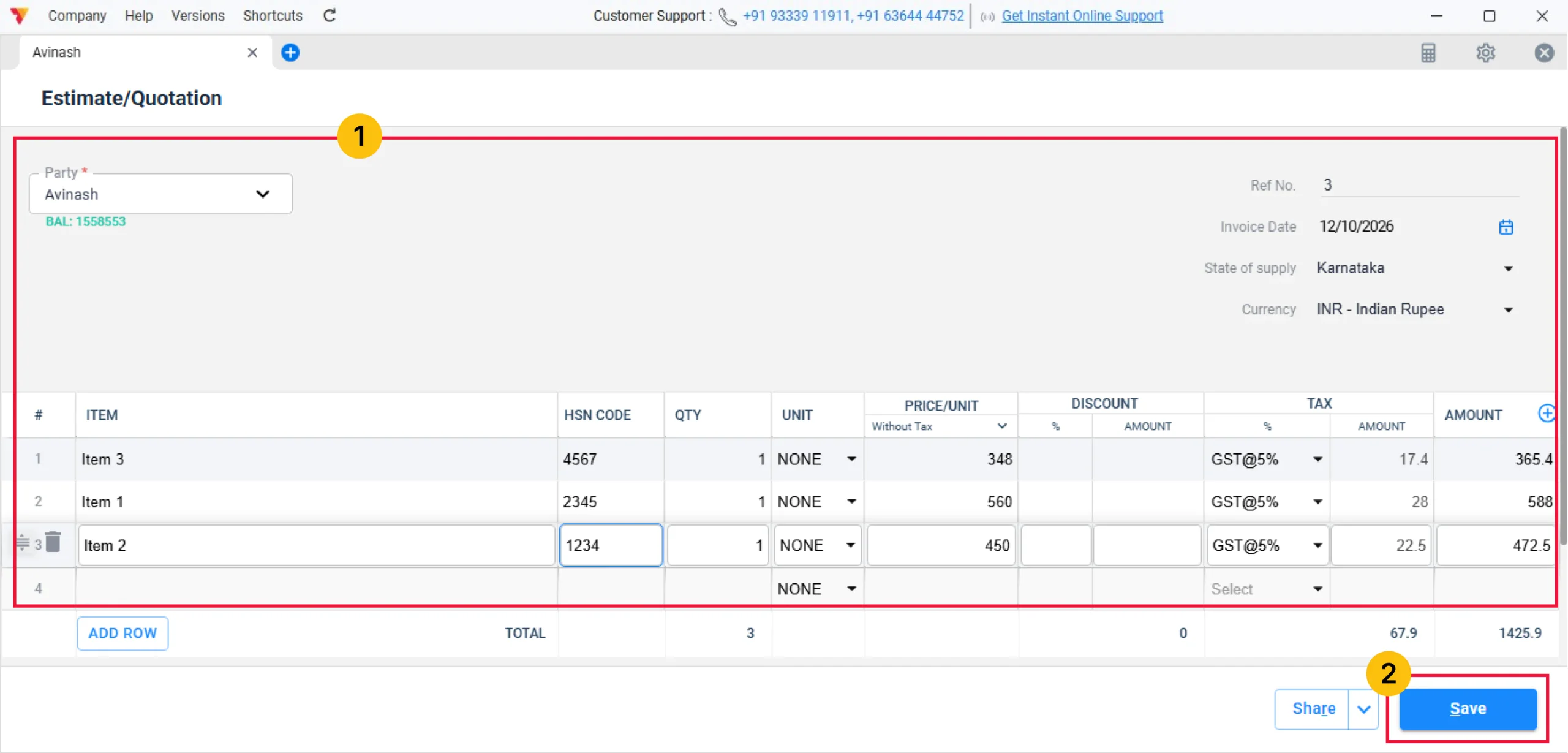
Enter the Required Details and Save It
Enter the required Estimate/Quotation details, including customer information, item name, unit, quantity, price, and GST/tax. Review the details and click Save at the bottom-right corner to create the Estimate/Quotation.
03
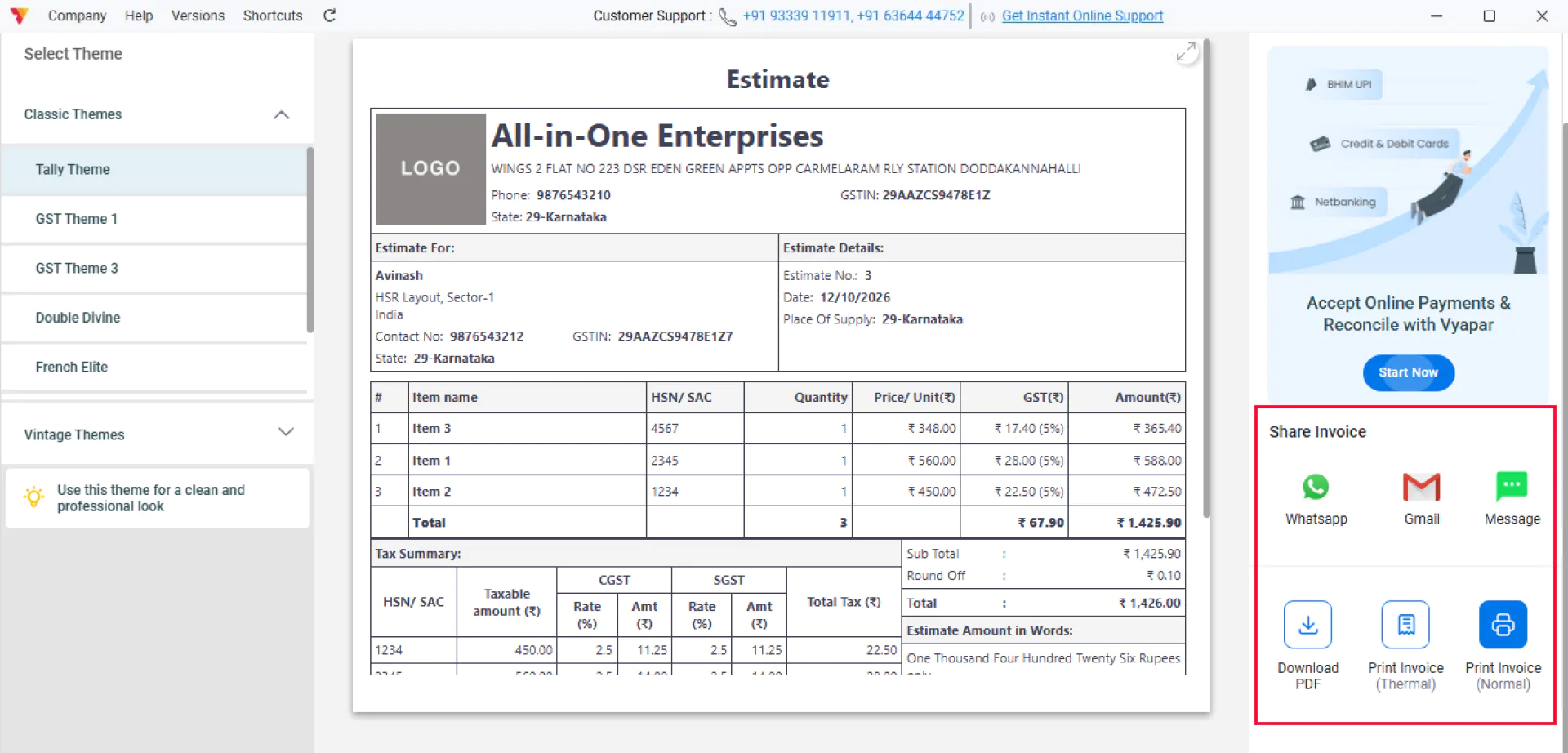
Share, Download, or Print the Estimate/Quotation
After saving the Estimate/Quotation, preview it on the screen. From there, you can share it via WhatsApp or email, download it as a PDF, or print it.
04
How to Convert an Estimate/Quotation into a Sales Order or Sales Invoice
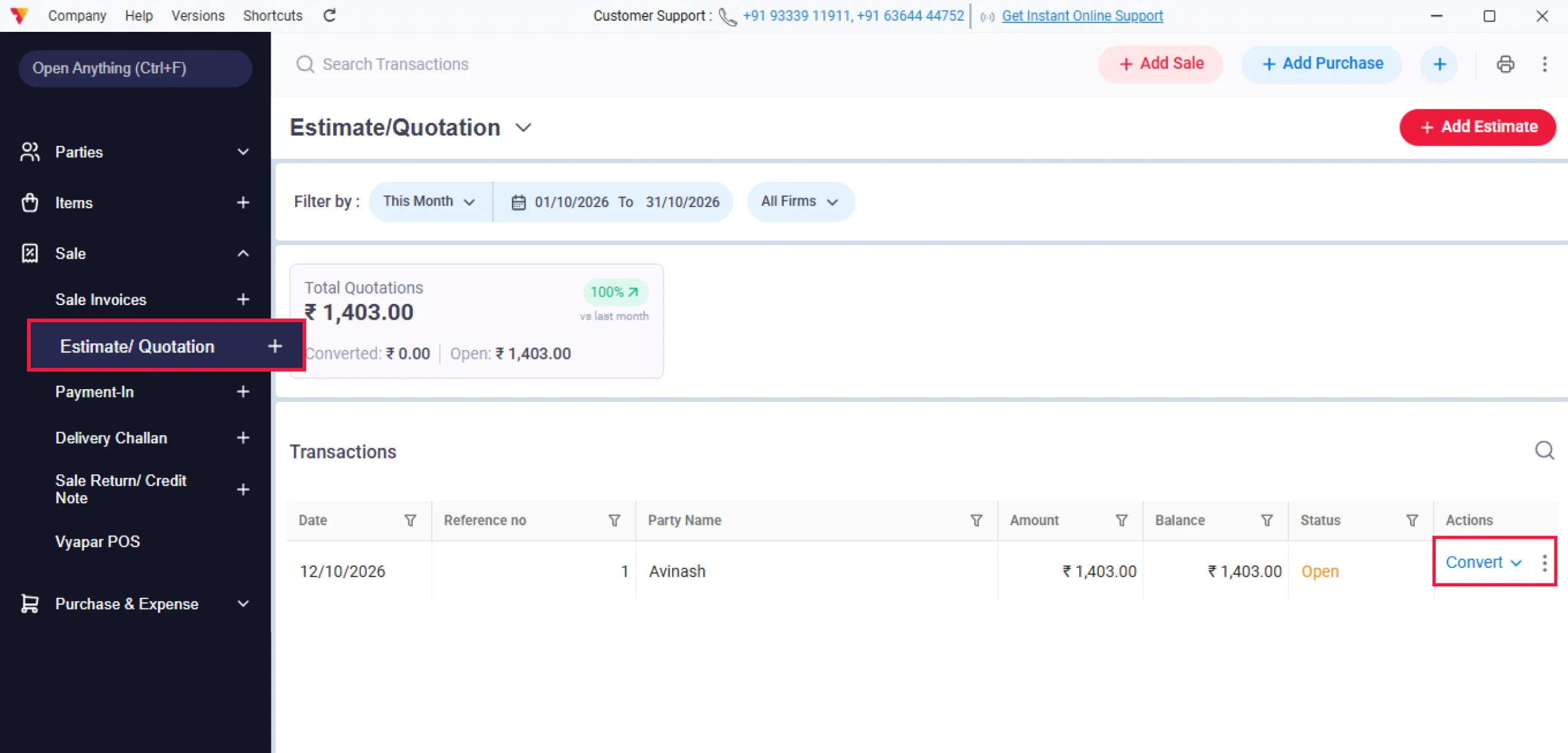
Open Saved Estimates/Quotations
Go to Sales > Estimate/Quotation to view all the estimates and quotations created in Vyapar. Check their current status and find the Convert option in the Action column for each entry.
05
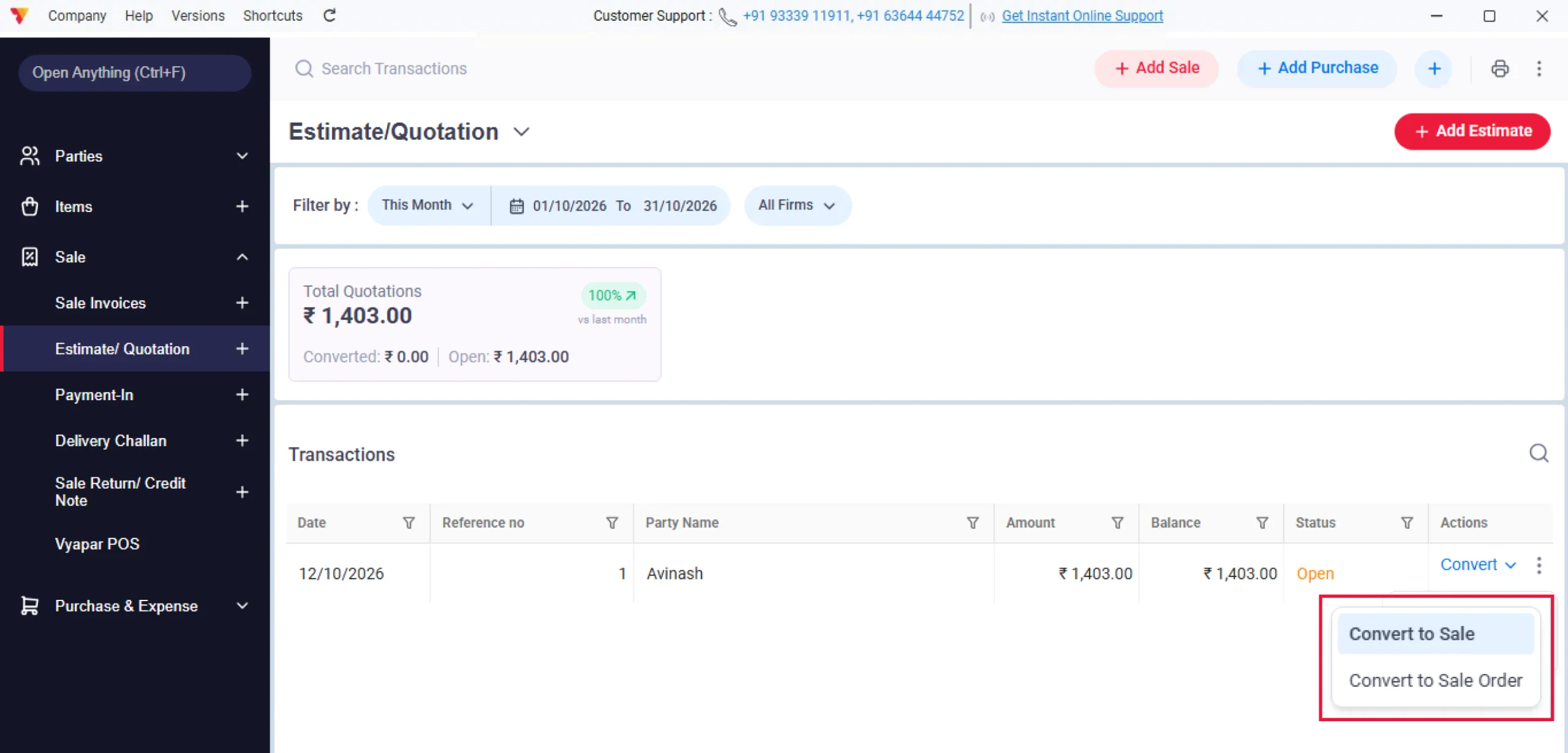
Select the Conversion Option
Click the Convert dropdown for the required Estimate/Quotation.
You will see two options:
- Convert to Sale Order – Select this if you want to proceed with the order for now and create the final invoice later.
- Convert to Sale – Select Convert to Sale when you want to create the final Sales Invoice using Vyapar’s invoicing software.
06
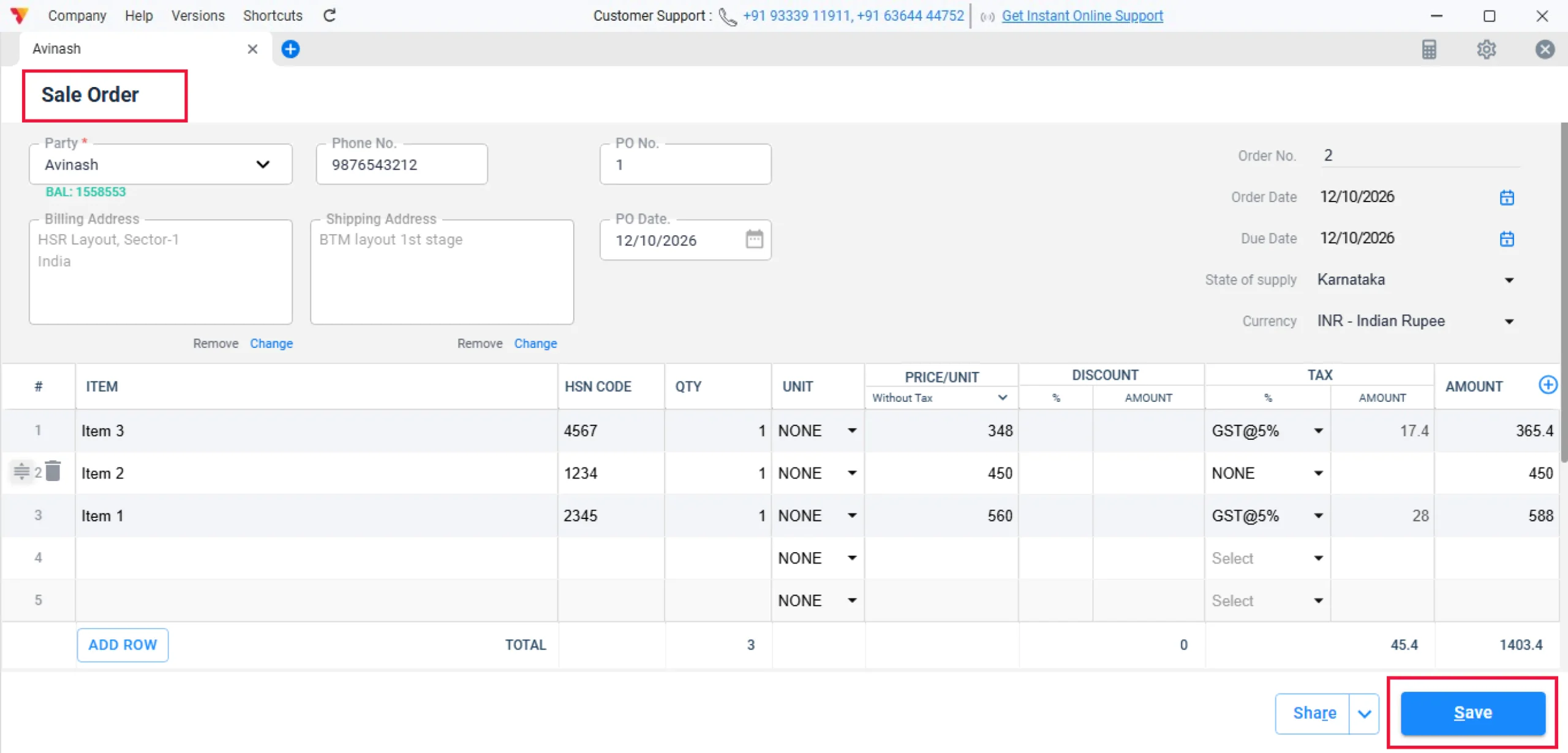
Convert to Sales Order
To convert the Estimate/Quotation into a Sales Order, click Convert to Sale Order. Review the pre-filled details on the Sales Order screen, make any necessary changes, and click Save to complete the conversion.
07
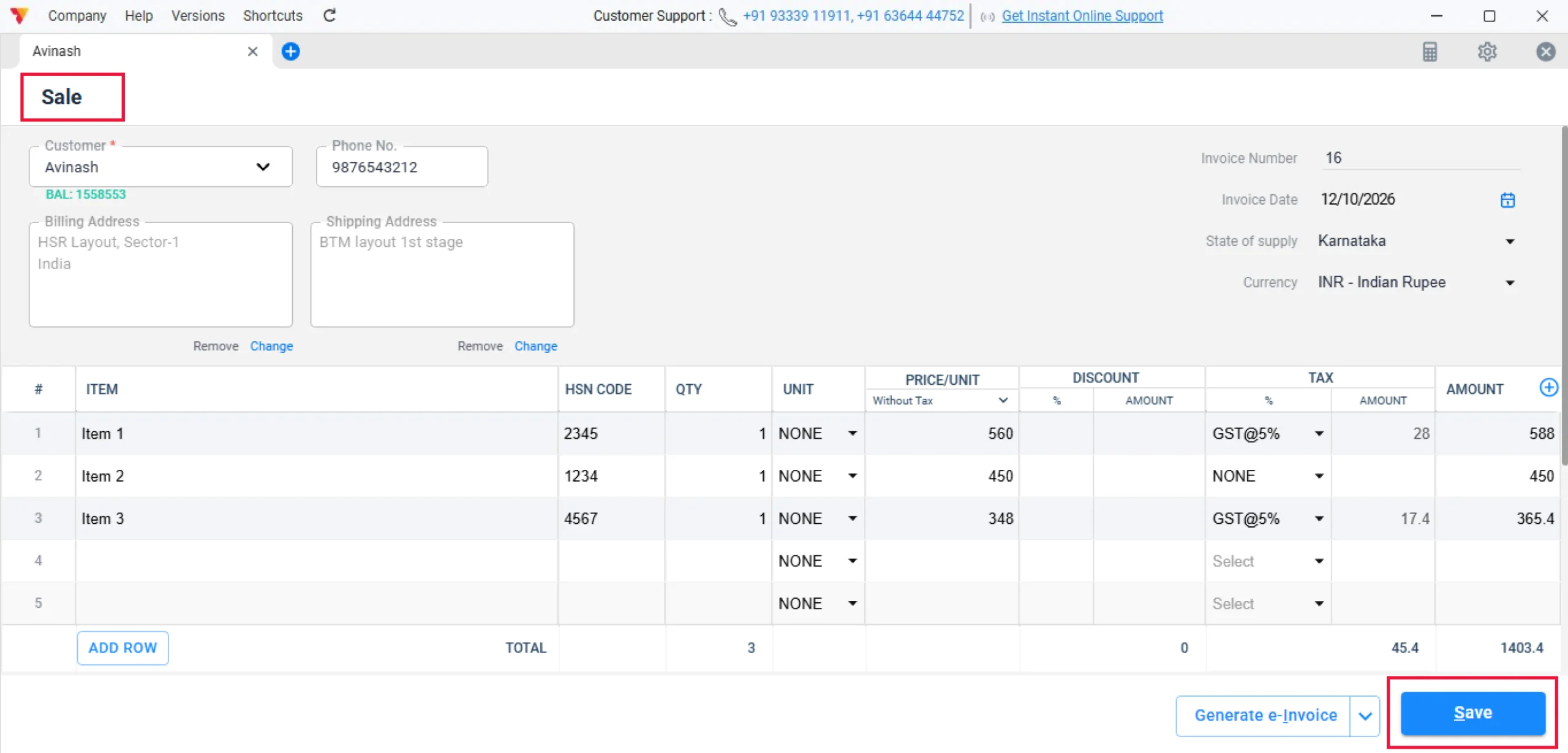
Convert to Sale
To convert the Estimate/Quotation directly into a Sales Invoice, click Convert to Sale. Review the pre-filled details on the Sales screen, make any necessary changes, and click Save to complete the conversion.
08
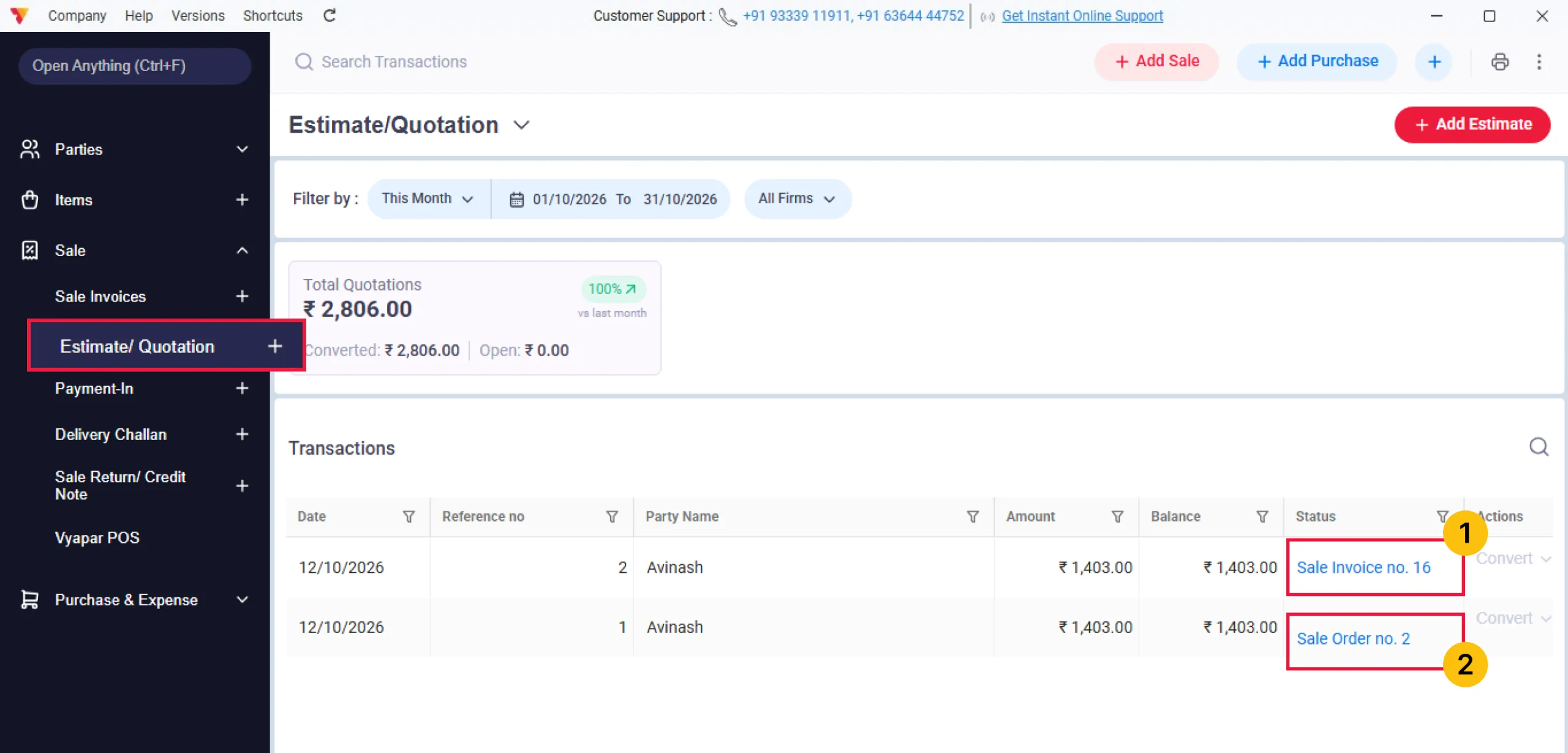
Check the Conversion Status
Go to Sales > Estimate/Quotation to view all created estimates and quotations.
- Converted to Sales Order: The Status column displays the Sales Order number. Click it to open the Sales Order.
- Converted to Sales Invoice: The Status column displays the Sales Invoice number. Click it to open the Sales Invoice.
09
Still stuck? Get help in minutes.
Our support team is ready to help you succeed.
 24/7 Support
Why Is This Important for Your Business?
Using Estimates/Quotations helps you manage customer proposals, track orders,
and simplify your sales process.
Share Clear Price Estimates
Let customers review product or service costs before confirming a purchase, helping avoid pricing misunderstandings.
Save Time on Billing
Convert approved estimates into Sales Orders or Sales Invoices without entering the same details again.
Track Order Progress
Check whether an Estimate/Quotation has been converted into a Sales Order or Sales Invoice to keep your sales records organised.
Frequently Asked Questions (FAQs)
Can I edit an Estimate/Quotation after saving it in Vyapar?
Yes, Vyapar’s quotation software lets you edit saved quotations whenever needed, so you can update prices, quantities, or other details as your business requirements change.


Does creating an Estimate/Quotation automatically create a Sales Invoice?
No, creating an Estimate/Quotation does not automatically create a Sales Invoice. You must use the Convert to Sale option when you are ready to create the invoice.
Do I need to enter customer and item details again when converting an Estimate/Quotation?
No, the existing estimate details are pre-filled when you convert it into a Sales Order or Sales Invoice. Review them and make any necessary changes before saving.
Create Estimates & Quotations with Ease
Create clear quotations, share prices faster, and help customers
make purchase decisions sooner.