
How to Add and Link PhonePe SQR in Vyapar App
Manage PhonePe Smart QR payments easily with Vyapar. Link your PhonePe SQR account to accept QR payments, track sales paid through PhonePe, and match them with actual credited transactions. This helps you avoid payment confusion, maintain accurate books, and know exactly which invoice or sale has been paid.


Before You Start

Active PhonePe Merchant Account: You should have an active PhonePe Merchant account with PhonePe Smart QR set up for your business.
QR ID: Keep your QR ID ready, you’ll usually find this printed on your physical PhonePe QR sticker or inside your PhonePe merchant app.
Registered Mobile Number: Keep the mobile number registered with your PhonePe Merchant account handy, as you will receive an OTP for verification.
Active Vyapar Subscription: Ensure your Vyapar app has an active subscription or valid license before enabling PhonePe Smart QR integration.
Guide to Add and Link PhonePe SQR in Vyapar App:
Open Vyapar App
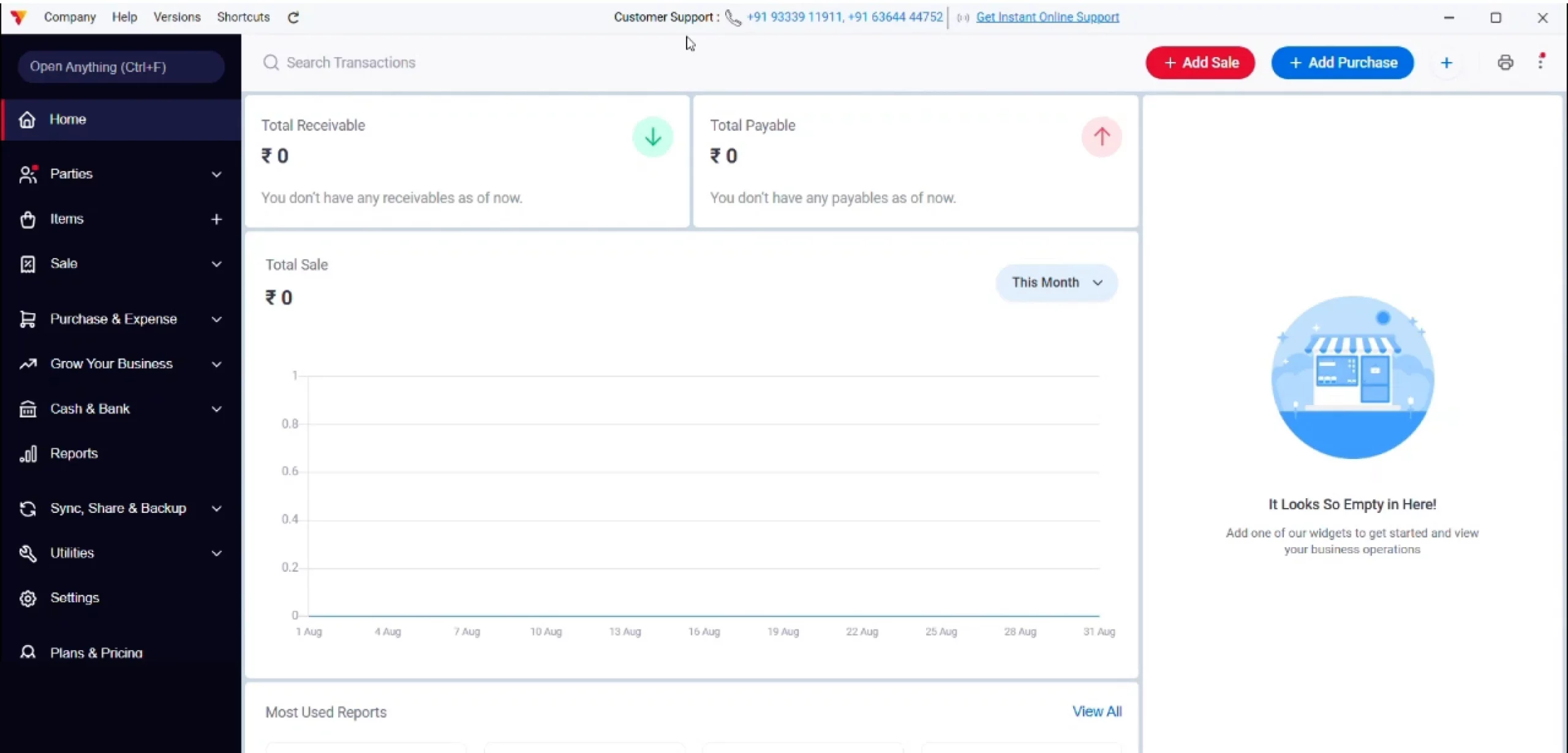
Open Vyapar App on your desktop device.
01
Access Bank Accounts
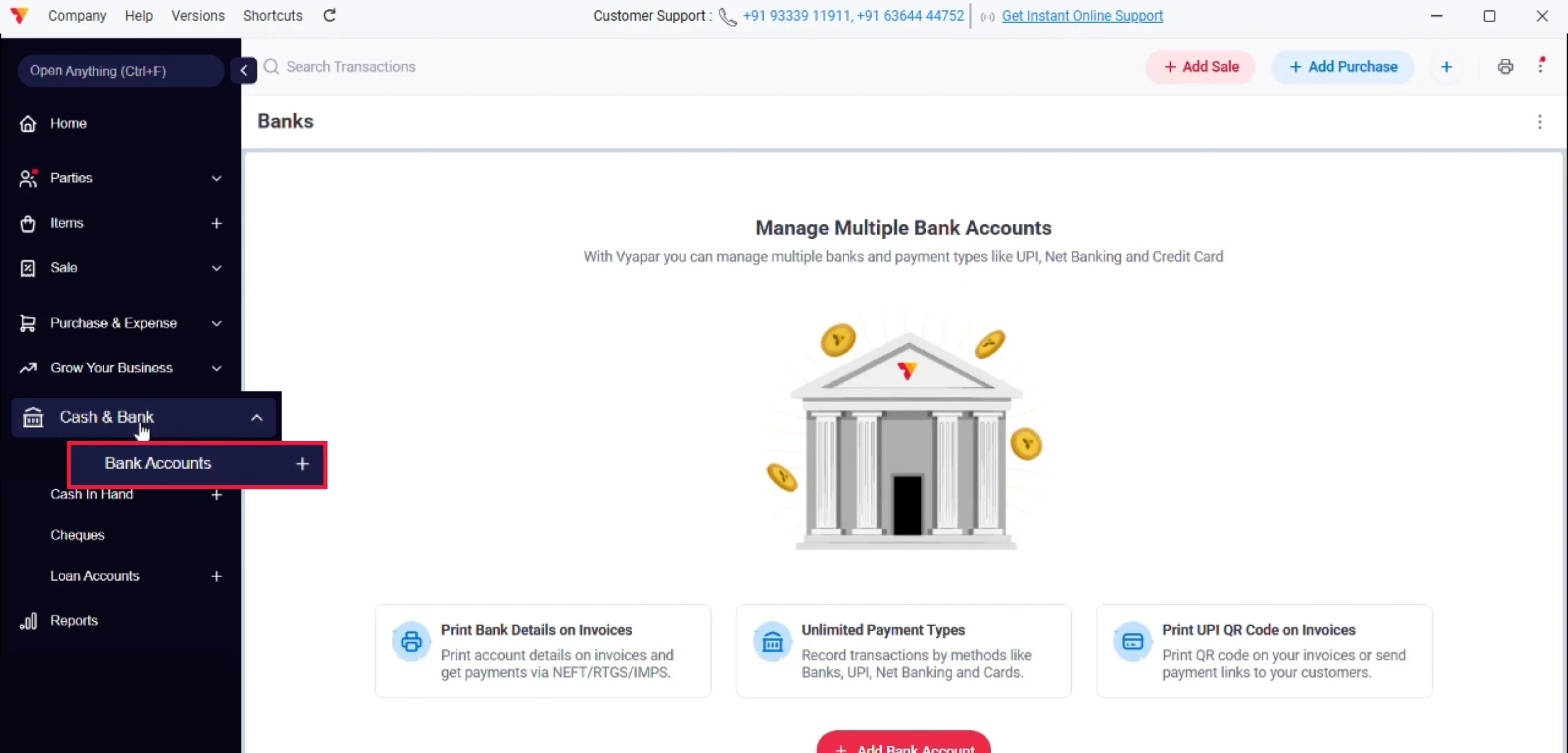
Navigate to the left-hand menu, click on Cash & Bank, then select Bank Accounts.
02
Start Adding PhonePe SQR
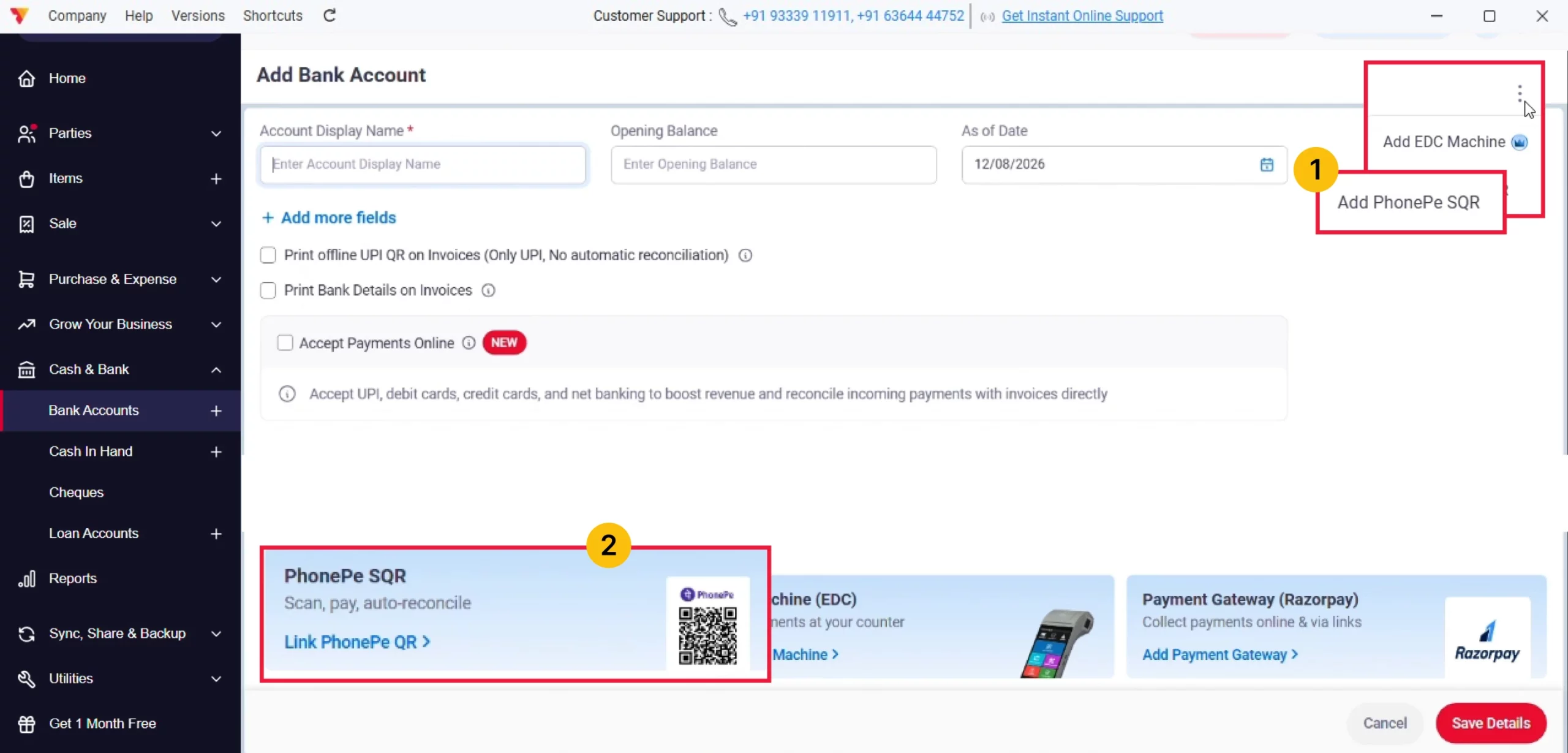
You can start linking your PhonePe SQR in one of two ways:
Option1: If you already have other bank accounts added, click the three-dot menu in the top-right corner of the Banks panel, then select Add PhonePe SQR from the dropdown.
Option2: If this is your first account, click Add Bank Account, scroll down to the quick-link cards, and click Link PhonePe QR on the PhonePe SQR card.
03
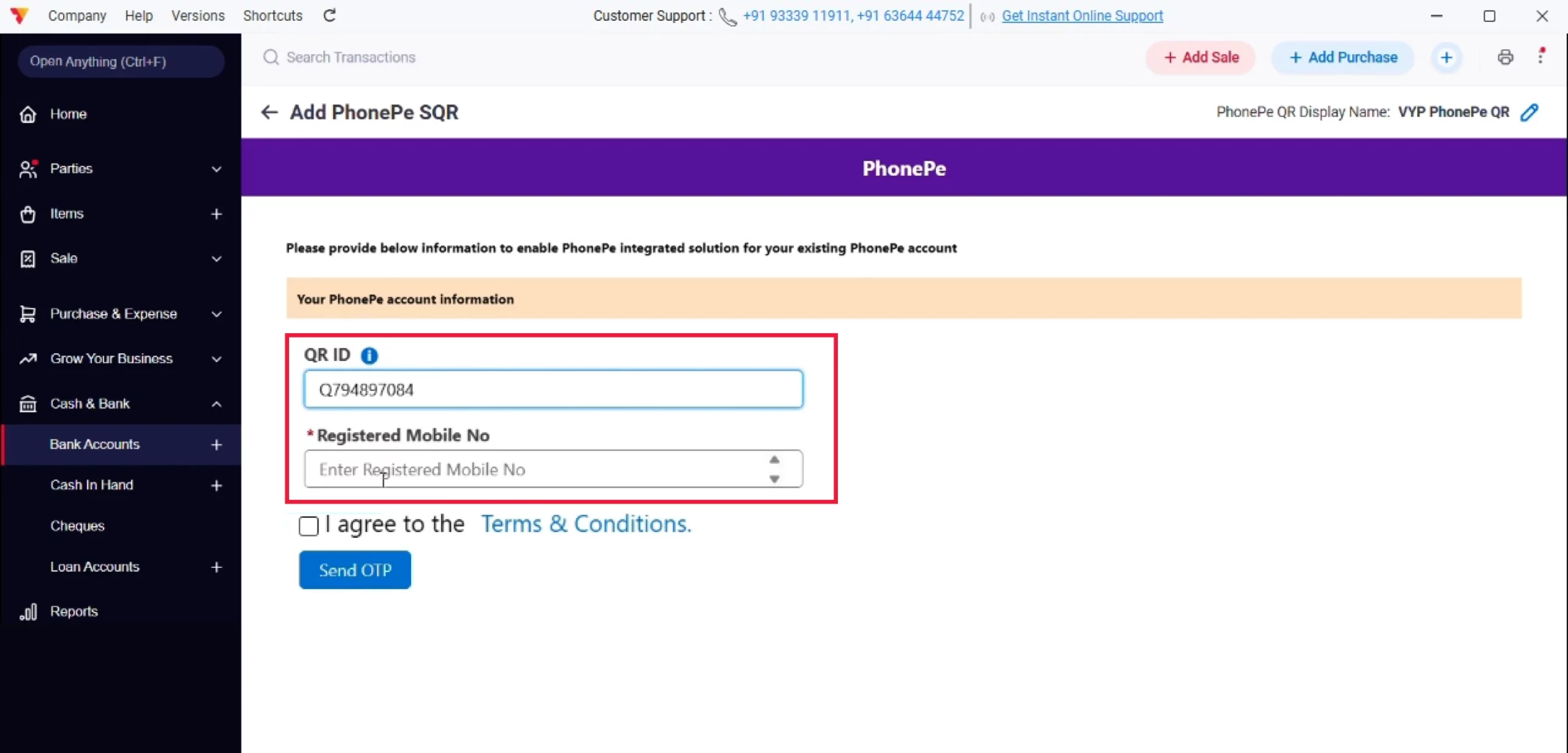
Enter Your PhonePe Details
Input your QR ID and your PhonePe-registered mobile number in the respective fields.
04
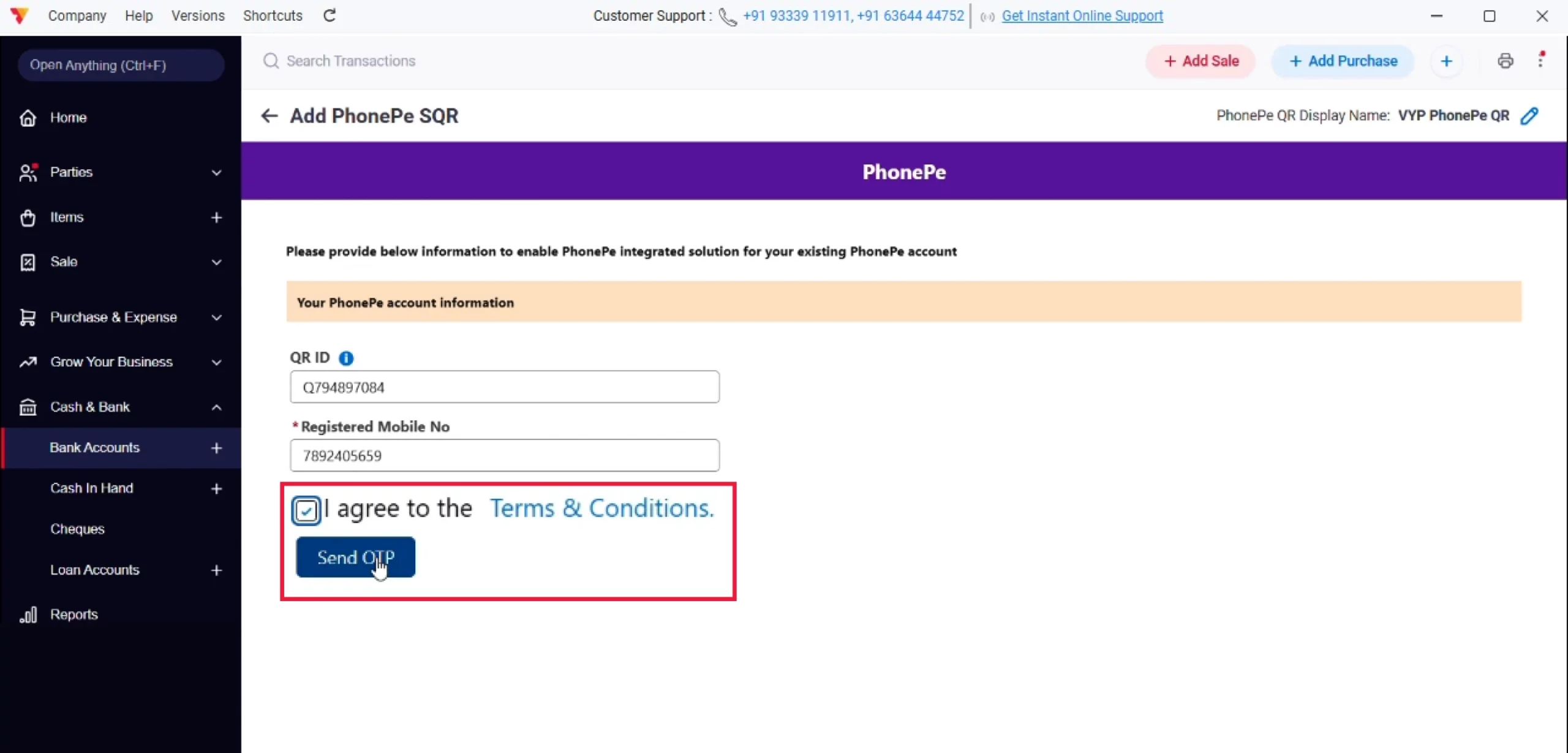
Accept Terms and Send OTP
Check the “I agree to the Terms & Conditions” box, then click Send OTP.
05
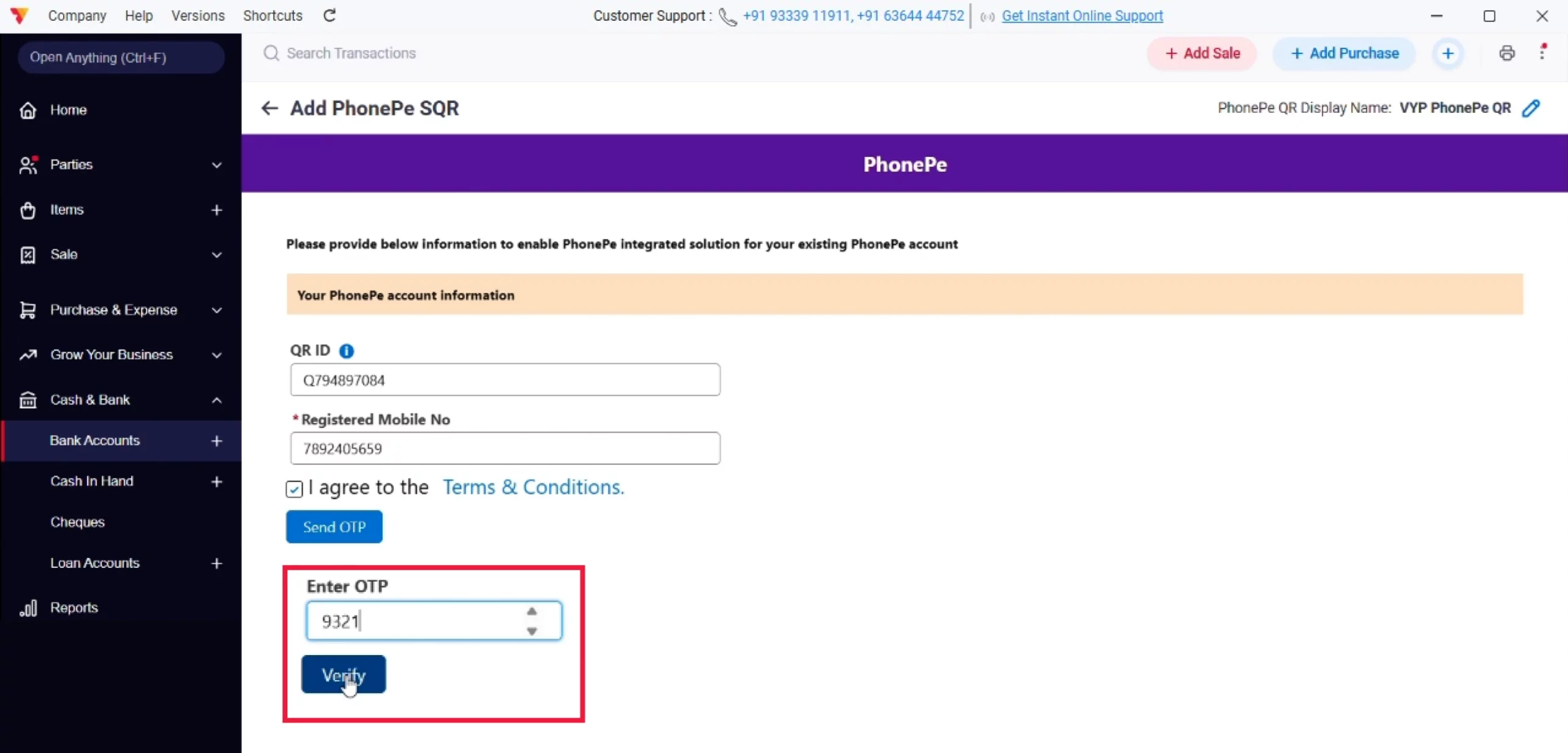
Verify OTP
Enter the OTP received on your registered mobile number and click Verify.
Note: This OTP is sent by PhonePe to confirm it’s your registered account.
06
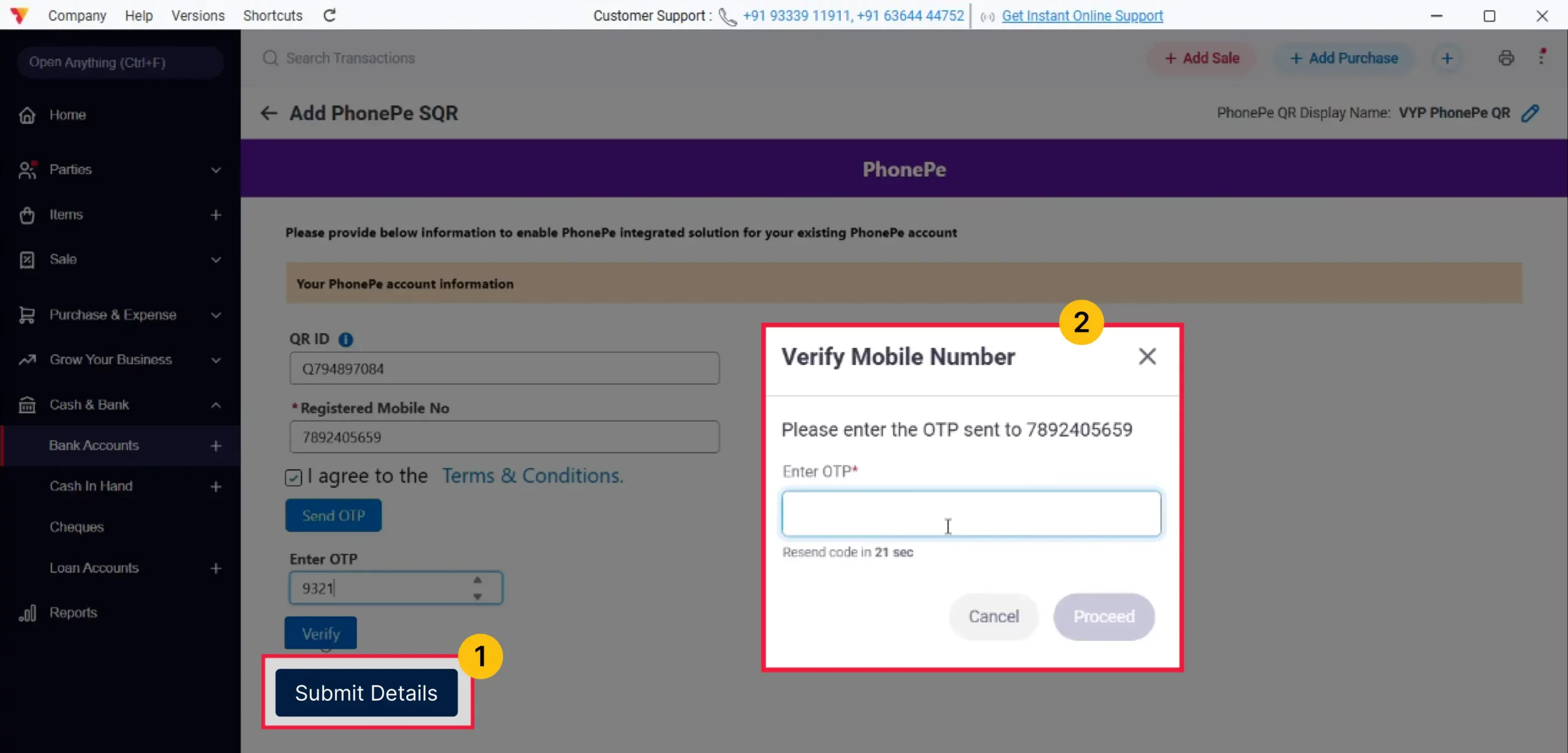
Submit Your Details
Click Submit Details. A second verification window will appear – this time, enter the OTP sent by the Vyapar App, then click Proceed to confirm.
07
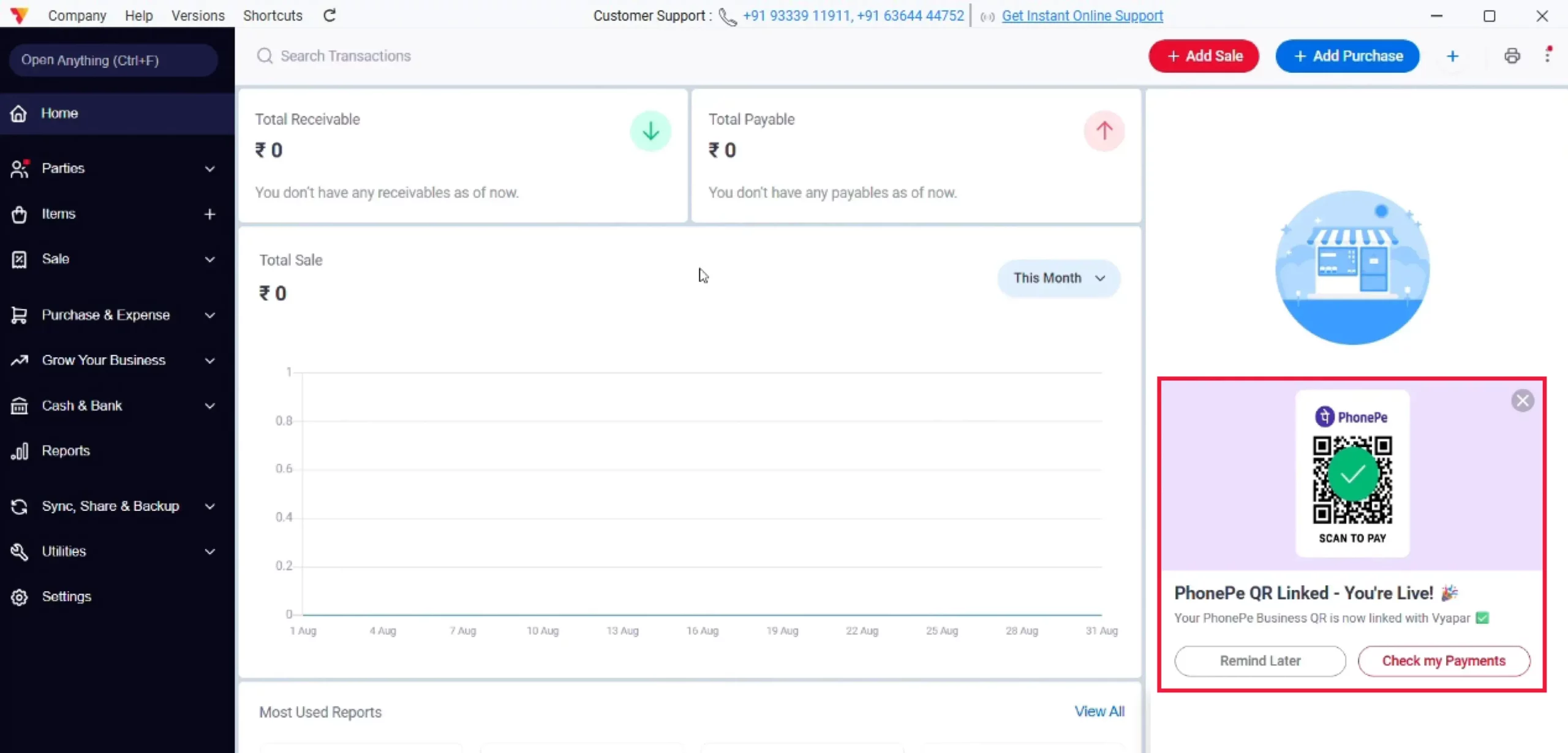
Wait for Confirmation
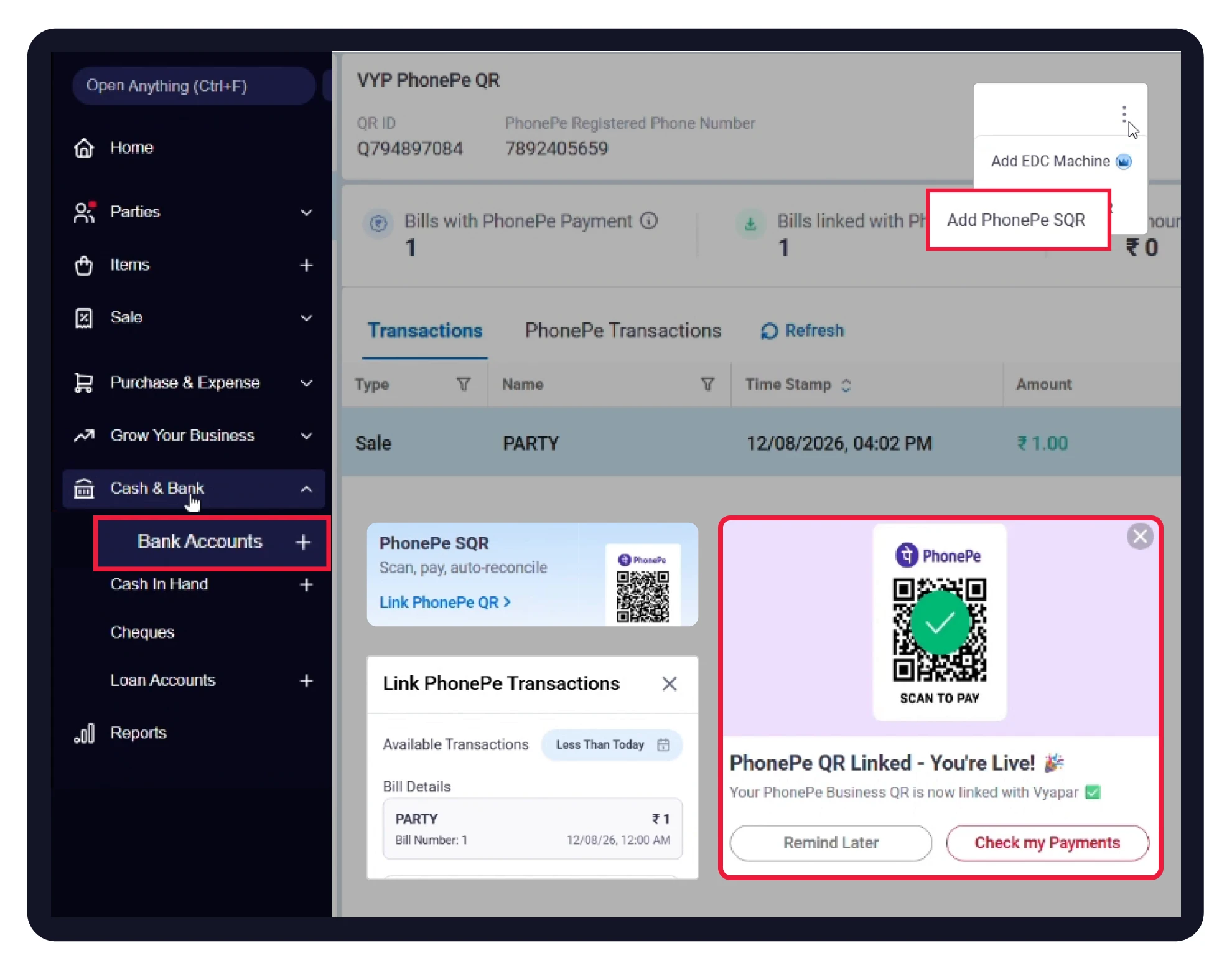
Once submitted, you’ll see a success message confirming your request has been received, along with a “PhonePe QR Linked – You’re Live!” card on your dashboard. You can click Check My Payments to jump straight to your linked account, or Remind Later to dismiss it for now. PhonePe typically verifies and activates your QR within 24–48 hours.
08
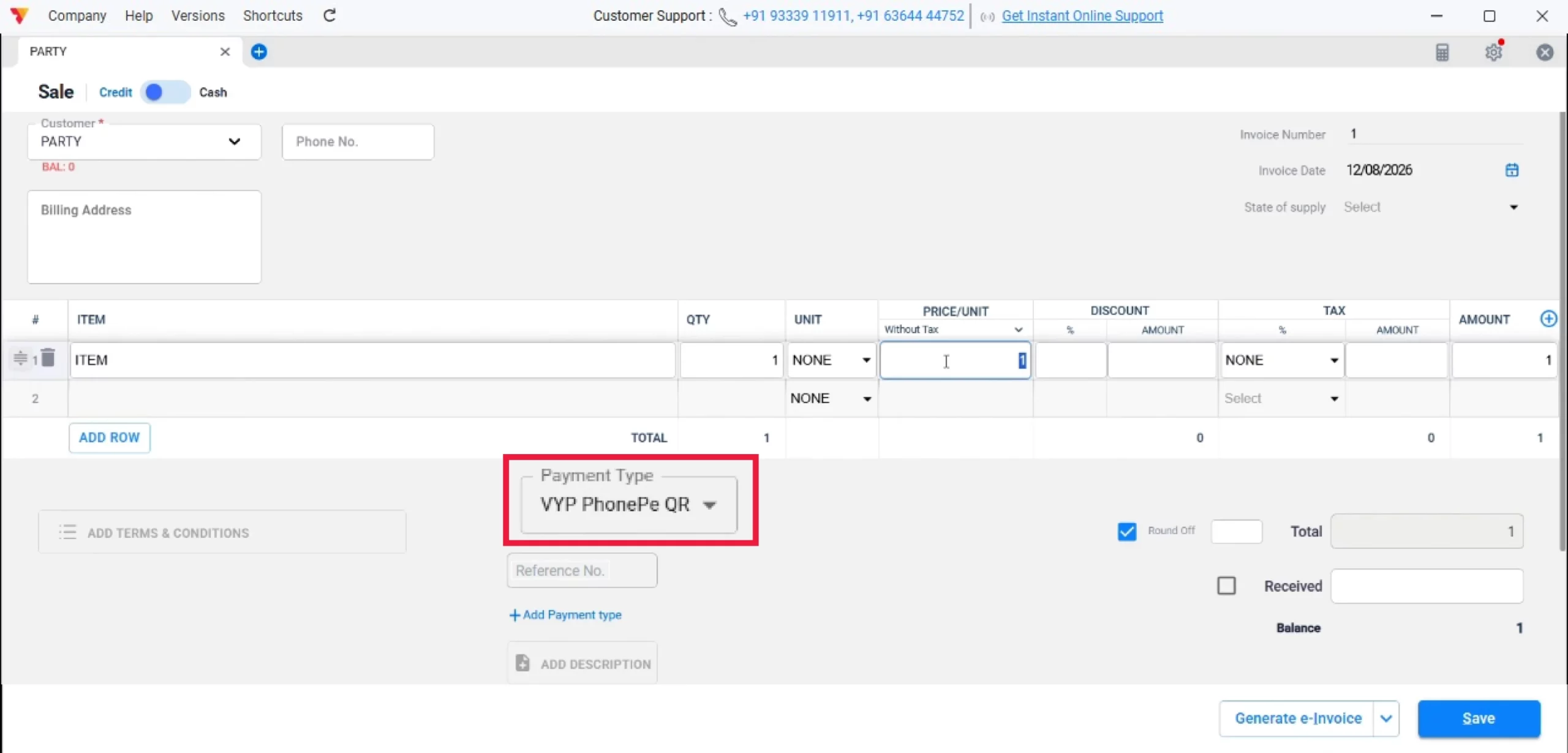
Create a Sale Bill
When creating a new sale bill, open the Payment Type dropdown and select your linked PhonePe QR account to mark that the payment was collected via QR.
09
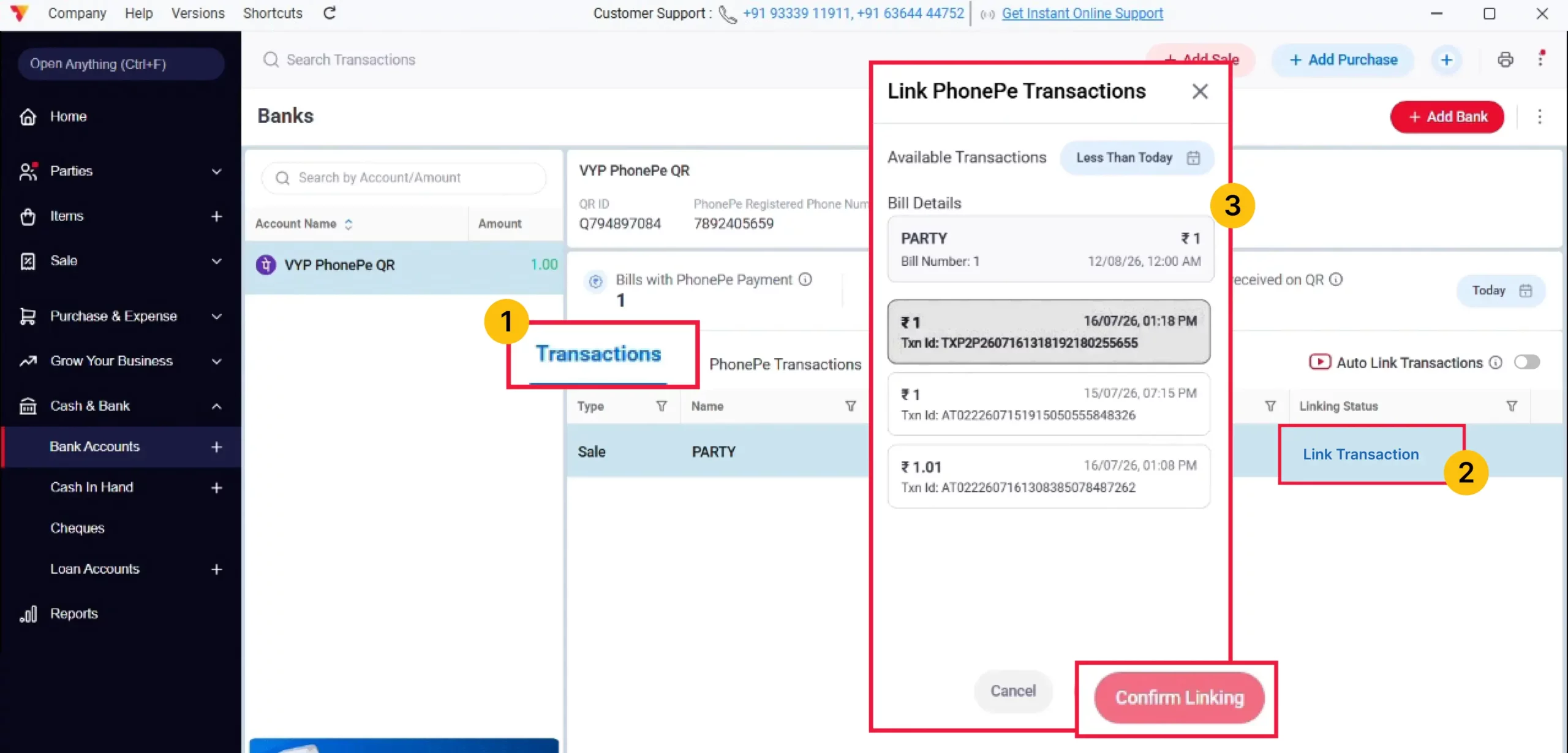
Link the Bill to a PhonePe Transaction
Once the payment is made, it will reflect under your PhonePe QR account. Now go to the Transactions tab, click Link Transaction on your bill, select the matching PhonePe transaction from the list, and confirm linking.
10
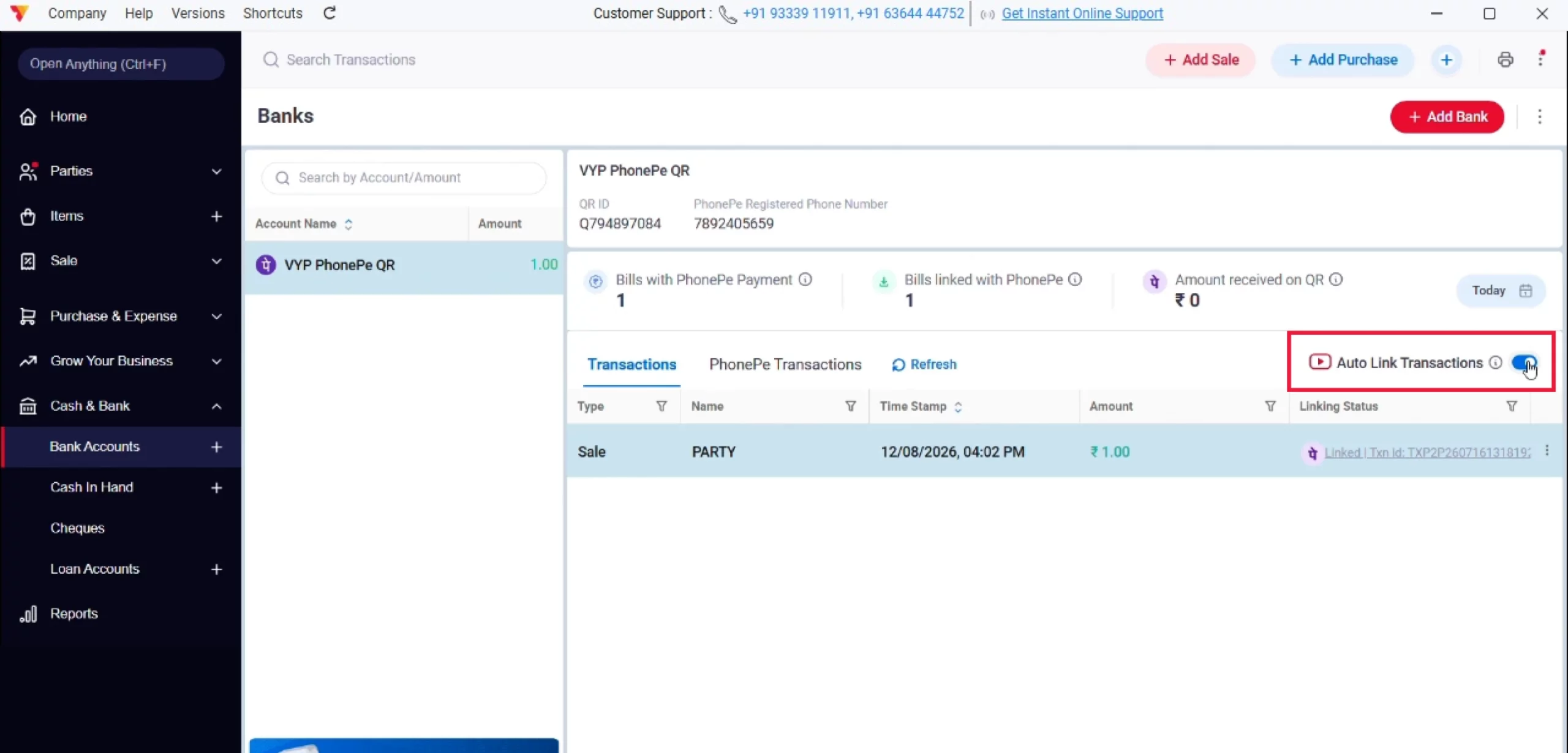
Turn On Auto Link Transactions (Optional)
Instead of linking each bill manually, you can switch on the Auto Link Transactions toggle in the Transactions tab. Once enabled, Vyapar automatically matches and links every new sale bill with its corresponding PhonePe transaction, so you don’t have to link them one by one.
11
Still stuck? Get help in minutes.
Our support team is ready to help you succeed.
 24/7 Support
Why Is This Important for Your Business?
Adding and linking your PhonePe SQR helps you accept digital payments directly, making transactions faster
and easier for both you and your customers.
Accurate Reconciliation
Linking each bill to its actual PhonePe transaction confirms that the payment shown in your invoice was genuinely credited to your account, no more guessing or manual cross-checking.
Real-Time Transaction Visibility
The PhonePe Transactions tab pulls in every payment received on your QR, so you always know your total collections without switching between apps.
Clean, Error-Free Books
Since Vyapar auto-fetches matching transactions by amount and date, you avoid duplicate entries and keep your Cash & Bank records accurate.
Frequently Asked Questions (FAQs)
What happens if I don’t link a bill to a PhonePe transaction?
The sale still gets recorded normally in Vyapar, but it will show as unlinked under the Linking Status column, so you won’t have a confirmed match against your actual PhonePe payment.


How long does it take for PhonePe SQR to get activated after submitting details?
It usually takes 24–48 hours for PhonePe to verify your details and activate the integration.
Where do I find my QR ID?
Your QR ID is usually printed on your physical PhonePe QR code sticker, or you can check it inside your PhonePe merchant app.
Ready to Add and Link PhonePe SQR?
Add and link your PhonePe SQR in the Vyapar app to accept payments easily and simplify your billing process.