
How to Add Item Batches/Serial Numbers in Vyapar App
Managing products with different expiry dates or manufacturing lots? Batch Tracking is your secret weapon for organised inventory.
With Vyapar, you can track every item by its batch number, ensuring you sell older stock first and never accidentally sell an expired product.
Stop worrying about stock ageing. Follow this guide to enable and manage item batches on your Desktop app.

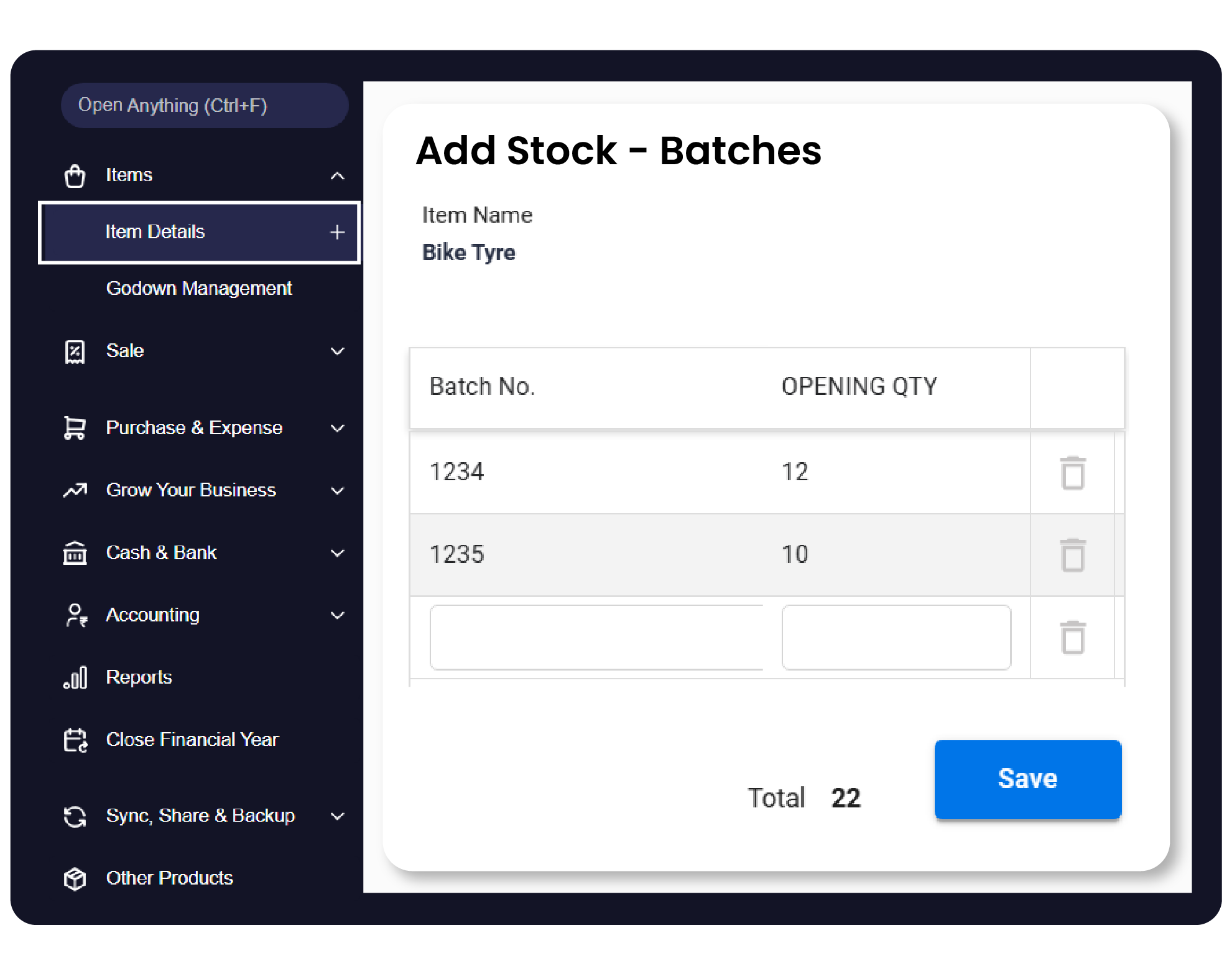

Before You Start

Identify Tracking Needs: Decide if your products require Serial Numbers (unique per unit), Batch Numbers (grouped by lot), or Size variants.
Master Data Ready: Ensure your primary items are already added to the Item Master.
Premium Feature: Advanced tracking options like Serial Number and Batch tracking are available for Premium users.
Step-by-Step Guide to Enable and Add Item Batches:
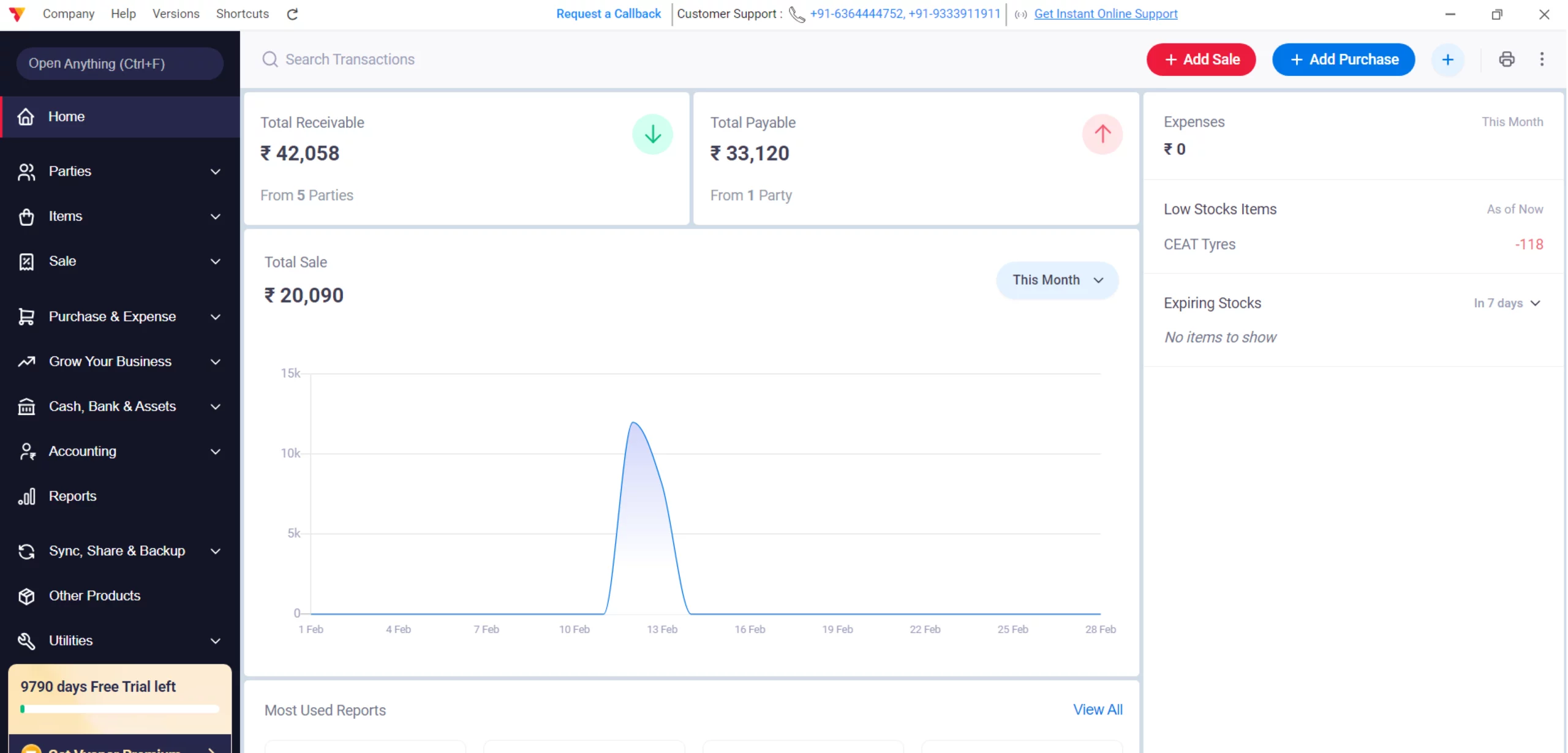
Open Vyapar App
Launch the Vyapar App on your Desktop device.
01
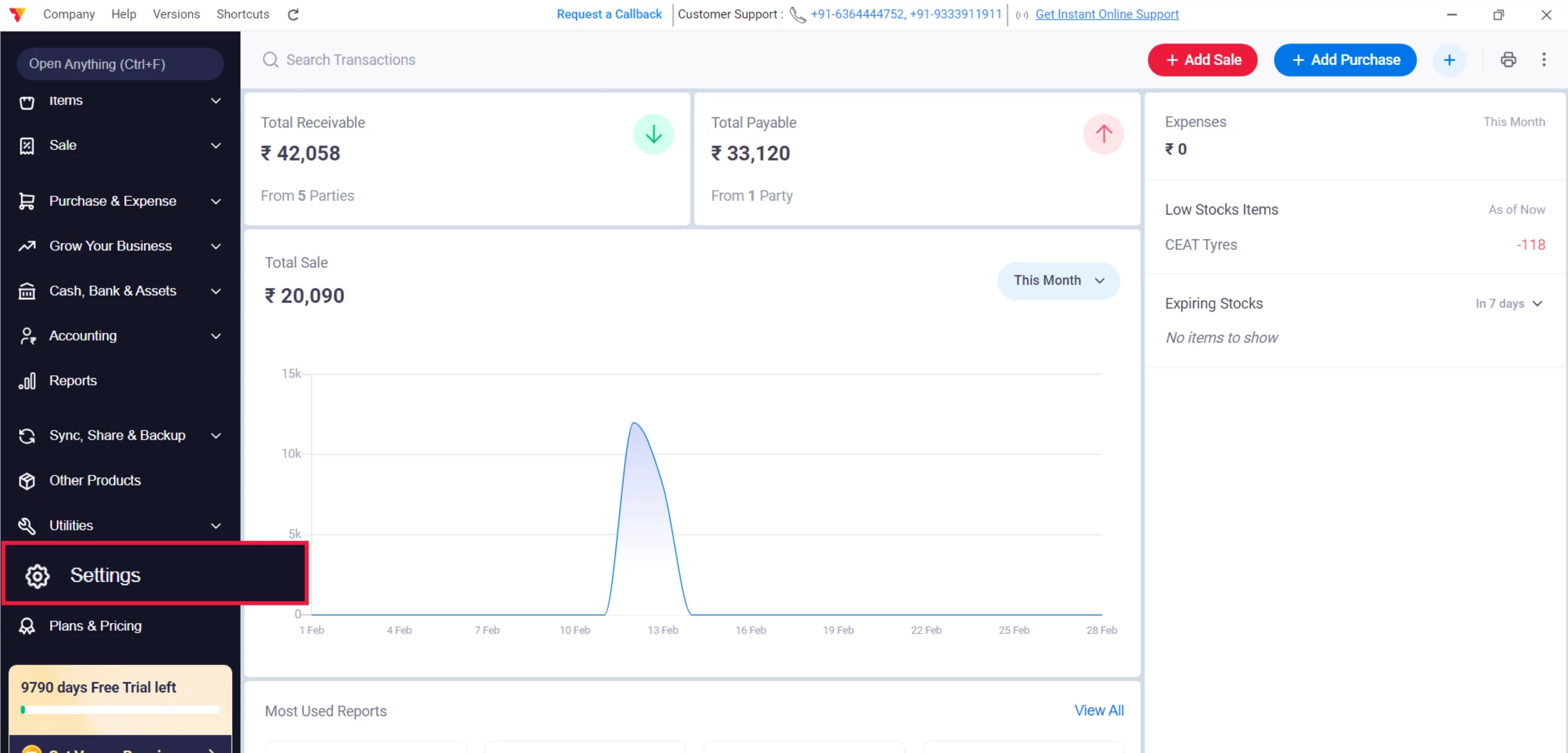
Access Settings
Navigate to the Left Menu, locate the Settings gear icon at the bottom, and click it.
02
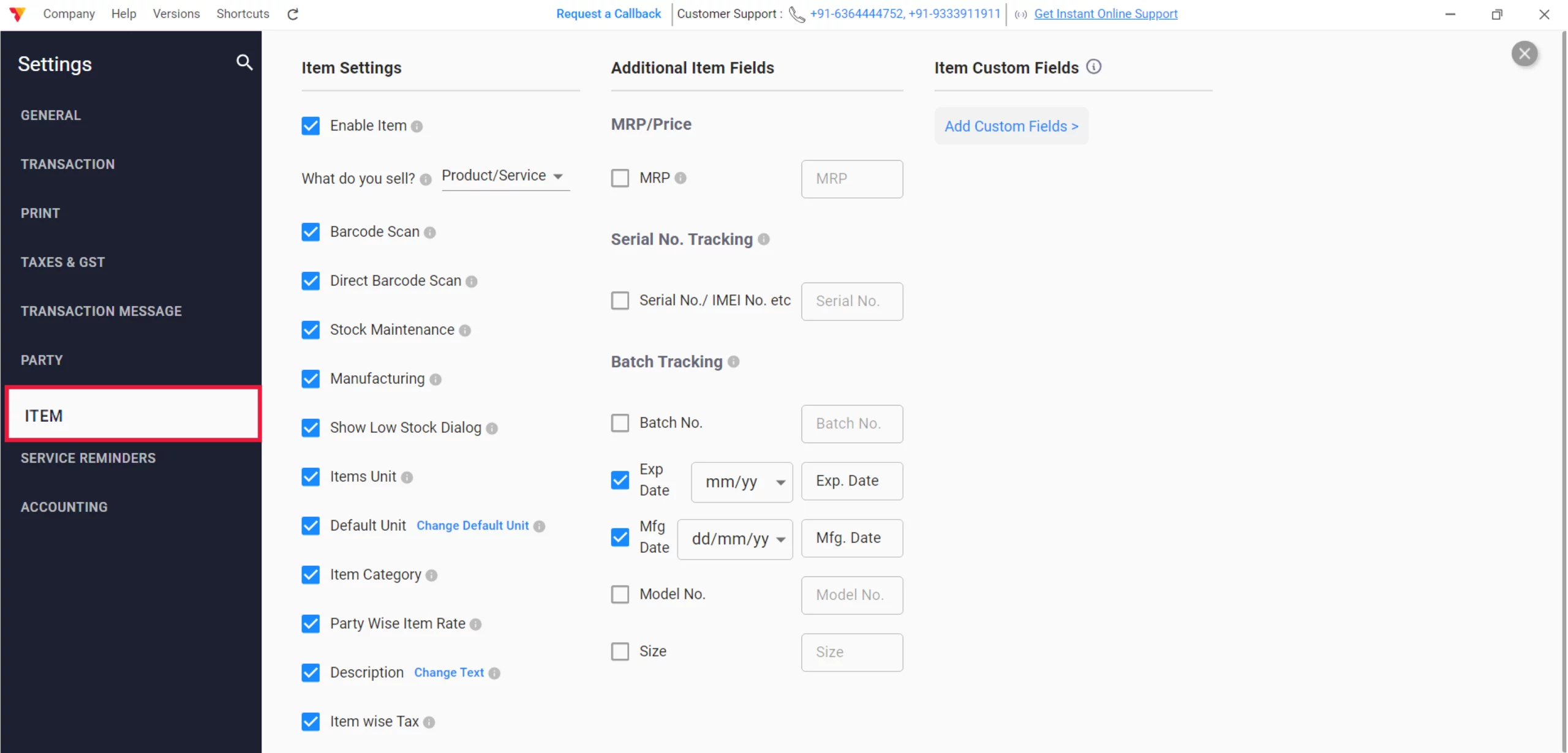
Enable Item Settings
From the left-hand sidebar, select the ITEM tab to open your inventory configuration.
03
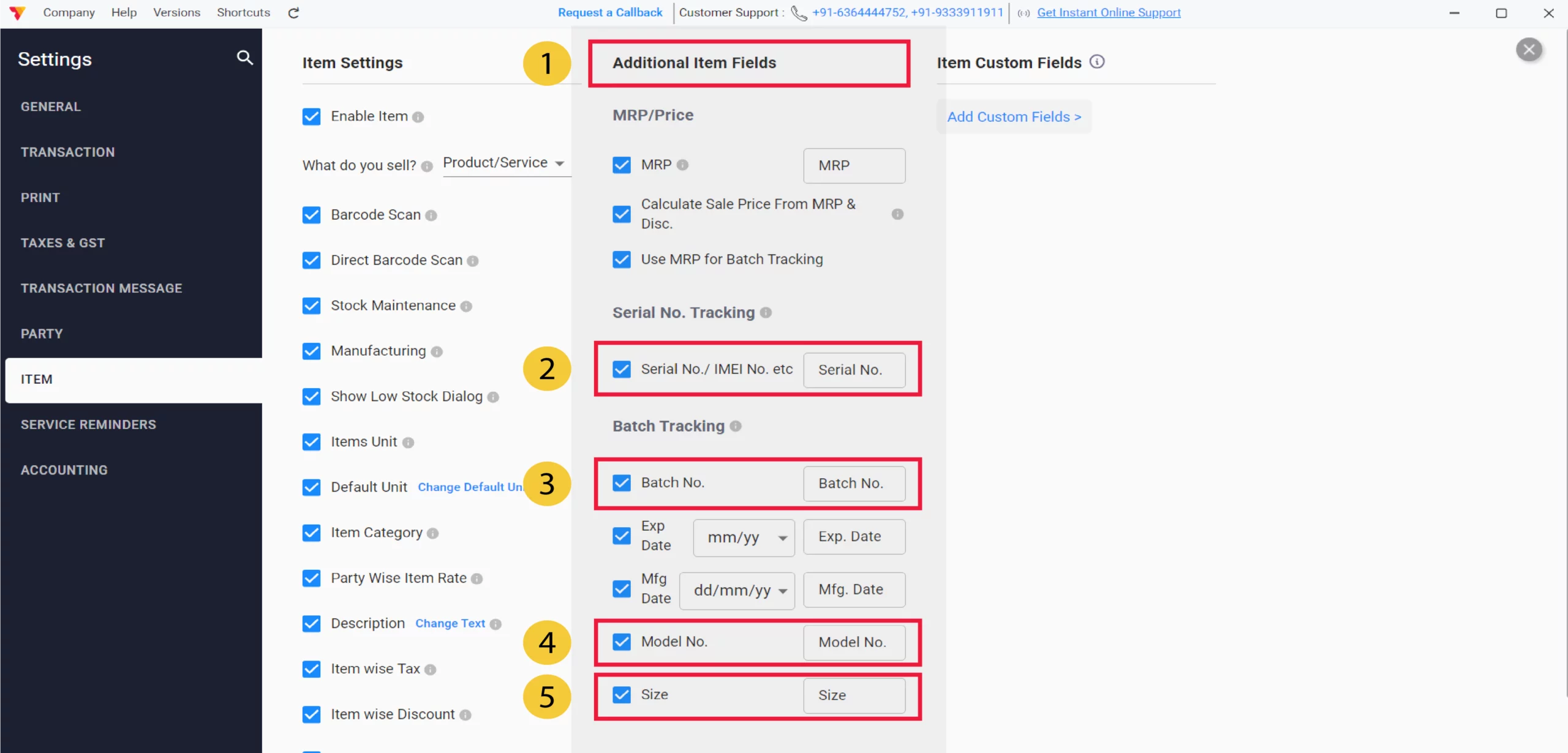
Activate Additional Item Fields
Under the “Additional Item Fields” section, select the checkboxes for the specific data you need: Serial No., Batch No., Model No., or Size. and close settings.
04
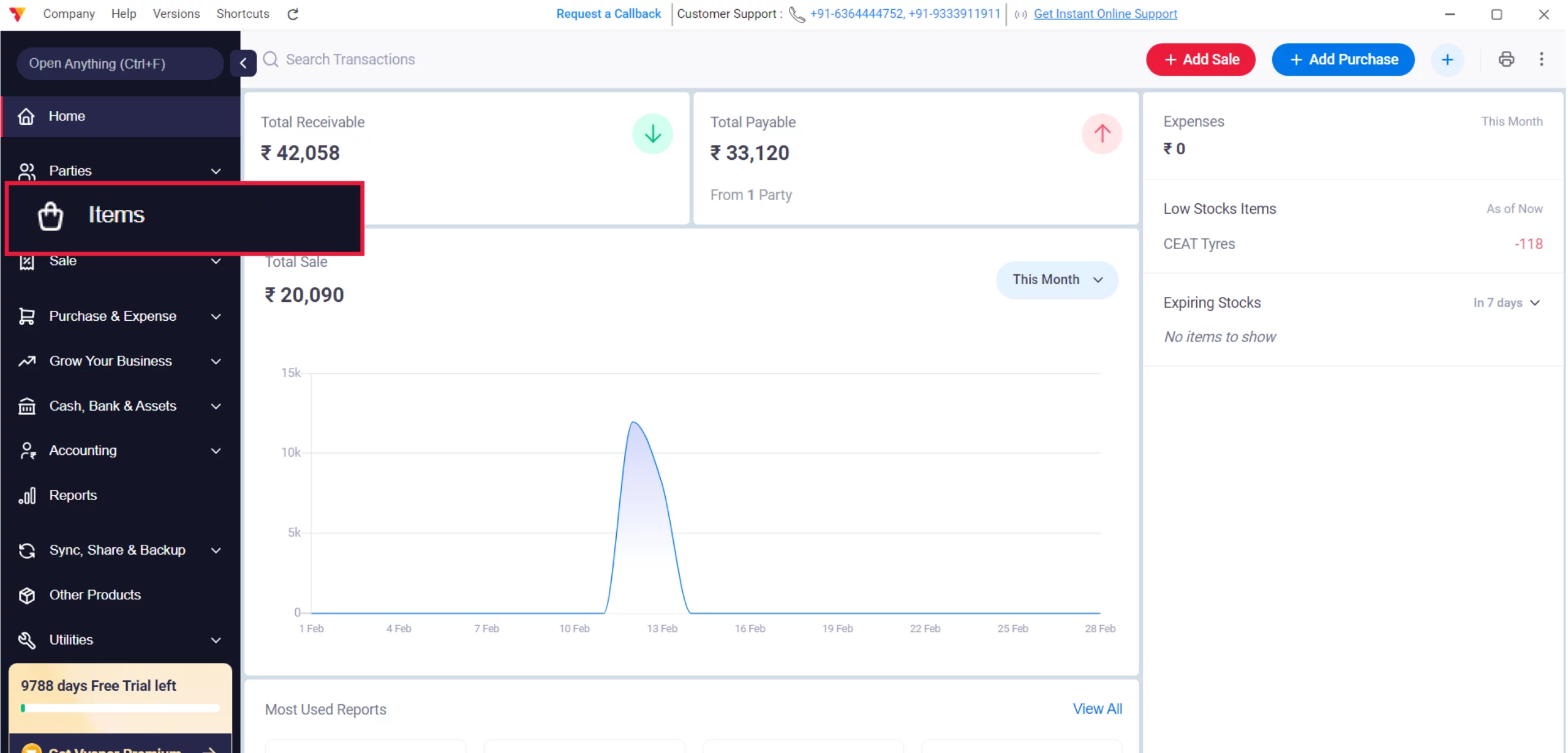
Navigate to Item Master
From the main dashboard, click on Items in the left sidebar.
05
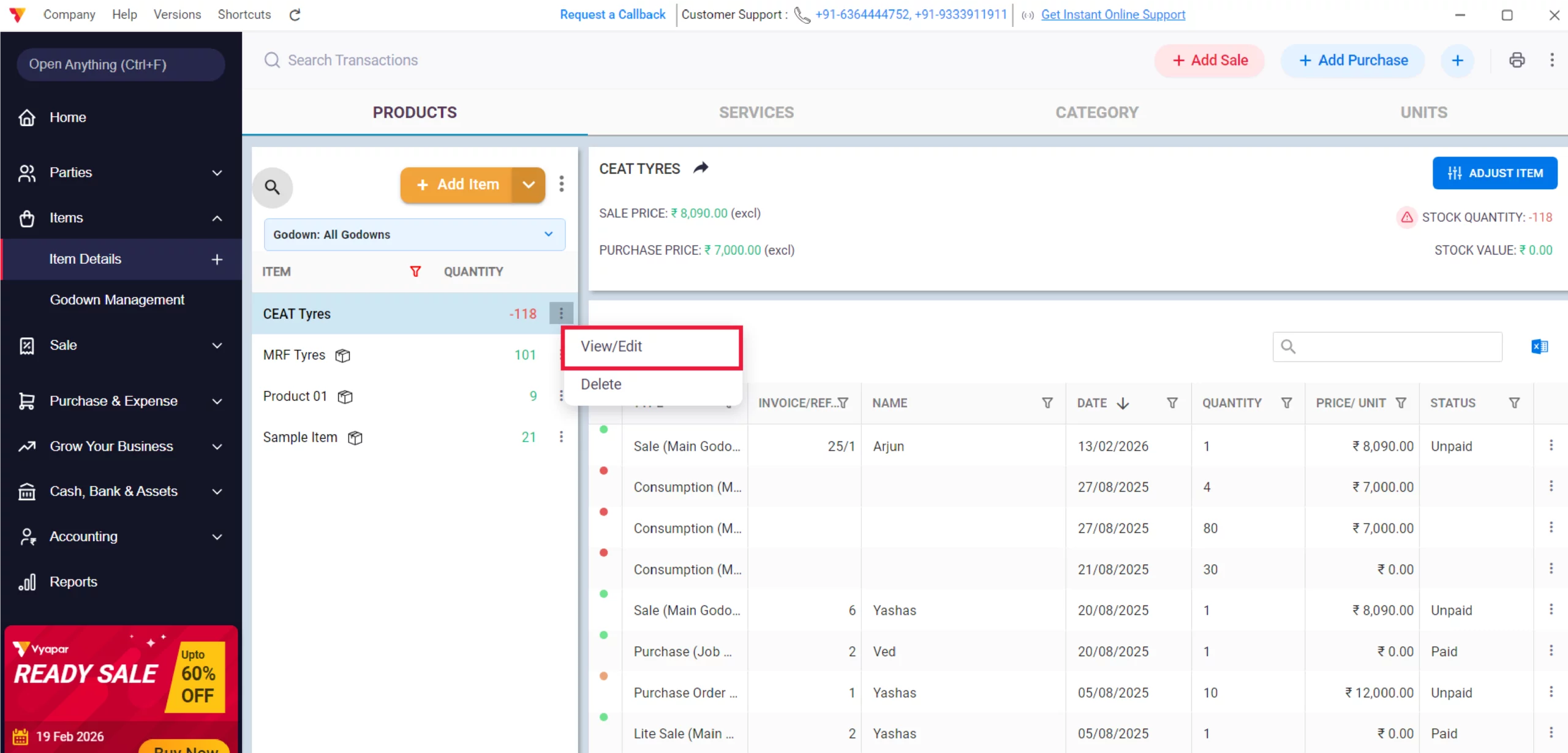
Edit Your Item
Find your product, click on the three dots (⋮) next to the Item Name, and select View/Edit. (Double click on Item Name)
06
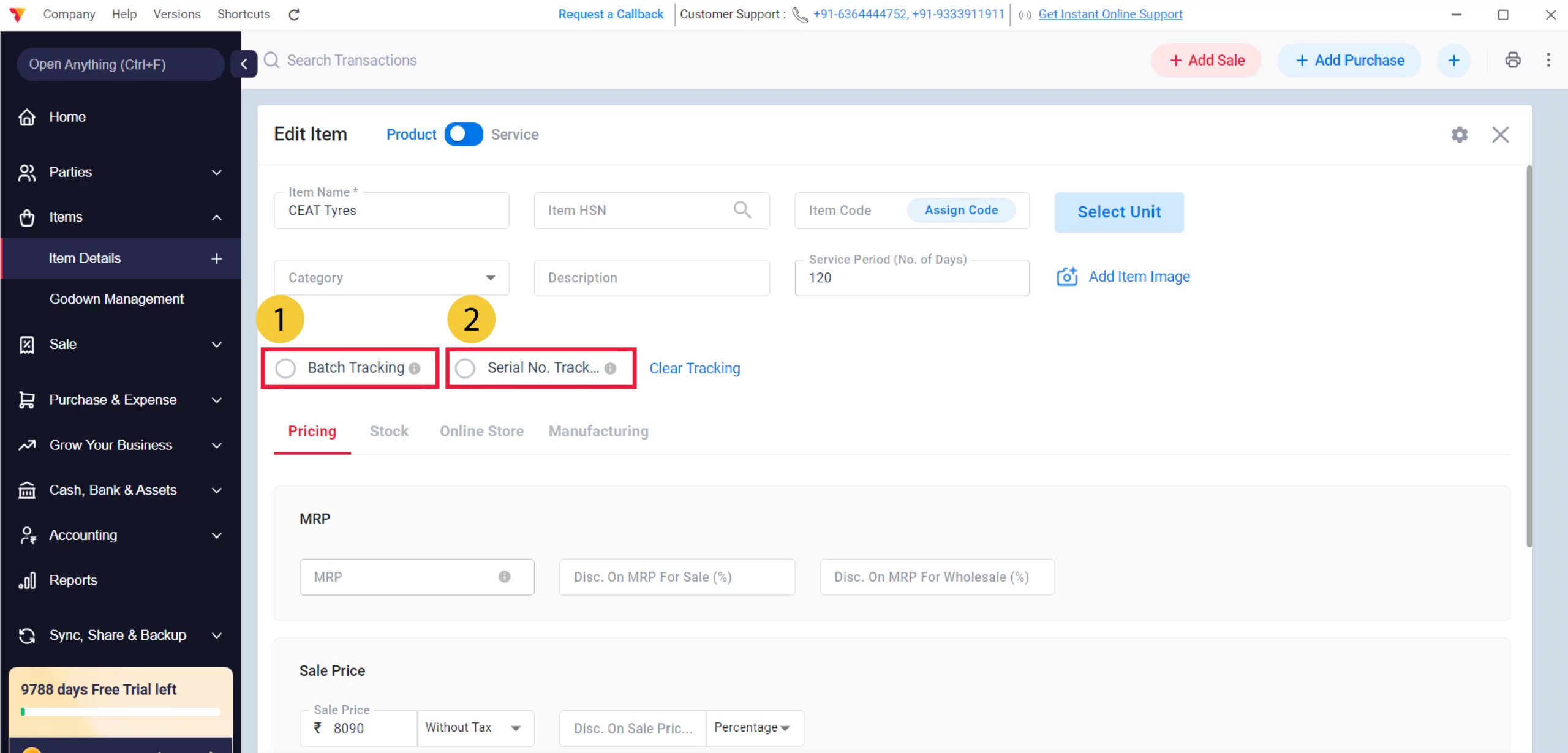
Enable Batch or Serial Tracking for the Item
You must now select one of the following options:
Batch Tracking: Select this radio button to track stock by lots or sizes.
Serial No. Tracking: Select this radio button to track unique identifiers like IMEI or Serial Number
07
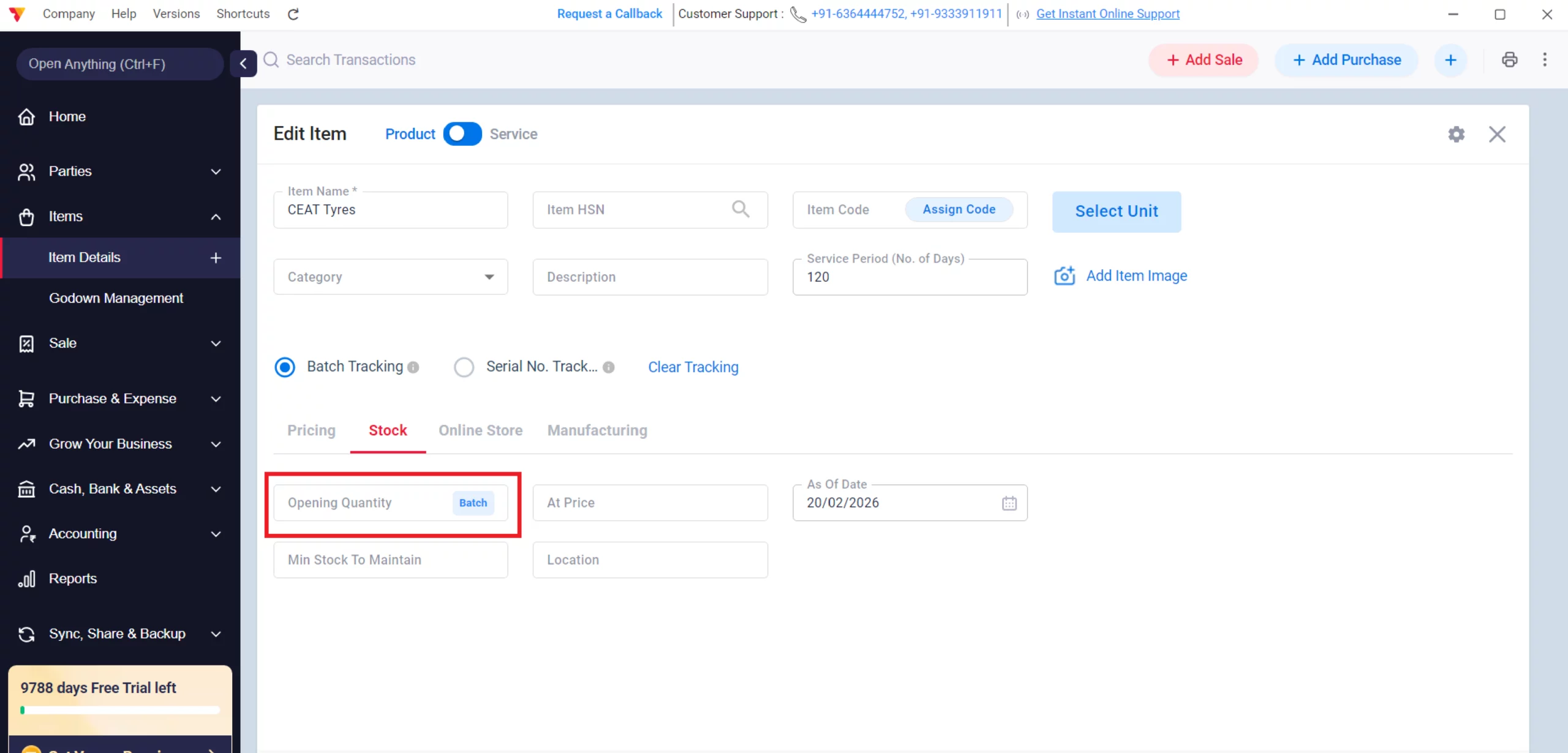
Add Opening Stock
Once a tracking method is selected, click on stock, and then the Opening Quantity field will display a specific button based on your choice:
08
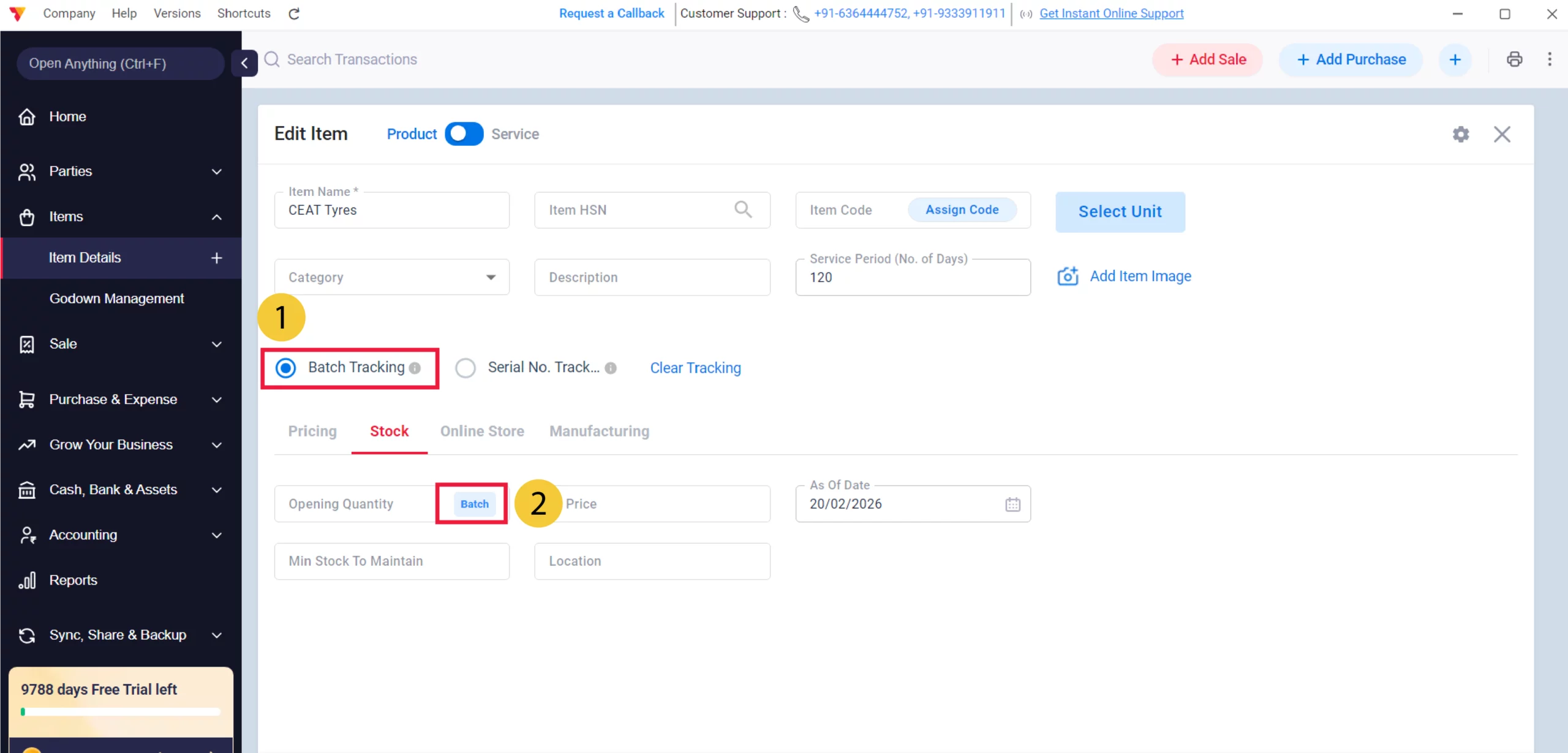
Batch Tracking
If batch tracking is enabled, you will see a Batch button in the field. Click this button to open the detailed entry window.
08/A
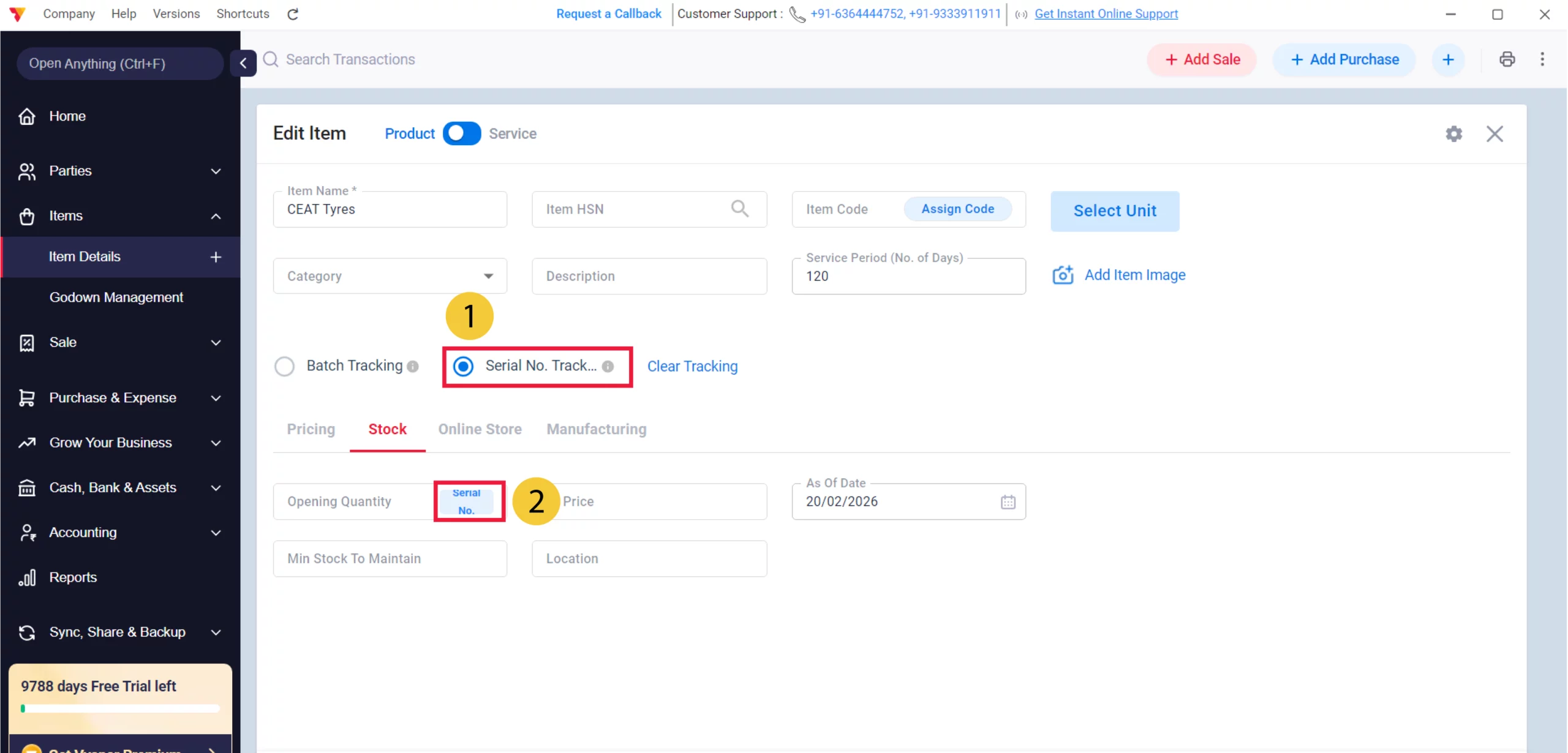
Serial No. Tracking
If batch tracking is enabled, you will see a Batch button in the field. Click this button to open the detailed entry window.
08/B
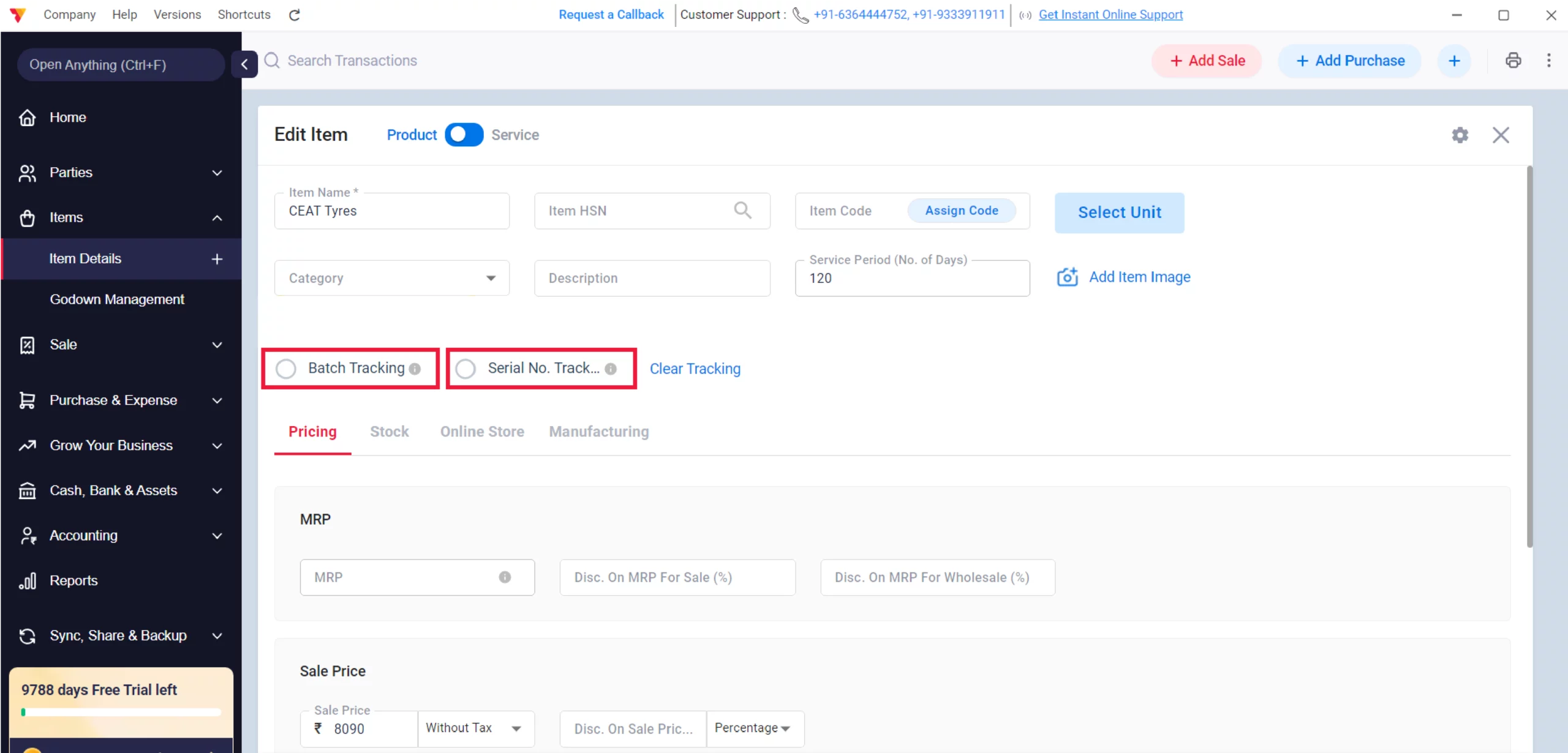
Add Batch or Serial Details
A pop-up window will appear for precise data entry:
Click For Batches to add Batch Details
Click For Serial Numbers: to add Batch Details
09
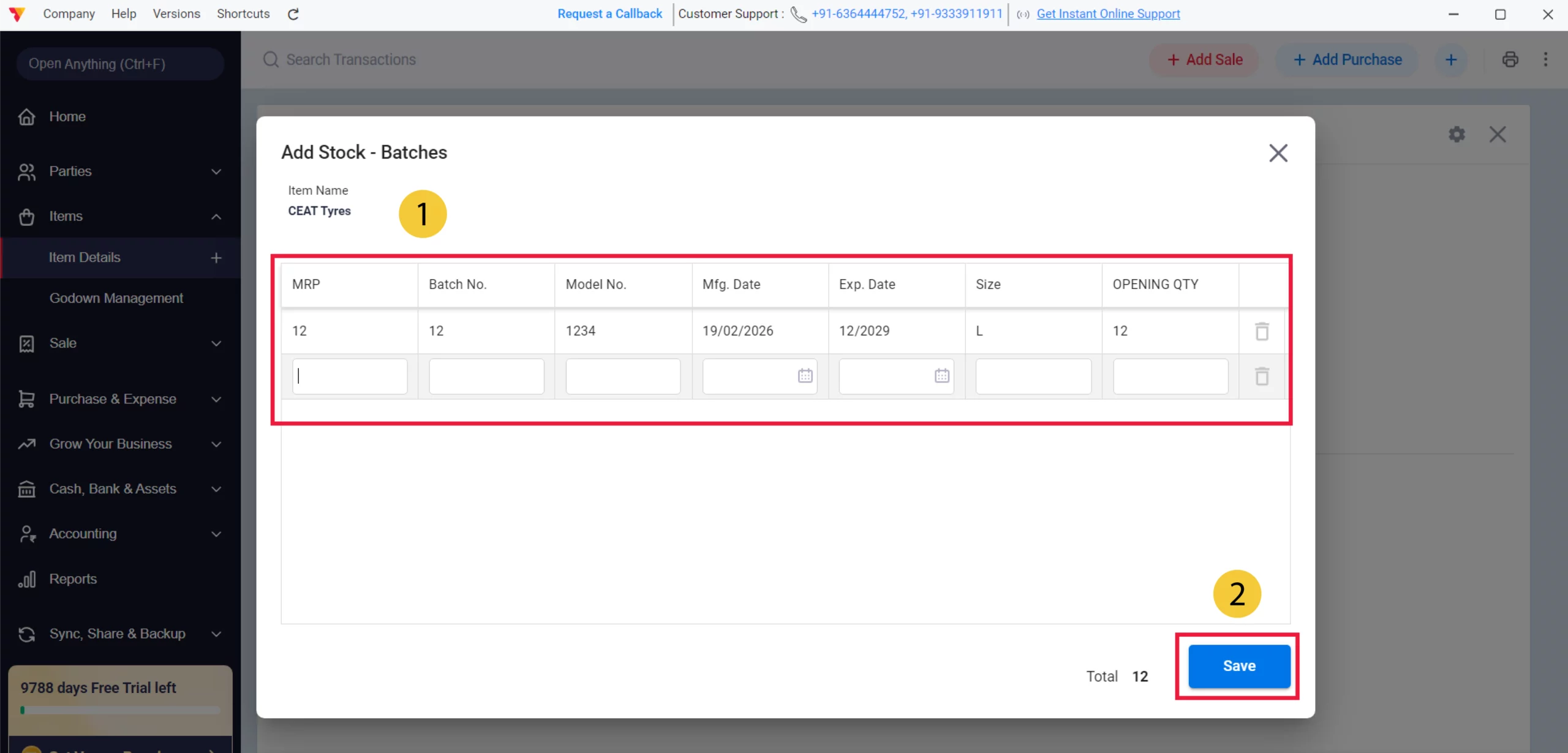
Add Batch Details
Enter the MRP, Batch No., Mfg. Date, Exp. Date, Size, and Opening Qty for each lot, then click Save.
09/A
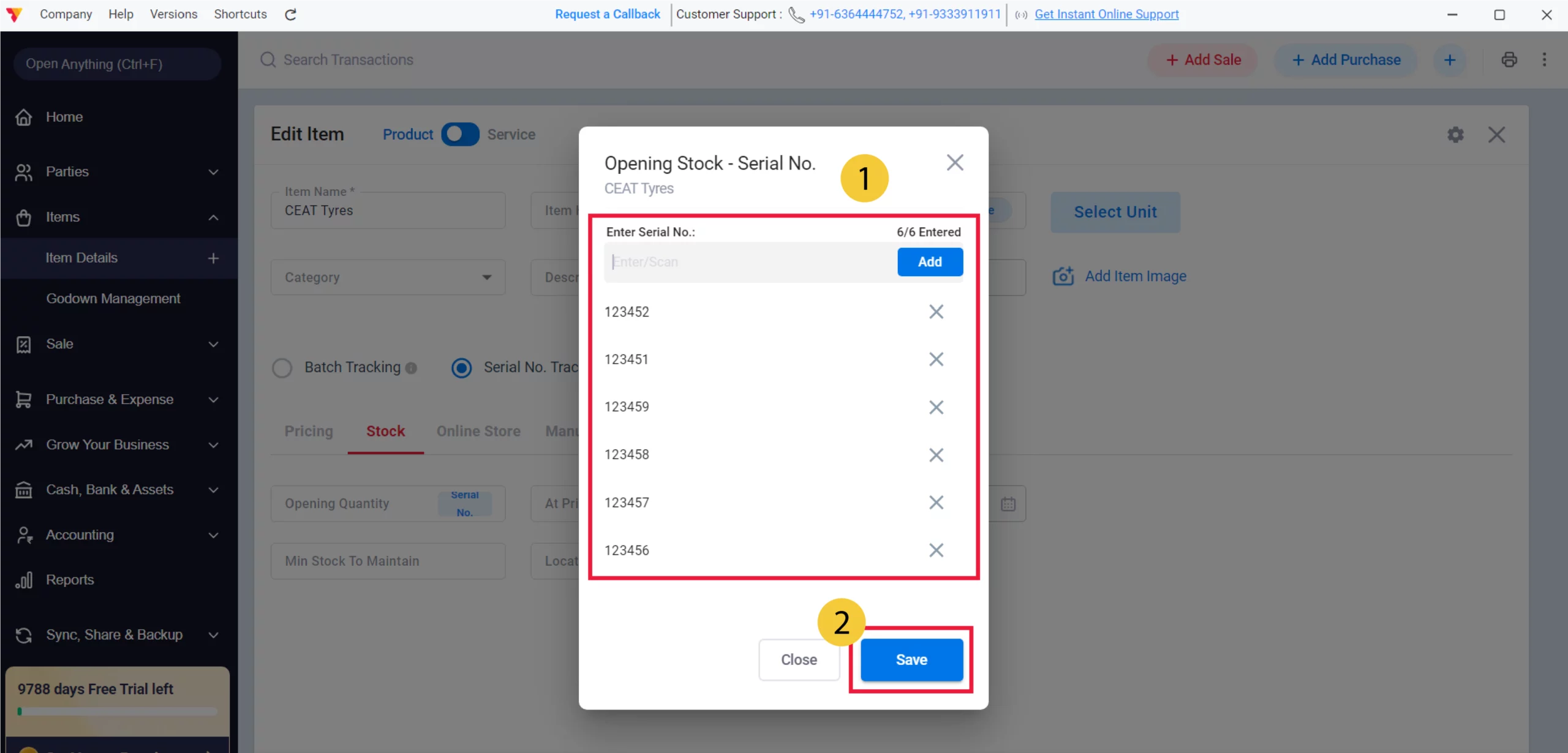
Add Serial No Details
Enter or scan the unique Serial No. For each unit, click Add for each, and then click Save.
09/B
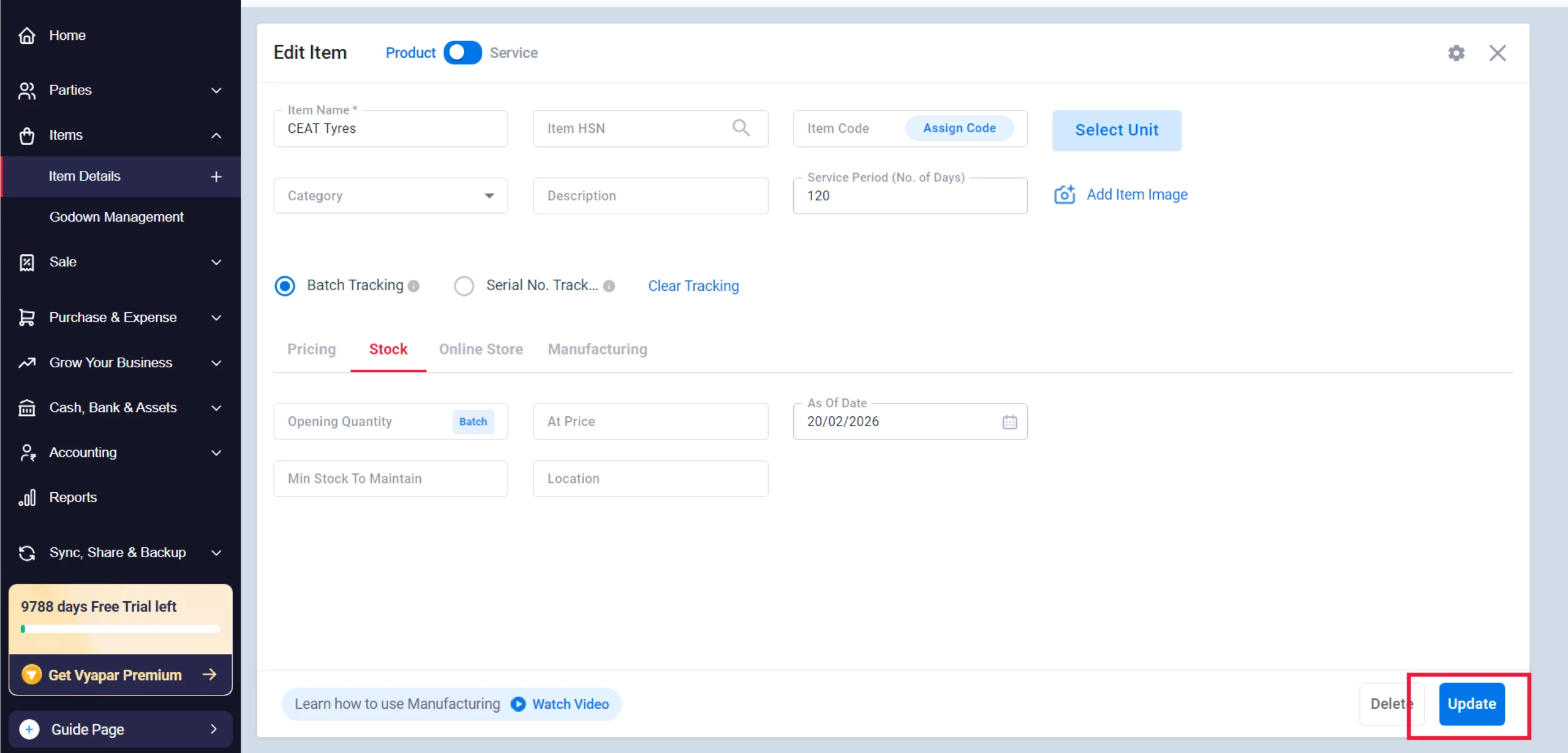
Update and Save
After saving the individual details, click the blue “Update” button at the bottom right of the main Edit Item screen to finalise your tracking preferences
10
Still stuck? Get help in minutes.
Our support team is ready to help you succeed.
 24/7 Support
Where Will You See These Details?
Once configured, Vyapar uses these details to streamline your operations:

During Sales (Batch)
When selling a batch-tracked item, Vyapar inventory management software will prompt you to select the specific Batch, Size, or Expiry date from your available stock.
During Sales (Serial)
For serial-tracked items, you will be asked to select the specific Serial/IMEI number being sold to ensure the correct unit is removed from inventory.
On Invoices
These details (Batch No. or Serial No.) can be printed on your final invoice for your customer’s records and future warranty tracking.
Frequently Asked Questions (FAQs)
Can I use Batch Tracking and Serial Number tracking on the same item?
No. Vyapar requires you to choose one tracking method per item. For example, you can track a phone by Serial Number OR a box of phones as a Batch, but not both at once.


What should I do if I want to switch from Batch to Serial tracking?
You can click the “Clear Tracking” link in the Edit Item screen to reset the tracking method, but ensure you adjust your stock levels afterwards to avoid discrepancies.
Will these details show up when I sell the item?
Yes. When creating a Sale, Vyapar will prompt you to select the specific Batch or Serial Number being sold to ensure the correct unit is deducted.
Ready to Stop Tracking Errors?
Start batch and serial numbering today and find any item in 5 seconds.
 Download Vyapar Now





