
How to Add Terms and Conditions in Vyapar App
Want to avoid payment disputes and set clear expectations with your clients? Adding Terms and Conditions (T&C) to your invoices and quotations is the best way to safeguard your business.
With Vyapar, you can set custom rules for every transaction type, be it Sales, Purchases, or Quotations, ensuring your professional “fine print” is always visible.
Forget typing the same rules repeatedly. Follow this guide to set up automated T&C on both Mobile and Desktop.

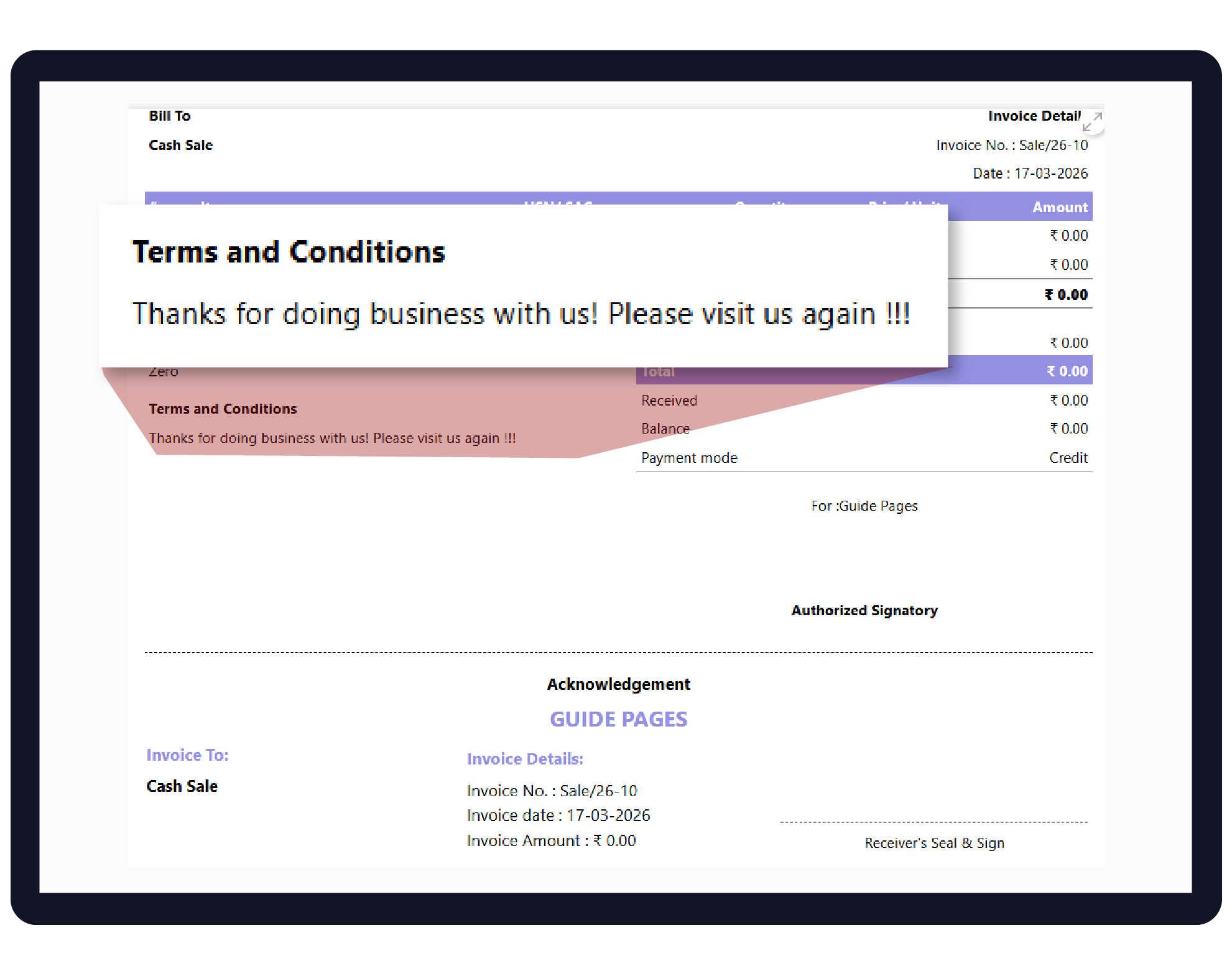

Before You Start

Decide Your Rules: Have your standard terms ready (e.g., “Goods once sold won’t be taken back” or “18% interest on late payments”).
Transaction Specifics: Identify if you need different terms for Sales vs. Quotations.
How to Set Up Terms and Conditions:
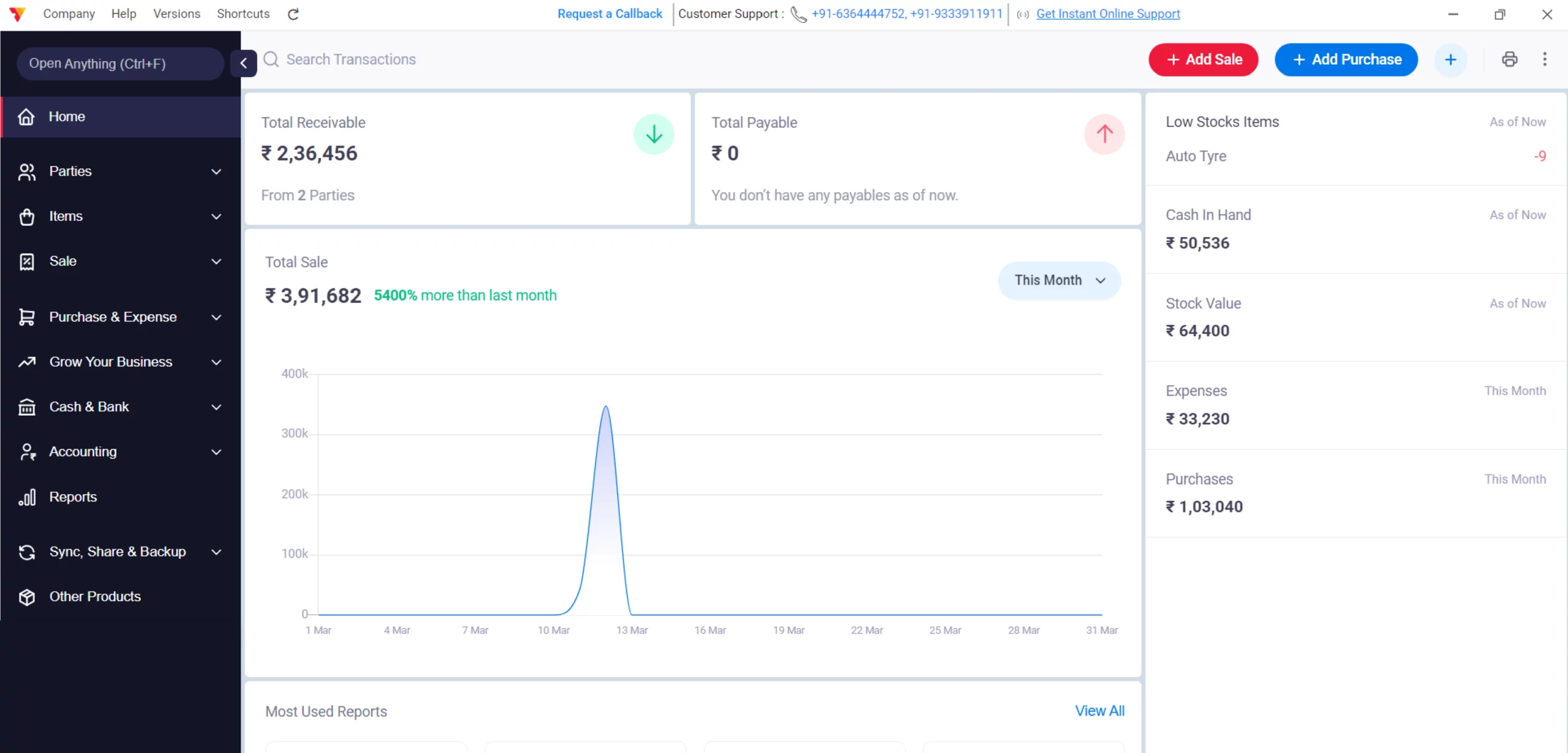
Open Vyapar App
Launch Vyapar billing software on your Desktop.
01
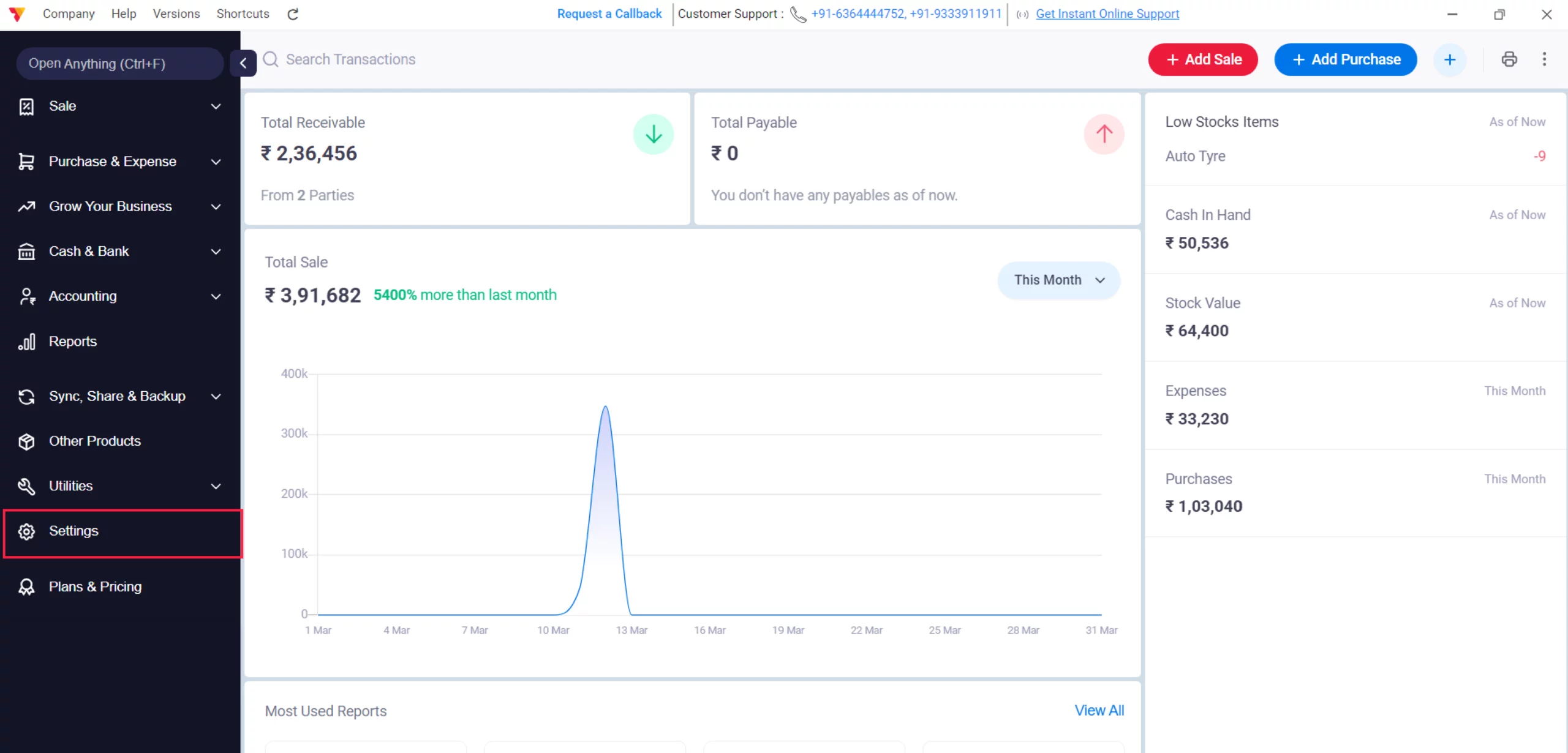
Go to Settings
Navigate to the Left Menu and click on the Settings gear icon at the bottom.
02
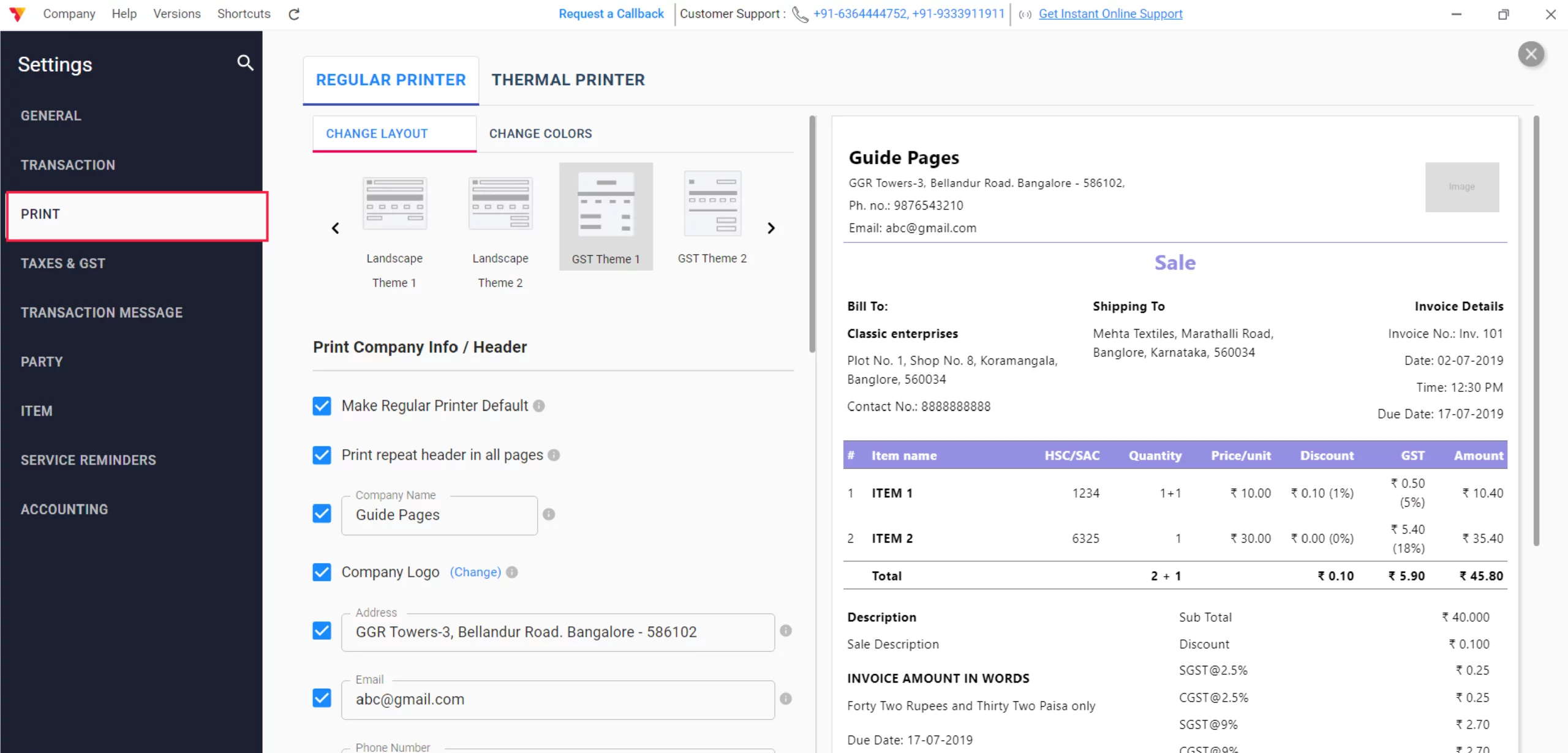
Access Print Settings
Inside the Settings menu, from the list, click on “Print Setting”. This is where you control the layout of your documents.
03
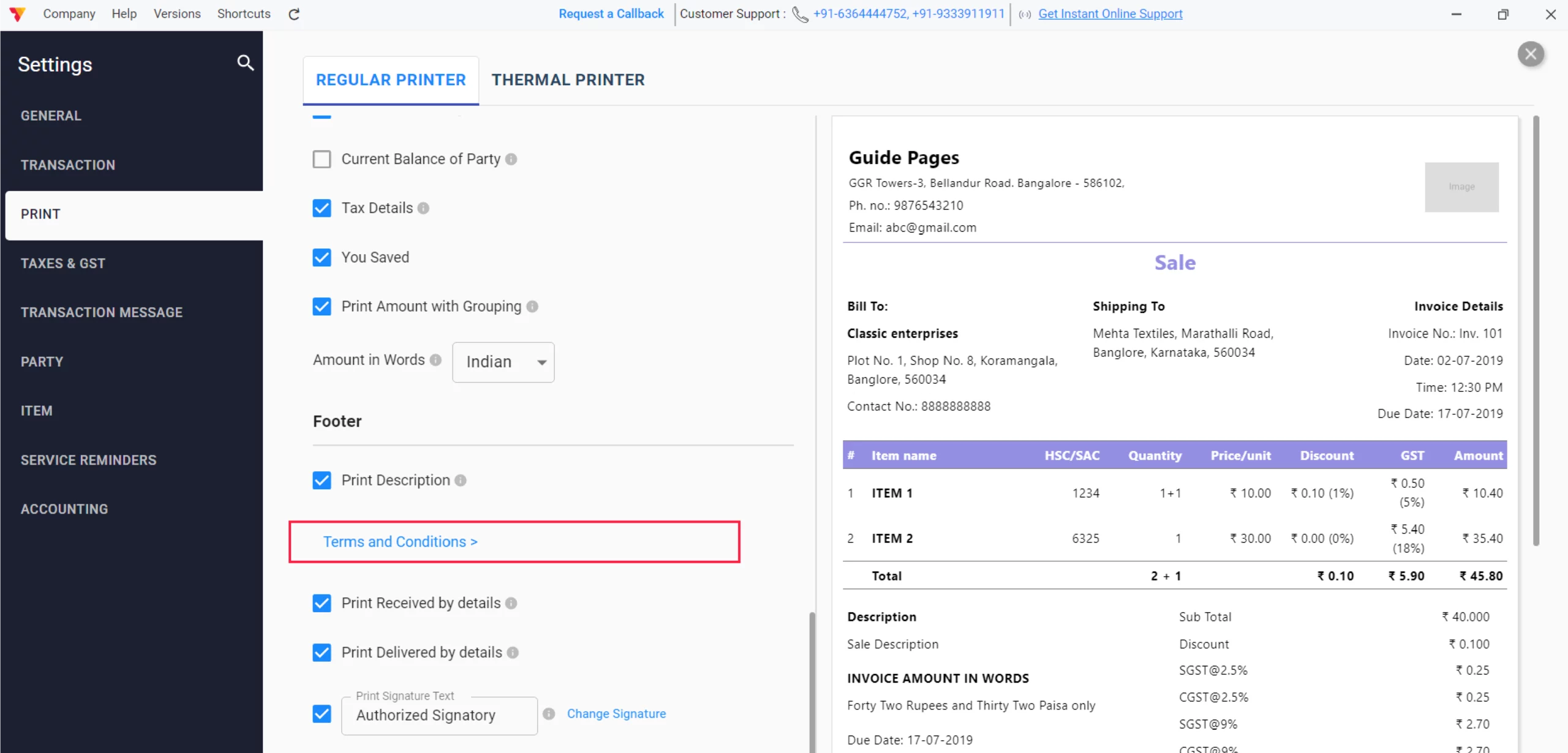
Find the “Terms & Conditions” Section
Scroll down until you see the Footer heading. Look for the Terms and Conditions option.
04
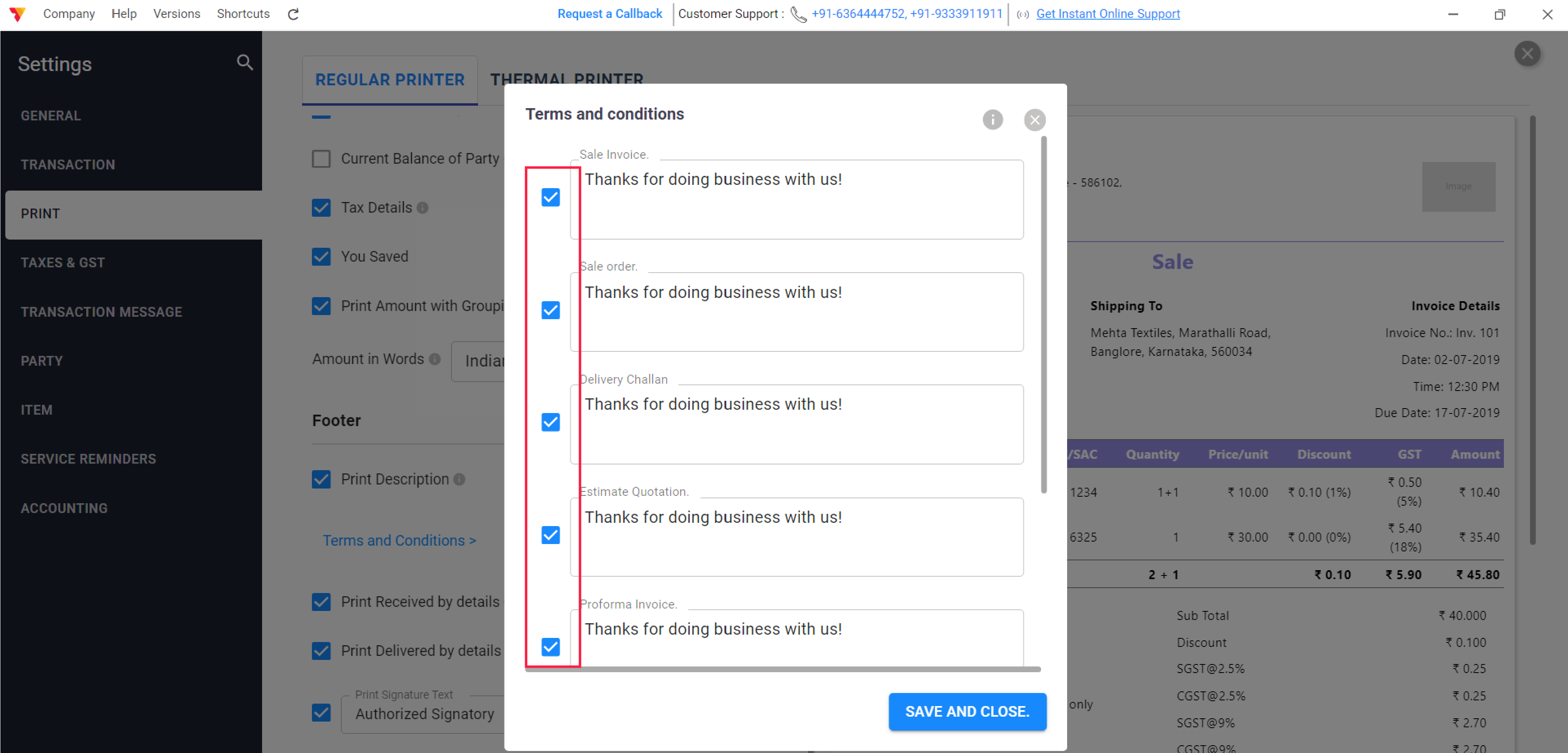
Customize by Transaction Type
Click on the “Terms and Conditions” in the settings. You will see a list of transaction types (Sale, Purchase, Quotation, etc.).
Toggle ON the checkbox for the documents where you want the T&C to appear.
05
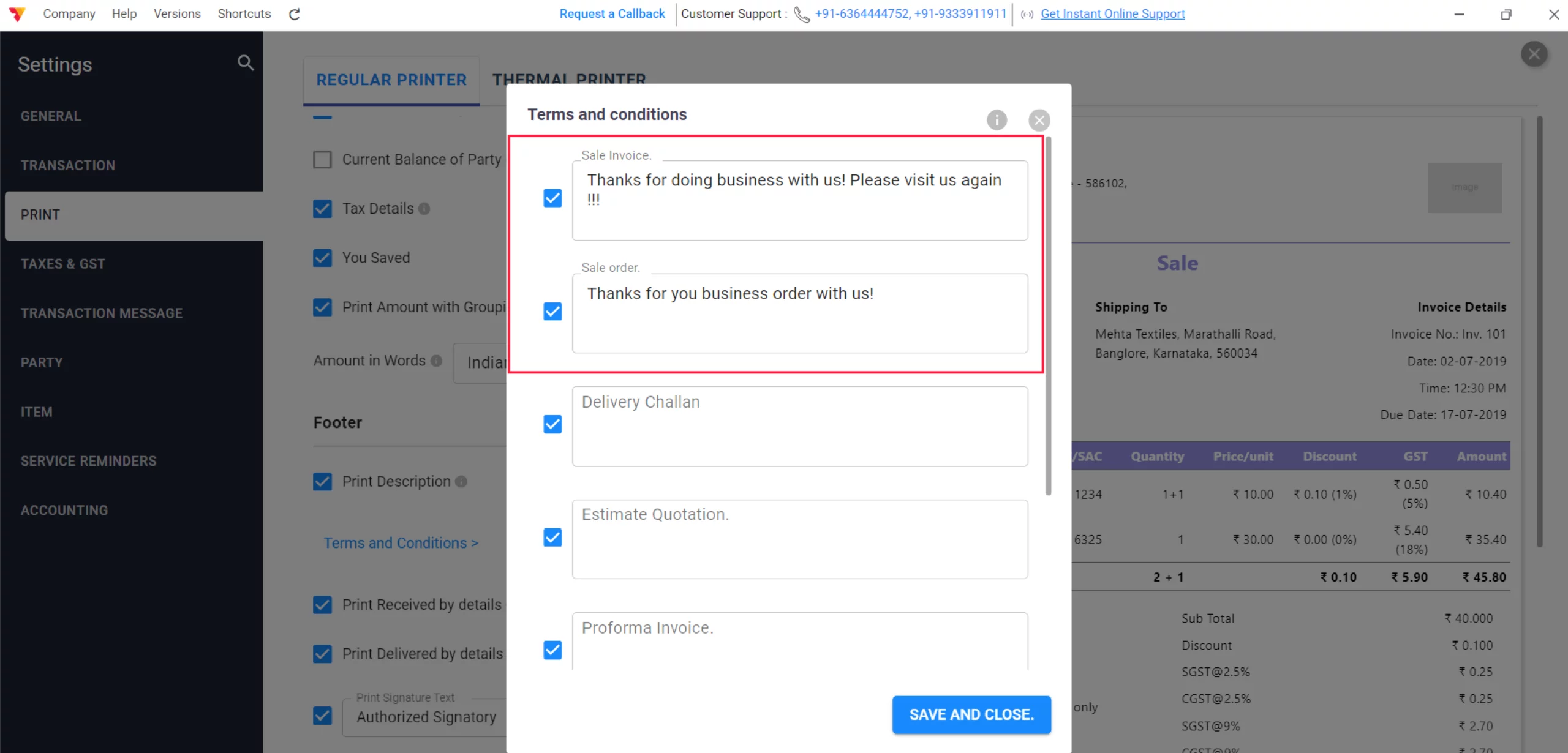
Enter Your Content
Click on the specific transaction (e.g., Sale Invoice) and type or paste your business terms into the text box.
06
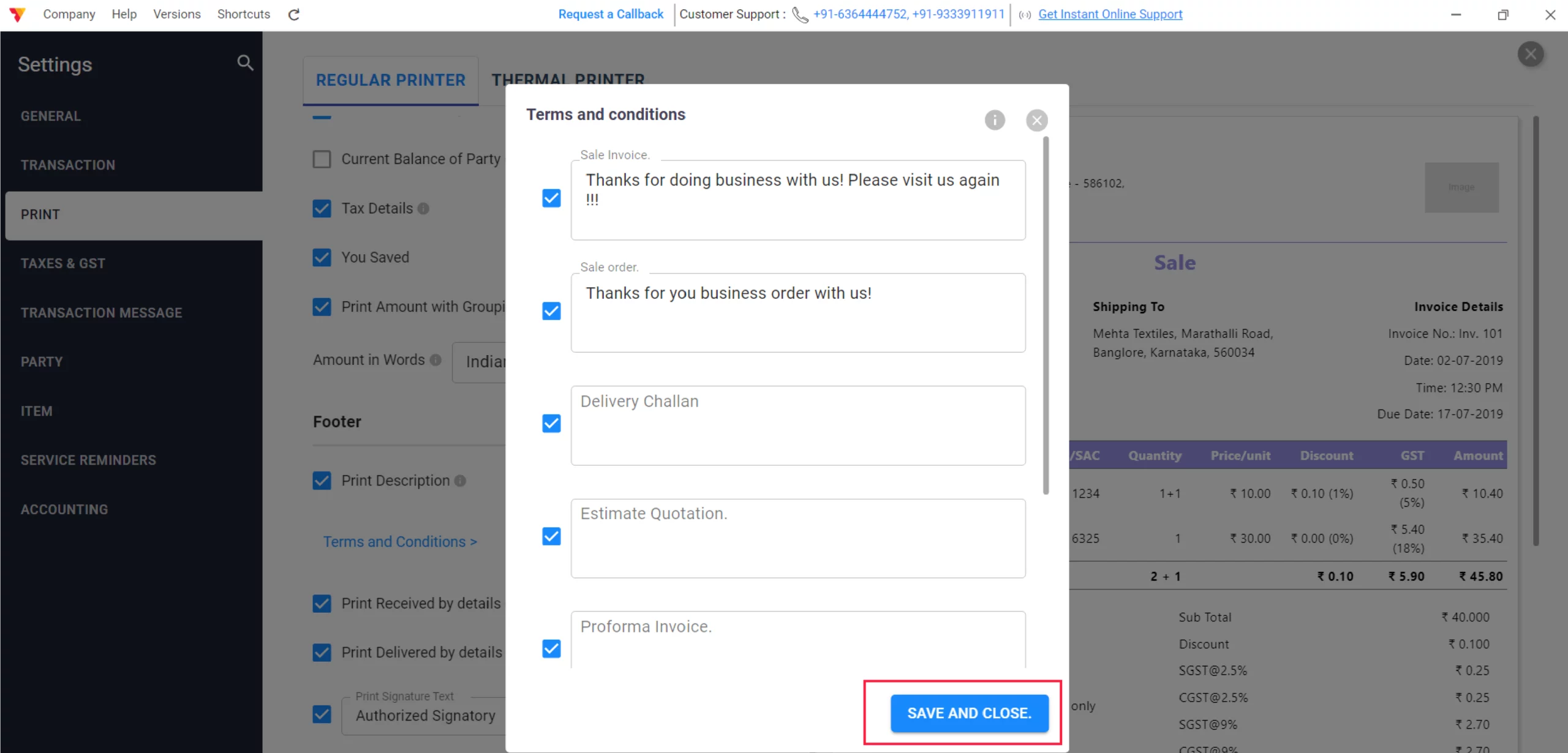
Save and Close
Click on the Save and Close button. Your terms will now automatically appear at the bottom of every new transaction you create.
07
Still stuck? Get help in minutes.
Our support team is ready to help you succeed.
 24/7 Support
Why Is This Important for Your Business?
Automating your transaction-level communication provides several key advantages:

Legal Clarity
Protect your business by clearly stating rules regarding returns, refunds, and warranties.
Professionalism
Standardized terms build trust with your clients and make your business appear more established.
Faster Payments
Adding specific payment terms (e.g., “Payment due within 7 days”) encourages timely collections.
Frequently Asked Questions (FAQs)
Can I have different terms for different invoices?
In the standard settings, the terms you set are global, but you can manually edit them in the “Notes” section of a specific invoice if a particular deal requires unique conditions.


Is there a character limit for terms?
Vyapar provides ample space, but it is best to keep terms concise to ensure they fit neatly on the printed page without cutting off other important data.
Ready to Protect Your Business?
Add your terms and conditions today and cut payment disputes by 70%.
 download Vyapar Now





