
How to check Transaction Reports in Vyapar App
The Transaction report section in Vyapar acts as a central hub for auditing every movement in your business. It provides detailed logs of revenue, spending, and financial health summaries, ensuring your books are accurate and ready for tax season.

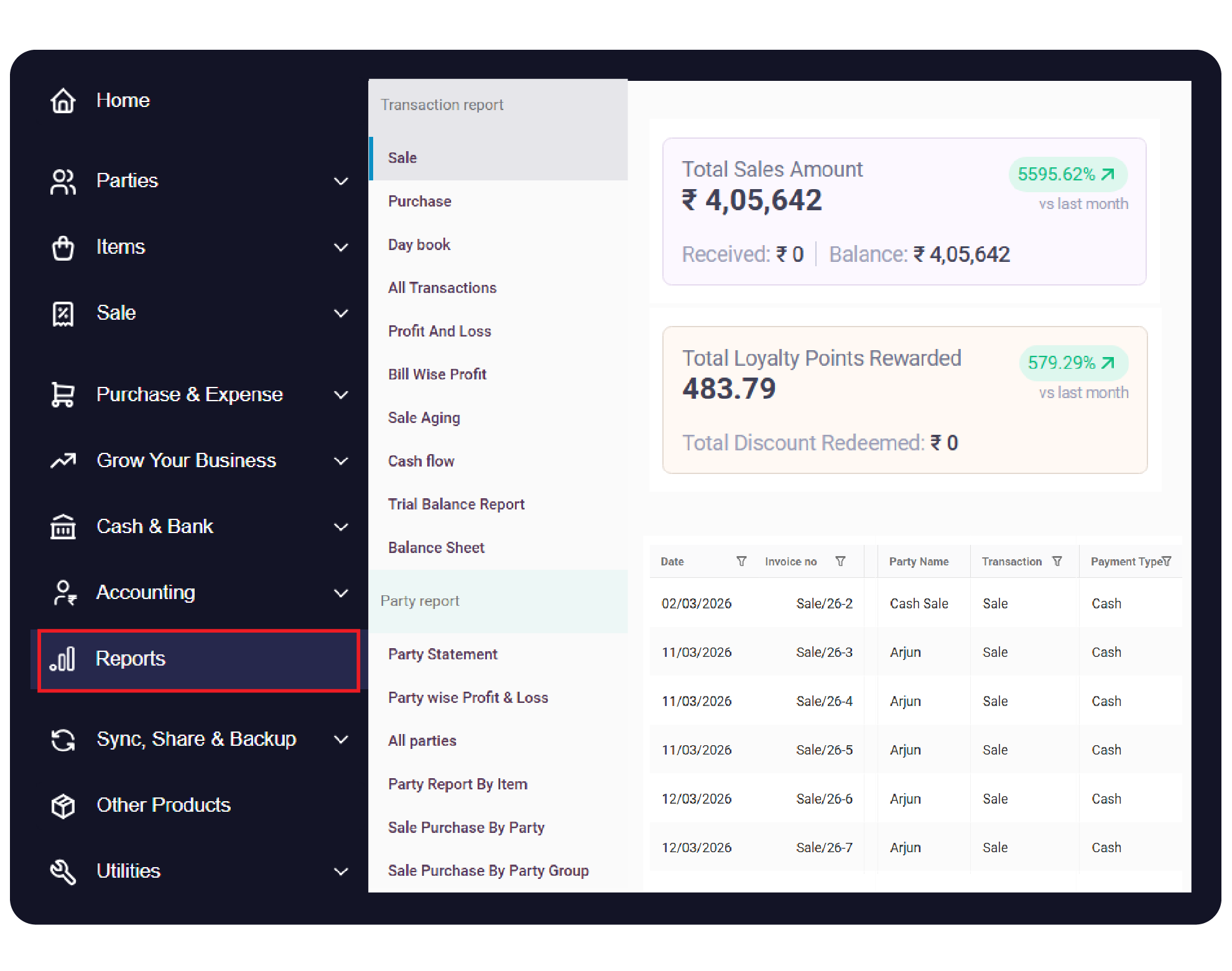

Before You Start

Data Consistency: Ensure all daily transactions are saved to see real-time updates in the reports.
Firm Selection: If you manage multiple businesses, ensure you have selected “All Firms” or the specific firm you wish to analyze.
Date Knowledge: Know the specific “Between” dates you need for your custom analysis.
Step-by-Step Guide to Accessing Transaction Reports:

Open Vyapar App
Launch Vyapar accounting software on your Desktop device.
01
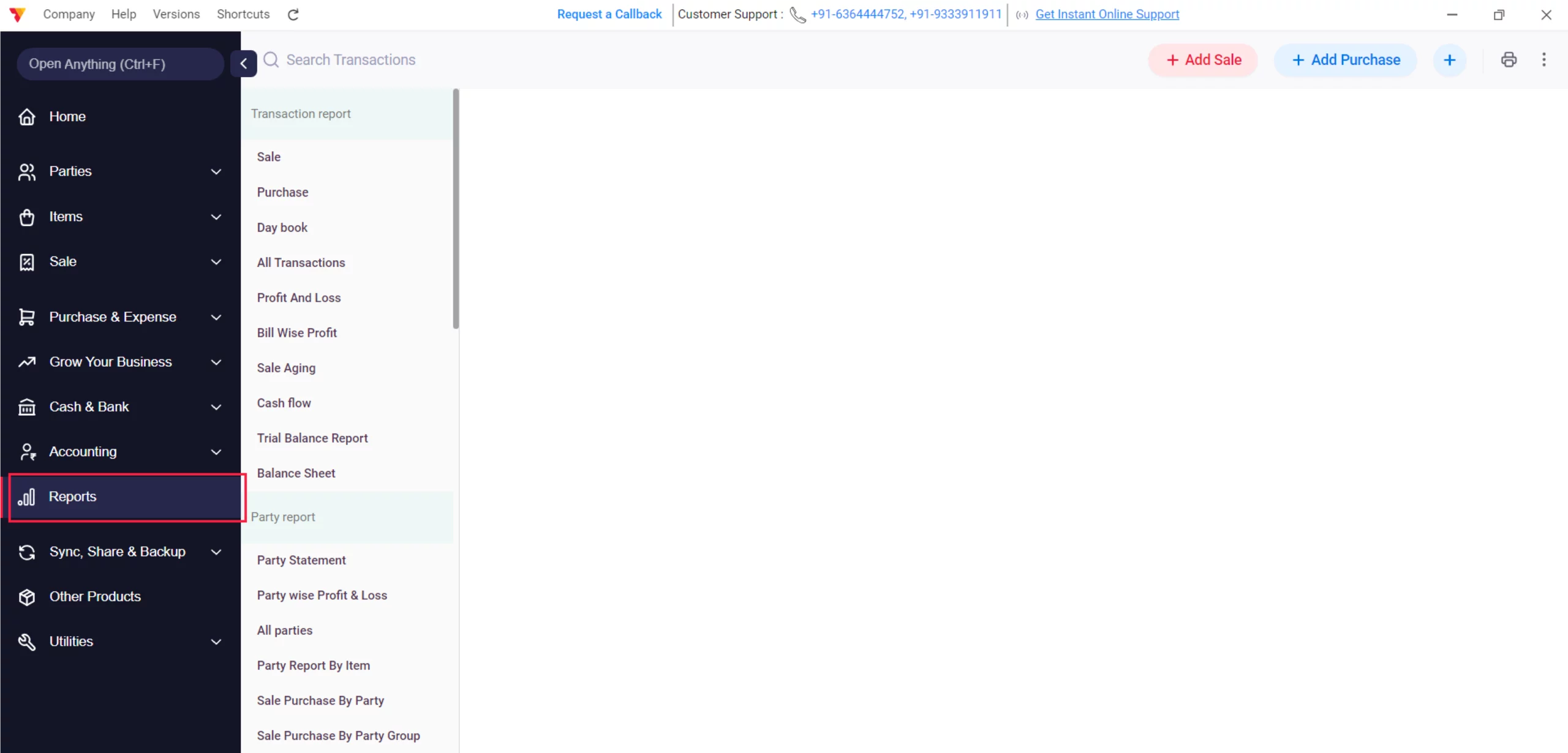
Navigate to Reports
Click on the Reports section in the left-hand main menu.
02
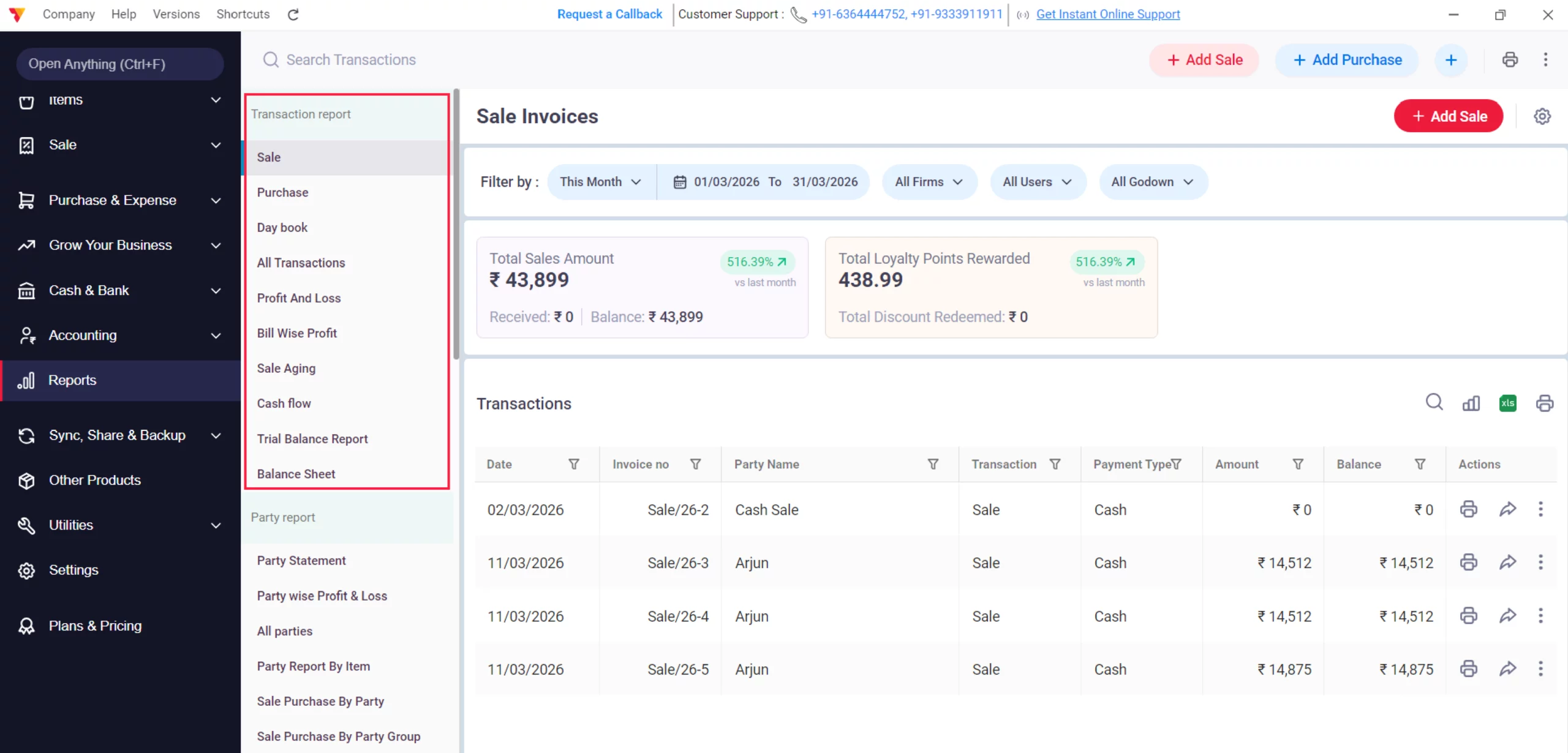
Explore the Transaction Report Category
Locate the primary Transaction report list, which includes Sale, Purchase, Daybook, All Transactions, Profit and Loss, Bill Wise Profit, Sale Aging, Cash flow, Trial Balance Report, and Balance Sheet.
03
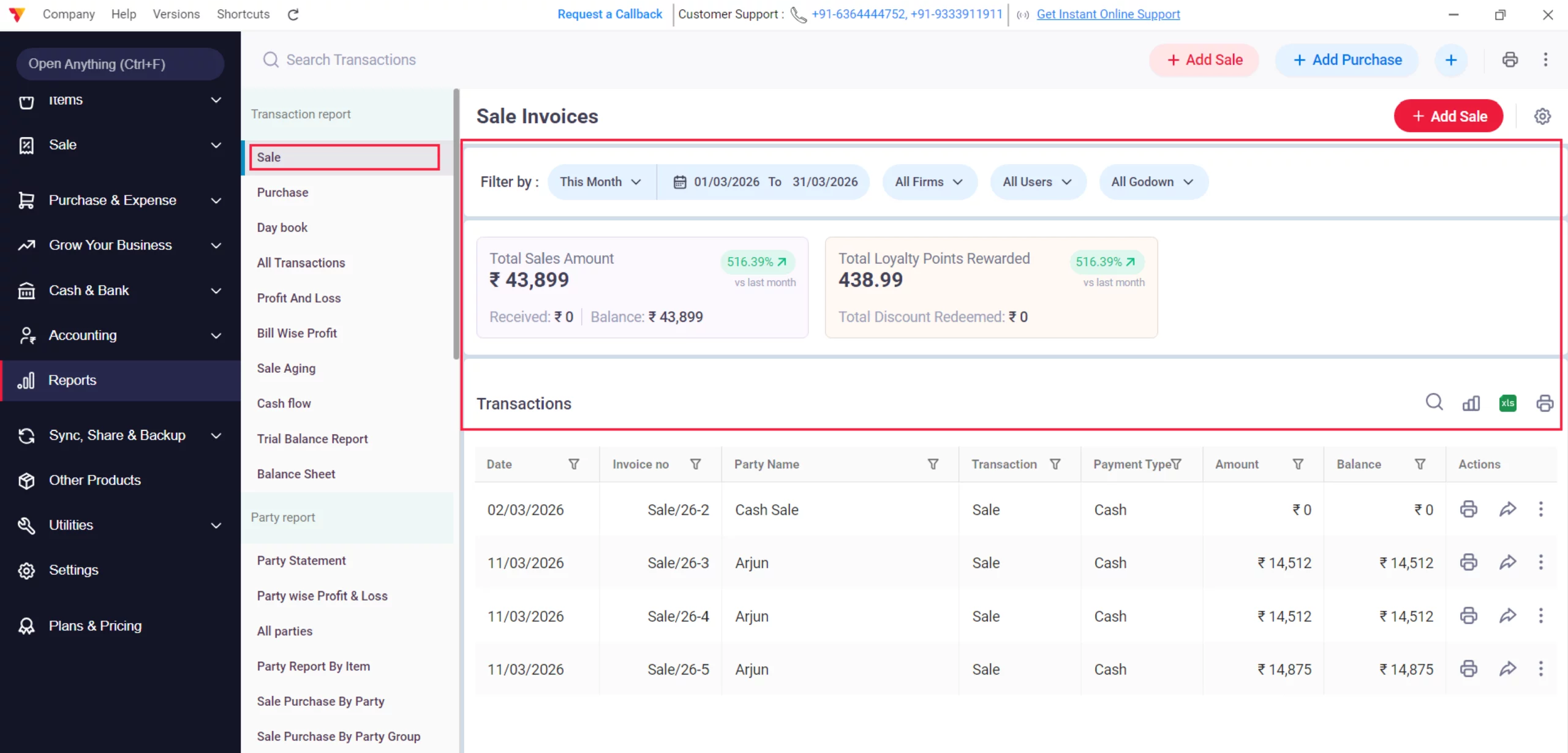
Sale Report
View a detailed log of all sales invoices, including Total Sales Amount, Received, and Balance. Filter data by Godowns, Monthly, Quarterly, Yearly, or Custom dates. Click on the Graph icon to view data in a graphical presentation, or use the xls and Print icons for Excel or PDF physical prints.
04
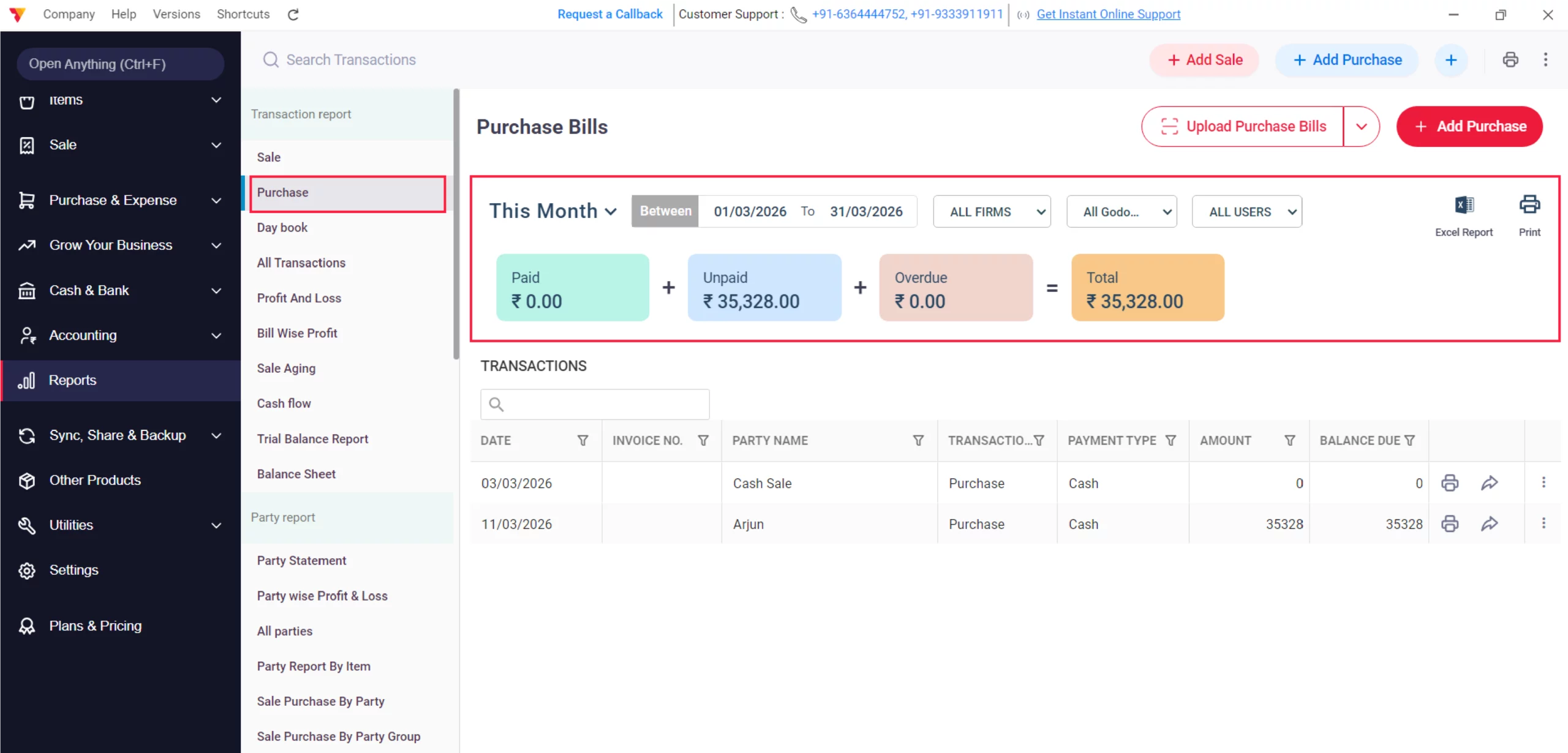
Purchase Report
Access a detailed log of all purchase invoices to track business acquisitions. Use filters for Godowns, Monthly, Quarterly, Yearly, or Custom periods to narrow your results. Export the data via the xls icon or generate a PDF for physical printing.
05
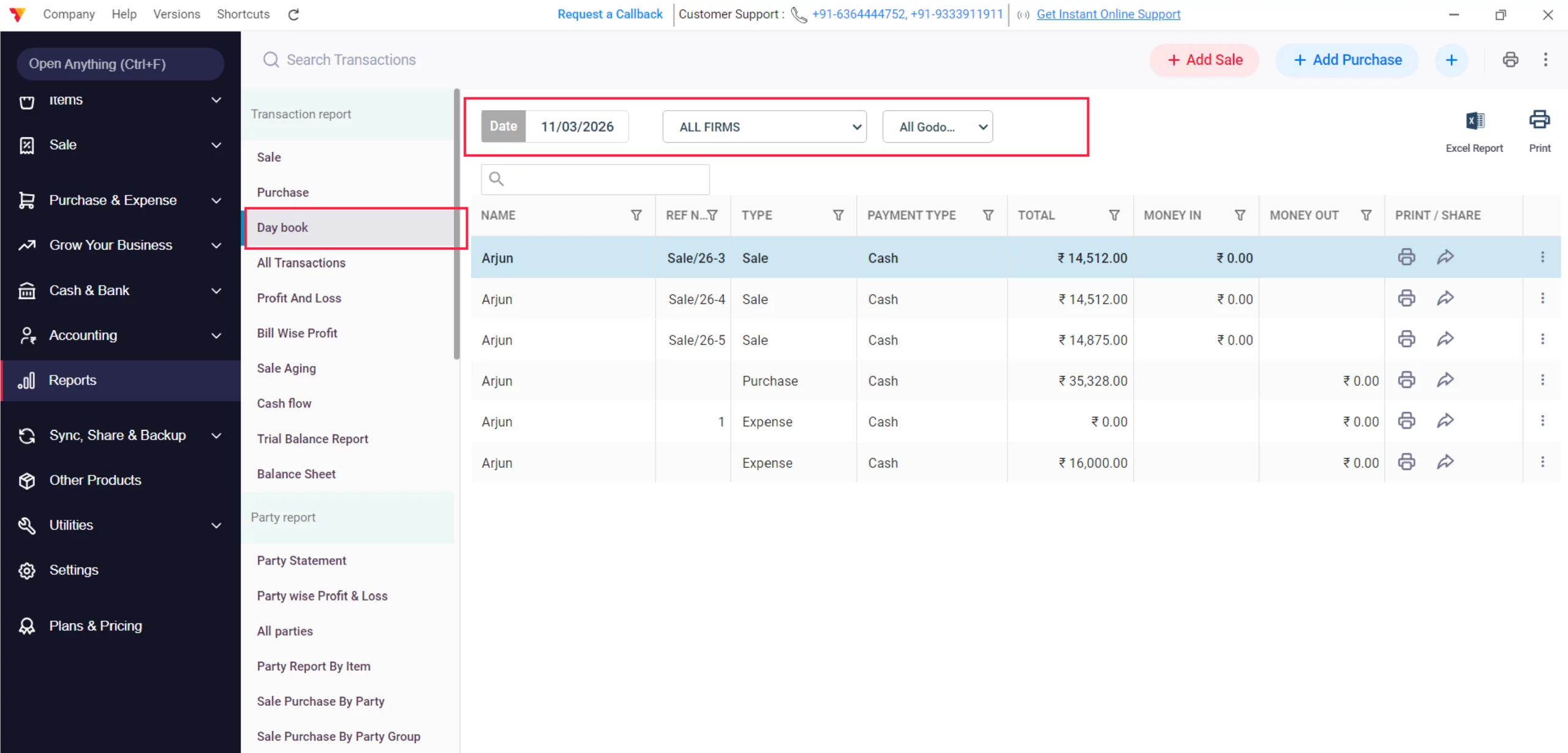
Day book
Access a chronological log of every entry made on a specific date. Filter by Date, Firms, or Godowns to audit daily movements. Review details like Transaction Type (e.g., Other Income, Purchase) and payment mode. Use the xls icon for Excel export or Print for documentation.
06
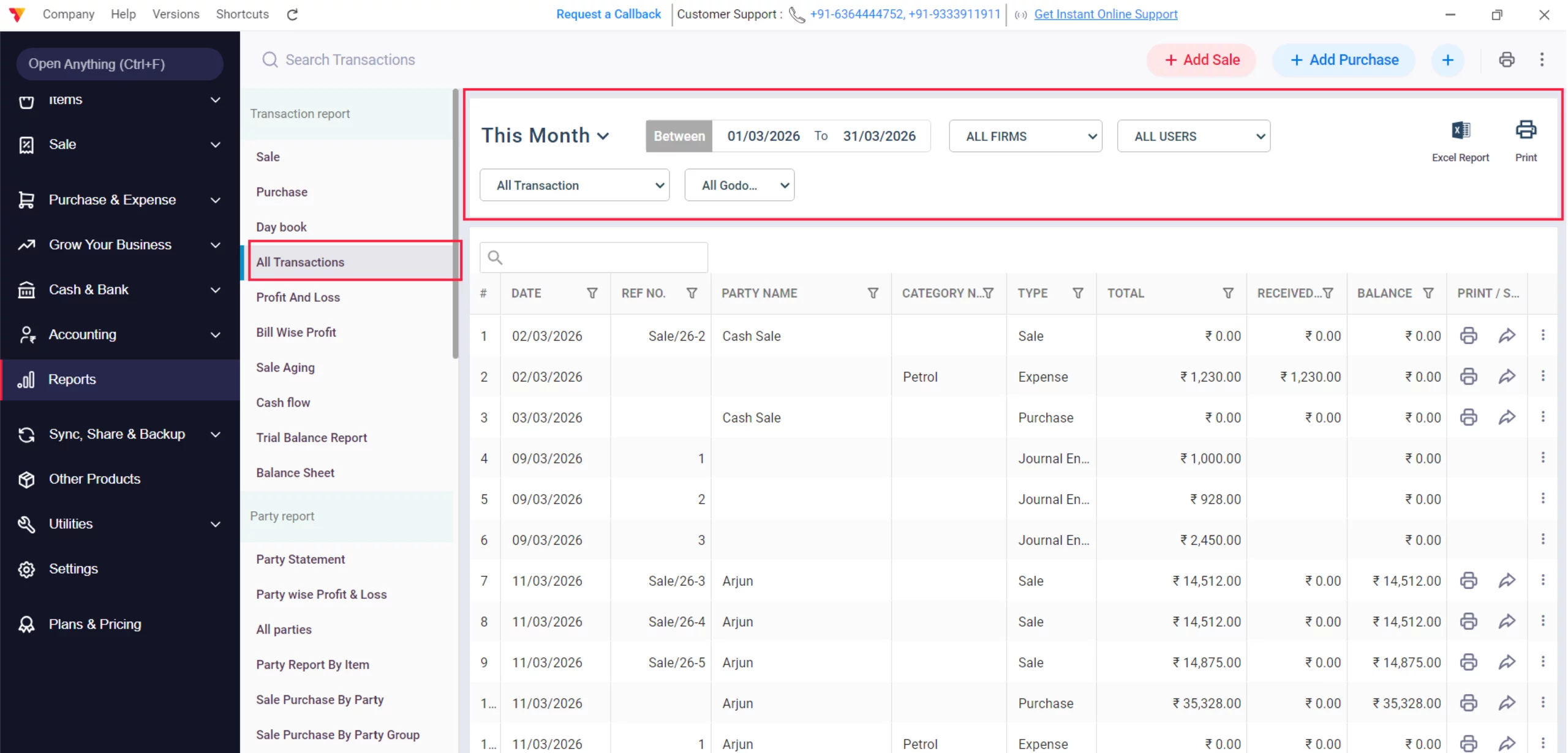
All Transactions
View a master list of every transaction recorded within a selected period. Filter by Period, Firms, Transaction Type, and Godowns. View a complete table including Party Name, Category, and Received/Paid amounts. Export using the Excel Report icon or generate a Print.
07
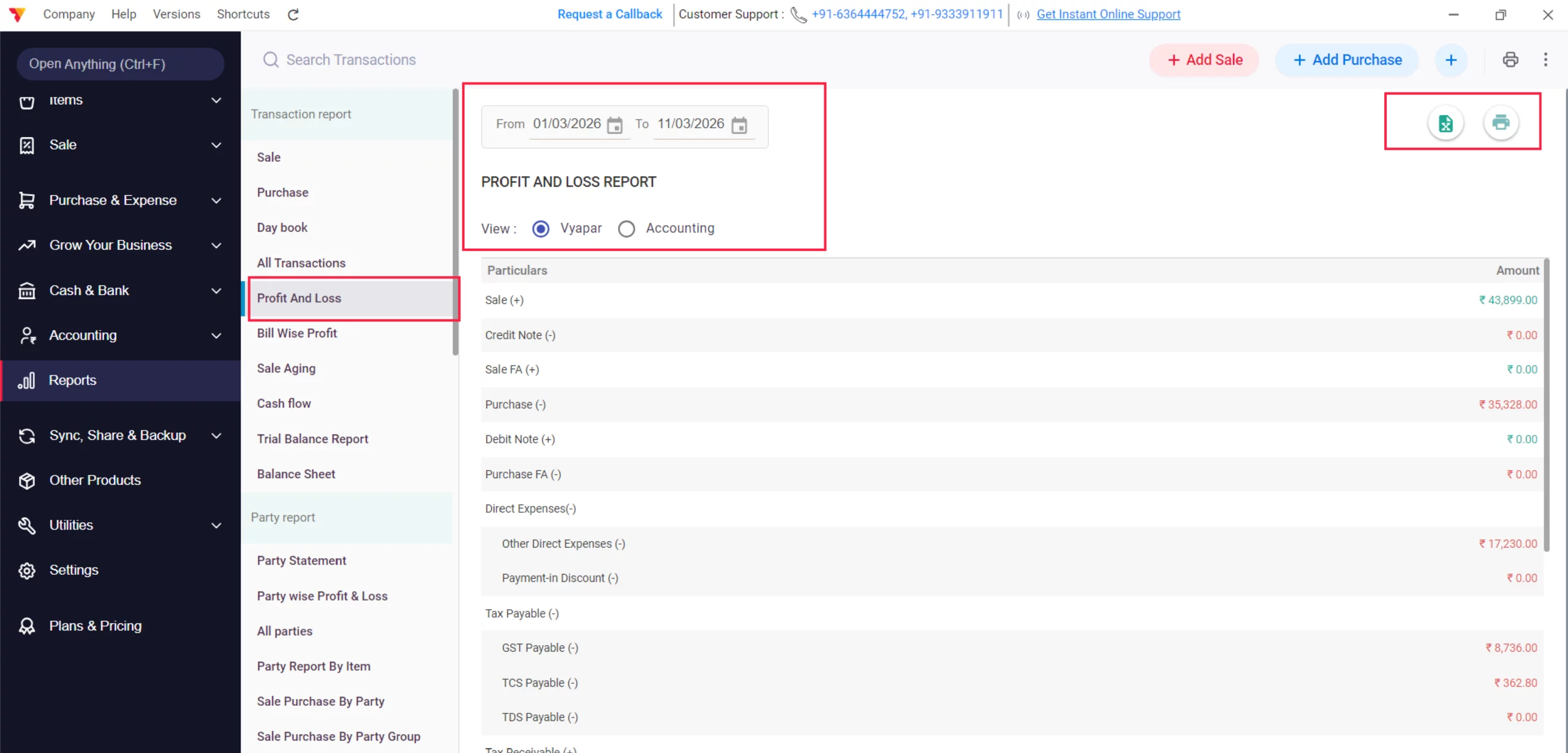
Profit And Loss Report
Summarize your net earnings over a custom time range. Toggle between Vyapar or Accounting views to see Total Sales, Purchases, Direct/Indirect Expenses, and Tax. Track Opening and Closing Stock to understand final net profit. Use xls and Print icons to save results.
08
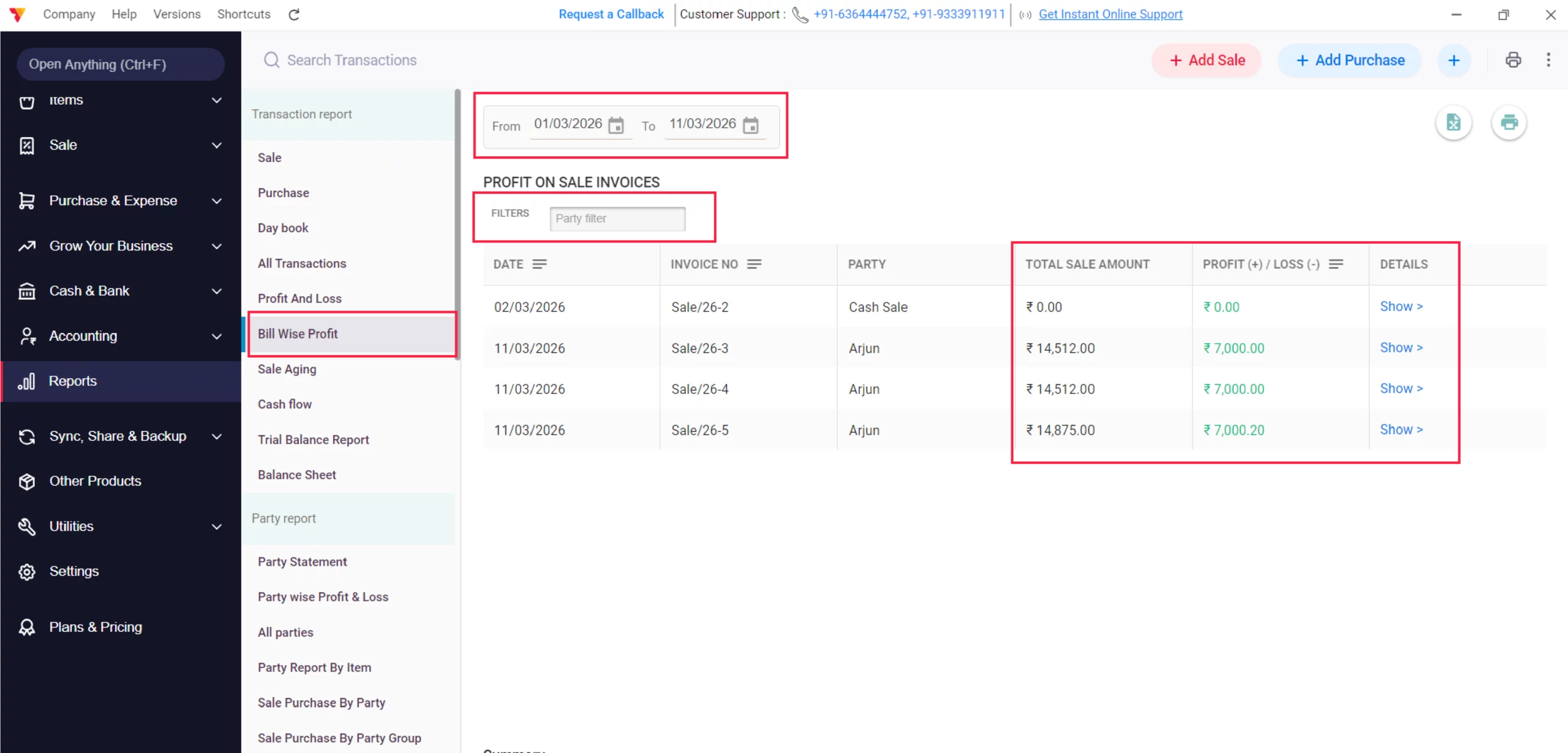
Bill Wise Profit
Identify profit margins on every individual sale invoice. Filter by Date or search for a Party to see Total Sale Amount vs. Profit/Loss earned on that bill. Click Show > for deeper transaction details and access quick profit summaries at the bottom.
09
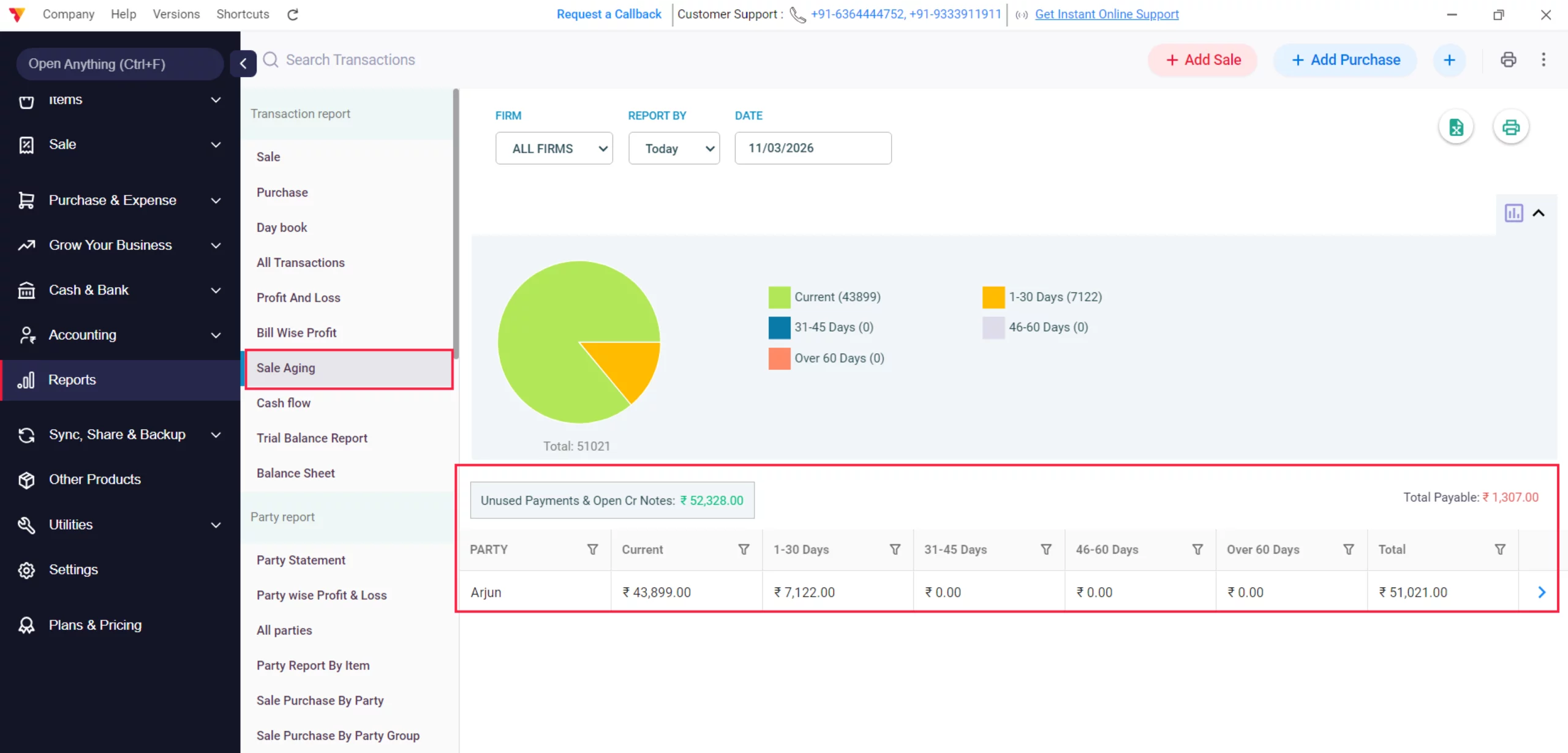
Sale Aging Report
View a detailed table including Party Name, Total Pending Amount, and the breakdown of how many days the payment has been overdue.
10
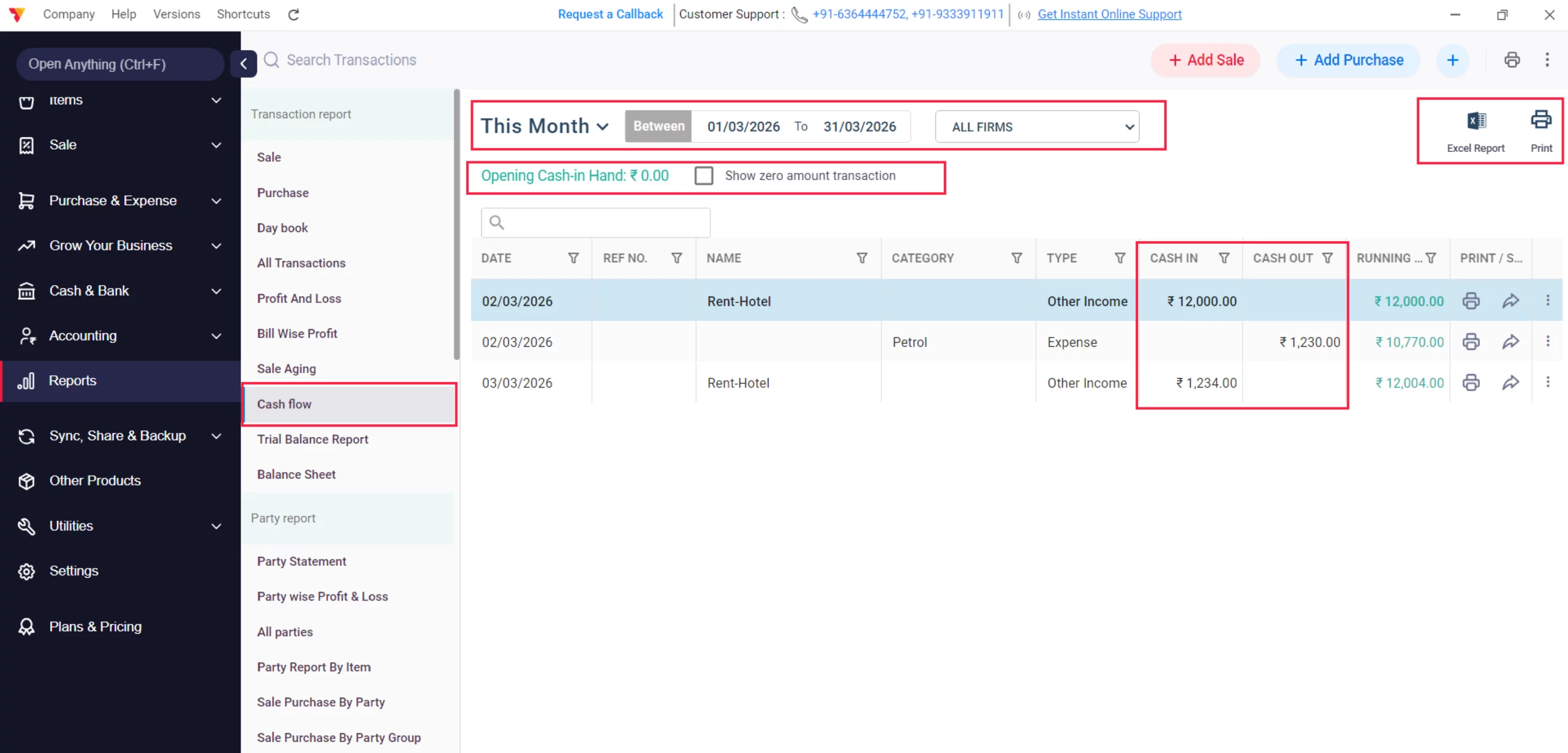
Cash Flow
Track the movement of liquid money in and out of your business. Filter by Monthly or Between dates and specific Firms. View a running balance of Cash-in and Cash-out activities. Toggle “Show zero amount transaction” and export via Excel or Print.
11
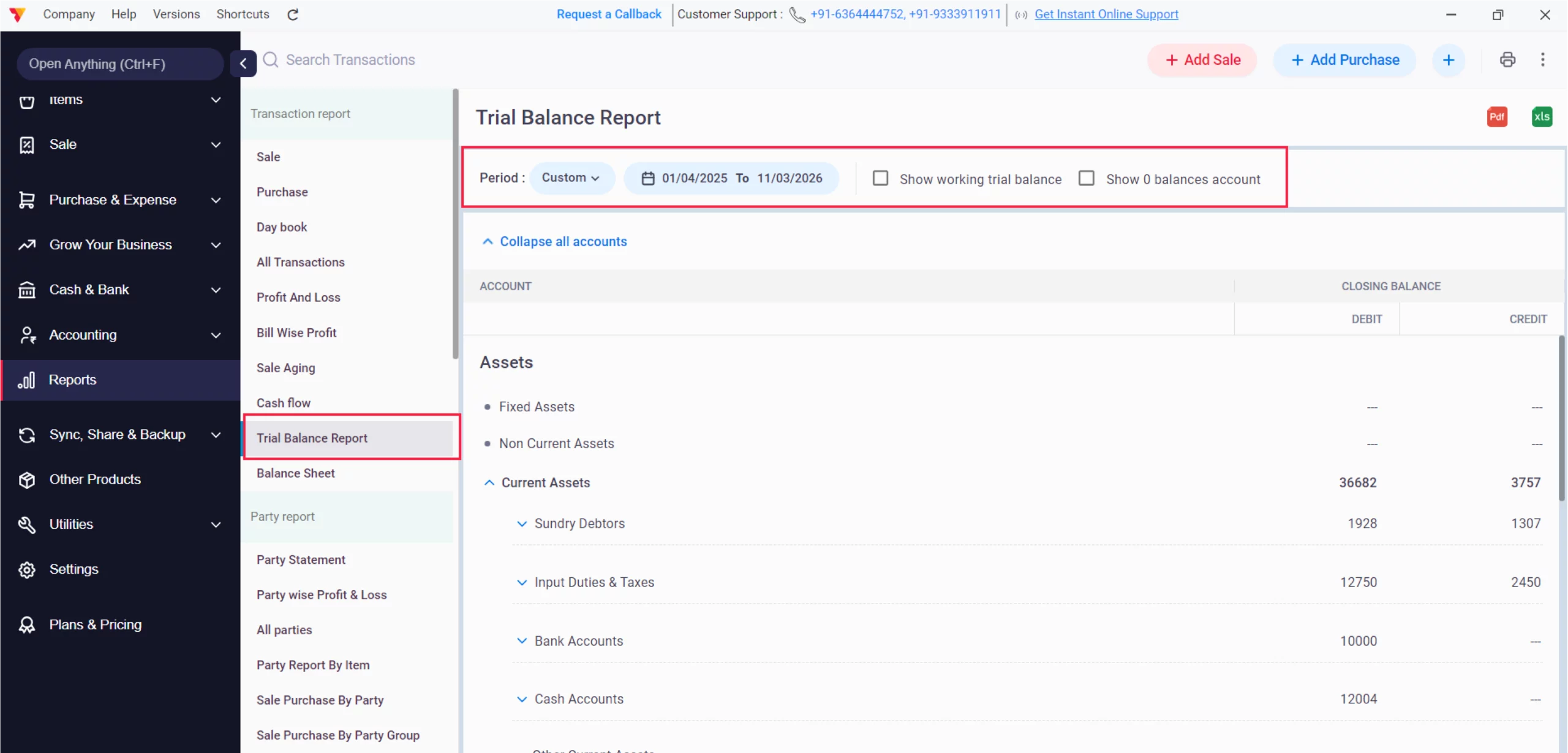
Trial Balance Report
Summarize closing balances of all ledger accounts. Filter by Custom Period and use checkboxes to “Show working trial balance” or “Show 0 balances account”. Analyze Assets and Equities & Liabilities to ensure debits and credits match.
12
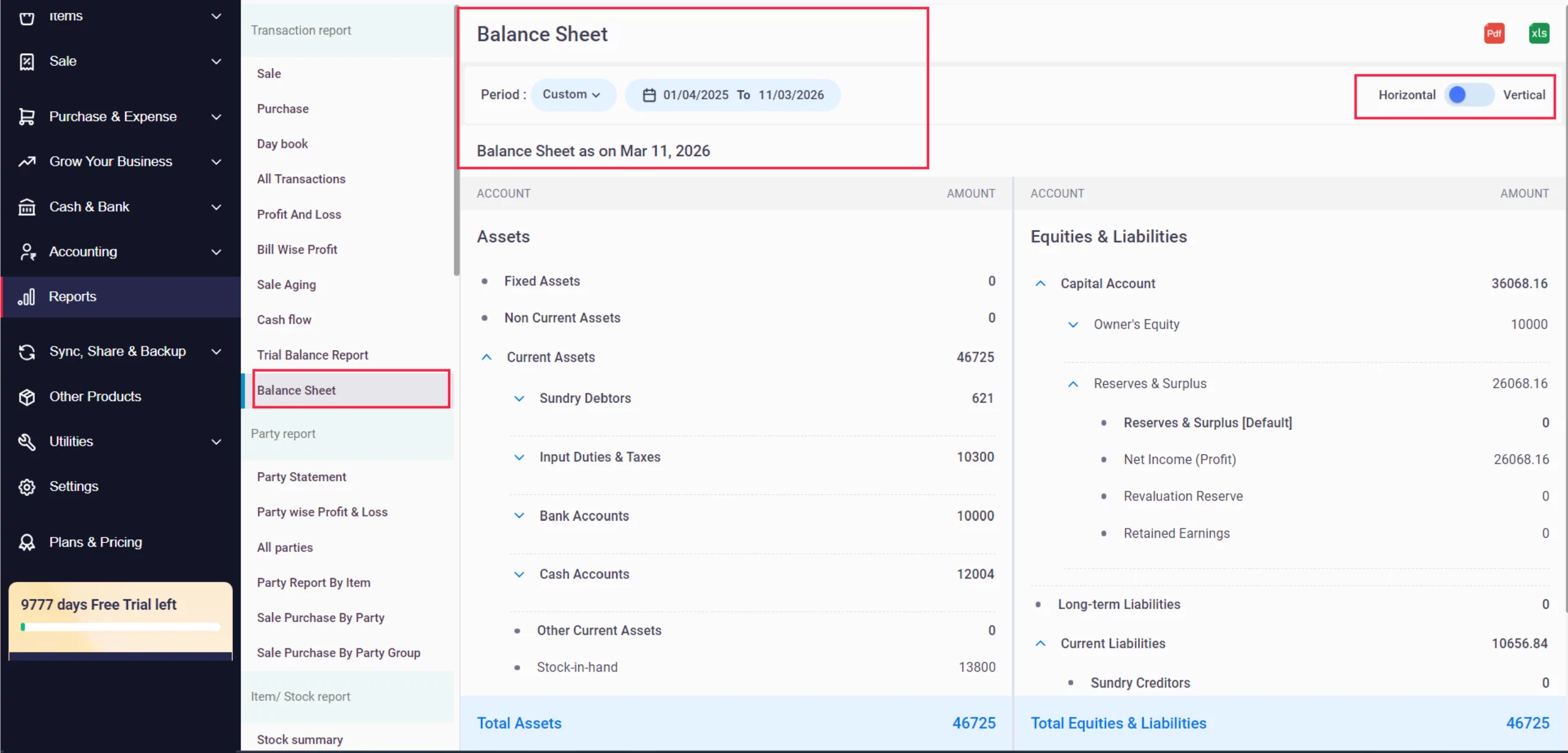
Balance Sheet
Get a snapshot of your business’s total value as of a specific date. Use the Period filter for a custom date and toggle between Horizontal or Vertical orientations. Review Current Assets like Sundry Debtors and Cash Accounts alongside Equities & Liabilities.
13
Ready to Find Every Entry?
Check your transaction reports today and cut your audit time by 50%.
 24/7 Support
Why Is This Important for Your Business?

Financial Oversight
Monitoring Profit and Loss and Cash flow reports ensures you understand your business’s liquidity and actual earnings.
Accuracy in Auditing
The Daybook and Trial Balance provide the necessary checks and balances to prevent accounting errors.
Strategic Growth
Analyzing Bill Wise Profit helps you identify which transactions or items are your top performers.
Frequently Asked Questions (FAQs)
Can I see deleted transactions in these reports?
No, only saved and active transactions appear in the main reports. However, you may check the Recycle Bin in utilities for recently deleted entries.


How do I see the profit made on a specific transaction?
While the general report shows the total amount, you can check the Bill Wise Profit report for a transaction-level breakdown of earnings.
Can I customize the columns in the report?
While you cannot directly toggle individual columns within the report view, Vyapar allows you to customize the reports by using the built-in filters to refine the data displayed before exporting to Excel.
Ready to Speed Up Your Billing?
Enable barcode scanning today and reduce billing time by 50%.
 Download Vyapar Now





