
How to Connect My Printer with Vyapar App
Connecting a printer to Vyapar allows you to generate professional, hard-copy invoices instantly.
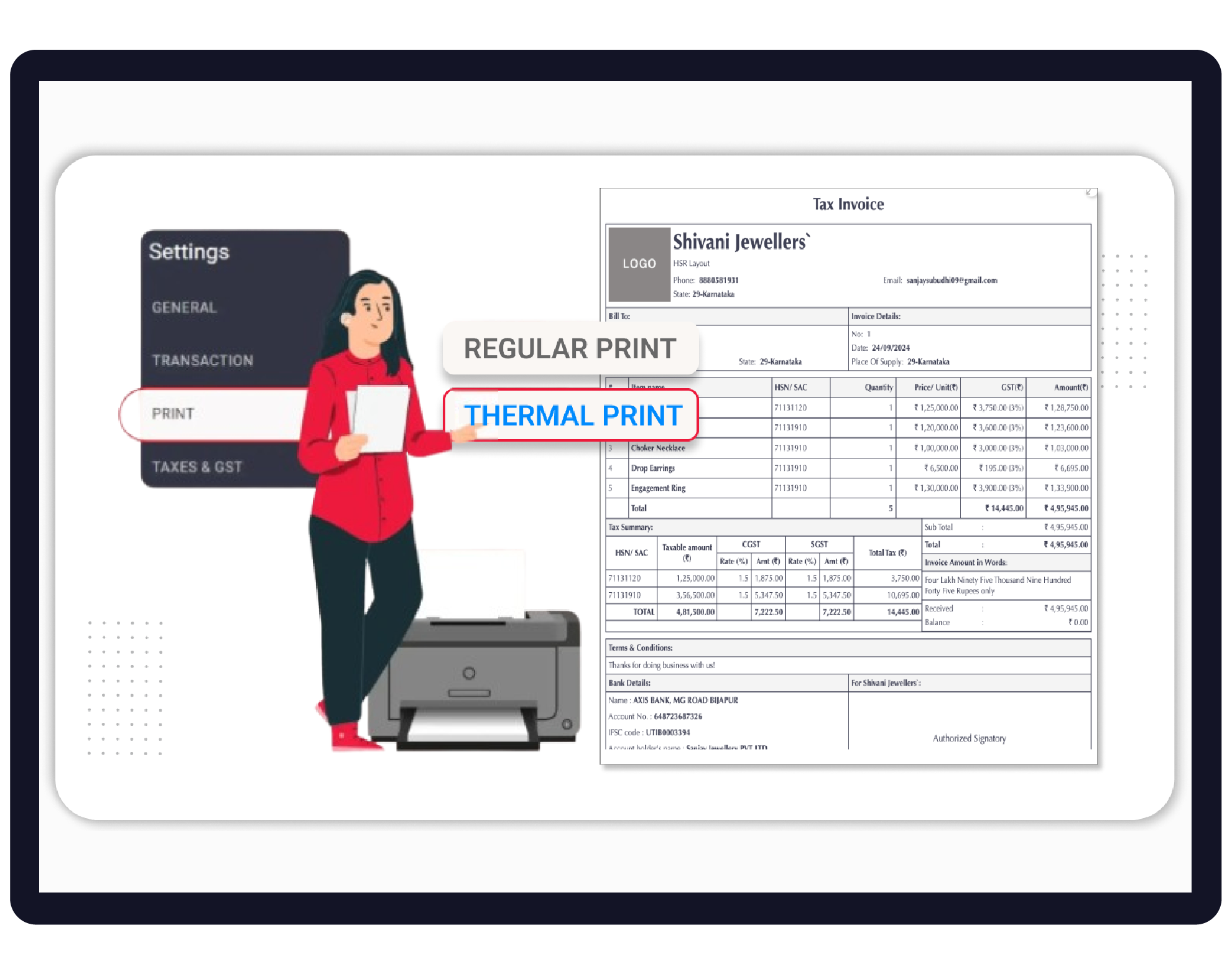
Vyapar supports both Regular Printers (for A4/A5 paper) and Thermal Printers (for 2-inch, 3-inch, and 4-inch receipts), and works via USB, Bluetooth, and Wi-Fi.


Before You Start

Hardware Ready: Ensure your printer is powered on and physically connected (USB) or paired (Bluetooth) with your device
Drivers Installed: For Desktop, ensure you have installed the specific printer drivers from the manufacturer’s website.
Paper Loaded: Ensure the correct paper size (A4, A5, 2-inch, 3-inch or 4-inch) is loaded as per your printer type.
Step-by-Step Guide to Connect Your Printer:
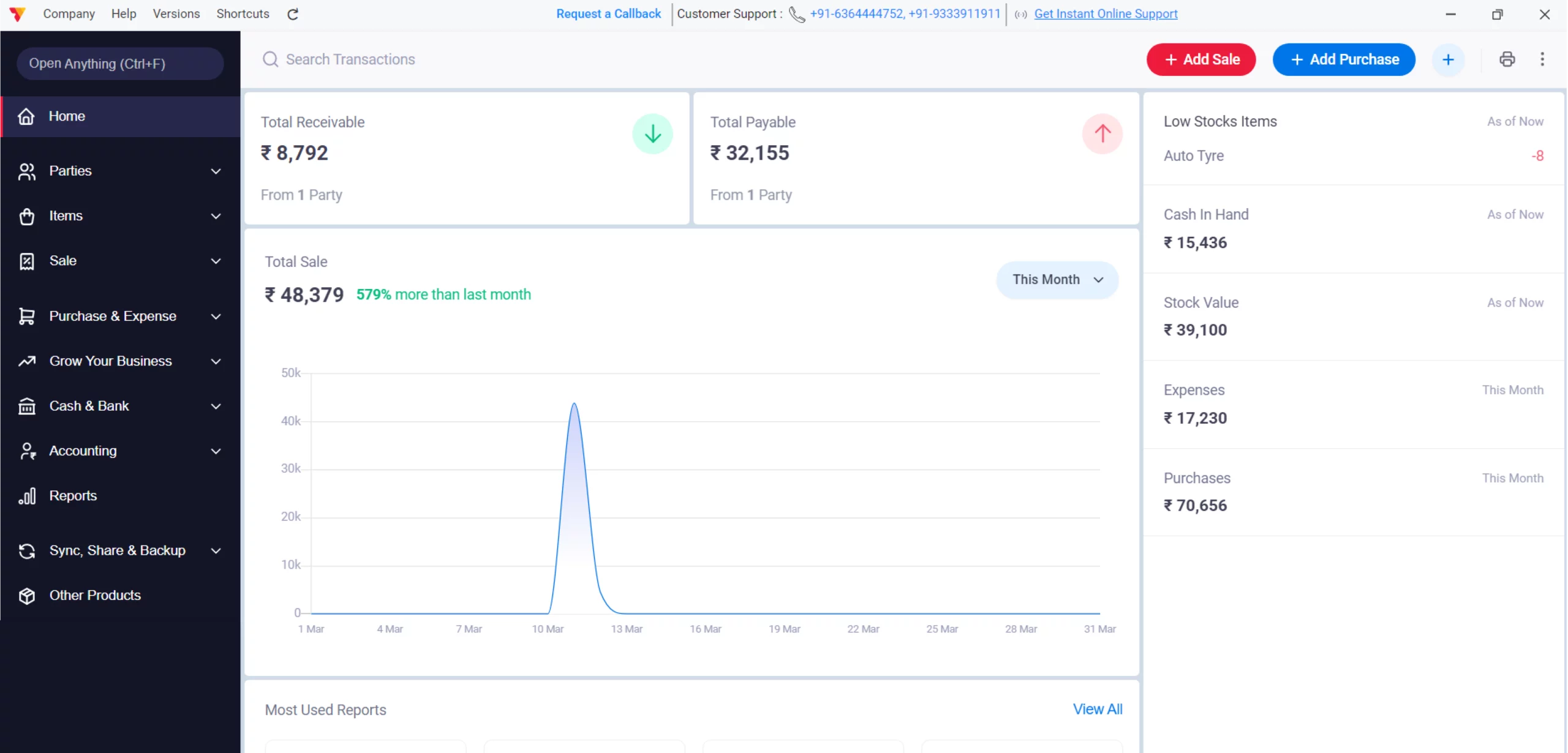
Open Vyapar App
Launch Vyapar billing software on your Desktop.
01
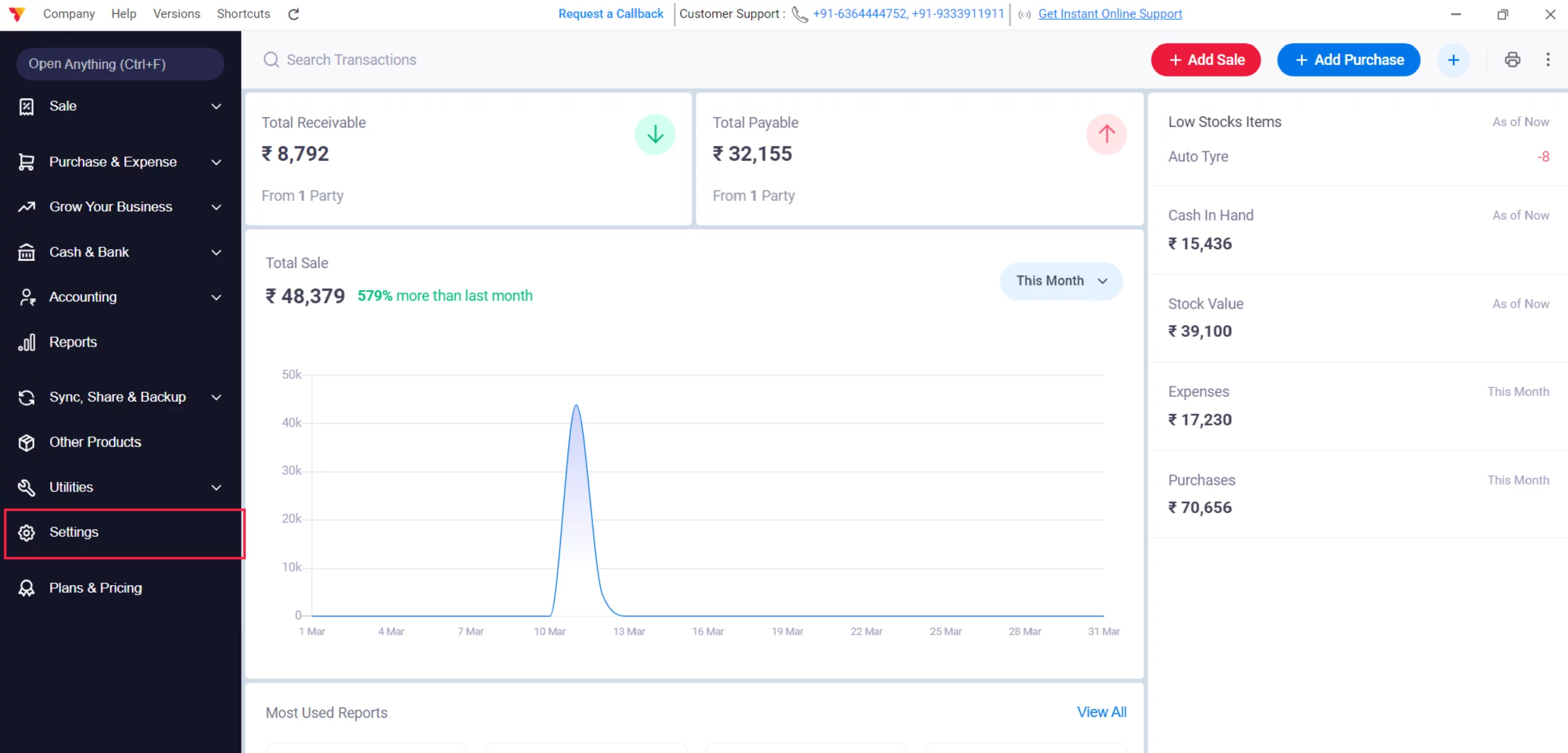
Access Settings
Navigate to the Left Menu, locate the Settings gear icon, and click it.
02
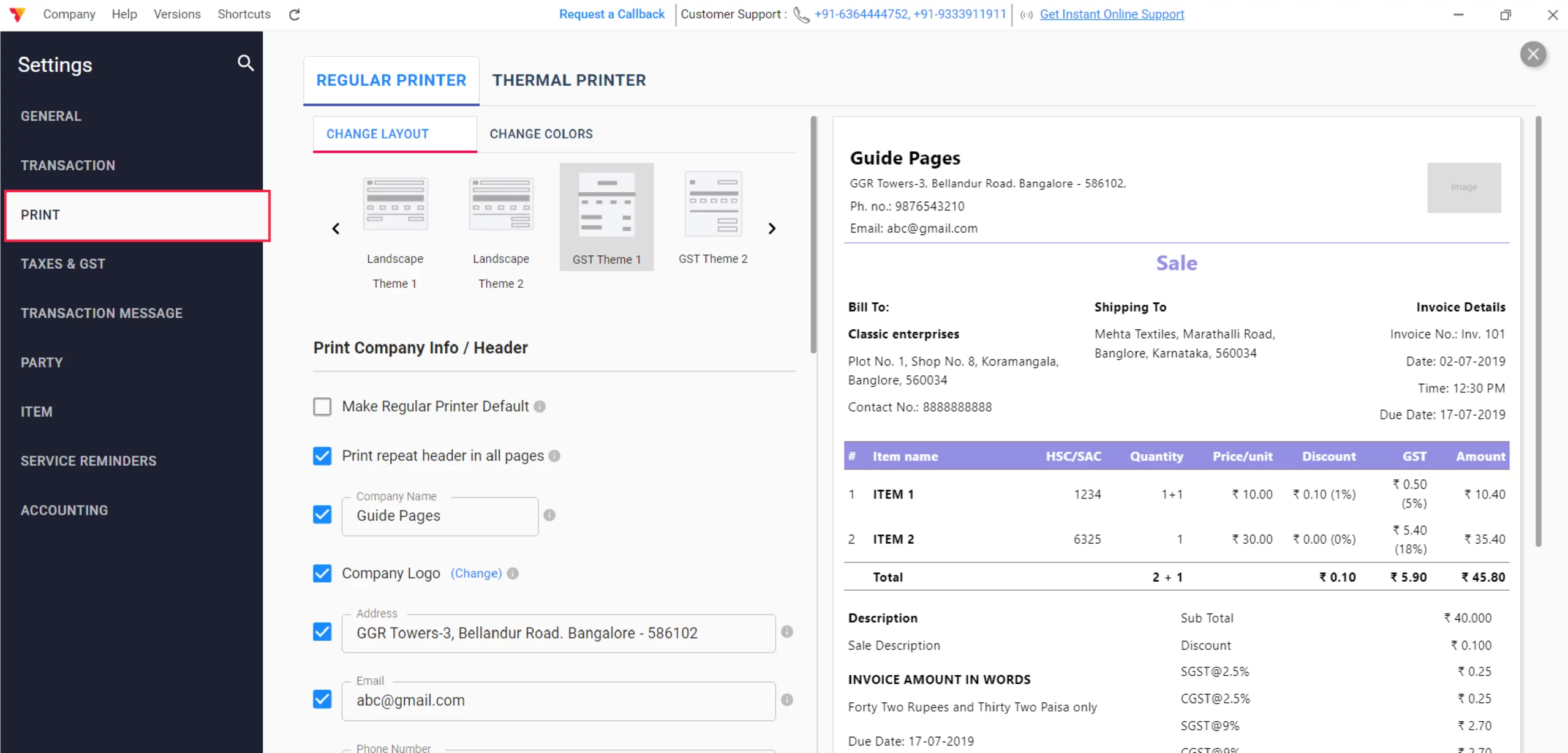
Navigate to Print Settings
Click on the PRINT tab from the settings sidebar.
03
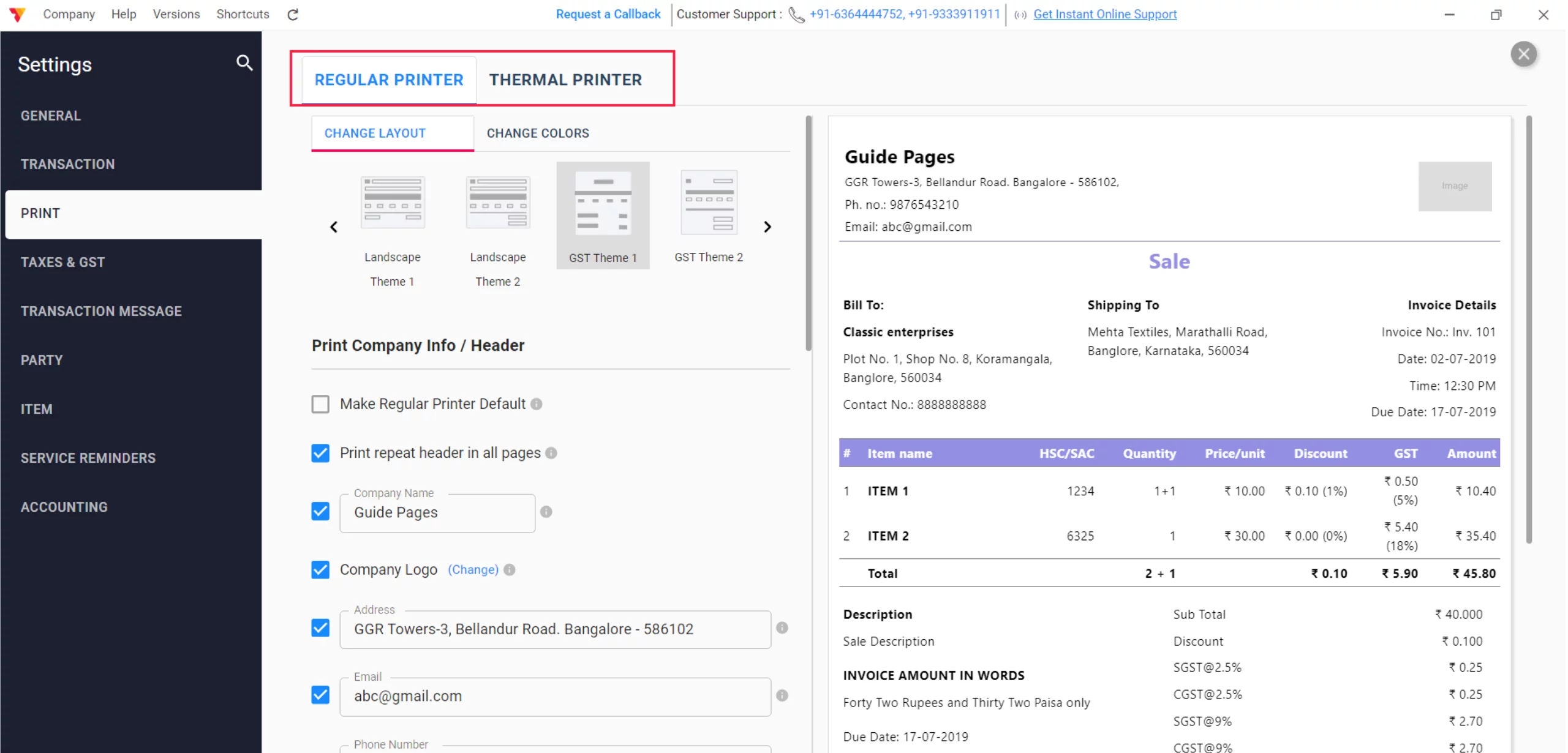
Choose Printer Type
Select your printer category:
Regular: For A4 or A5 inkjet/laser printers.
Thermal: For 2-inch, 3-inch or 4-inch receipt printers.
04
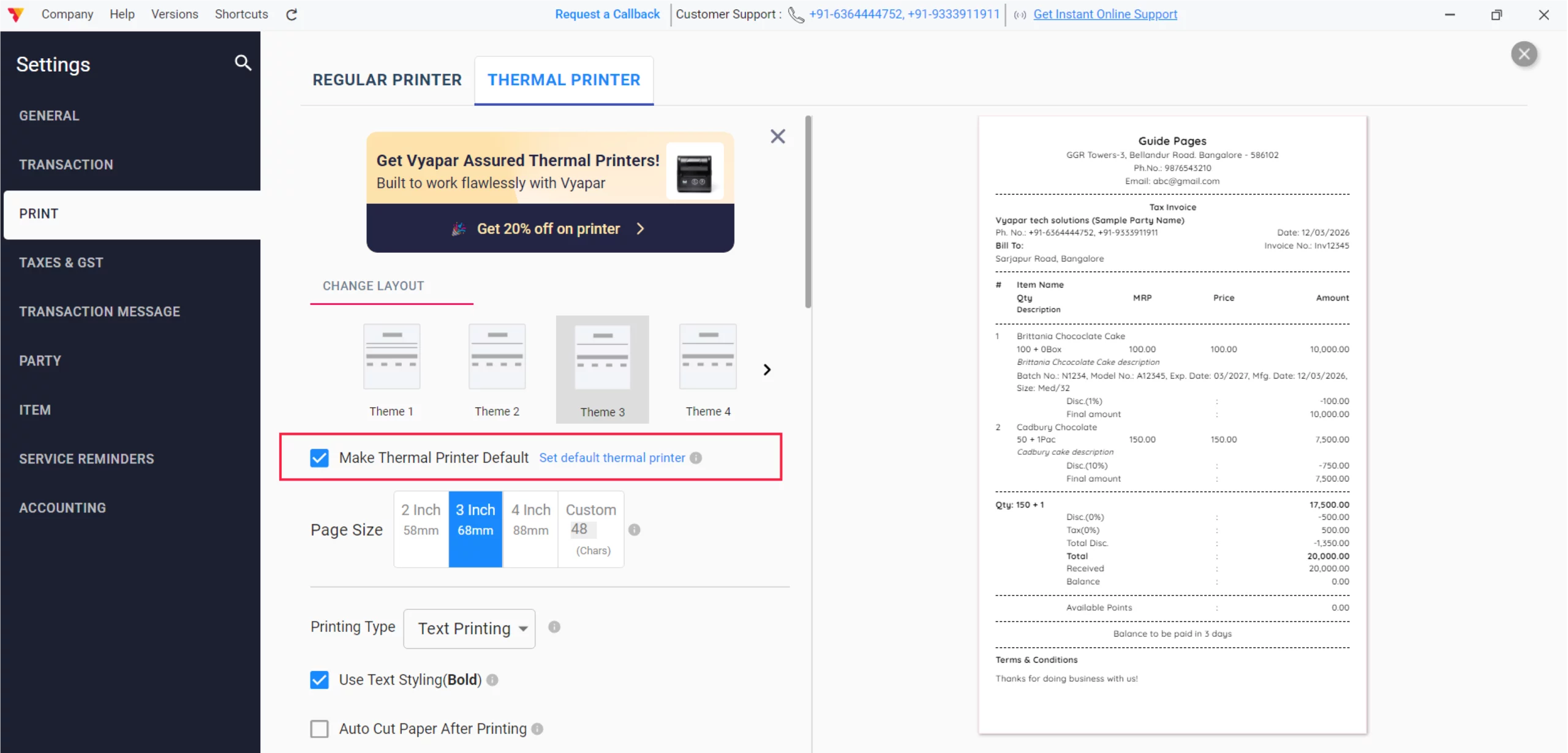
Set as Default
Enable the “Make Printer Default” option to ensure Vyapar always uses this device for billing.
05
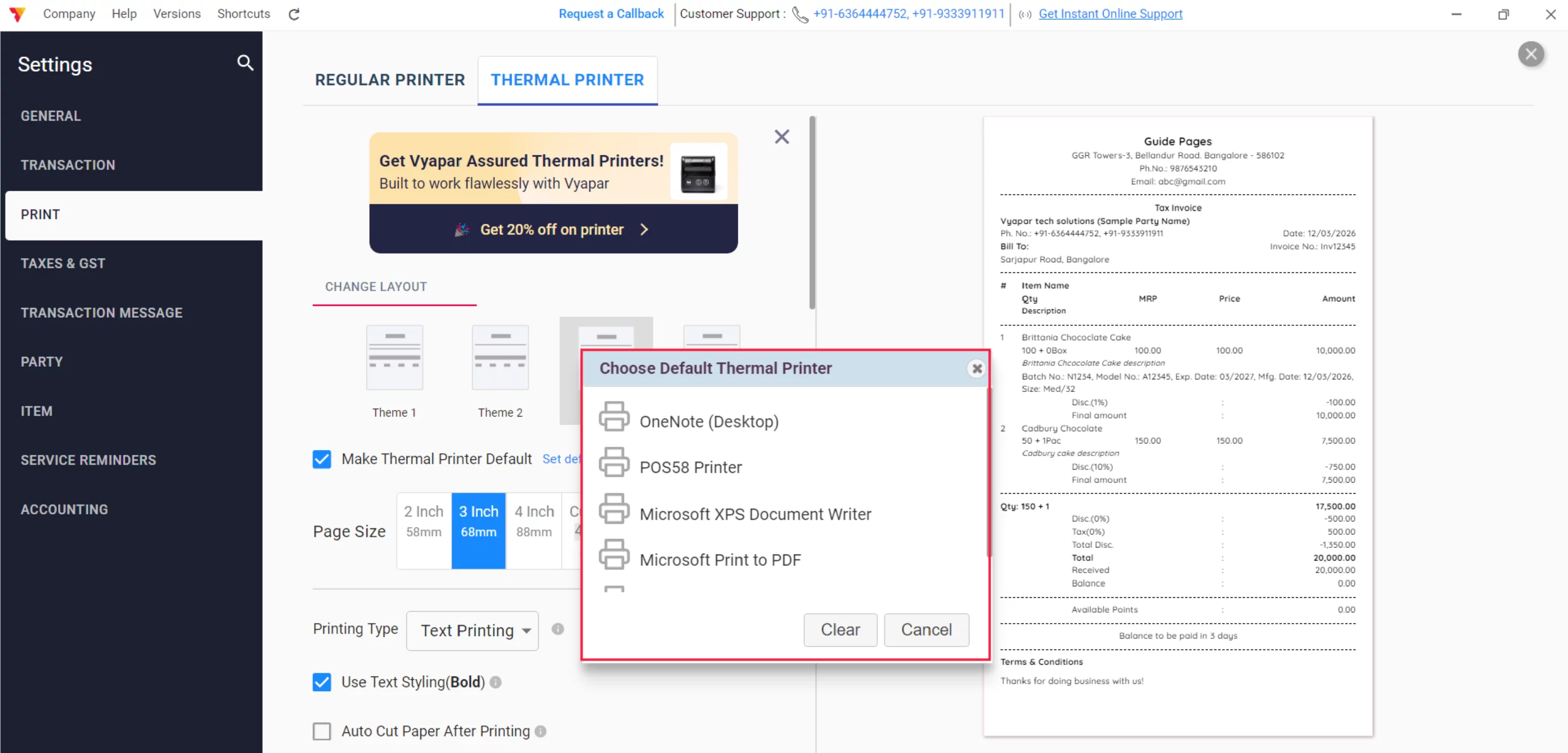
Select Your Device
From the dropdown menu, select your printer name (e.g., MPT2, HP LaserJet, or Vyapar Bluetooth Printer).
06
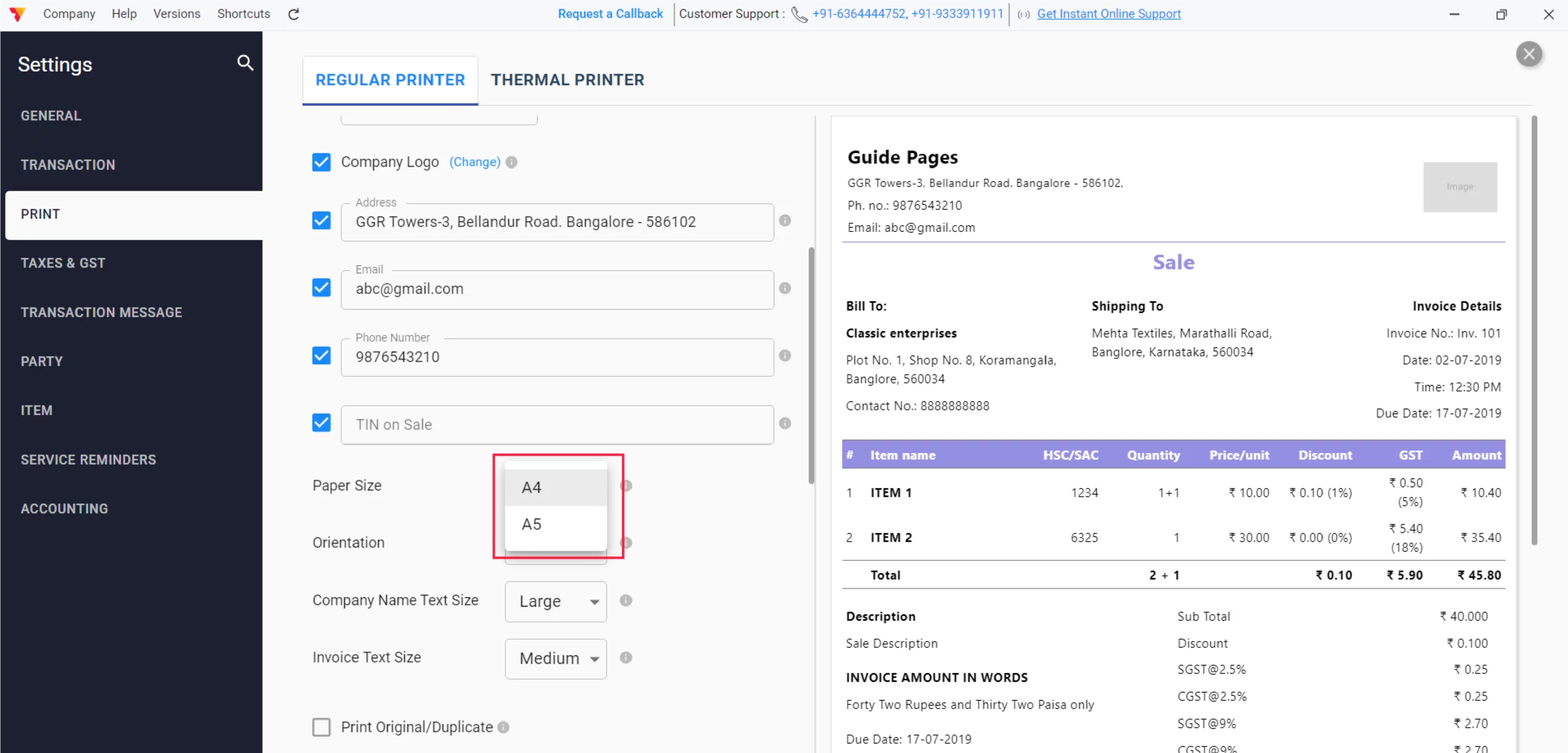
Select Paper Size
Choose the paper width that matches your printer (A4, A5, 2-inch/58mm, or 3-inch/80mm) and Close It.
07
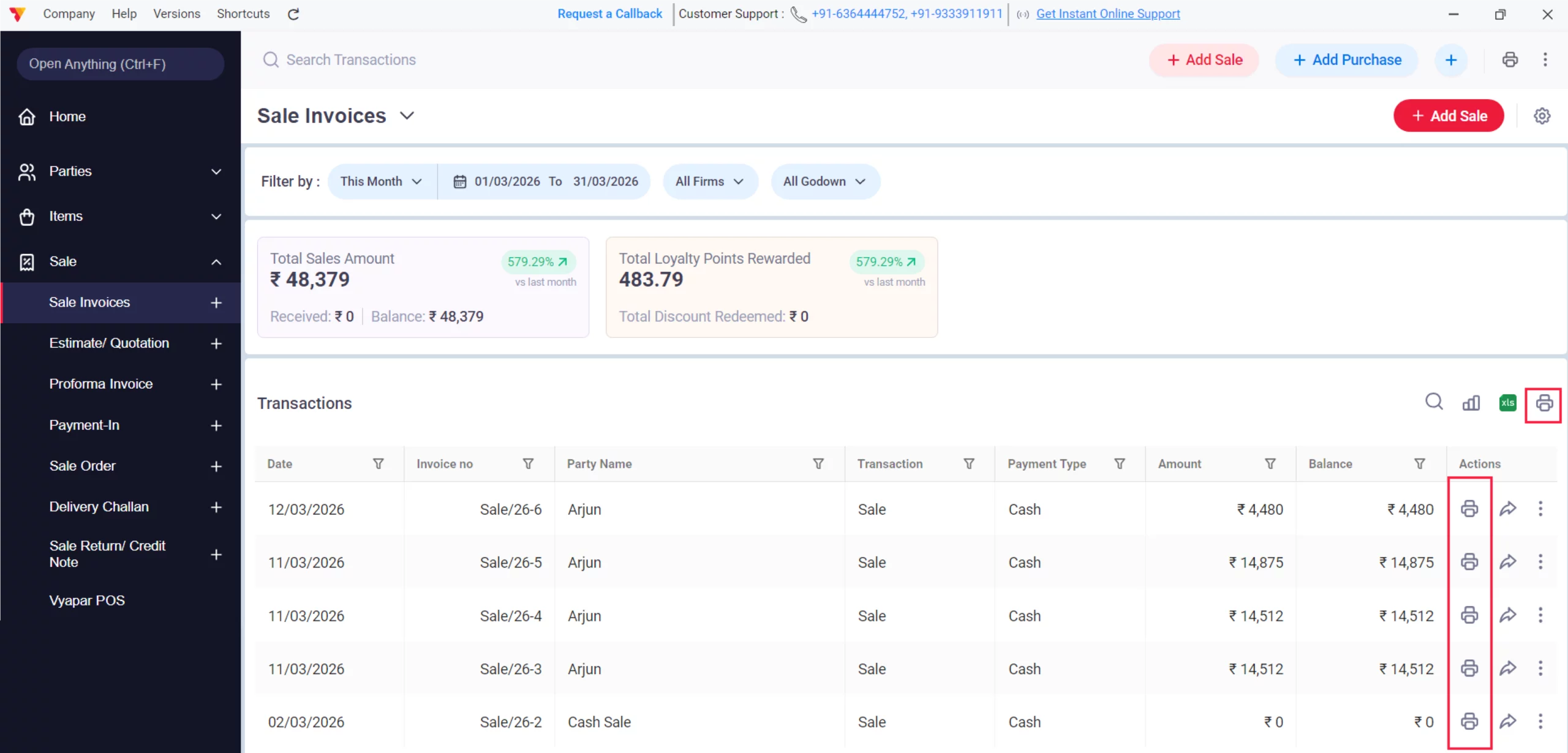
Test Print
Perform a Test Print on any existing invoice to confirm alignment and clarity.
08
Still stuck? Get help in minutes.
Our support team is ready to help you succeed.
 24/7 Support
Why Is This Important for Your Business?
Setting up your printer correctly directly impacts your daily operations and customer experience:

Faster Checkouts
Automated printing with a default printer reduces the waiting time for customers during busy hours.
Professional Branding
Properly configured print settings allow you to include your Business Logo, address, and custom terms on every bill.
Operational Flexibility
Vyapar’s support for Bluetooth and Portable printers allows you to print bills on the go or from a mobile device without cables.
Frequently Asked Questions (FAQs)
Can I connect my printer via Bluetooth on Desktop?
Yes, if your Desktop has Bluetooth capability, pair the device in Windows settings first, then select it in Vyapar’s printer dropdown.


My thermal printer is cutting off text. How do I fix it?
Go to Print Settings and ensure the Paper Size (2-inch vs 3-inch) matches your physical roll. You can also adjust the Text Size to “Small” or “Regular” to fit the layout.
Can I print barcodes using my regular printer?
Yes. Under Utilities > Generate Barcode, you can select “Regular Printer” to print multiple labels on a single A4 sheet.
Ready to Speed Up Your Billing?
Enable barcode scanning today and reduce billing time by 50%.
 Download Vyapar Now





