
How to Connect Pine Labs EDC Machine with Vyapar App
Streamline your checkout process by connecting your Pine Labs EDC machine directly to the Vyapar App. This integration allows for a seamless, automated payment experience, reducing manual errors and speeding up your billing process.

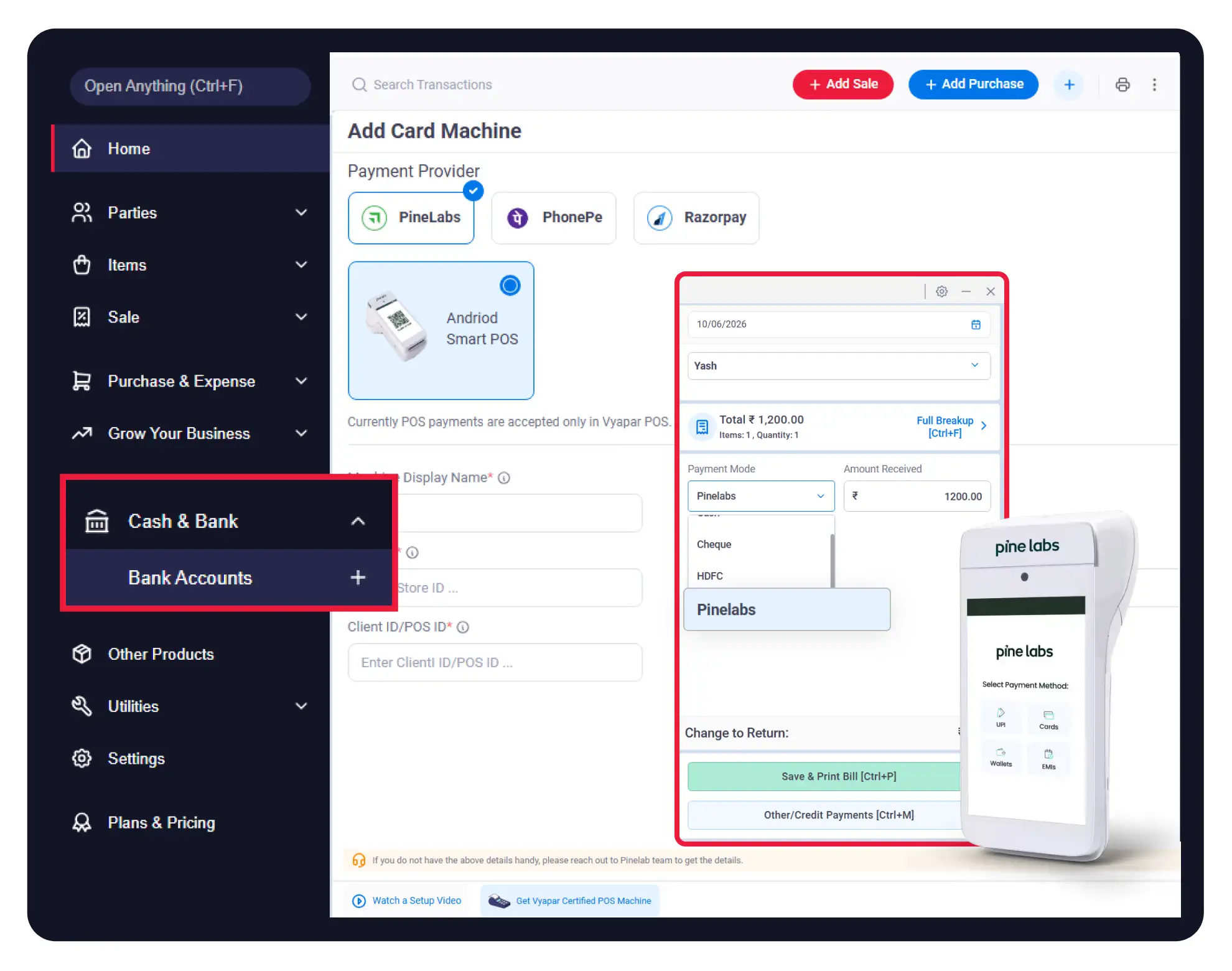

Before You Start

Active EDC Machine: Ensure your Pine Labs EDC machine is operational and ready for use.
Vyapar POS: Note that currently, POS payments are accepted only in Vyapar POS.
Connectivity: Confirm that both your billing device and the EDC machine have an active internet connection.
Guide to Connect Pine Labs EDC in Vyapar App:
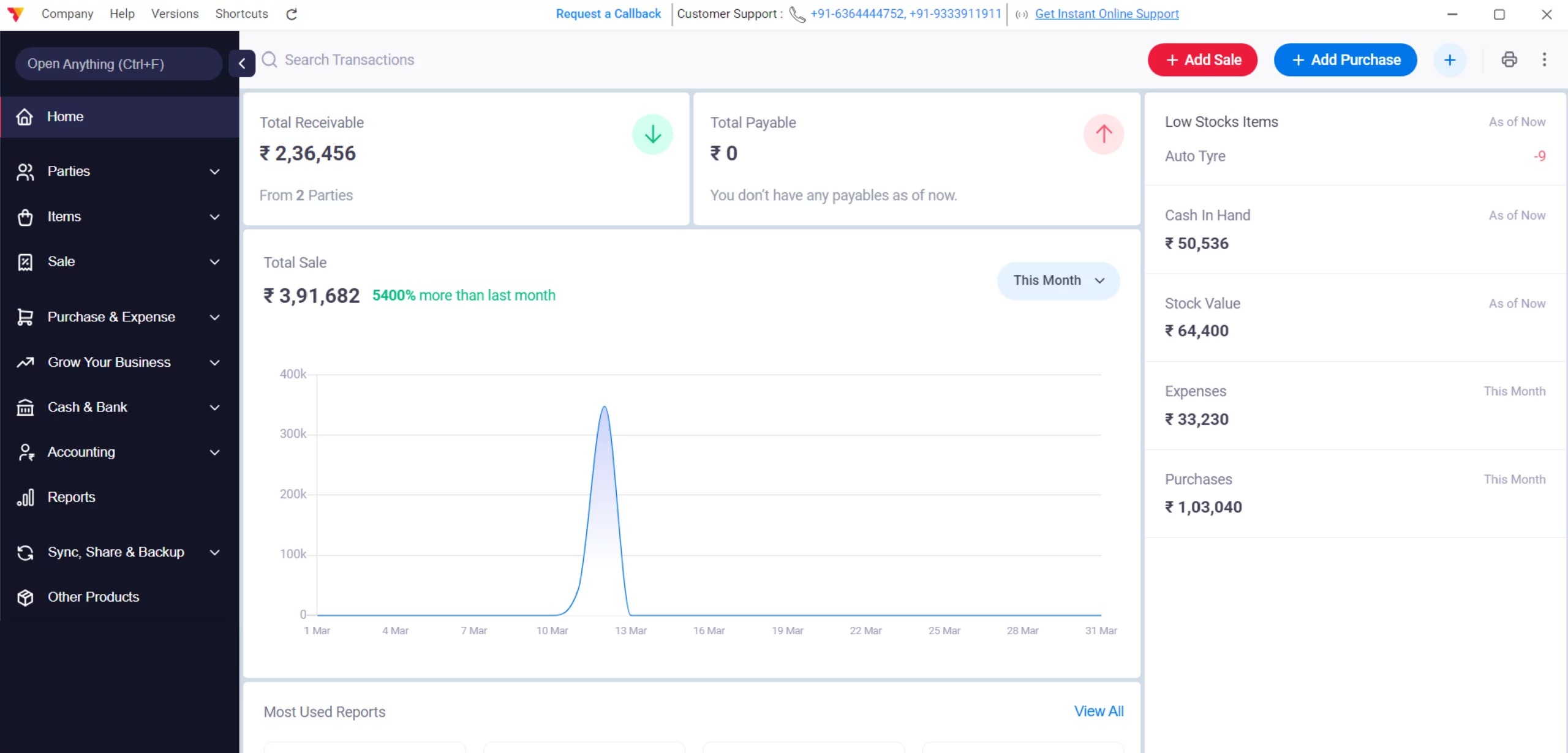
Open Vyapar App
Open the Vyapar Billing Software on your desktop.
01
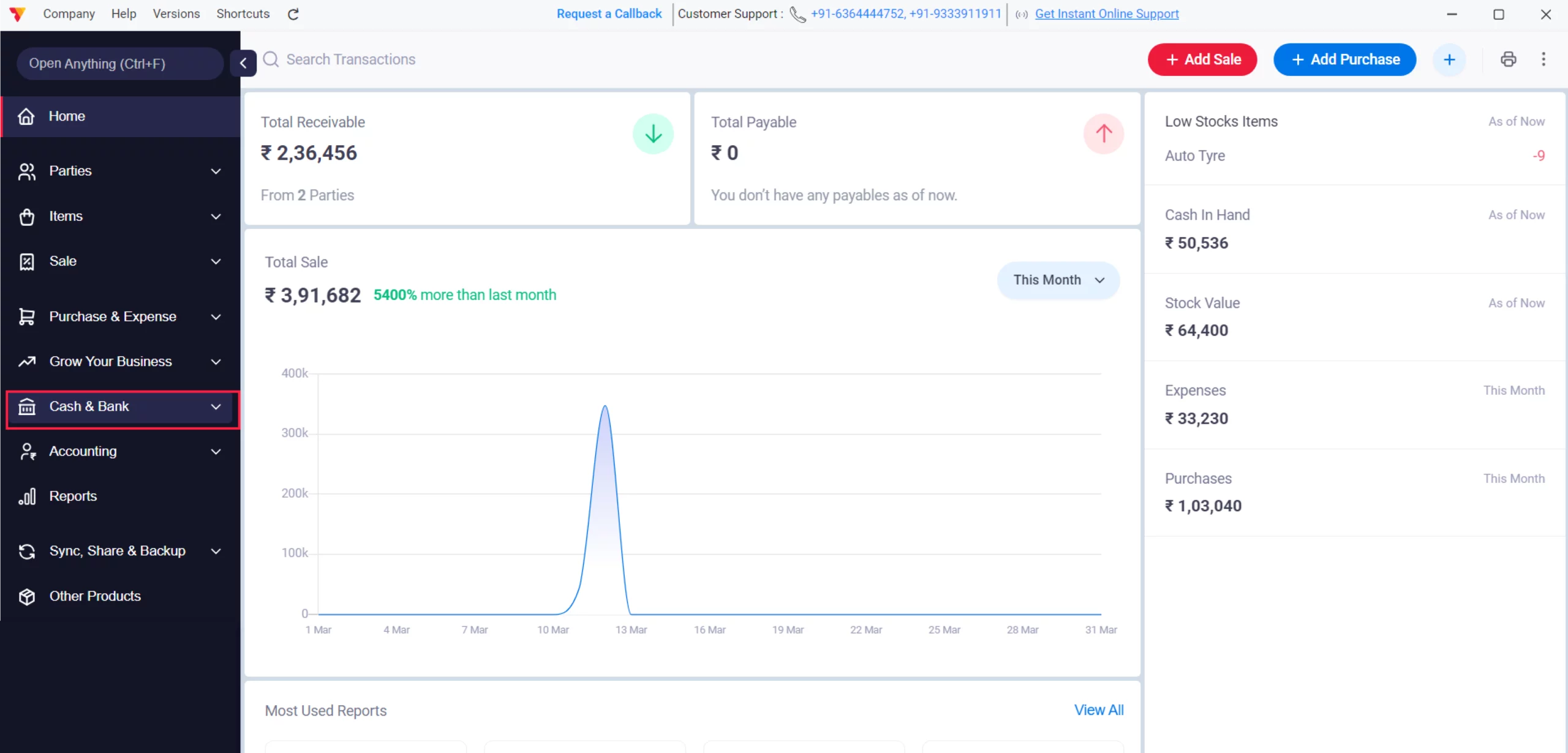
Cash and Bank Accounts
Navigate to the Left Menu and look for the “Cash & Bank” option, and click on it.
02
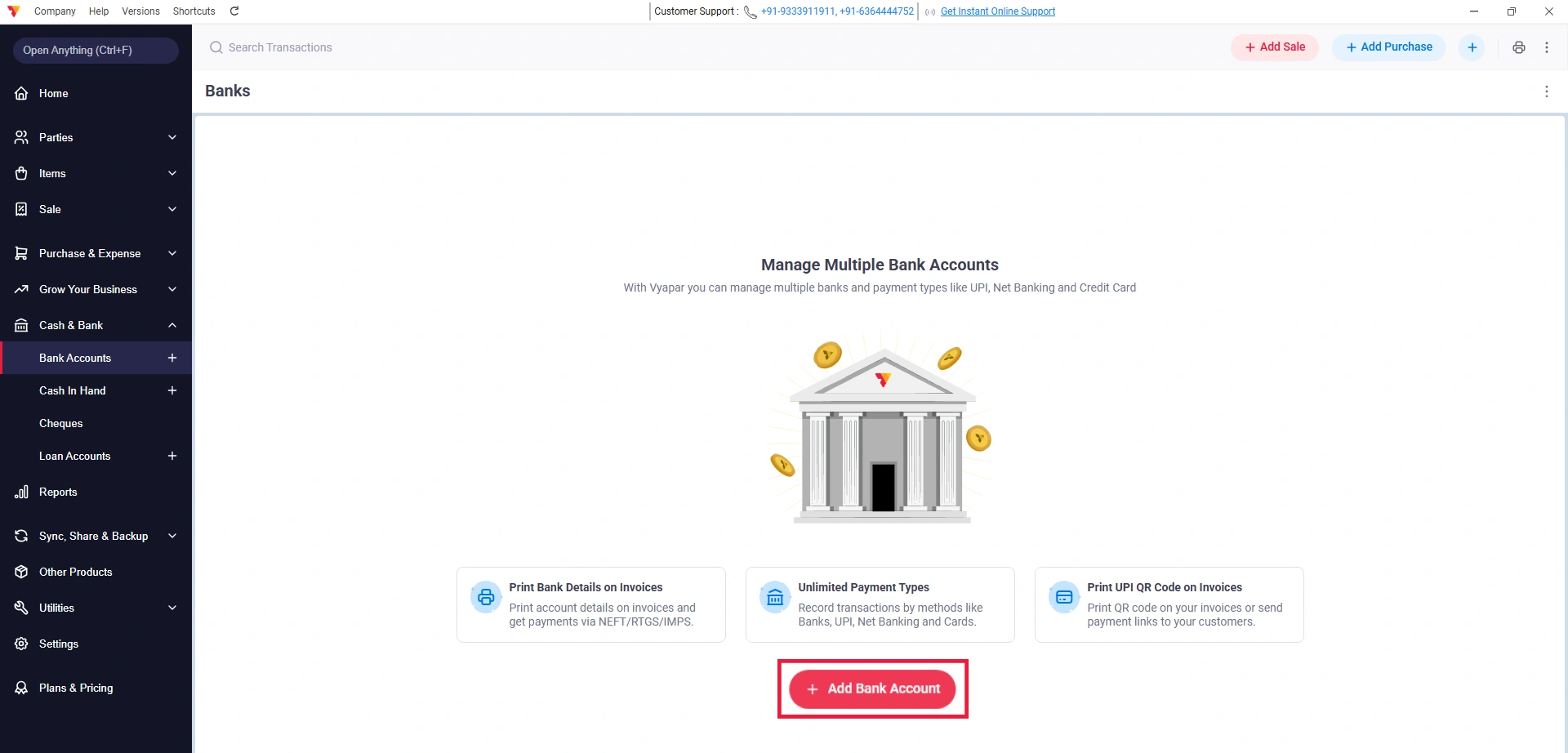
Add Bank Accounts
Select the Bank Accounts option and click on the + Add Bank button.
03
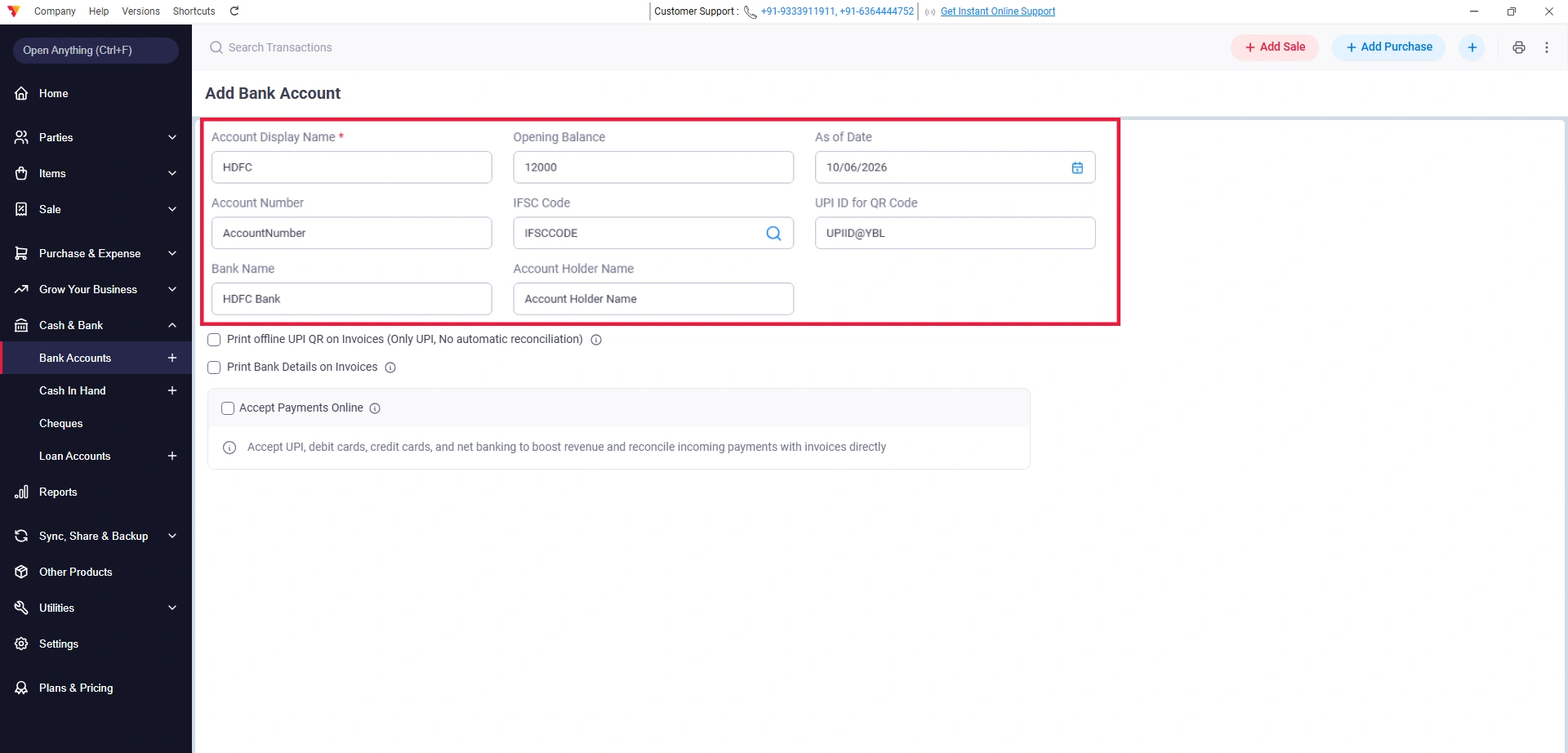
Enter Bank Details
Enter your Bank Name, Account Number, IFSC Code, and UPI ID in the provided fields.
04
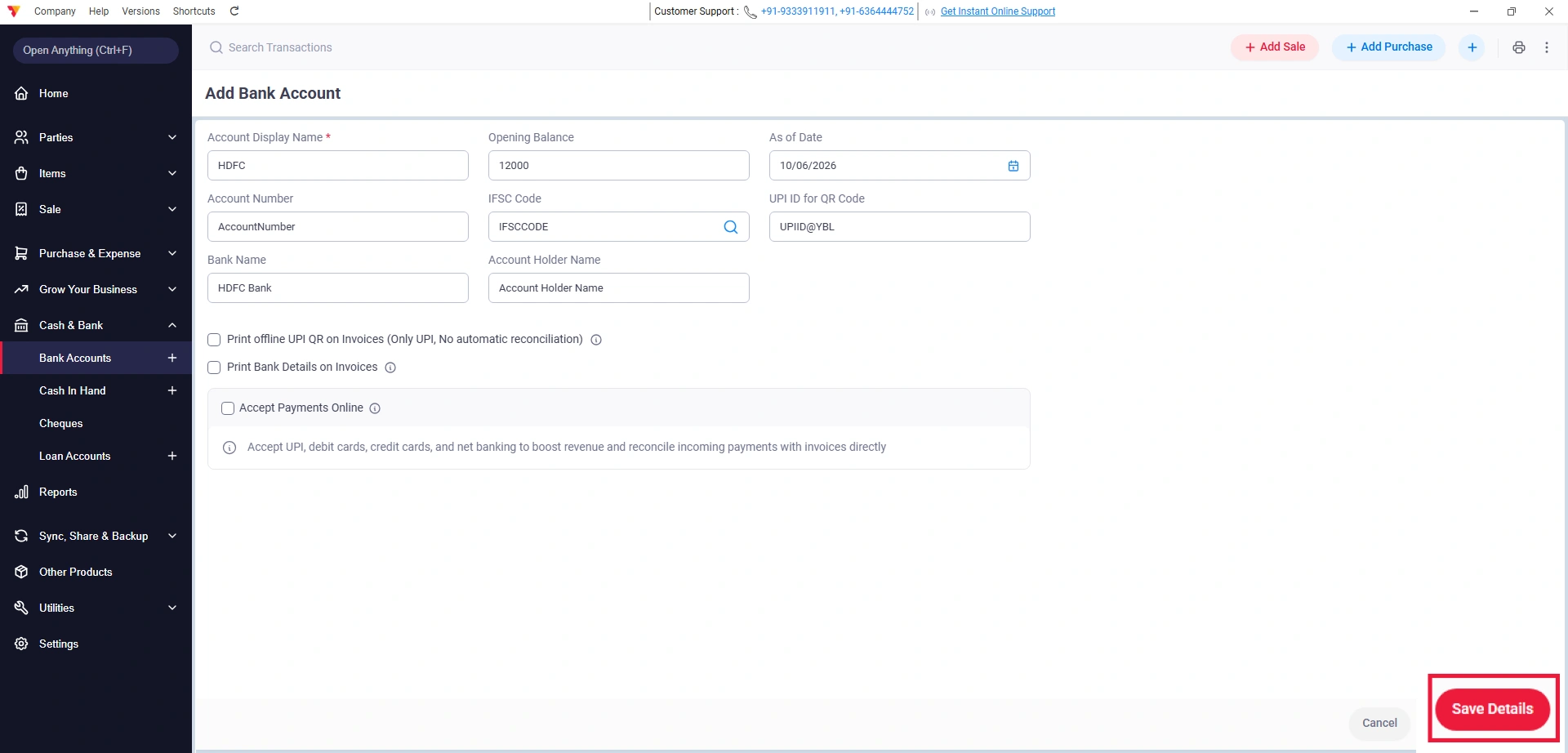
Save Bank Accounts
Click the Save button to store your bank details in the system.
05
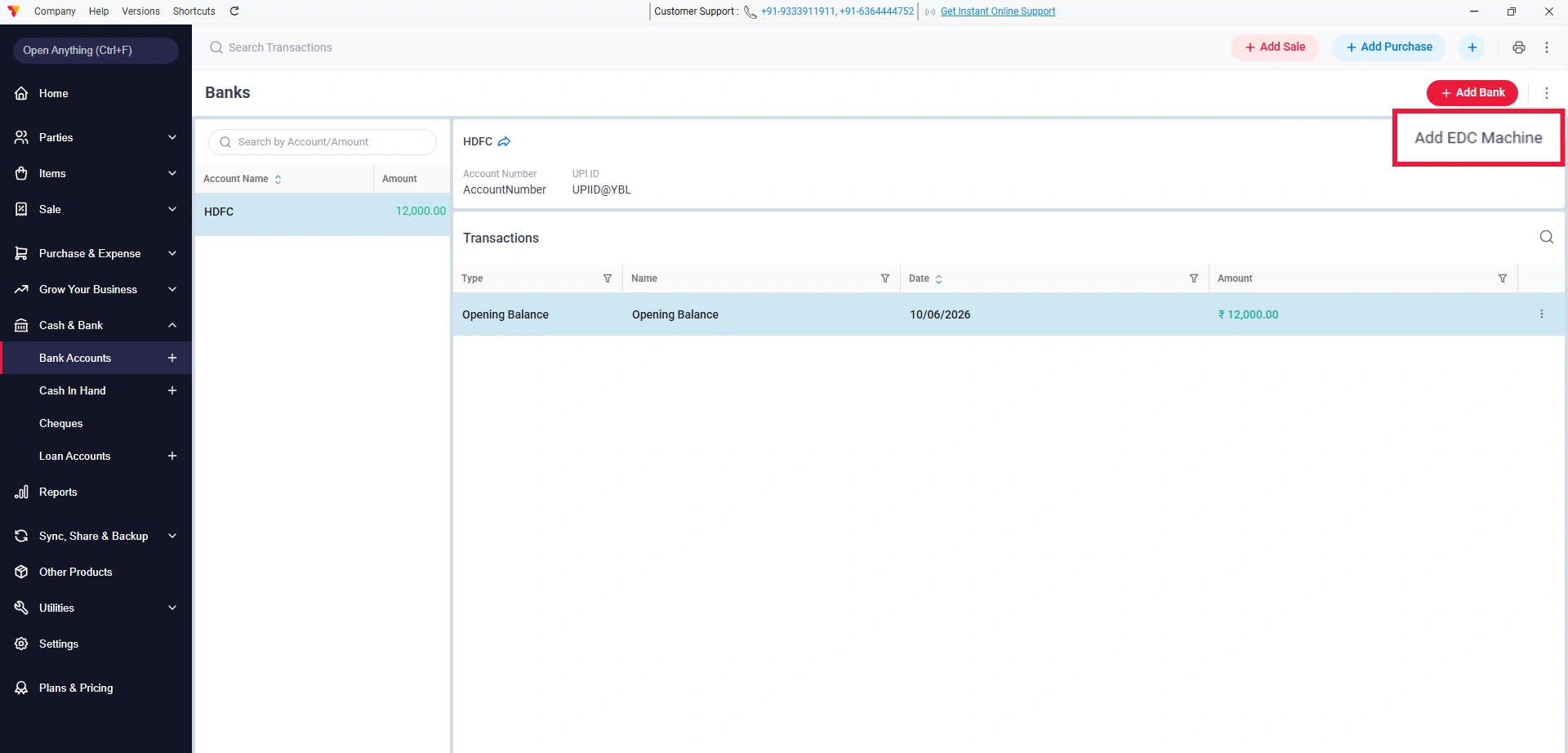
Add EDC machine
Click the three dots next to the “Add Bank” option, then select Add Card Machine.
06
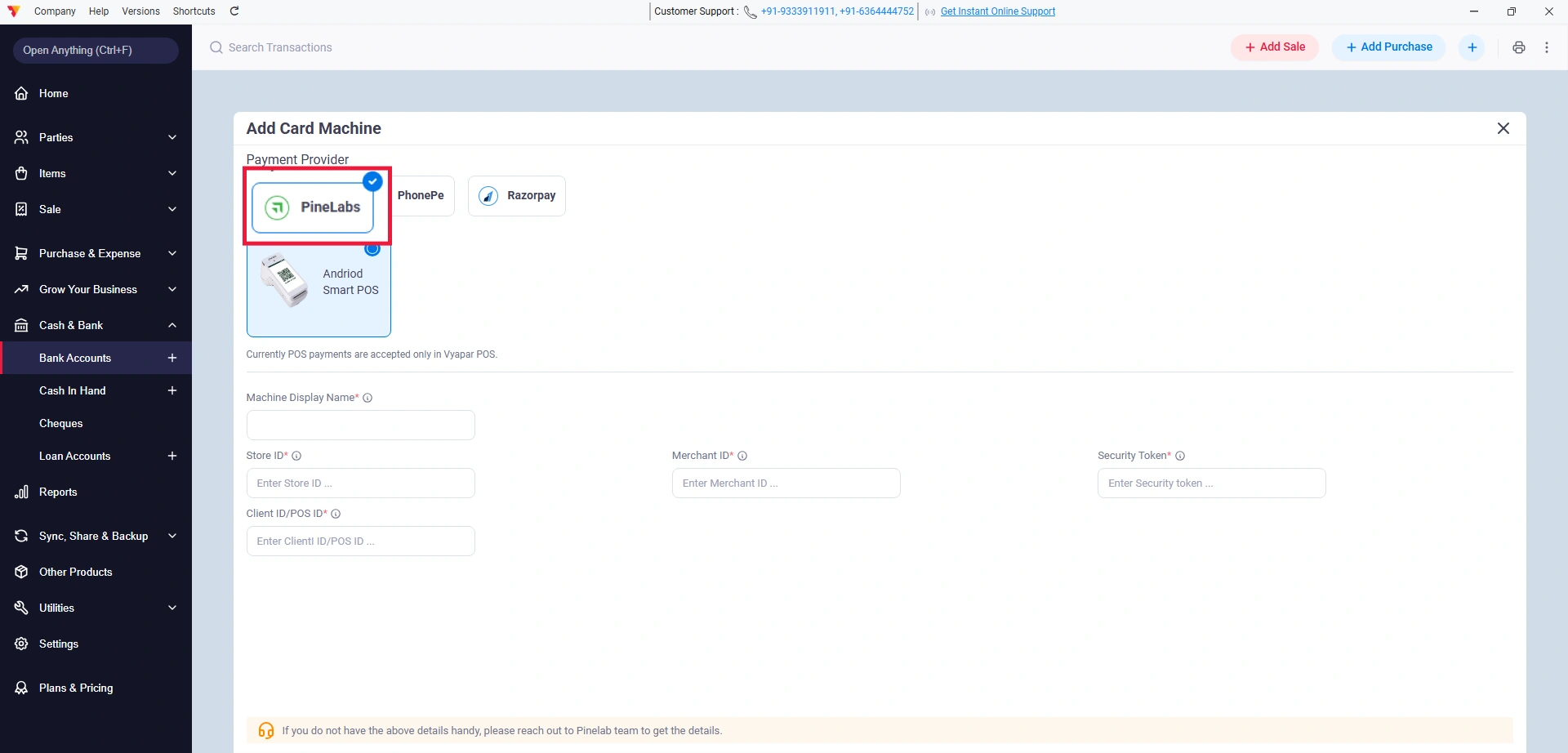
Select Payment Provider
From the list of providers, select Pine Labs.
07
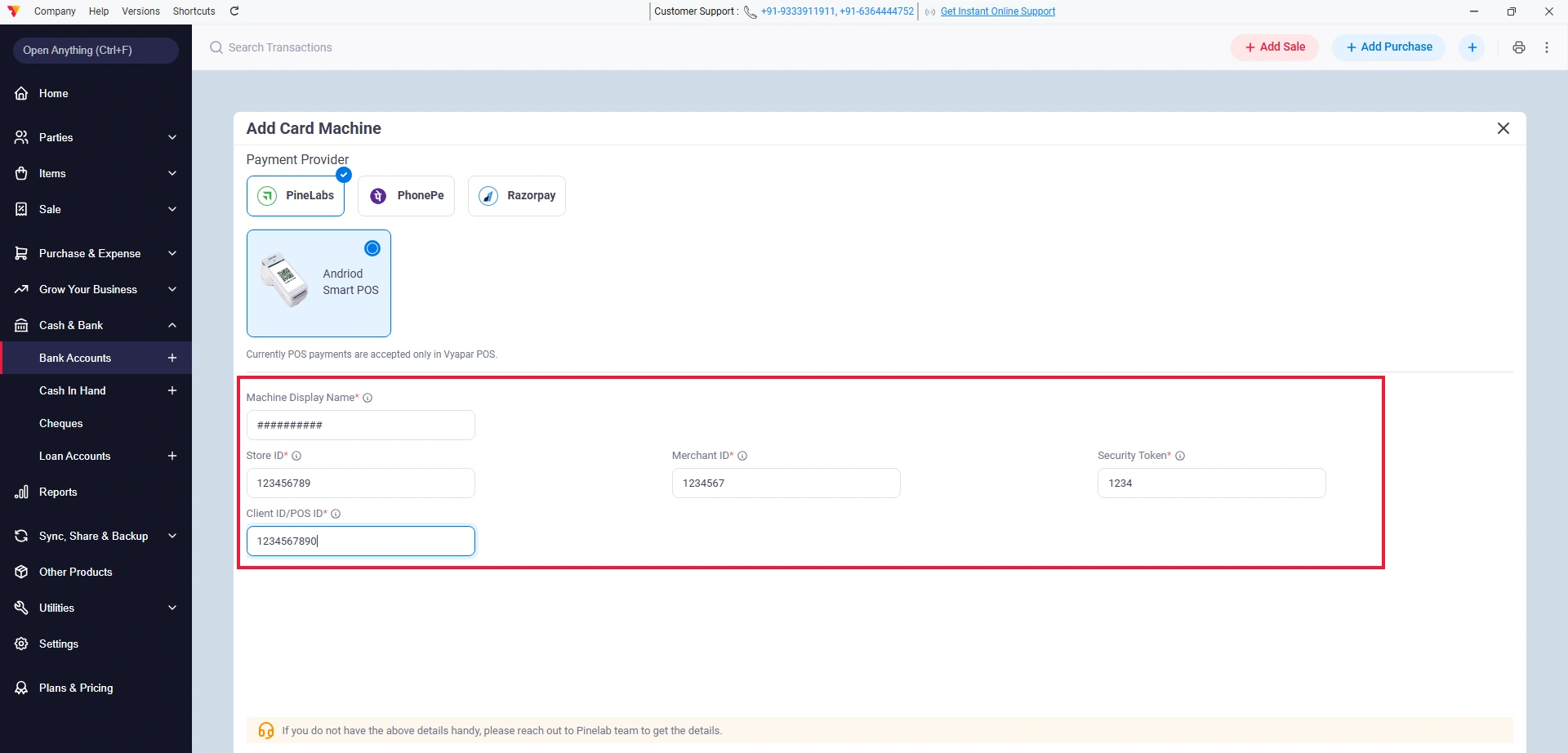
Enter Machine Details
Provide the Machine Display Name, Store ID, Merchant ID, Security Token, and Client ID/POS ID.
Note: To find your Store ID and POS ID (Client ID), open the Payments App on your Pine Labs device, tap the home icon (top right), and open the left navigation menu.
Note: Please contact Pine Labs support directly to obtain your Merchant ID and Security Token. You can also connect with the Vyapar App Customer Support team to assist you in obtaining your Security Token.
08
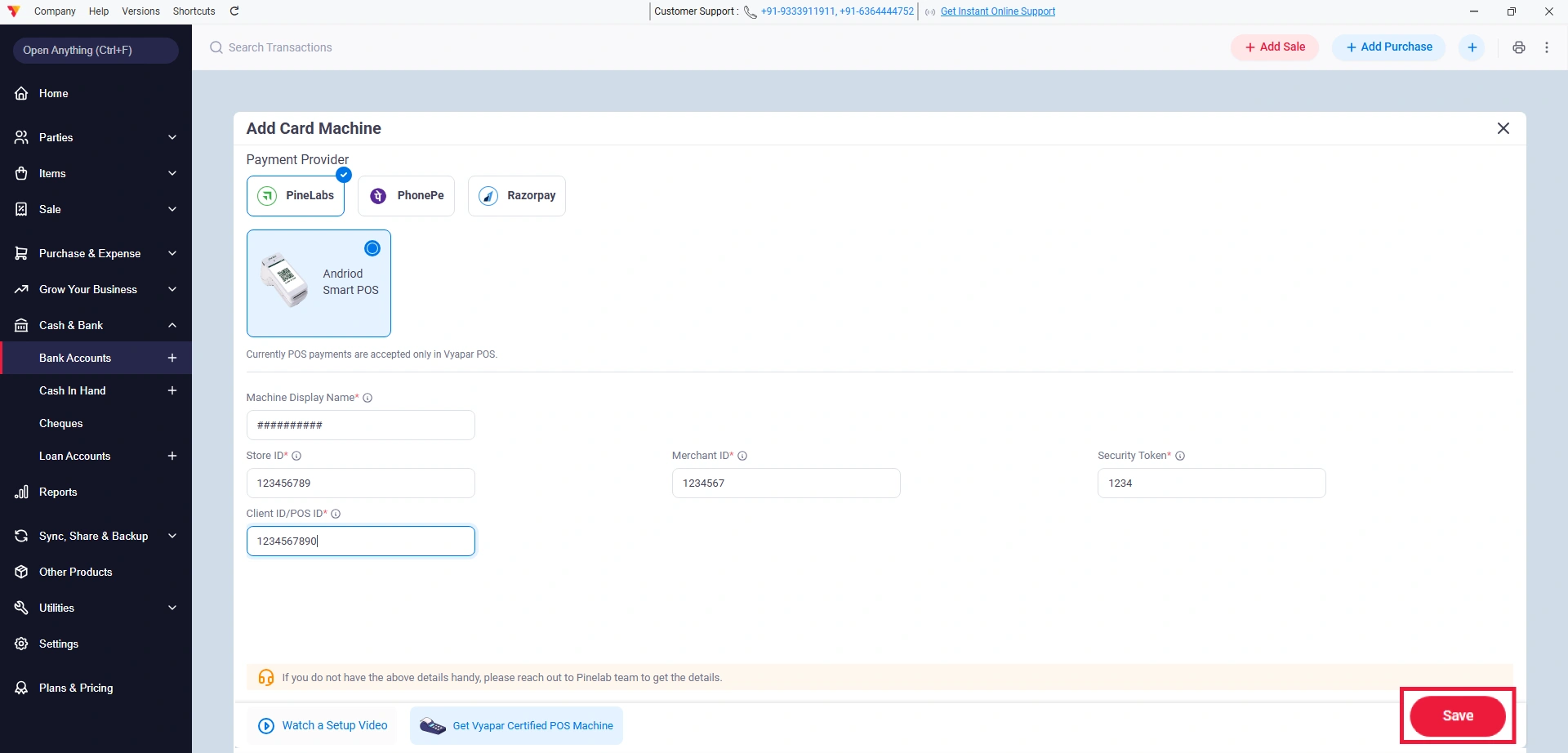
Save the Integration
Click the Save button to finalise the connection.
09
How the EDC Payment Works in Vyapar App
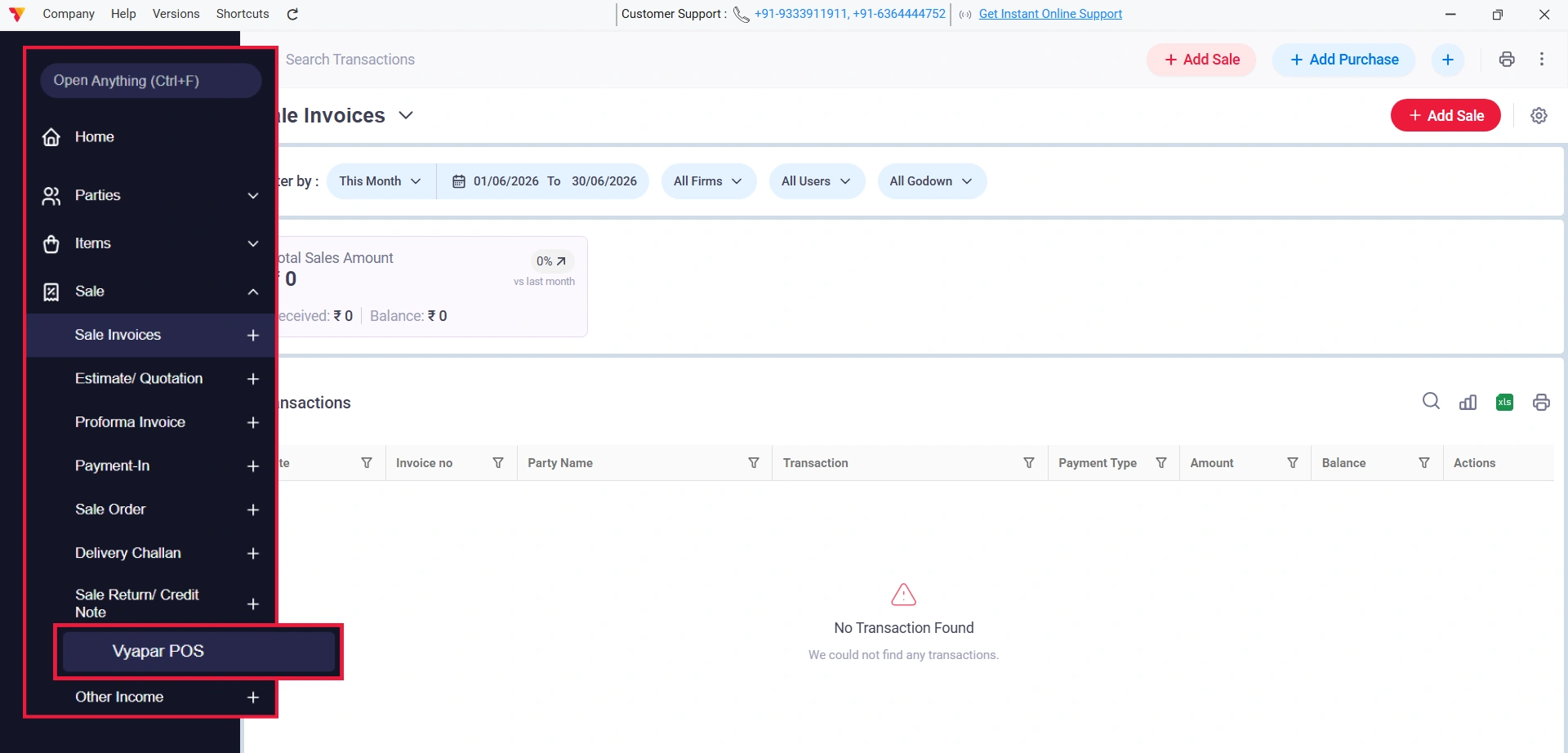
Open Vyapar POS
Navigate to the left menu and click Vyapar POS (or use ALT+Z).
10
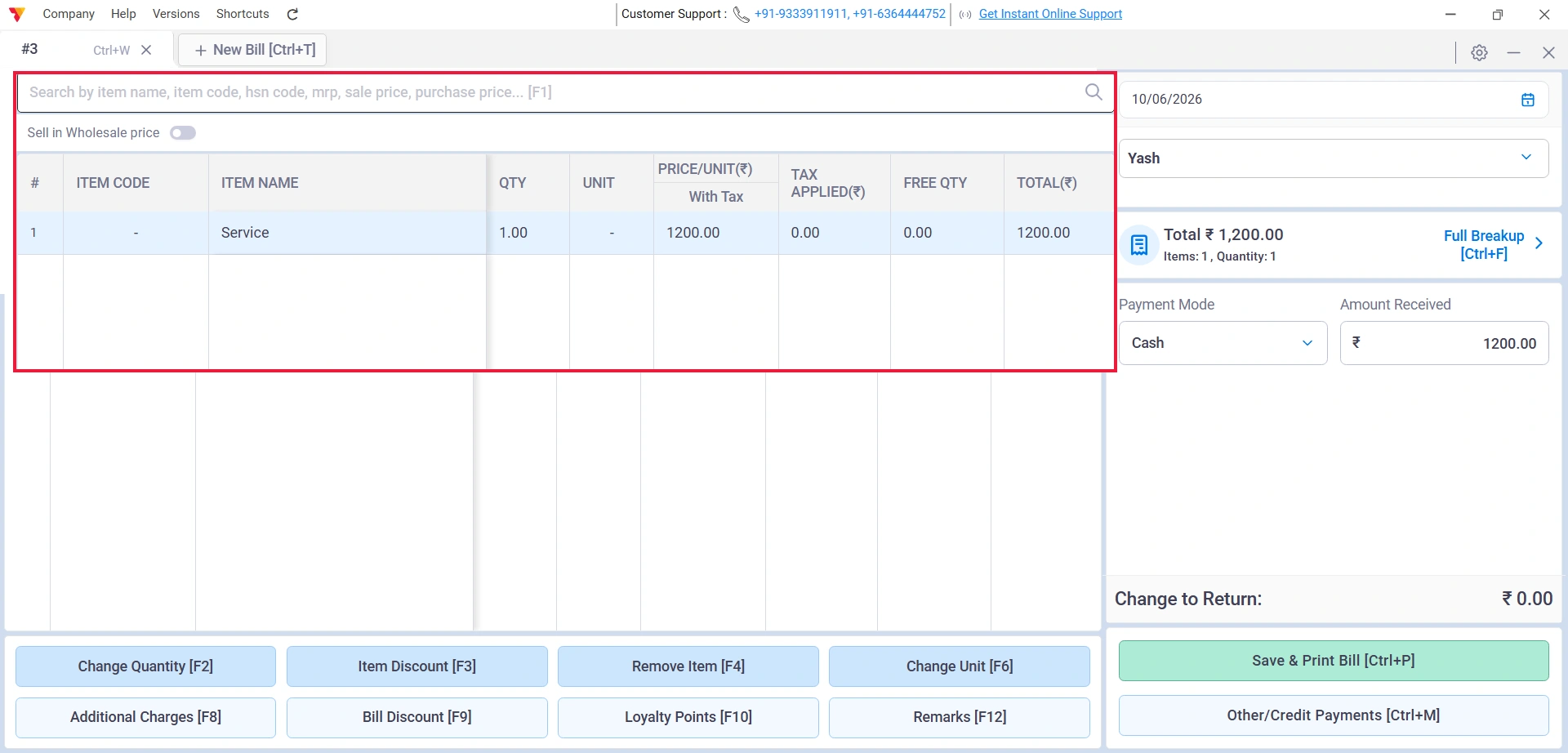
Create a sales bill
Search for and add your items to the bill.
11
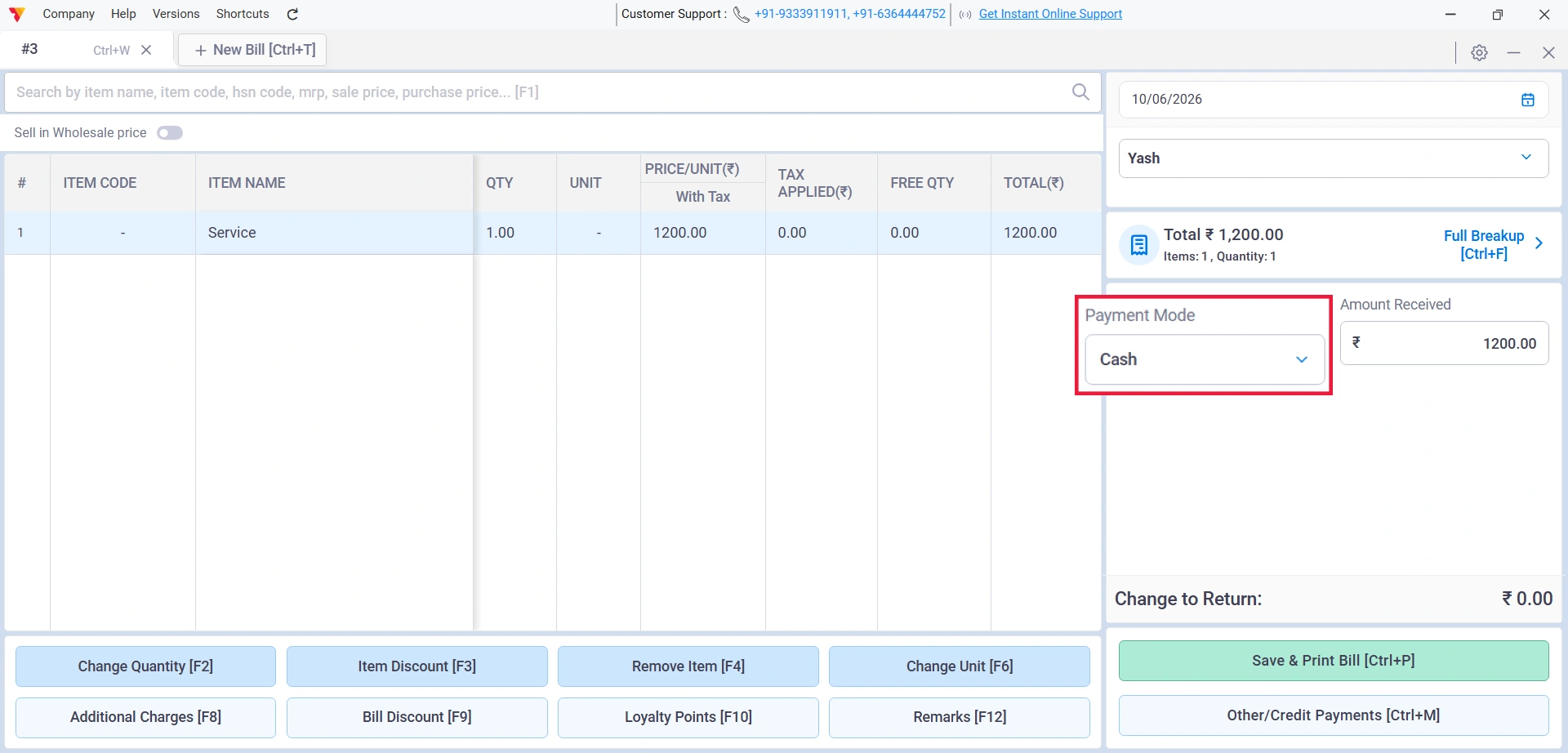
Select Payment Mode
Click on the Payment Mode field within the POS interface.
12
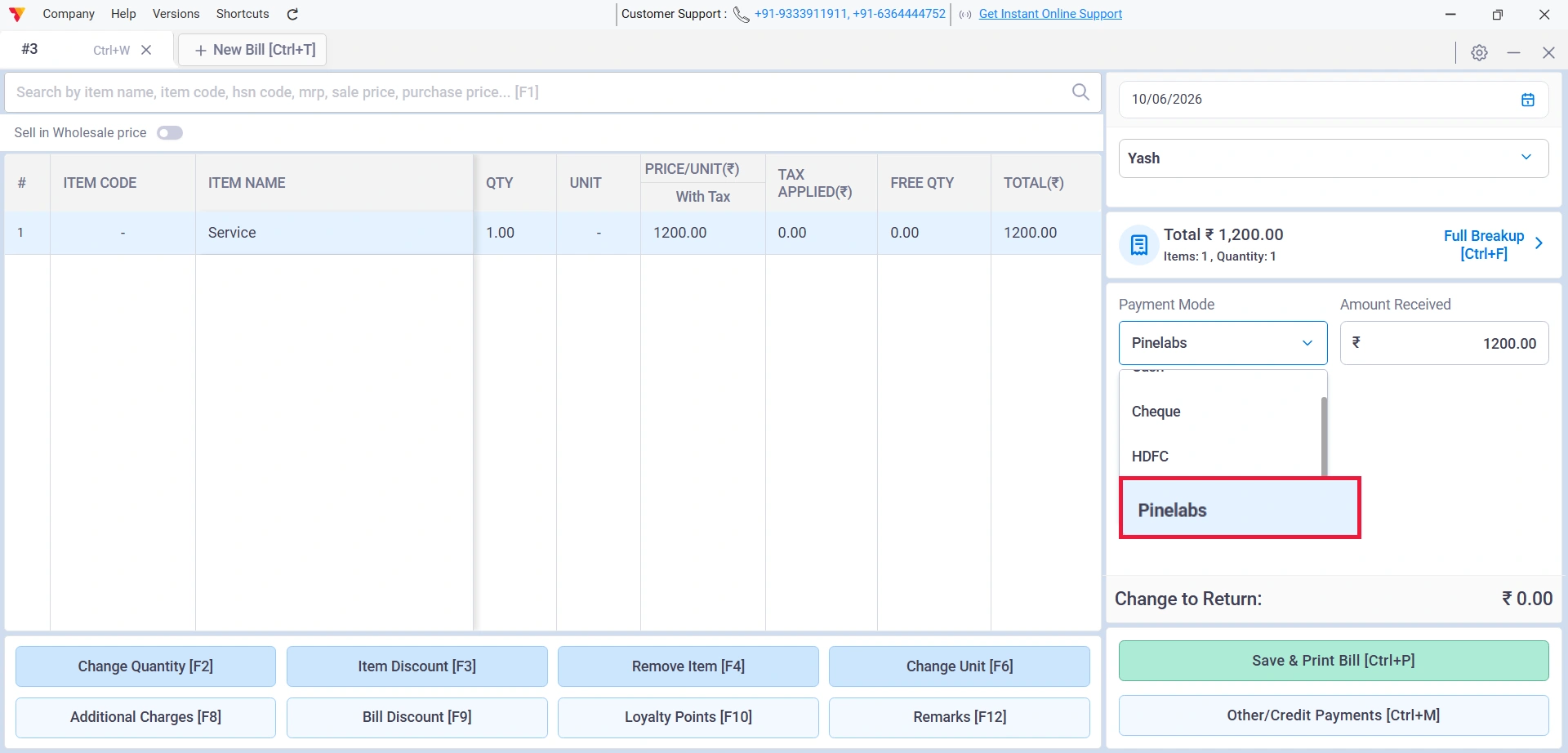
Choose EDC machine
Select your configured EDC machine from the dropdown list.
13
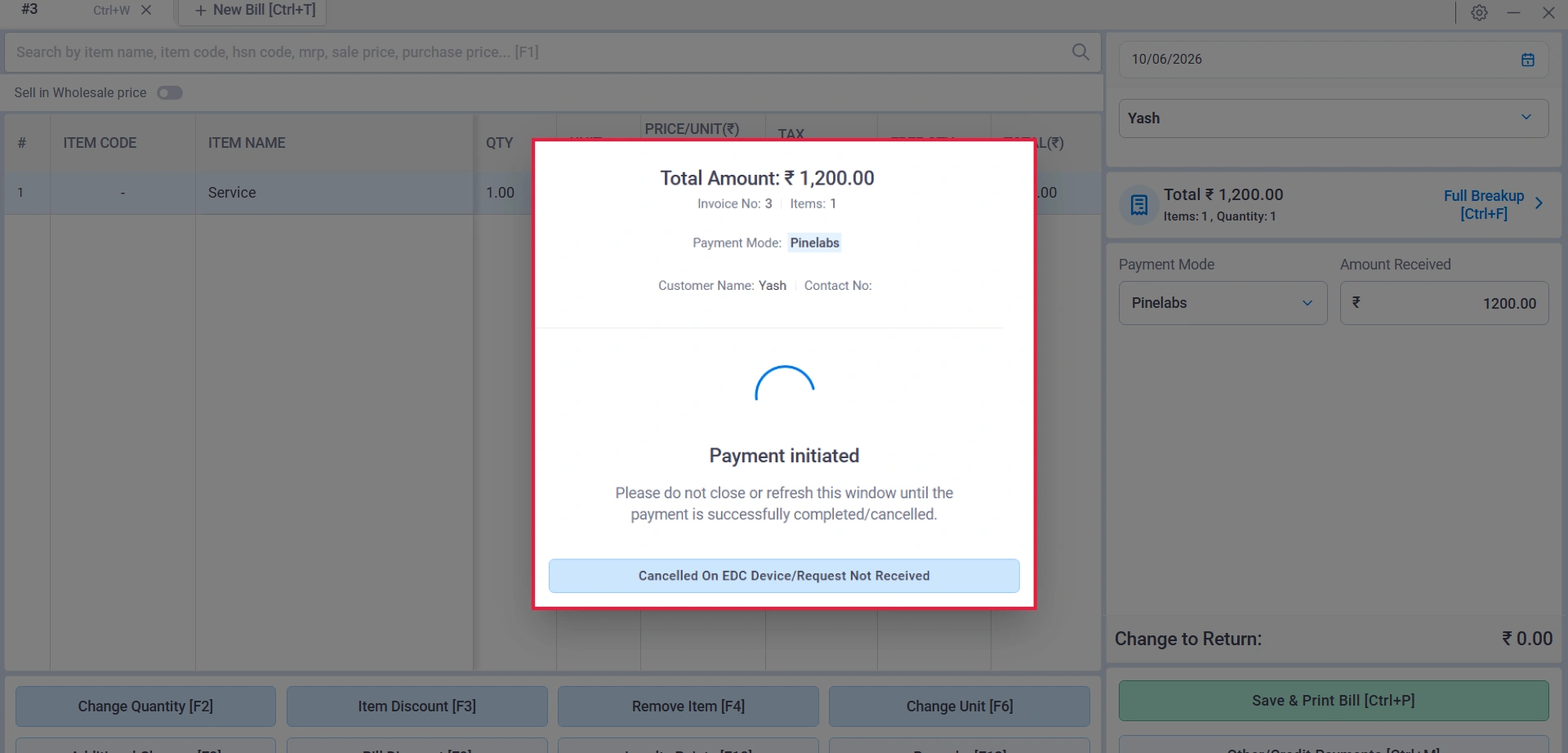
Initiate the Payment
The payment will be initiated on your EDC machine; once the customer completes the transaction, a success message will appear in Vyapar.
14
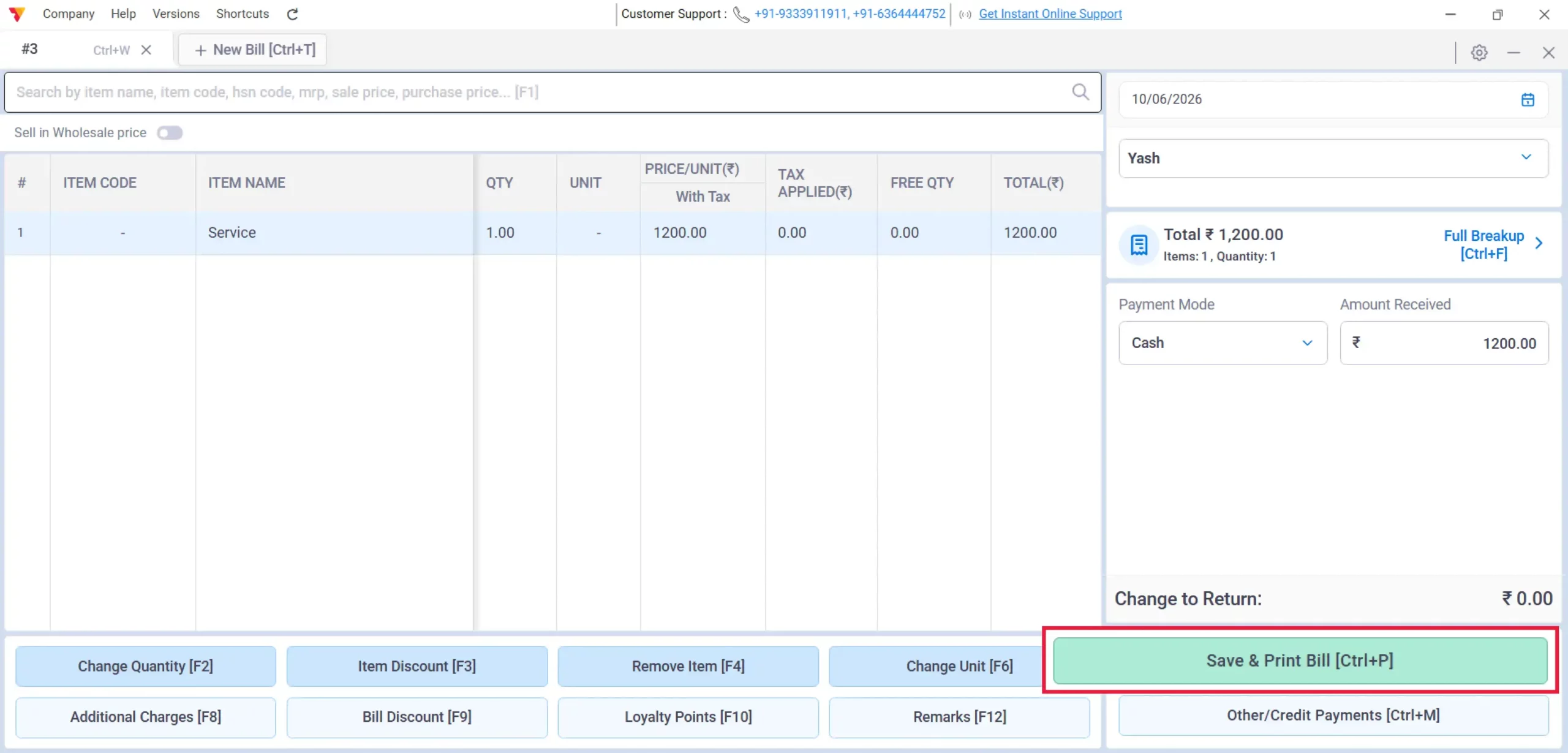
Save Transaction
Click Save & Print Bill to complete the process.
15
Still stuck? Get help in minutes.
Our support team is ready to help you succeed.
 24/7 Support
Why Is This Important for Your Business?
Integrating EDC machine integration into your workflow transforms your shop’s efficiency:

Eliminate Manual Errors
Electronic amount transfers prevent common typing mistakes at the counter.
Faster Checkout
Automated reconciliation significantly reduces customer queue times.
Clean Bookkeeping
Every transaction is instantly linked to its invoice, ensuring your records remain accurate without manual entry in POS Billing Software.
Frequently Asked Questions (FAQs)
Can I use partial payments with the EDC machine?
Yes. You can click on Other/Credit Payments to split the total invoice value between different payment modes, such as Cash and EDC.


What should I do if the internet is not available during payment?
If internet connectivity is lost during an initiated payment, the system will show an “Unknown” status, and the payment will time out automatically once the internet is restored.
Can I rename my EDC machine?
Yes, you can use any name (e.g., “Counter 1” or “Main Machine”) in the Machine Display Name field during setup.
Ready to Stop Manual Typing?
Start your Pine Labs EDC integration today and make your billing process faster and error-free.
 download Vyapar Now