
How to Create a Recurring Invoice in Vyapar App
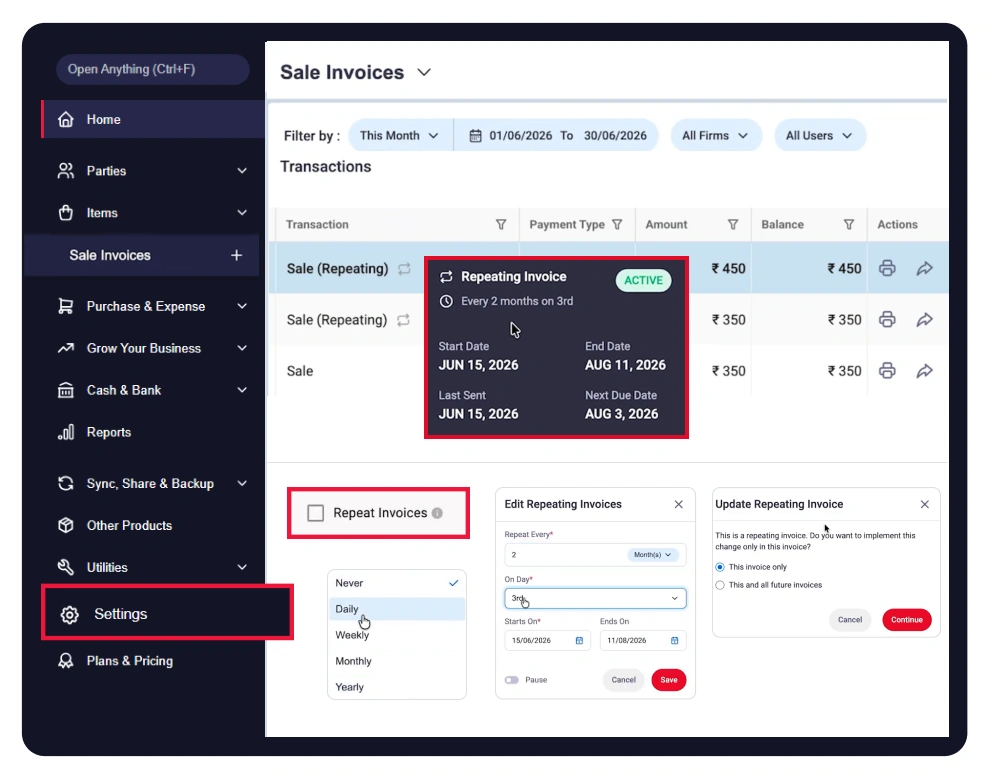
Set up a Repeat Invoice, select your customer and billing frequency, and choose a daily, weekly, monthly, or yearly schedule. Vyapar then automatically generates invoices based on the schedule.

Before You Start

Active Subscription/Plan: Ensure you have an active license attached to your system.
Stable Internet Connection: You must be connected to the internet.
Registered Mobile Number: Keep your registered mobile number handy, as you’ll need to verify it with an OTP the first time you use this feature.
Guide to Create a Recurring Invoice in Vyapar App:
Open Vyapar App and Navigate to Settings
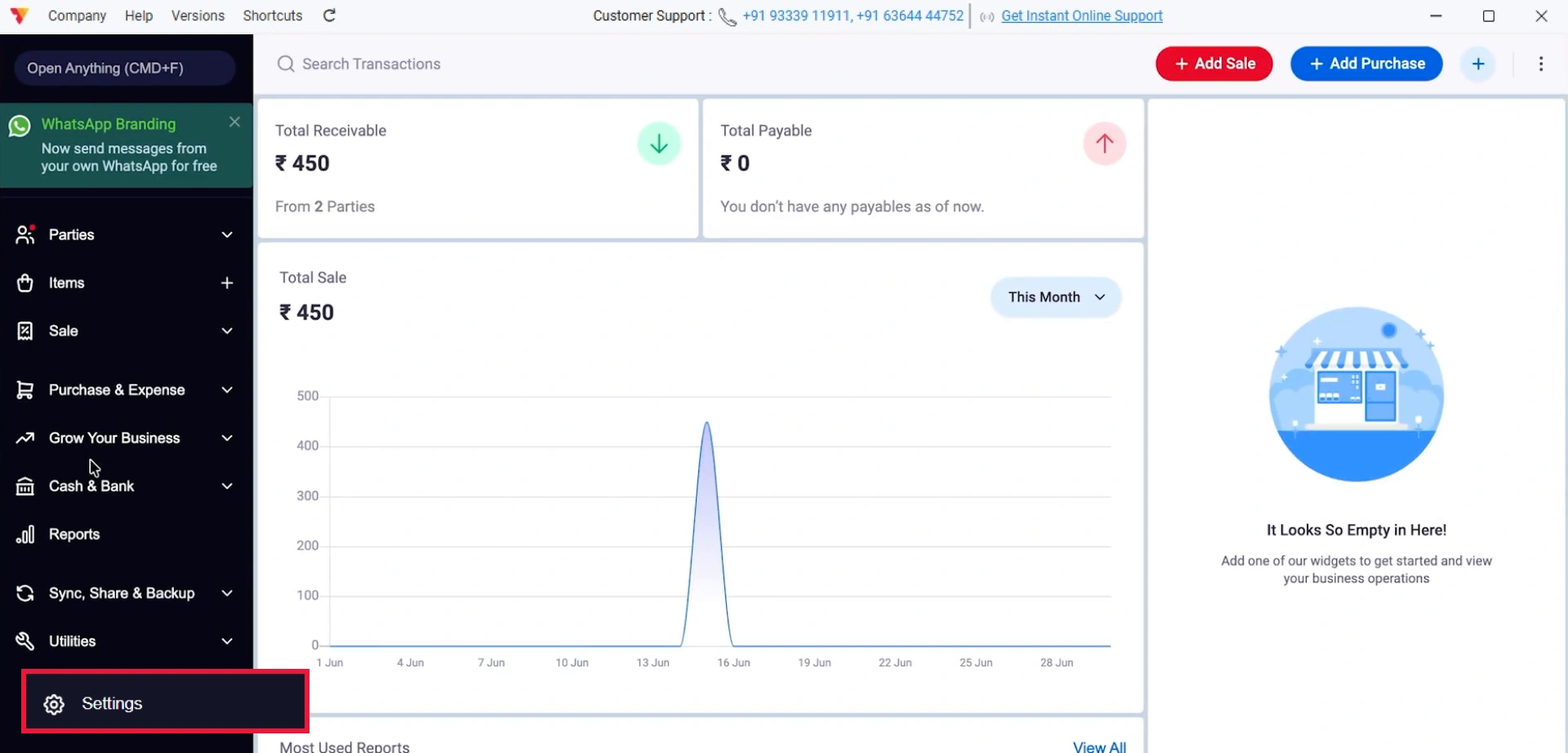
Open the Vyapar App, go to the Main Menu, and select Settings.
01
Enable Repeat Invoice
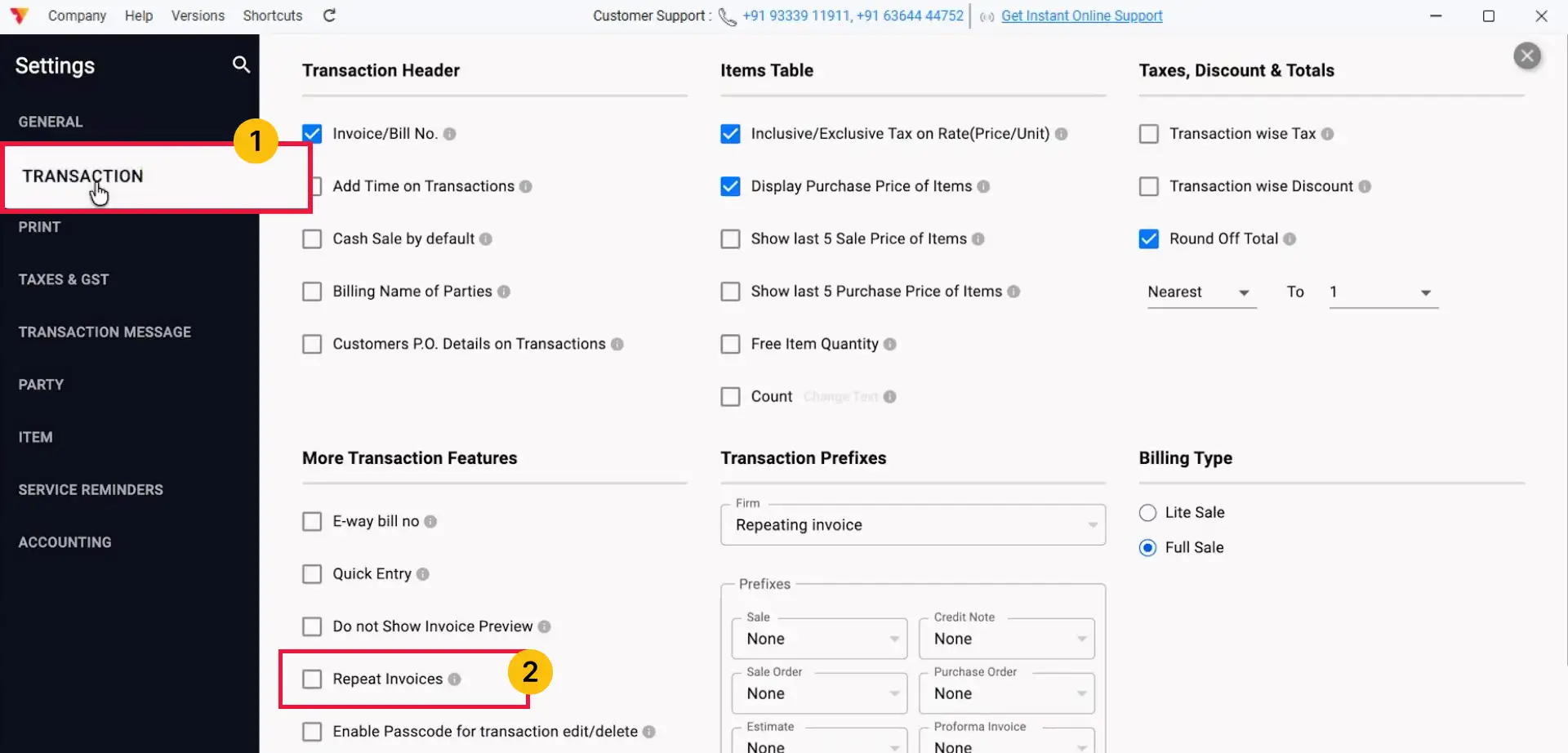
In Settings, open Transaction Settings and scroll down to find Repeat Invoice. Select it to enable the feature.
02
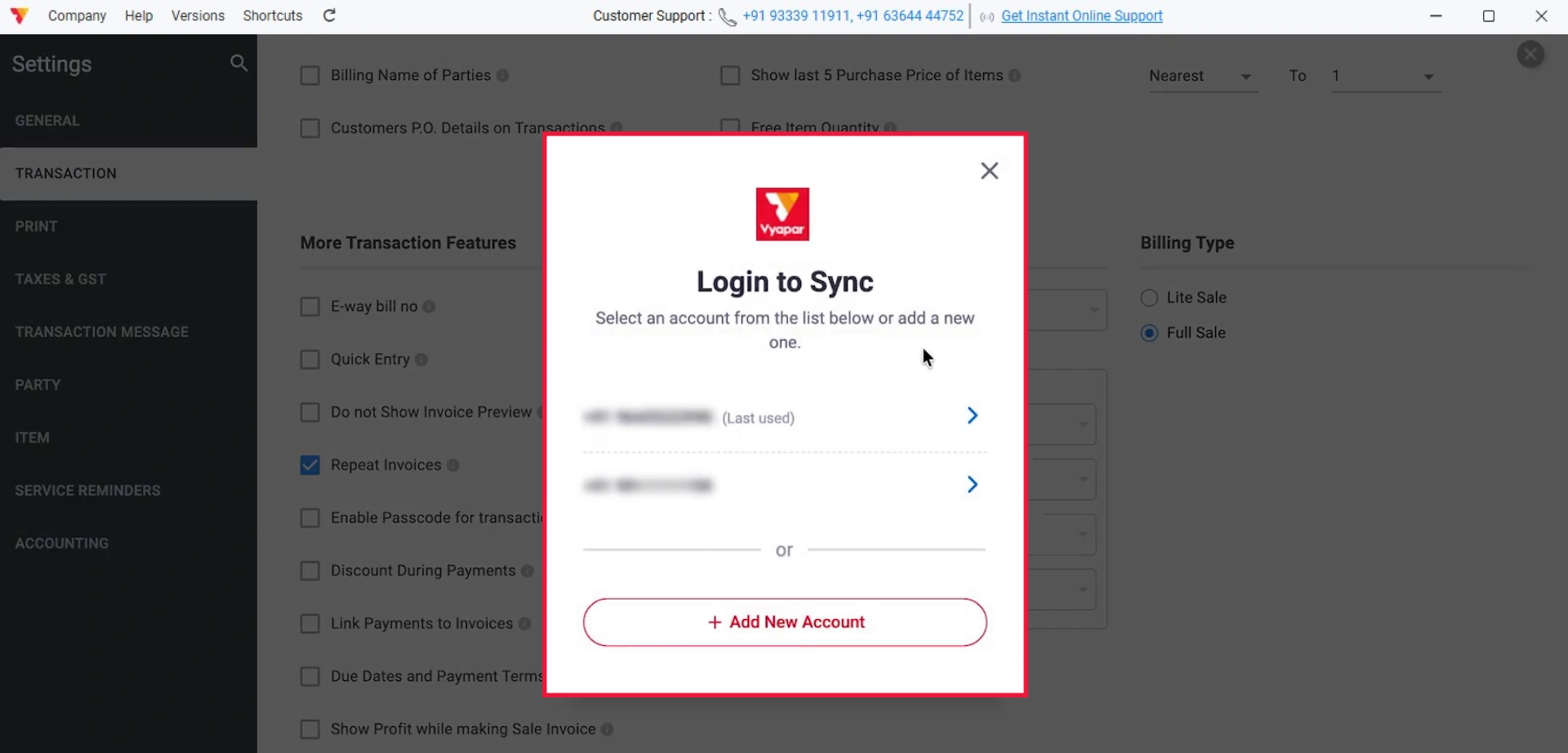
Turn On Sync and Log In
If you are using Repeat Invoice for the first time, tap Turn On Sync on the pop-up. Enter your registered mobile number and verify it with the OTP to complete the login.
03
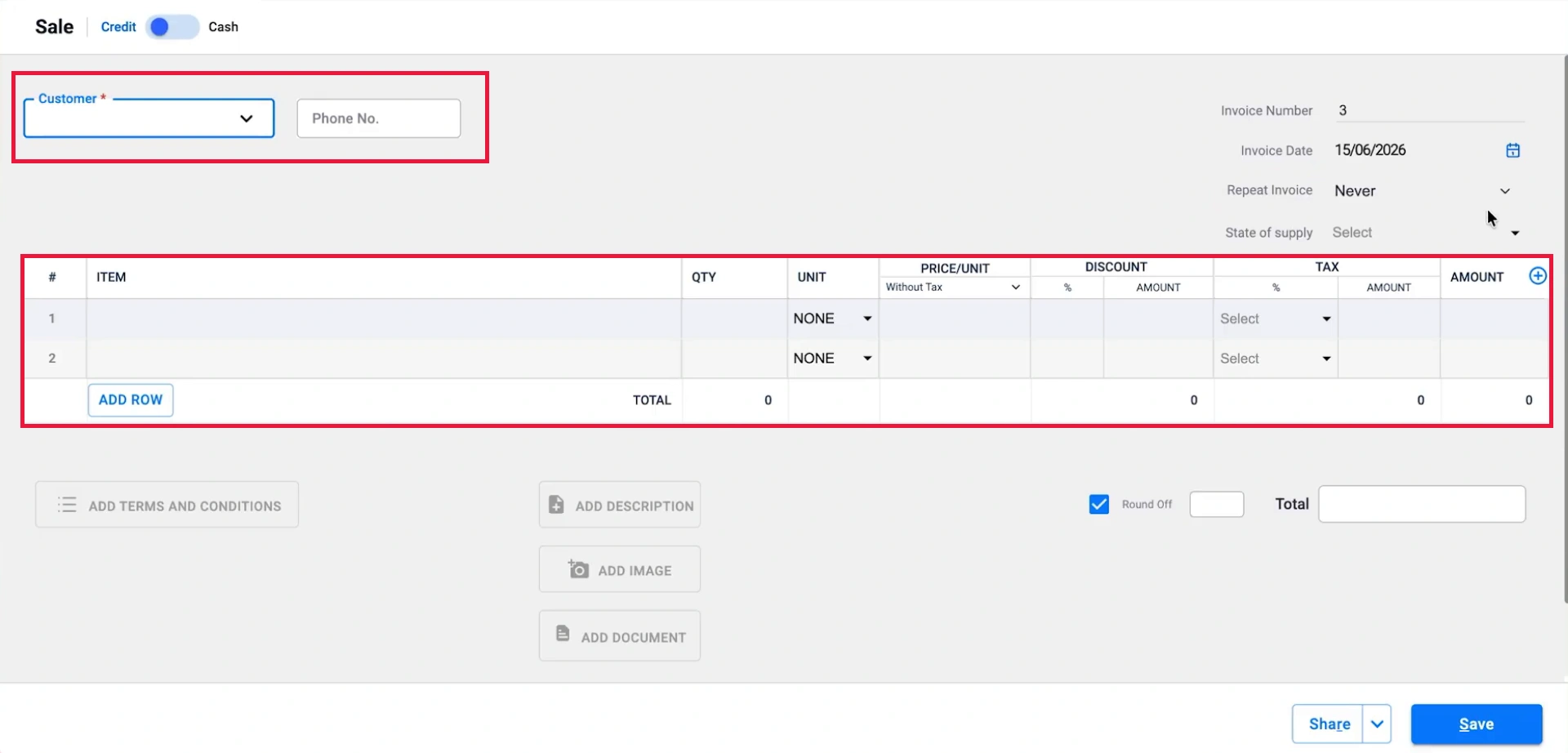
Create a Sales Invoice
Go to Sales and create a new Sales Invoice by entering the required customer, item, and other invoice details.
04
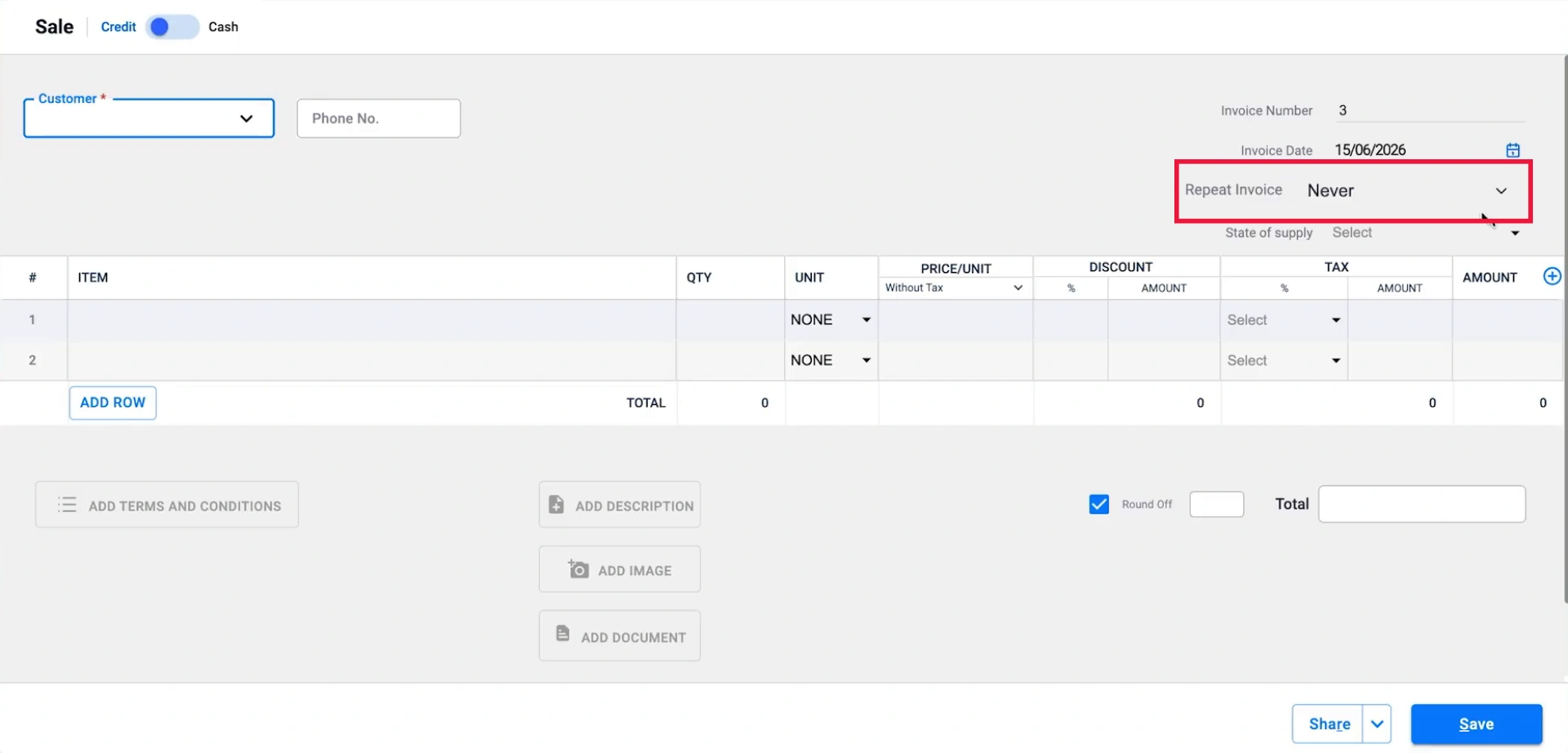
Select Repeat Invoice
Once you have entered the invoice details, select the Repeat Invoice option from the top left to set up your recurring billing schedule.
05
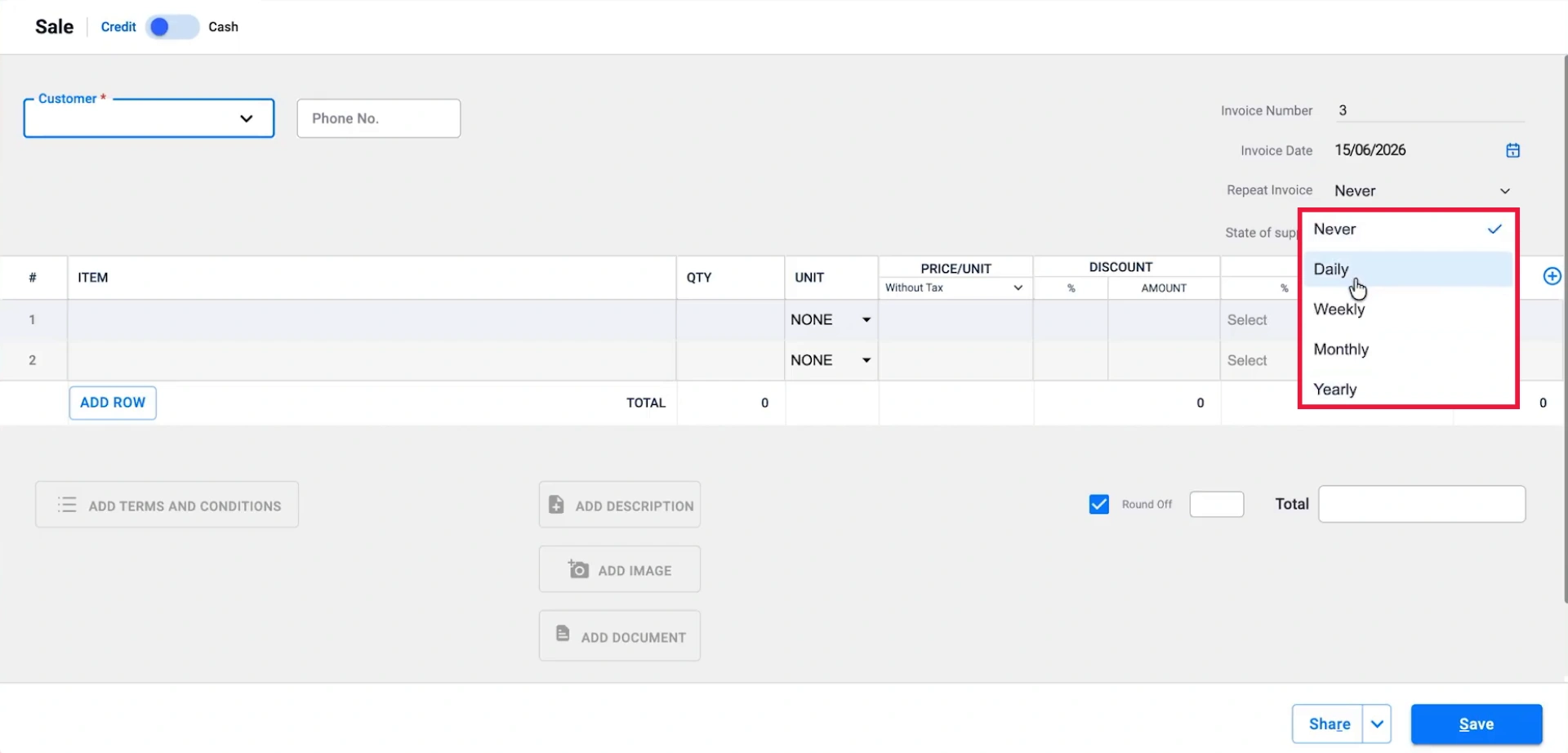
Choose the Invoice Frequency
Select how often you want the invoice to repeat: Daily, Weekly, Monthly, or Yearly.
06
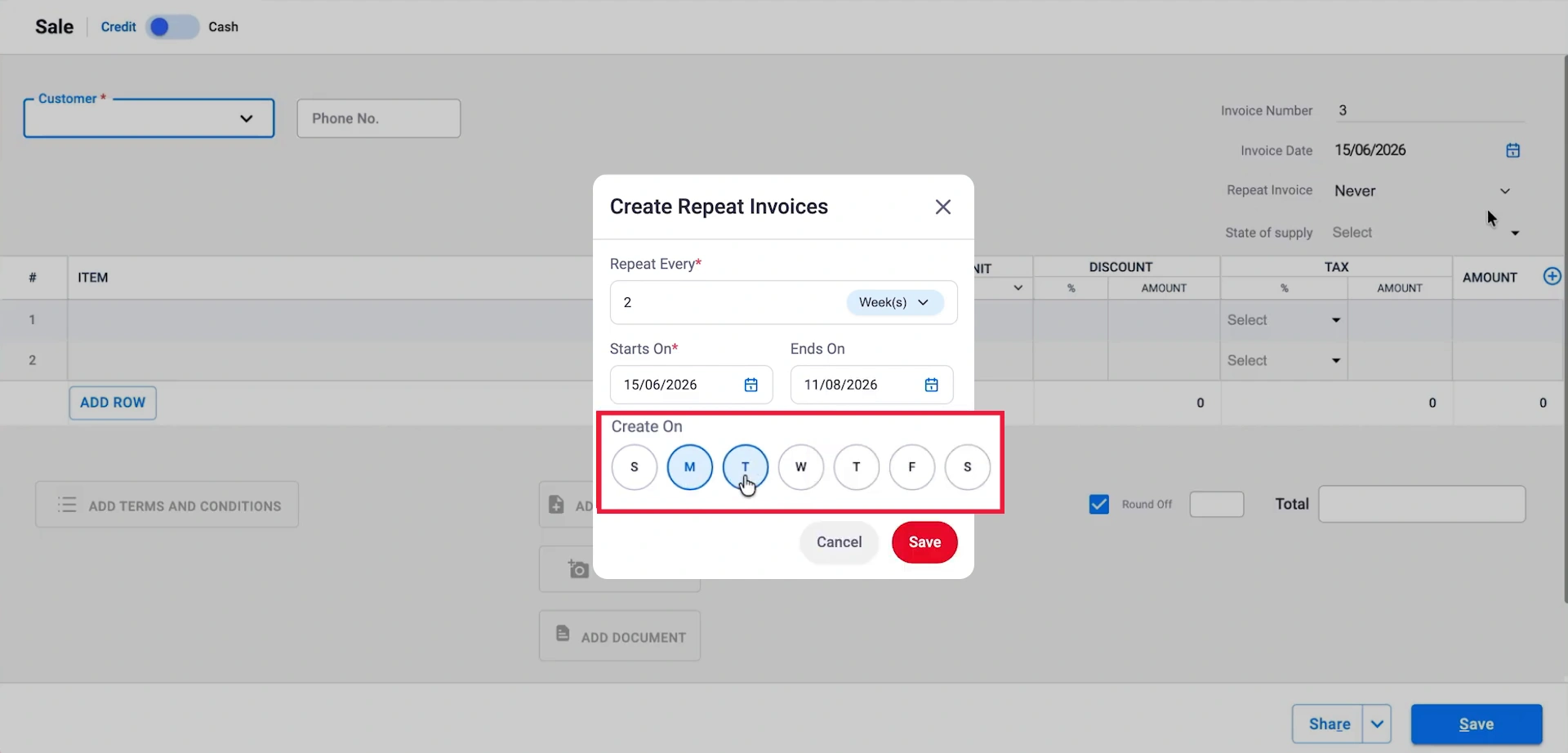
Customise the Repeat Schedule
Set the repeat interval according to your requirements. For weekly invoices, you can choose intervals such as every 1 week, 2 weeks, or 3 weeks and select the specific day on which the invoice should repeat.
07
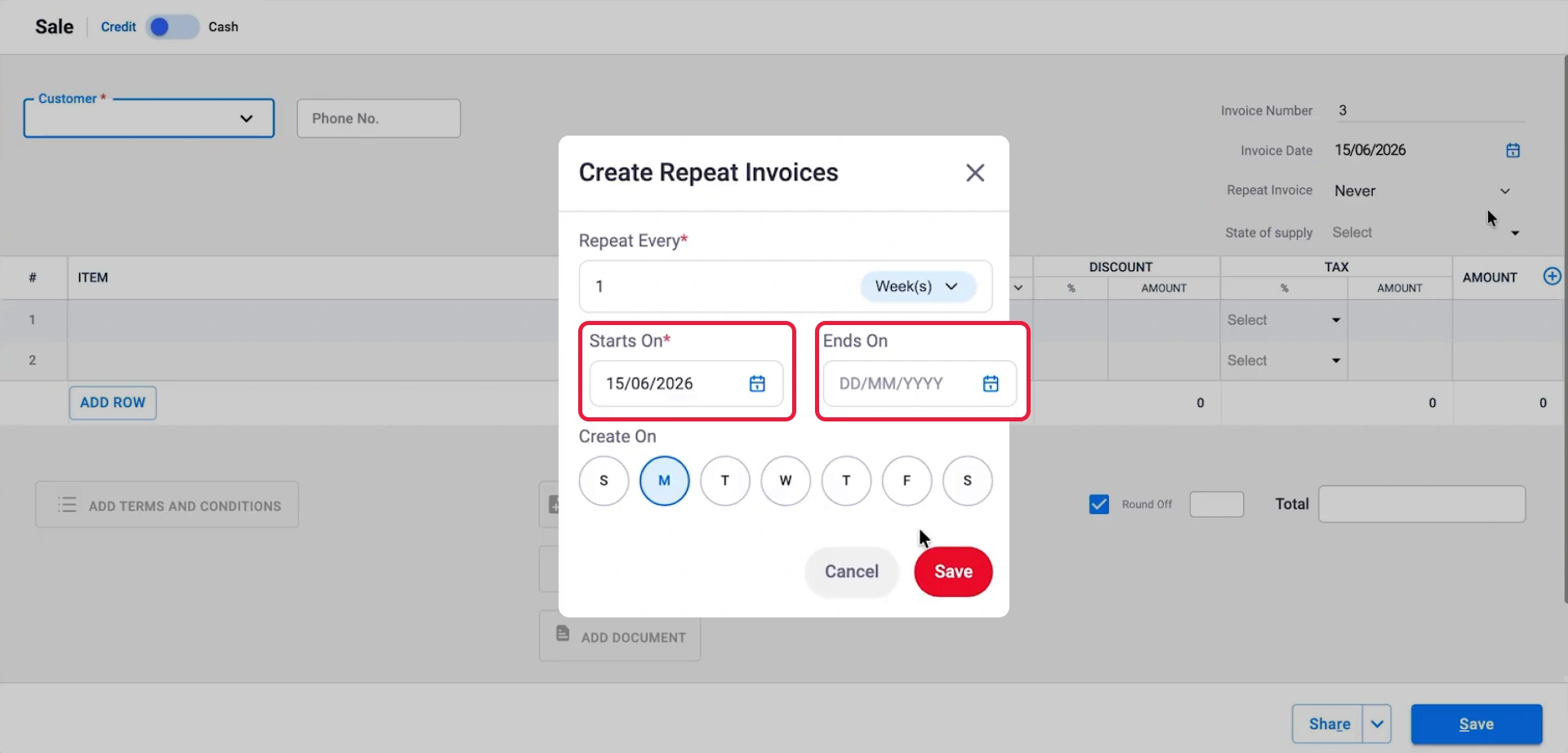
Set the Start and End Date
Choose the Start Date and End Date for the recurring invoice. For monthly invoices, you can also select the specific date of the month on which future invoices should be generated.
08
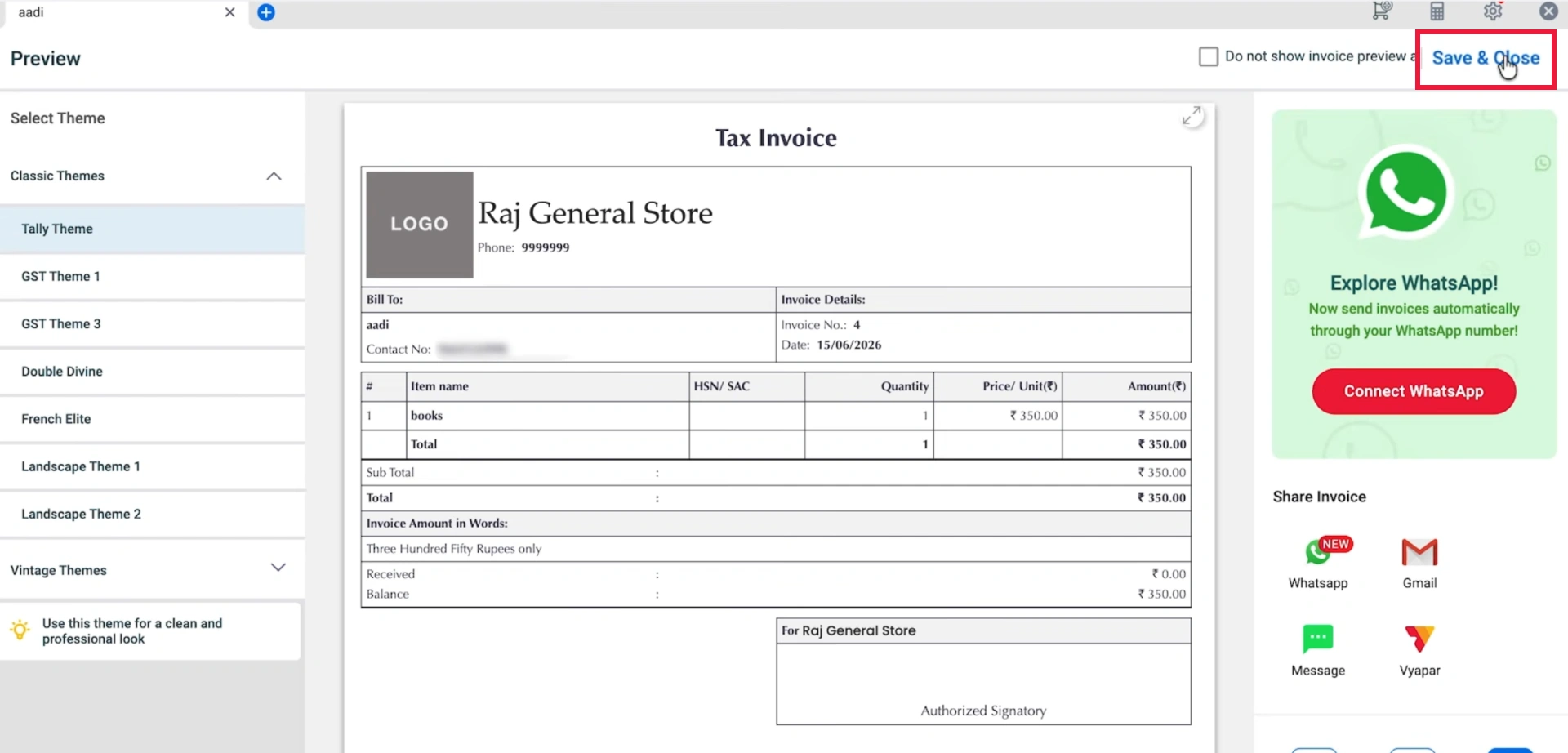
Save the Recurring Invoice
Review the recurring invoice settings and save the Sales Invoice. Vyapar will generate future invoices according to the schedule you have selected.
09
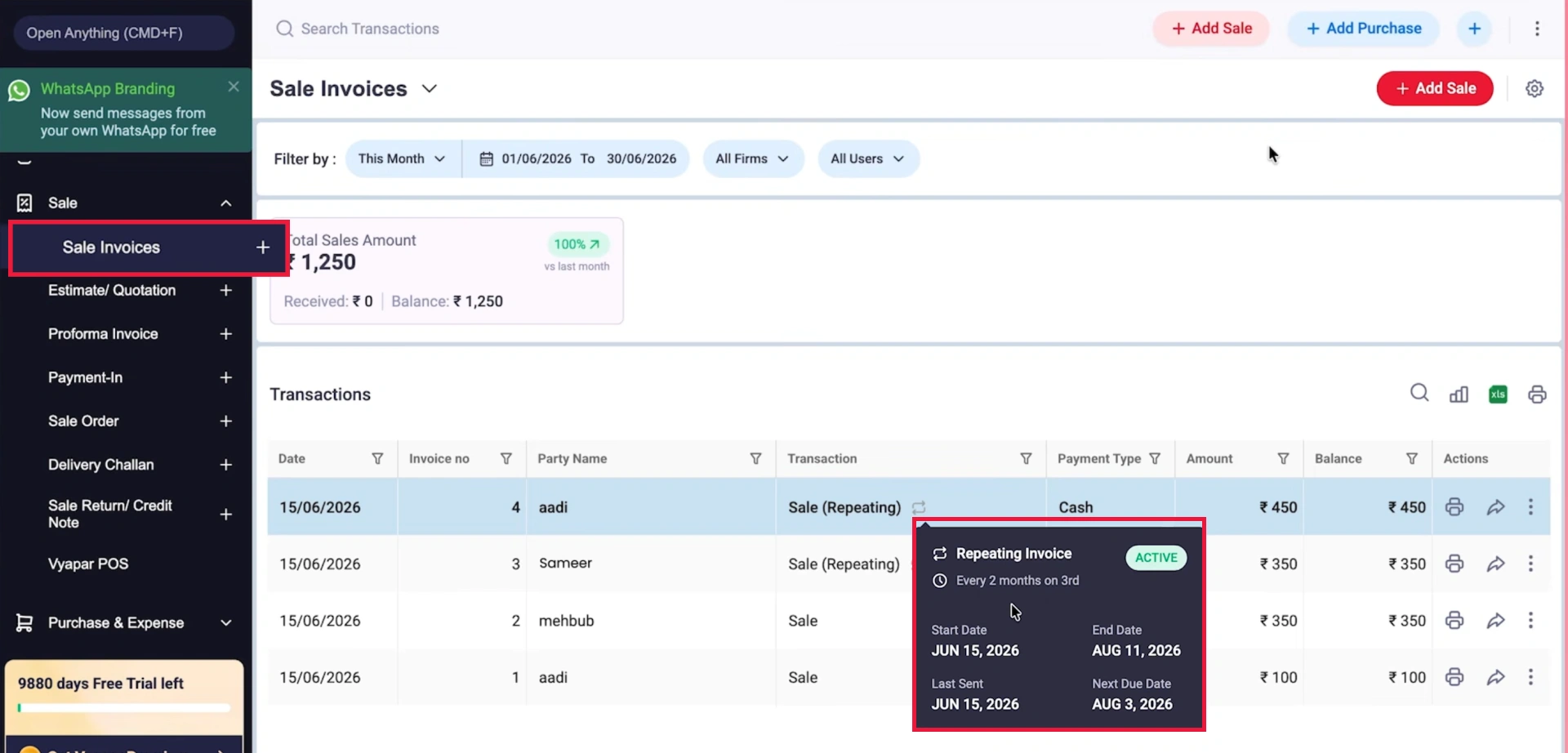
Check Recurring Invoice Details
Go to Sales> Sales Invoice, put the mouse cursor on the recurring invoice to view details such as its status, start date, end date, and next due date and keep track of the active schedule.
10
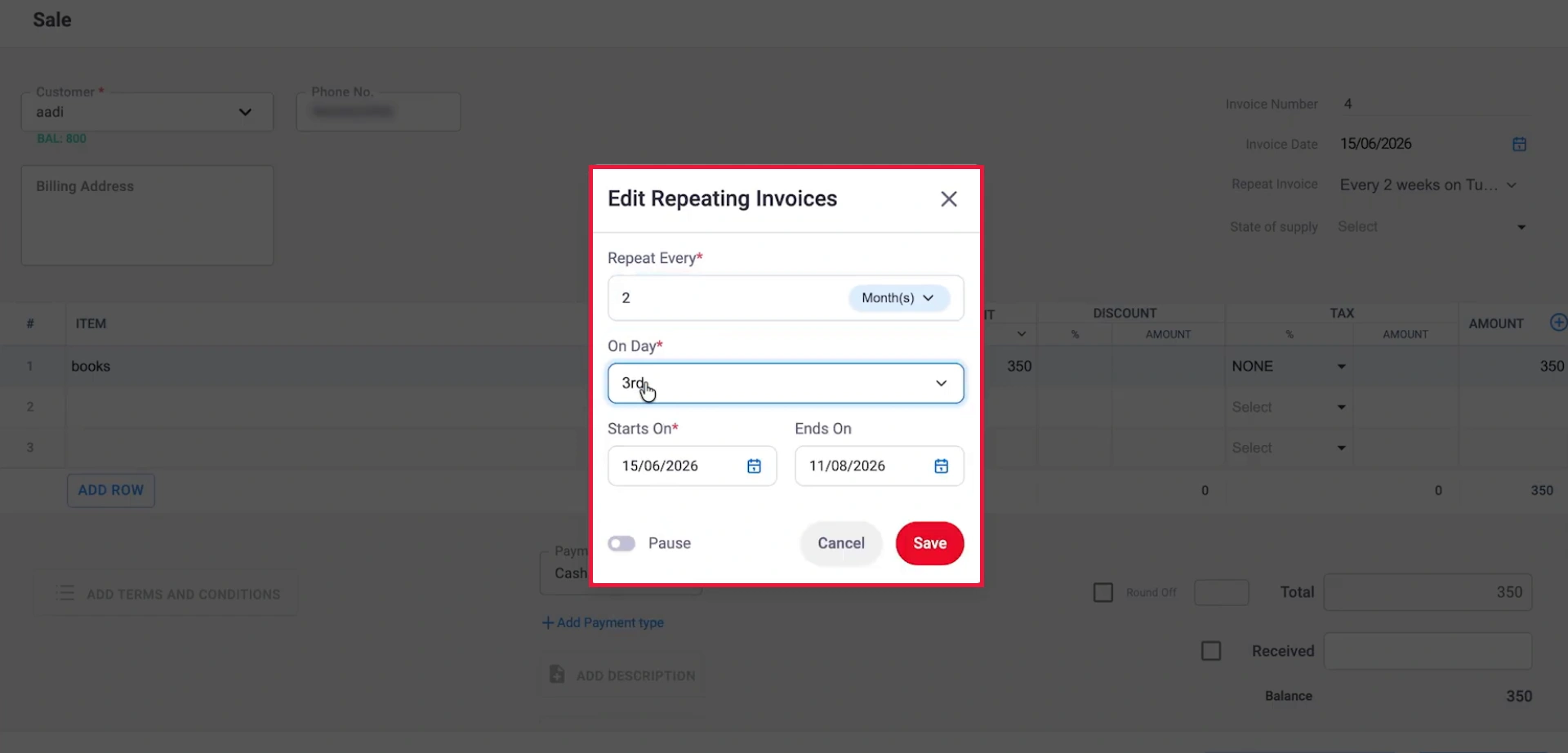
Update a Recurring Invoice
To make changes to an active recurring invoice, open it and select Repeat Invoice. You can update the frequency or modify invoice details, such as adding or changing items.
11
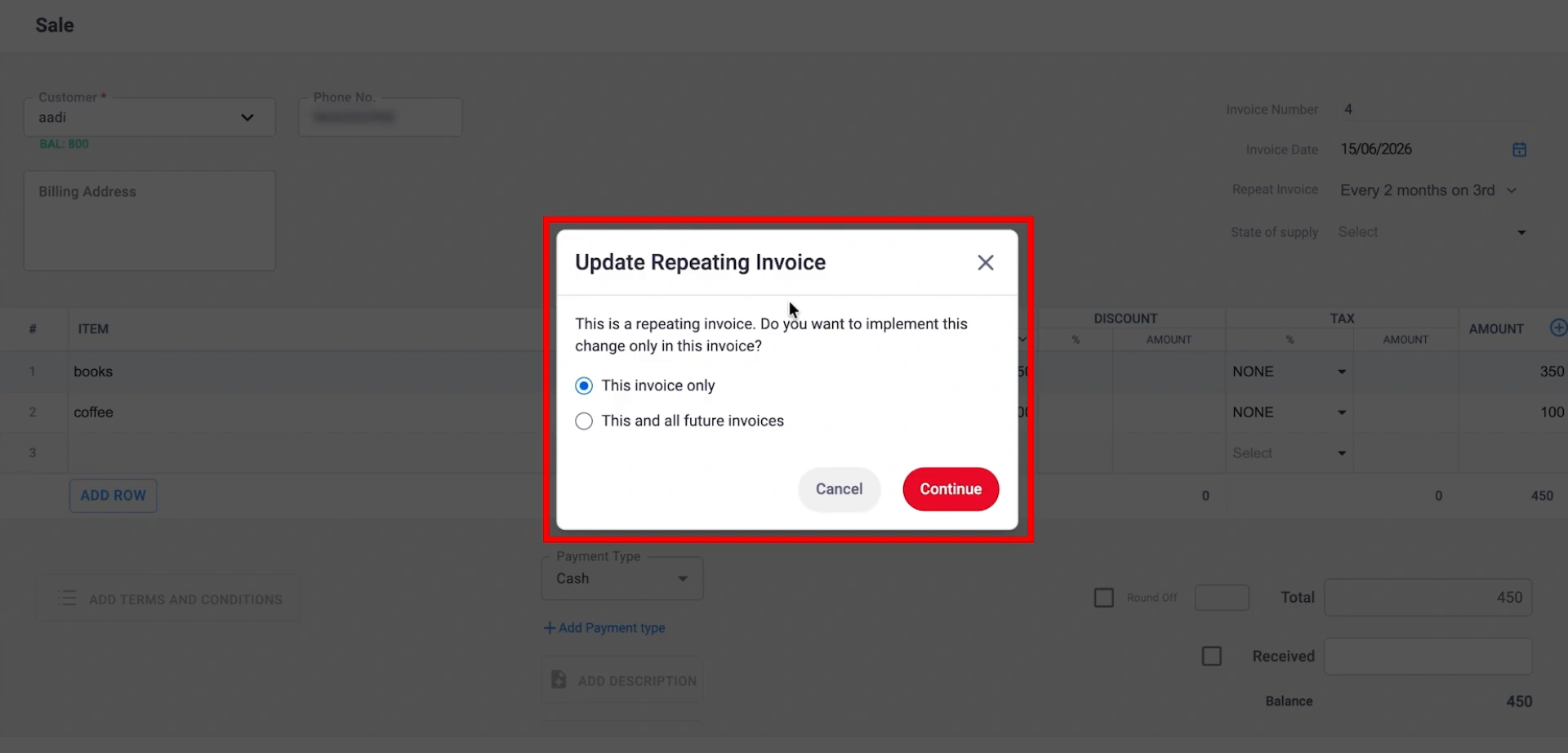
Apply Changes to Future Invoices
When saving your changes, choose whether you want them to apply only to the current invoice or also to future invoices in the recurring series.
12
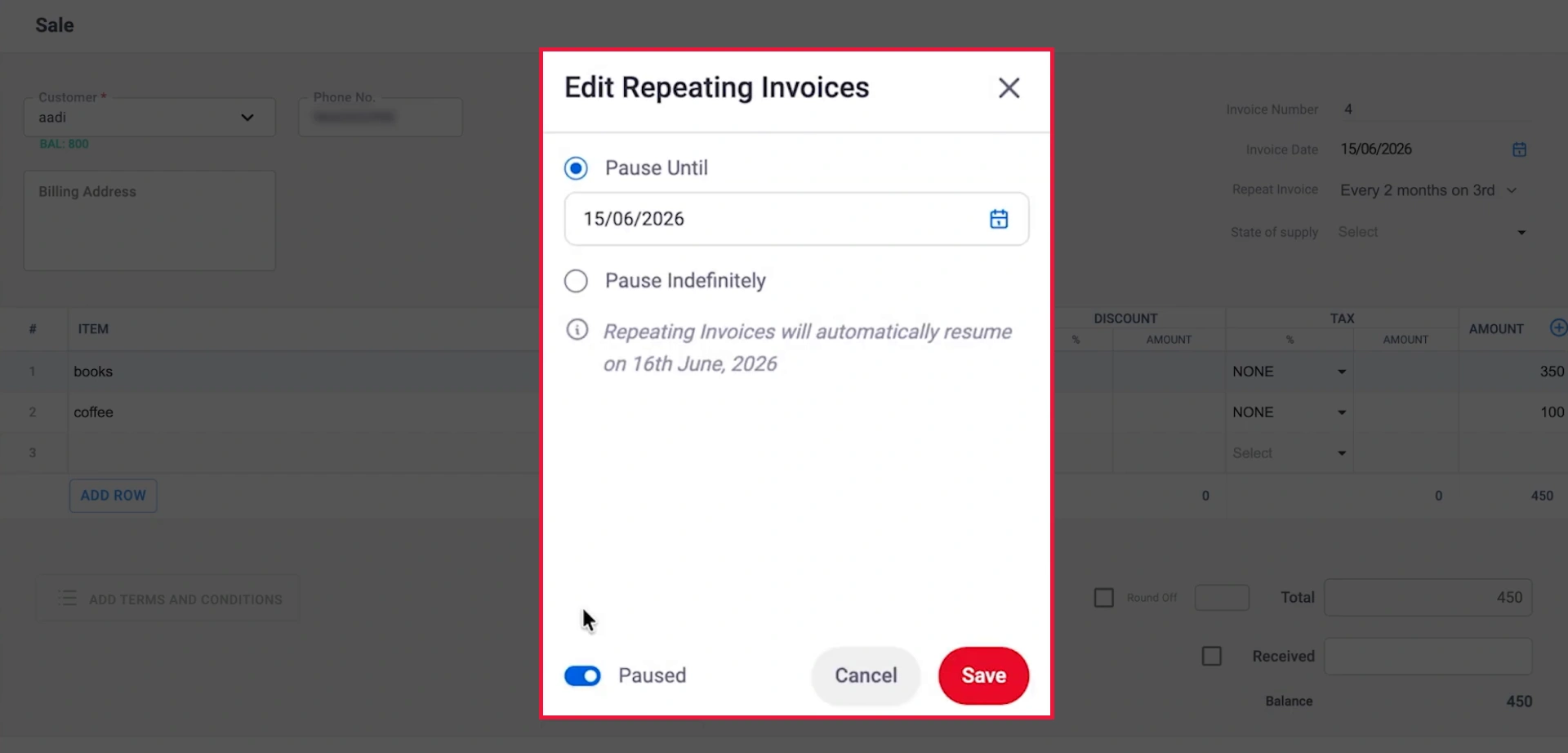
Pause a Recurring Invoice
To temporarily stop recurring invoices, open Repeat Invoice, select Pause, and choose whether to pause the schedule until a specific date or indefinitely.
13
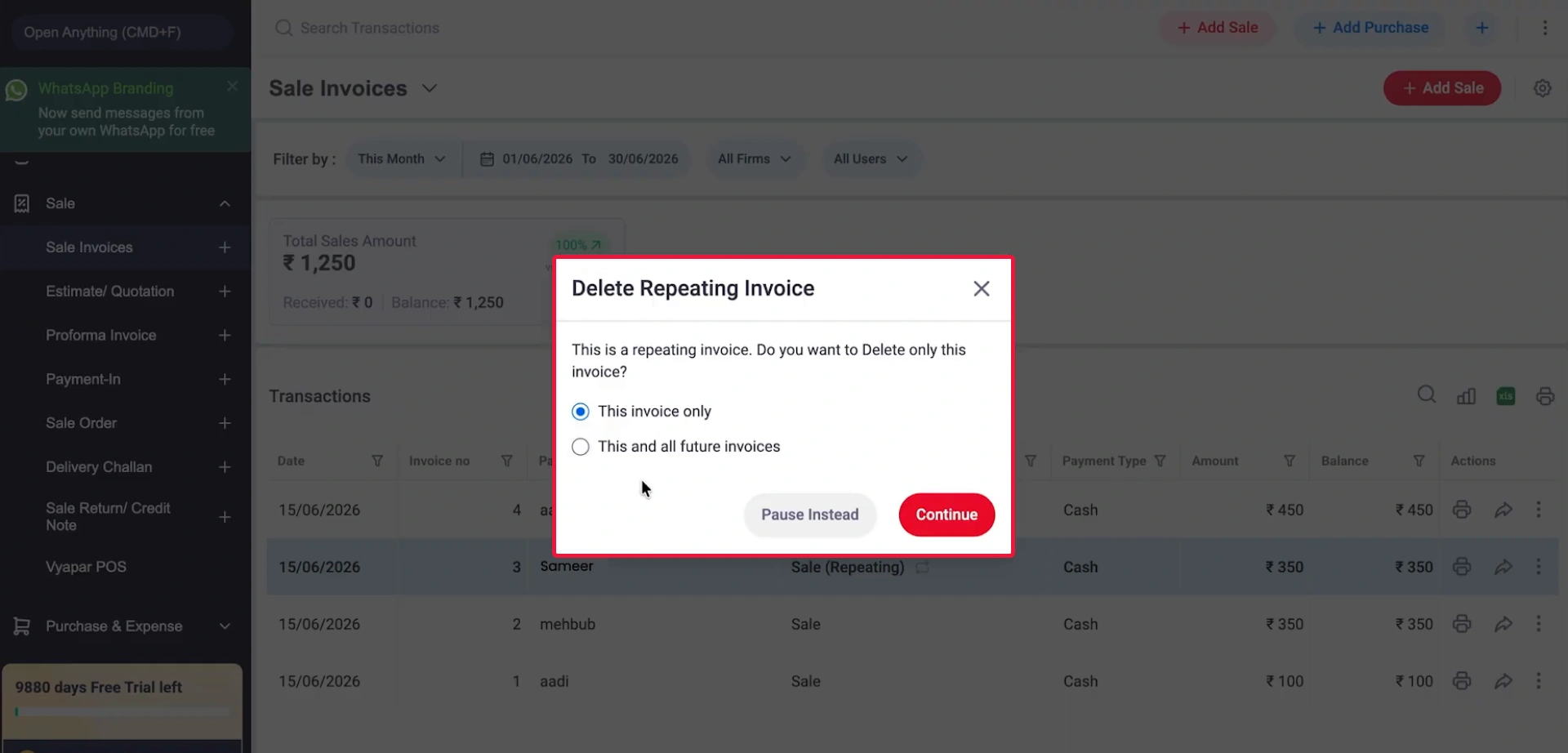
Delete a Recurring Invoice
To delete a recurring invoice, open the invoice, select the three-dot menu, and choose Delete. You can then choose to delete only the current invoice or the current invoice along with all future recurring invoices, and confirm the deletion.
14
Still stuck? Get help in minutes.
Our support team is ready to help you succeed.
 24/7 Support
Why Is This Important for Your Business?
With Recurring Invoices in Vyapar, automate your regular bills and spend less time on repetitive invoicing.
Save Time on Repetitive Billing
If you bill the same customers every week or month, you don’t need to create the same invoice again and again. Set it up once, and Vyapar will handle the recurring billing for you.
Never Miss a Billing Cycle
Manual billing can make it easy to forget a due date when you’re managing multiple customers. Recurring invoices help ensure your bills are created and sent on schedule.
Stay Flexible as Your Business Changes
Business needs can change over time. With Vyapar billing software, you can pause, edit, or delete recurring invoices anytime without affecting your past records.
Frequently Asked Questions (FAQs)
What is a recurring invoice?
A recurring invoice is a bill that gets generated automatically at fixed intervals – daily, weekly, monthly, or yearly for a customer you bill regularly, without you creating it manually each time.


Can I edit or change the amount in a recurring invoice after it’s set up?
Yes. You can update the items, pricing, or schedule of an active recurring invoice anytime. You’ll usually be asked whether the change should apply only to the current invoice or to all future invoices in the series.
Can I cancel or stop a recurring invoice midway?
Yes. You can either pause a recurring invoice temporarily (until a chosen date or indefinitely) or delete it completely. Deleting only affects the current and future invoices, past generated invoices stay untouched.
Ready to Automate Your Recurring Invoices?
Set up Recurring Invoices in Vyapar app, schedule your invoices, and make regular billing simple and hassle-free.
 download Vyapar Now