
How to Create a Delivery Challan in Vyapar App
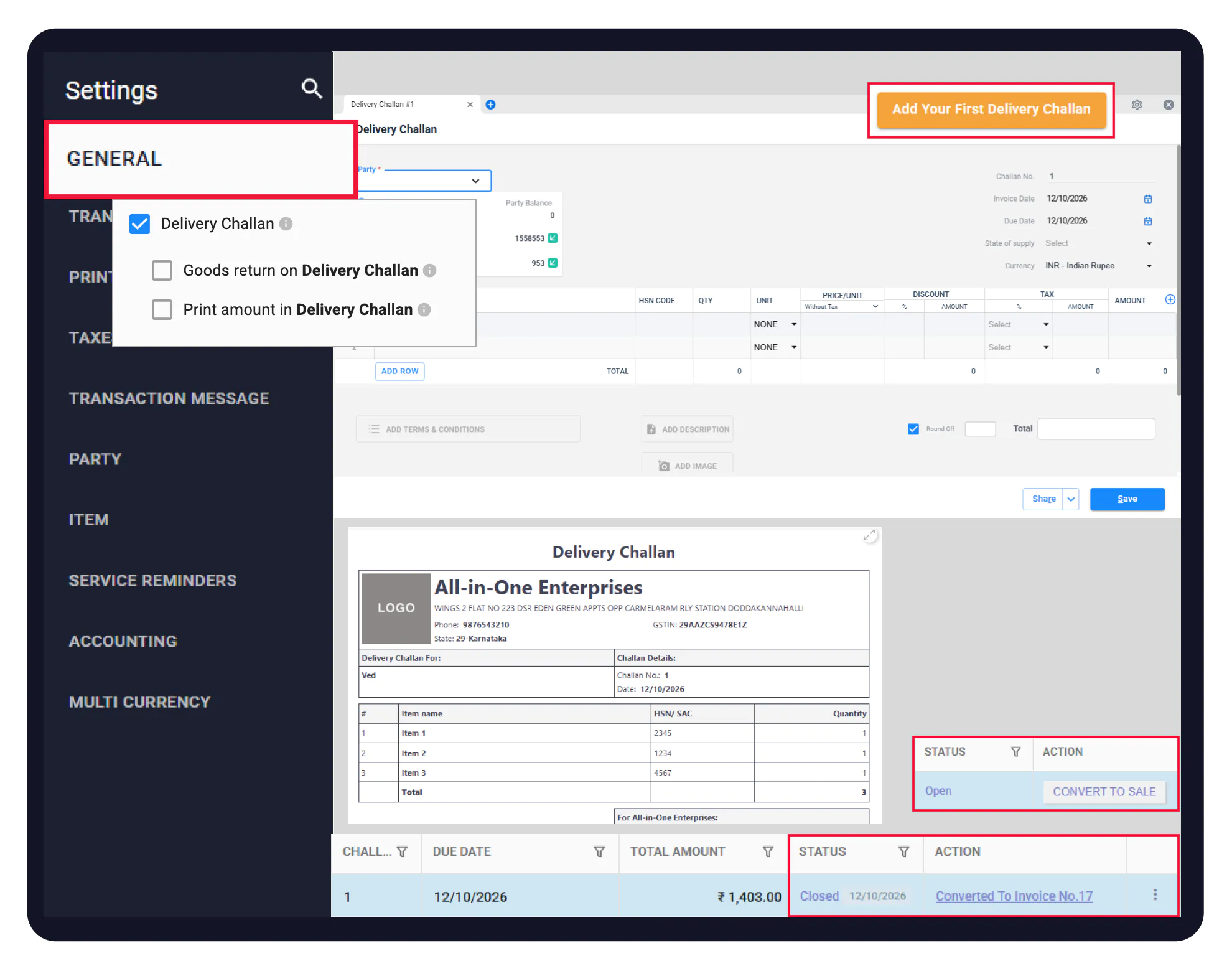
A Delivery Challan helps you record the movement or delivery of goods without creating a Sales Invoice. With Vyapar, you can create a Delivery Challan, add customer and item details, print or share it, and later convert it into a Sales Invoice when required.

Before You Start

Active Subscription/Plan: Make sure you have an active Vyapar license attached to your system.
Customer Details: Keep the customer’s name and contact details ready so you can select the correct customer.
Item Details: Keep the item names and quantities ready, or add them to the Vyapar App.
Delivery and Receiving Details: If you want to print the Delivered By and Received By details, keep the required names and details ready.
Guide to Create a Delivery Challan in Vyapar App:
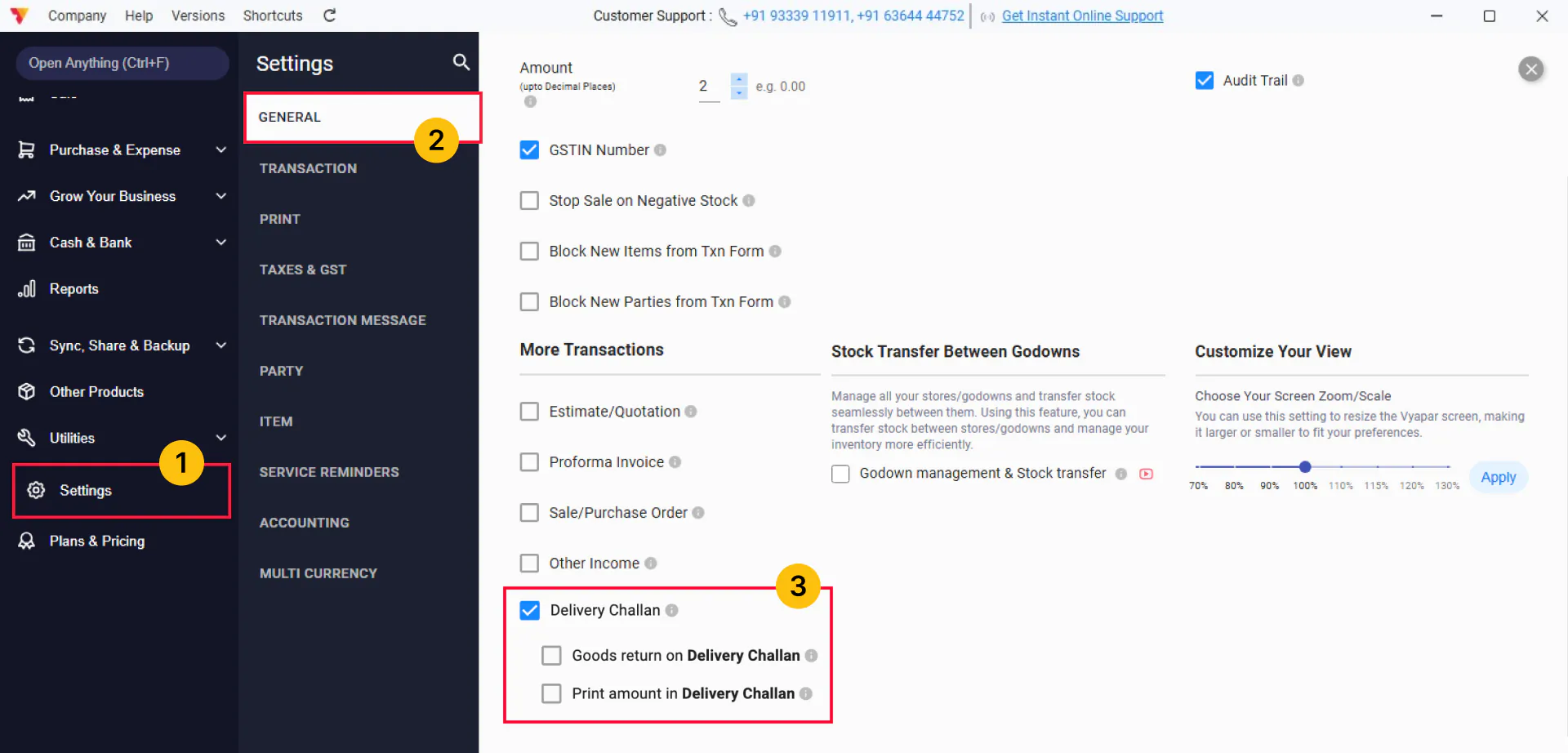
Open Vyapar App and Navigate to Settings
Go to Vyapar Billing Software > Settings > General and enable Delivery Challan.
Once you enable it, you will see two additional options:
- Goods Return on Delivery Challan: Enable this if your customer may return some of the delivered items. It lets you record the returned quantity before converting the Delivery Challan into a Sales Invoice.
- Print Amount in Delivery Challan: Enable this if you want the item price, amount, and tax details to appear on the Delivery Challan. Keep it disabled if you do not want to show pricing.
01
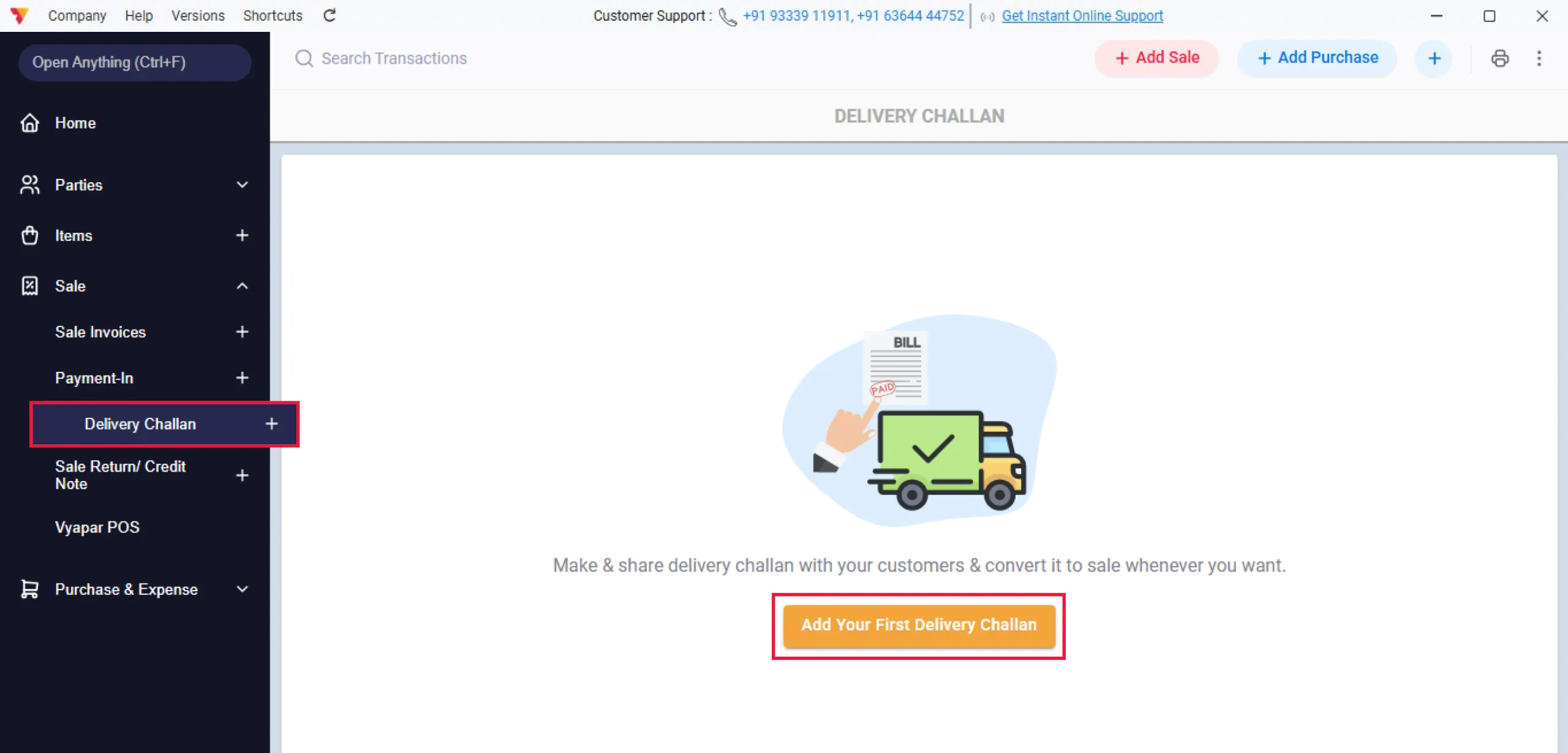
Go to Delivery Challan
From the left-side menu, click Sales and then select Delivery Challan. Click Add your First Delivery Challan to open the Add Delivery Challan screen.
02
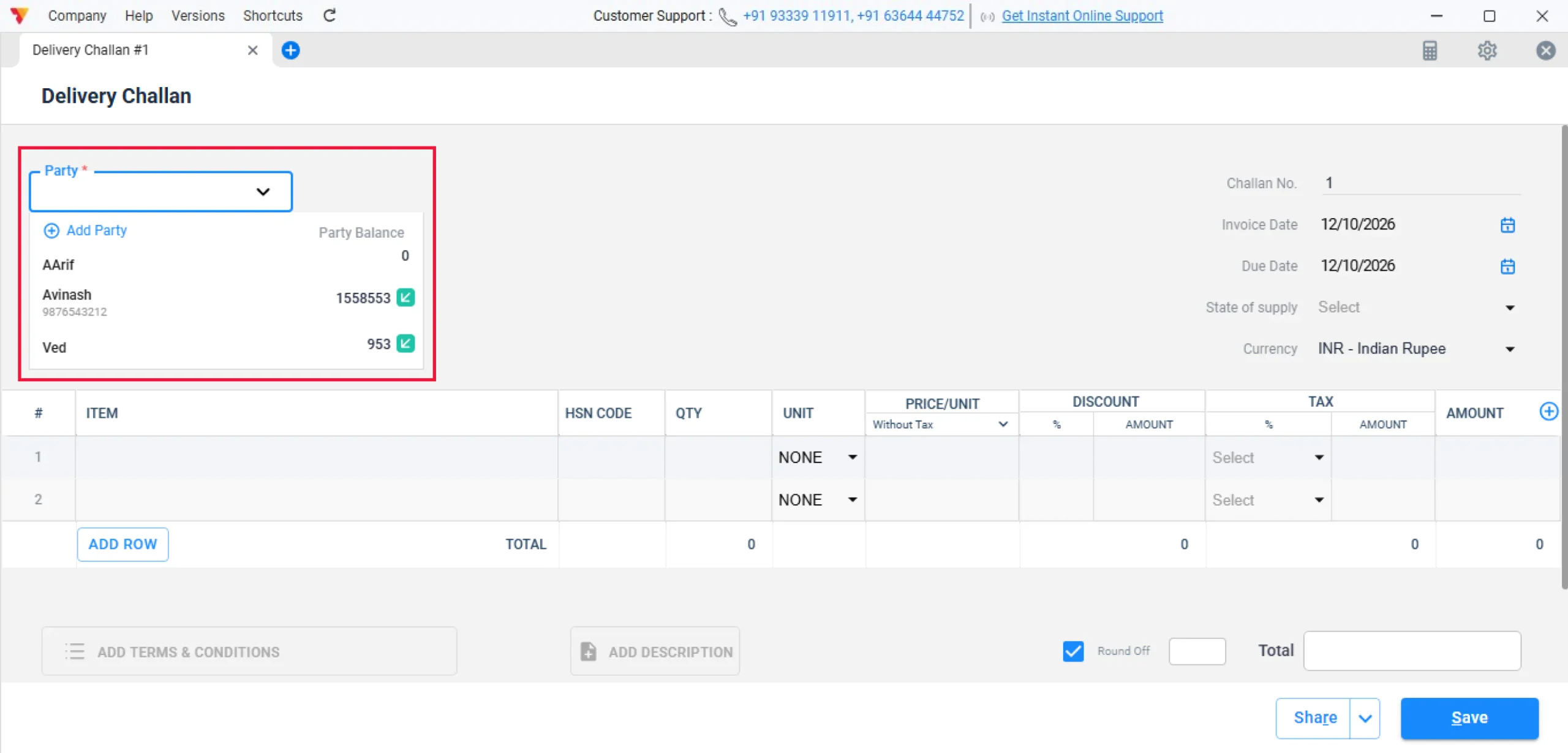
Select or Add a Customer
Enter the Party Name for the Delivery Challan.
You can:
- Select an existing customer from the list.
- Click + Add Customer or Party to create a new customer.
03
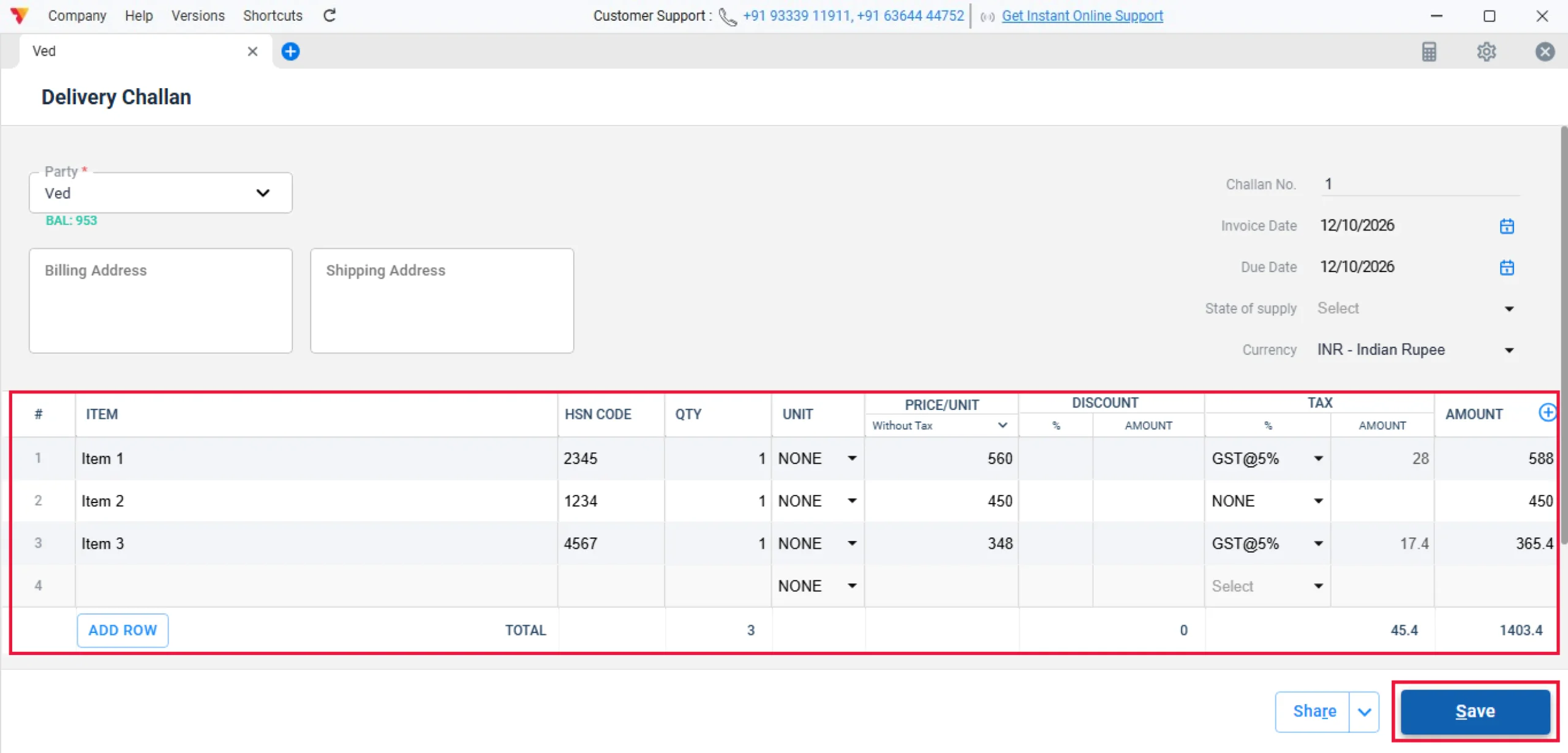
Add Item Details and save it
Click Add Item and enter the item name, quantity, price, discount, and tax (if applicable). Repeat for all items.
Review the details and click Save. Your Delivery Challan is ready to print, save, or share.
04
How to Print “Received By” and “Delivered By” on Delivery Challan
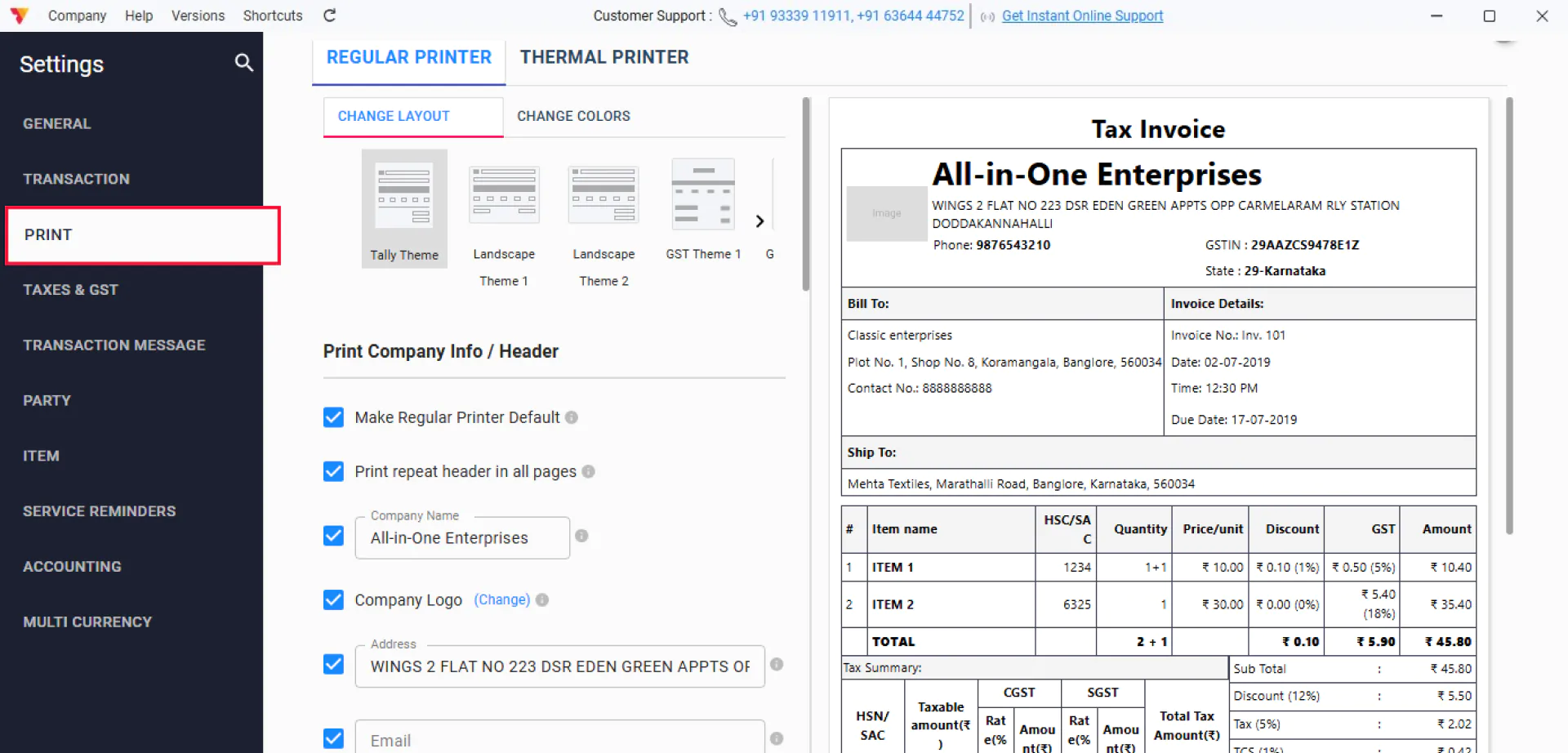
Open Print Settings
Go to Settings and click Print under the regular printer settings.
05
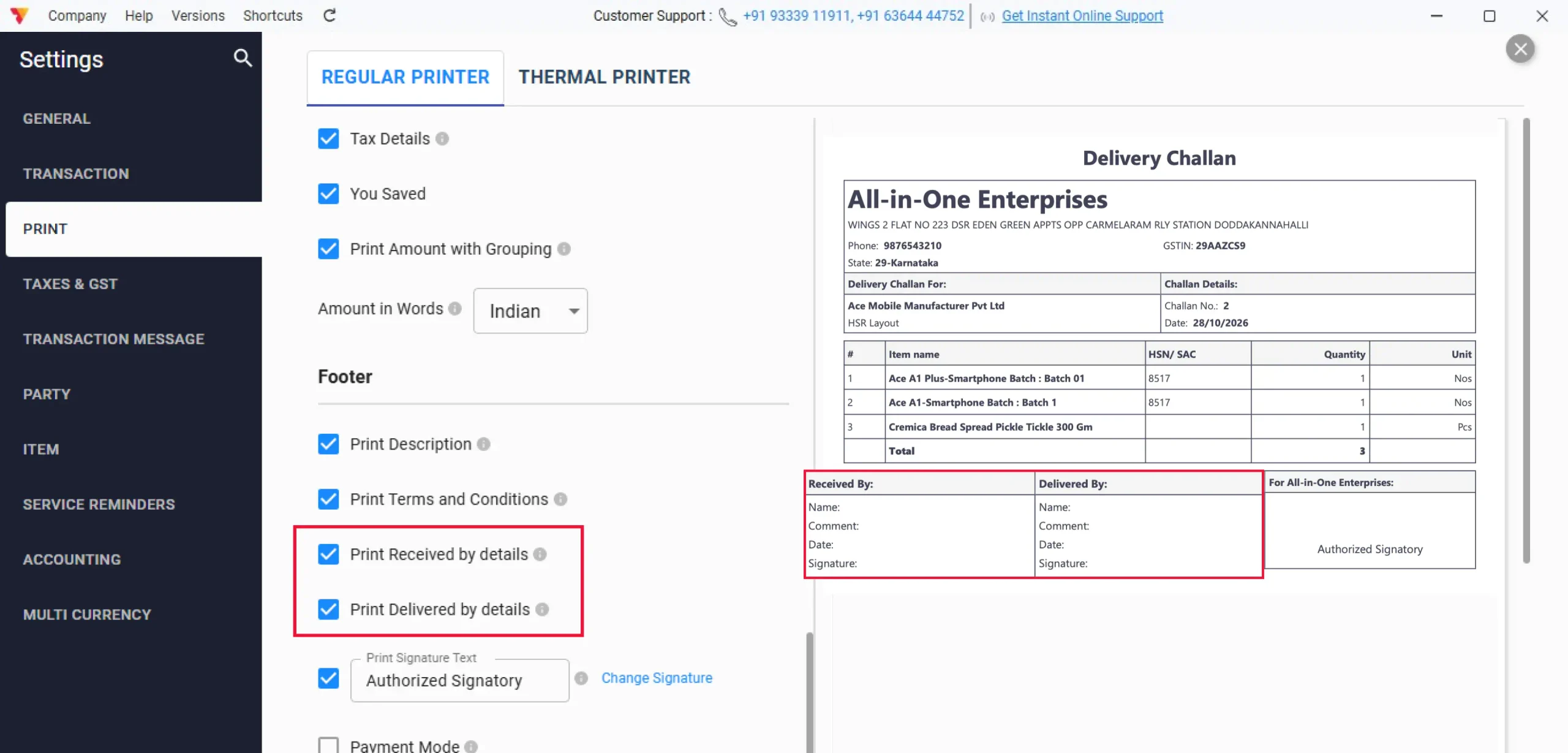
Enable Received By and Delivered By Details
Scroll down to the Footer section.
Enable “Print Received By Details” and “Print Delivered By Details“\
Once enabled, these details will be printed on your Delivery Challan.
06
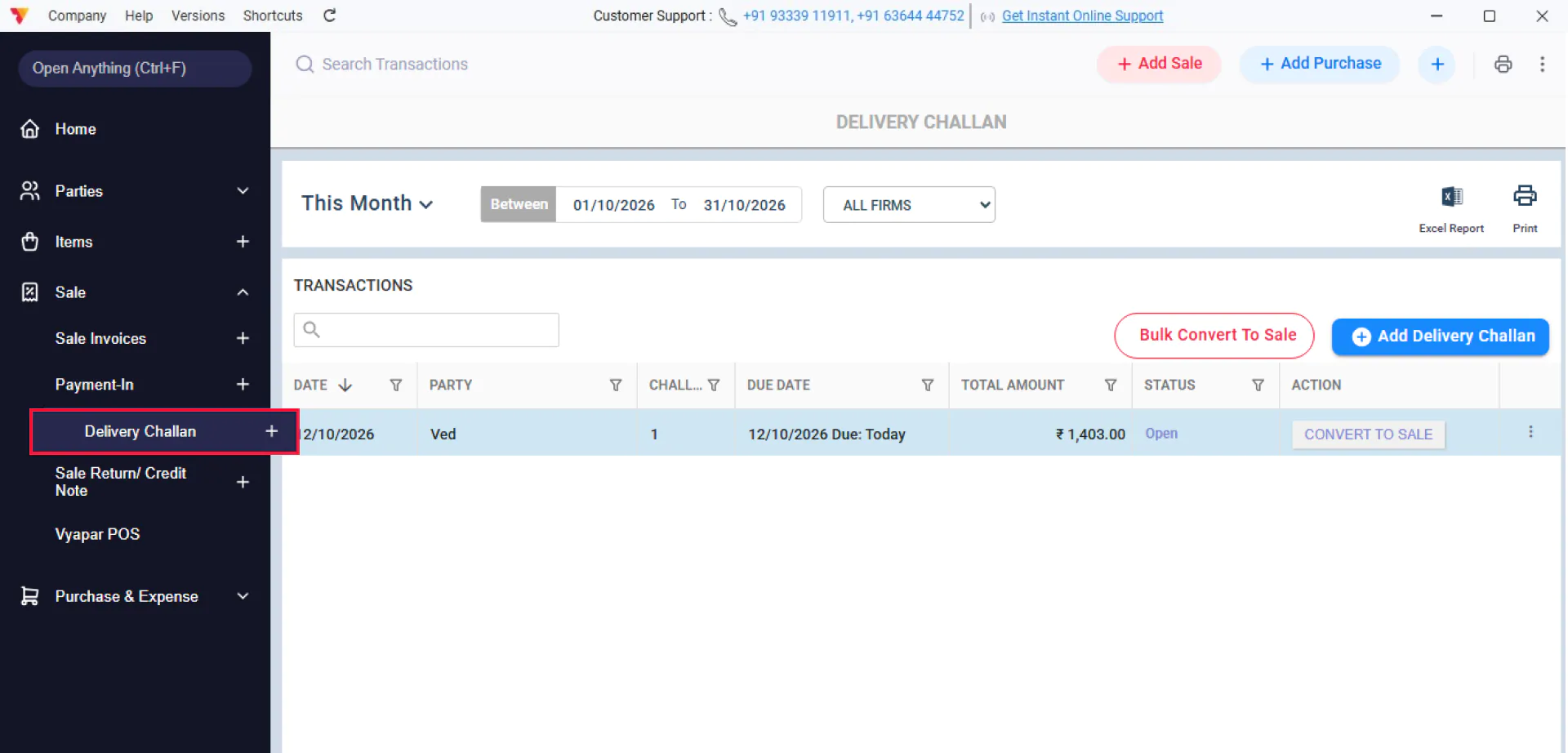
Open Saved Delivery Challans
Once a delivery challan is saved, you can convert it into a sales invoice when you need to bill the customer.
Go to Sales > Delivery Challan.
You will see the list of all saved Delivery Challans.
07
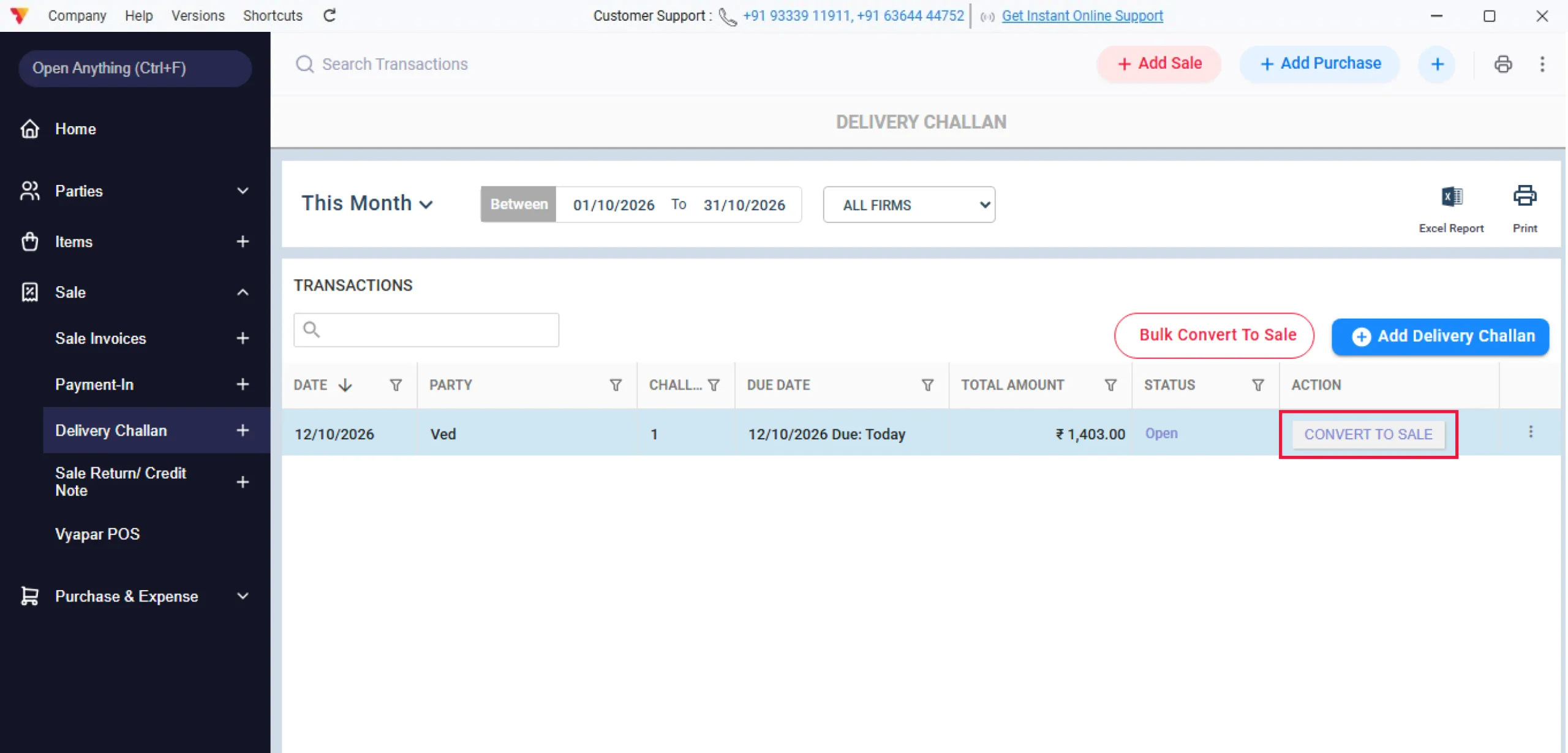
Convert Delivery Challan to Sale
Find the Delivery Challan, click Convert to Sale, review and edit the Sales Invoice if needed, then click Save to complete the conversion.
08
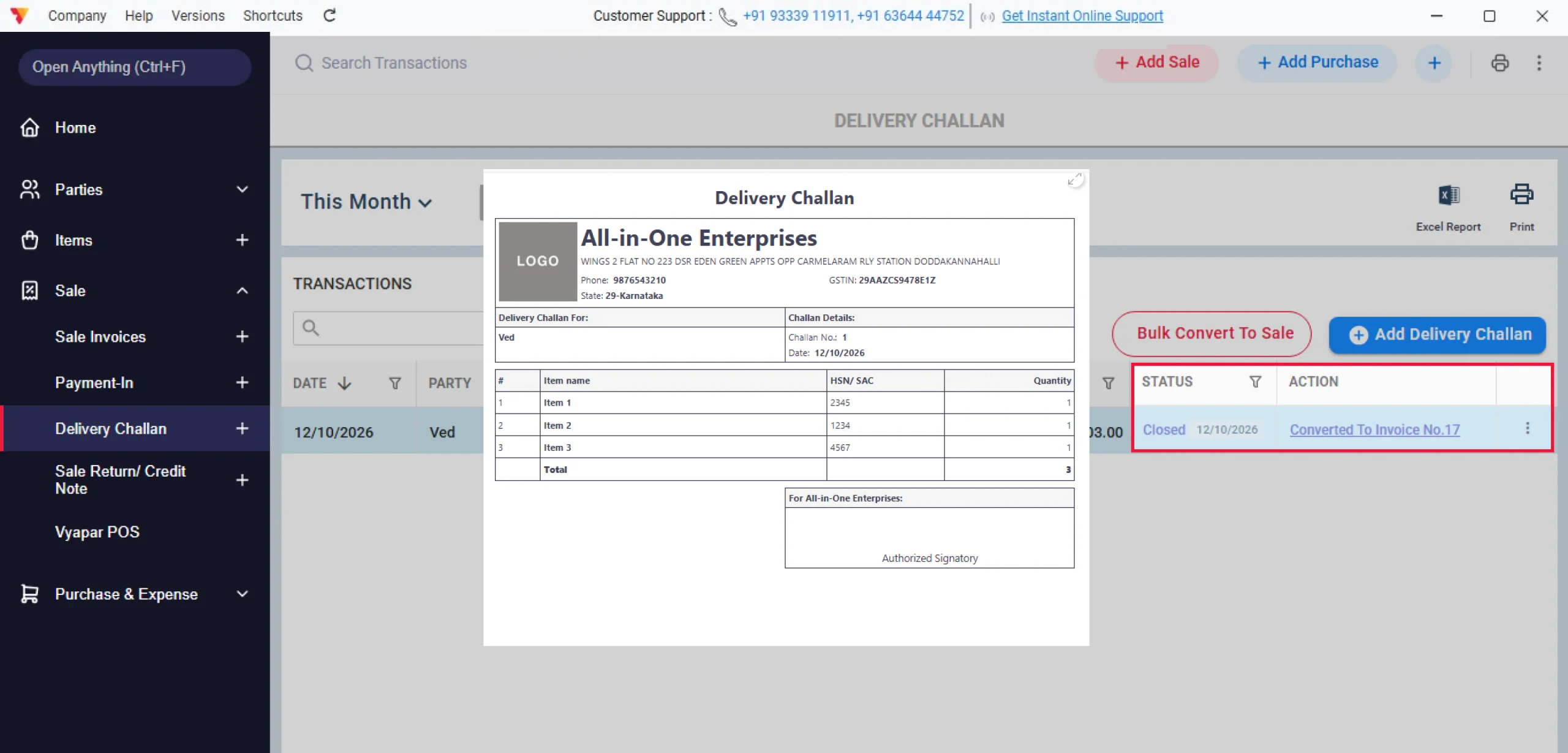
Check the Delivery Challan Status
Go to Sales > Delivery Challan to view all challans. Converted challans show Closed status and Converted to Invoice No. with the invoice number in the Action column.
09
Still stuck? Get help in minutes.
Our support team is ready to help you succeed.
 24/7 Support
Why Is This Important for Your Business?
A Delivery Challan helps track goods delivered to customers and manage billing when
an invoice is not created immediately.
Track Goods Without Immediate Billing
Record goods delivered to customers without creating a Sales Invoice immediately. This is useful when goods are sent before billing.
Maintain Accurate Delivery Records
Keep customer and item details organised, including quantities delivered and goods returned, helping reduce stock-related confusion.
Simplify Invoicing and Tracking
Convert a Delivery Challan into a Sales Invoice when required and check its status to avoid confusion about which deliveries have been billed
Frequently Asked Questions (FAQs)
How can I identify a Delivery Challan that has already been billed?
Go to Sales > Delivery Challan and check the status. A converted challan shows Closed, along with the related invoice number in the Action column.


Can I hide prices and tax details on a Delivery Challan?
Yes, keep Print Amount in Delivery Challan disabled in Settings > General to hide item prices, amounts, and tax details.
Can I record goods returned by a customer against a Delivery Challan?
Yes, enable Goods Return on Delivery Challan in Settings > General to record returned quantities before converting the challan into a Sales Invoice.
Need to deliver goods without creating an invoice immediately?
Create Delivery Challans and manage goods delivery easily with Vyapar.