
How to Enable and Send Transaction Messages in Vyapar App
Effective communication is the key to faster payments and professional customer service. With Vyapar, you can send automated Transaction Messages via SMS or WhatsApp as soon as you save an invoice.
Keep your customers informed about their purchases and outstanding balances without any manual effort.
Follow this guide to activate and manage your messaging preferences on the Desktop app.


Before You Start

Customer Contact: Ensure you have added valid mobile numbers for your parties in the Party section.
Internet/Service: A stable internet connection is required for WhatsApp messages
Feature Activation: Transaction messages must be enabled in the invoicing software settings to trigger automatically.
Note: Vyapar prioritizes sending messages via WhatsApp first. If the WhatsApp delivery fails, the system will automatically trigger a Normal SMS from the backend to ensure your customer receives the notification.
Step-by-Step Guide to Enable Transaction Messages:
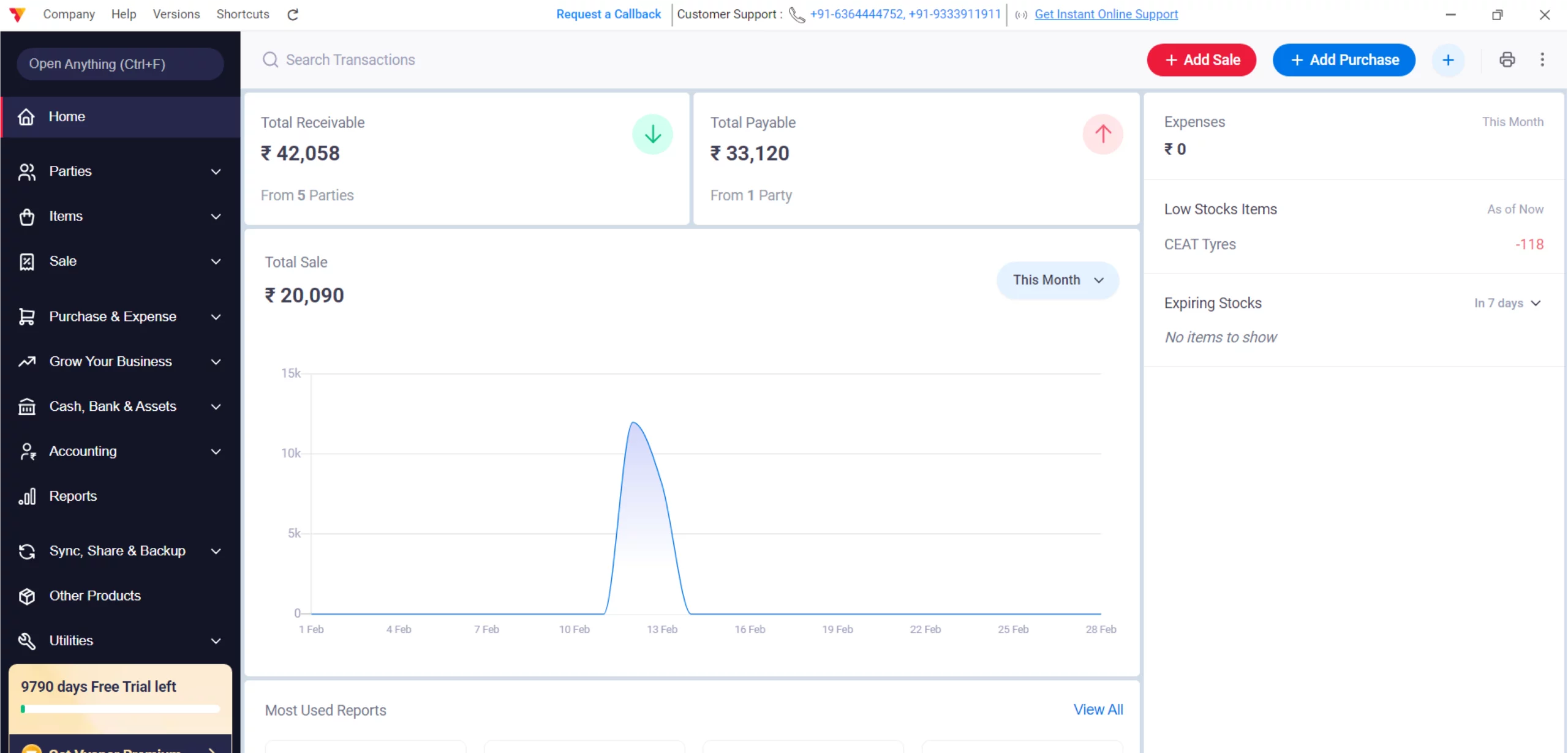
Open Vyapar App
Launch the Vyapar App on your Desktop device.
01
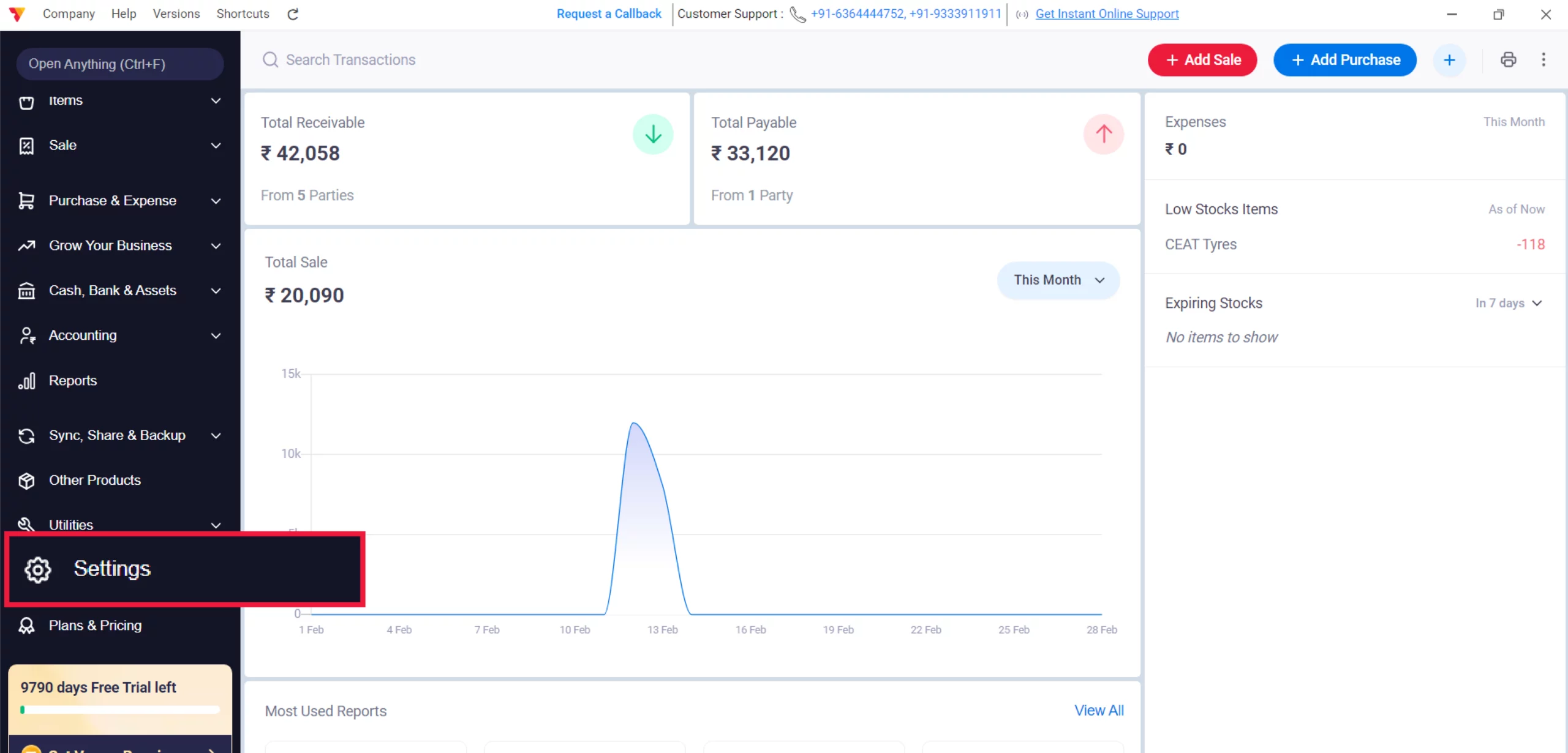
Access Settings
Navigate to the Left Menu, locate the Settings with the gear icon, and click it.
02
Select Transaction Message
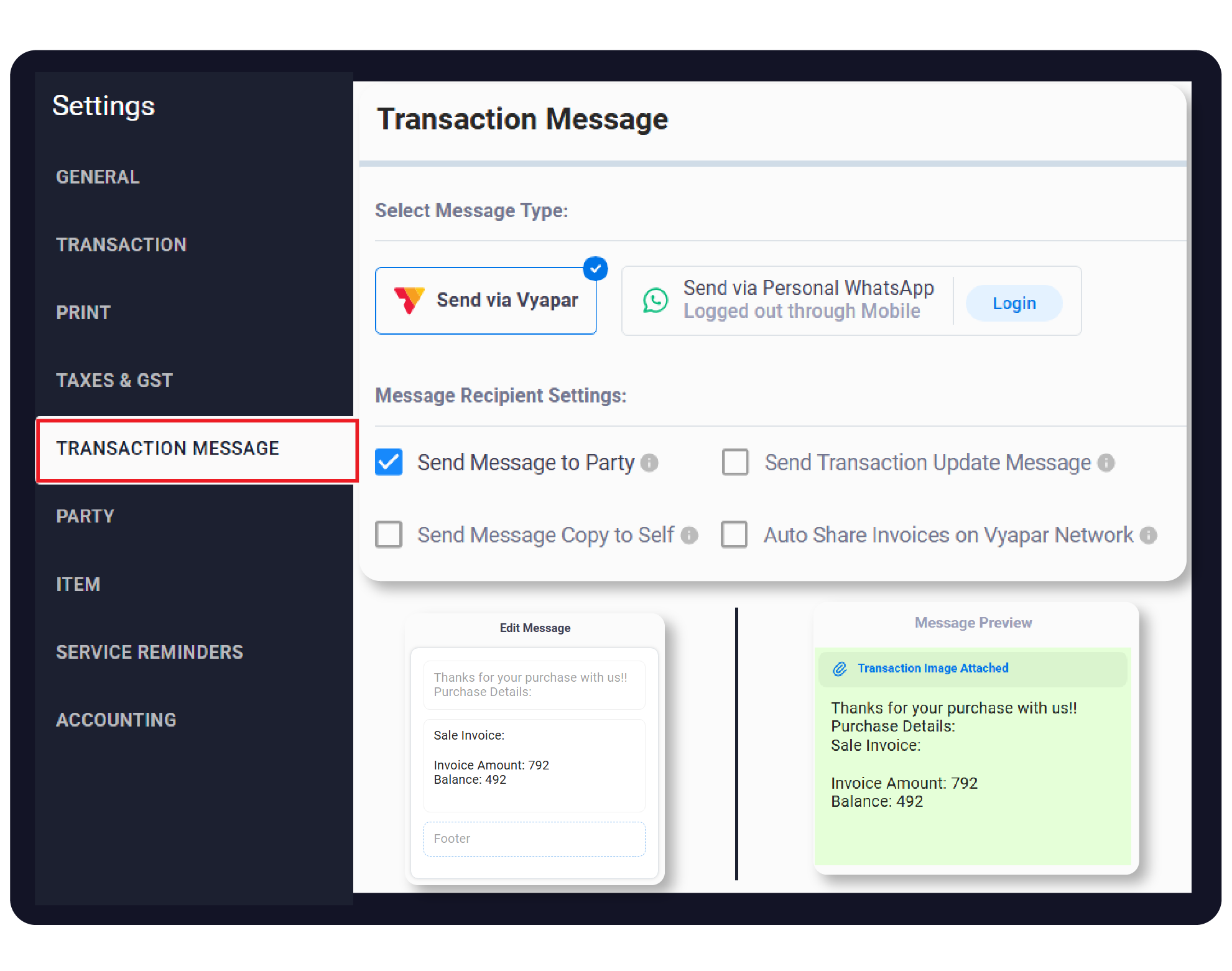
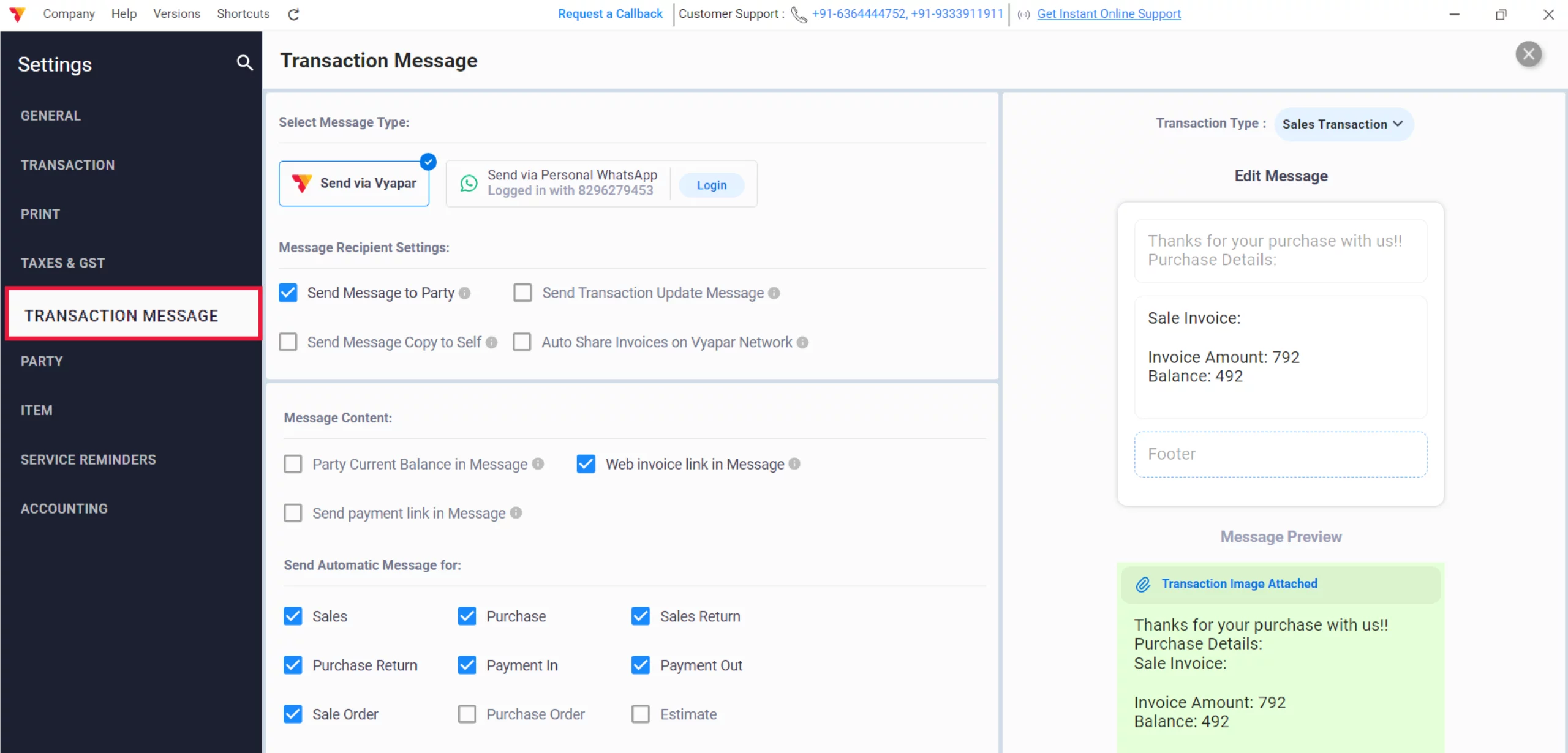
From the left-hand sidebar in the Settings window, click on the TRANSACTION MESSAGE tab.
03
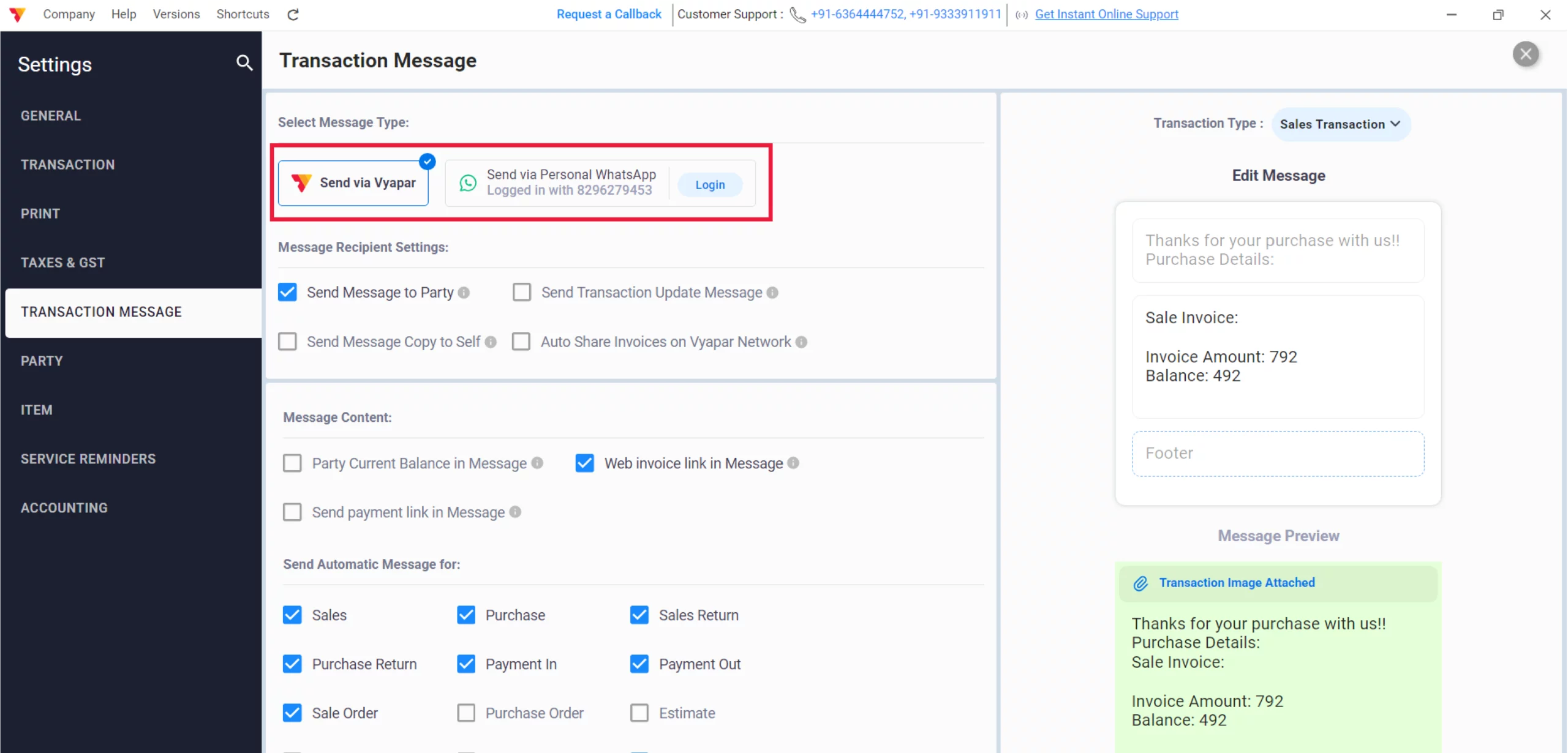
Choose Sending Method
Select “Send via Vyapar” to use the automated SMS or WhatsApp system, or log in with your Personal WhatsApp to send messages from your own WhatsApp number.
04
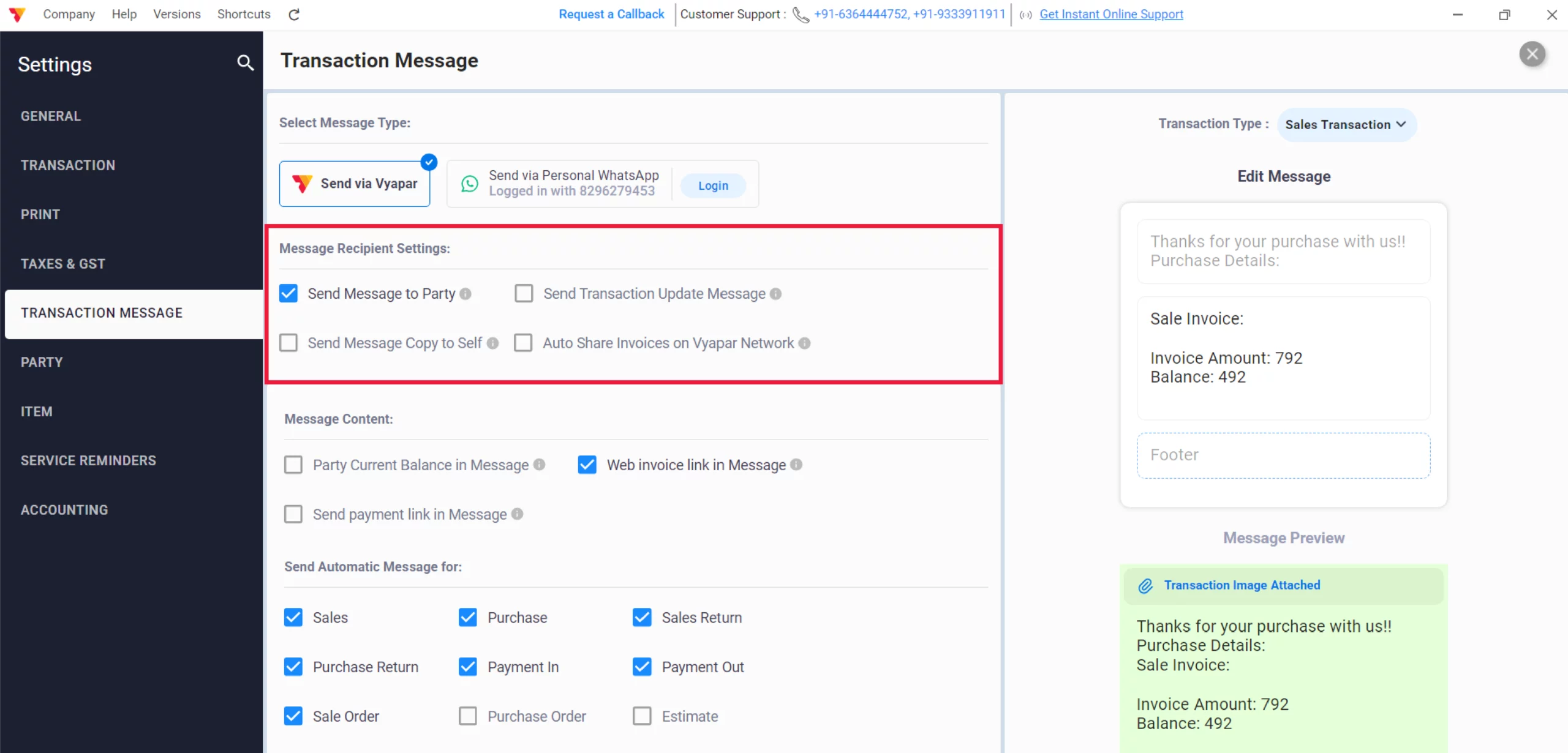
Configure Recipient Settings
Check the box for “Send Message to Party” to ensure your customers receive updates.
05
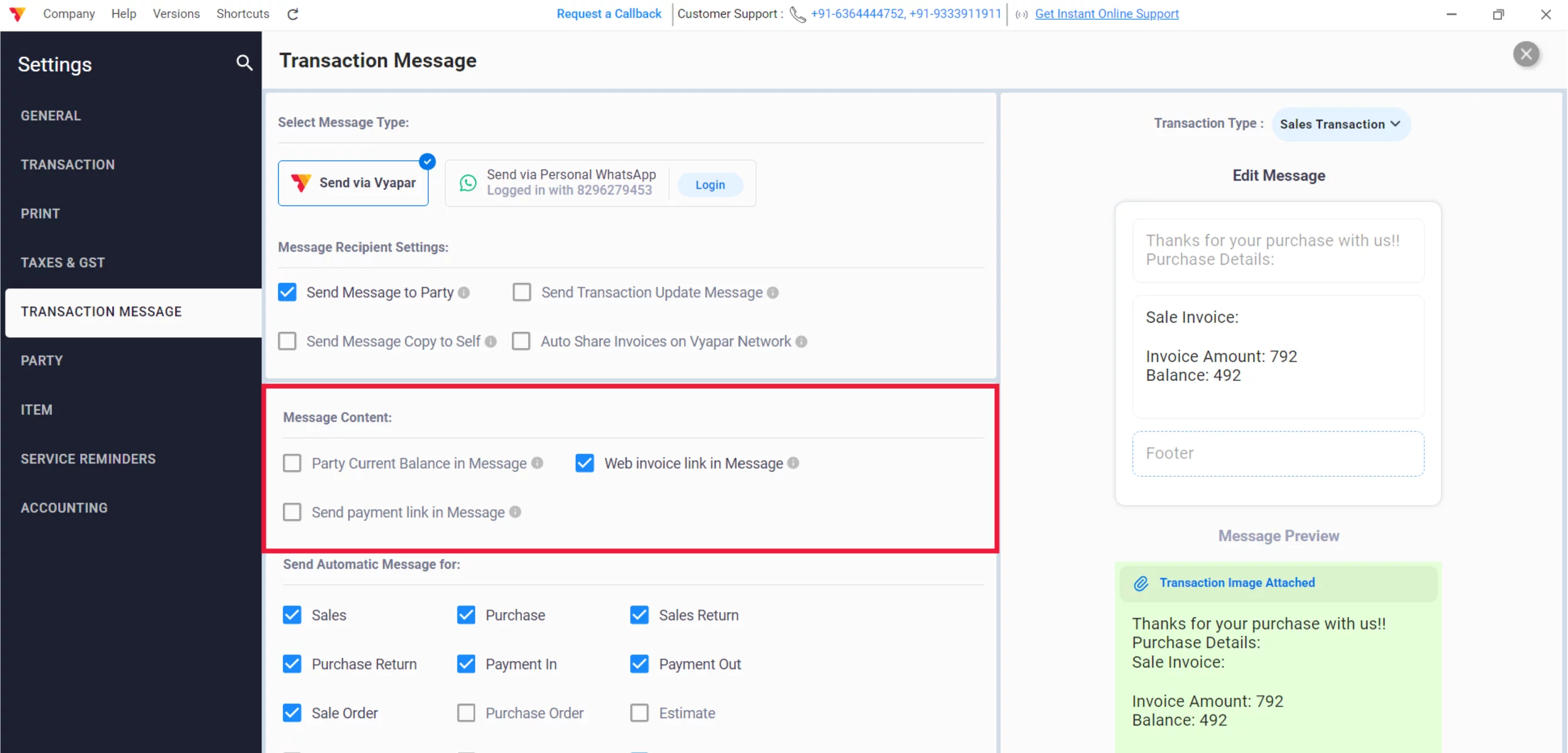
Customize Message Content
Enable options like “Party Current Balance in Message” or “Web invoice link in Message” to provide extra details to your clients.
06
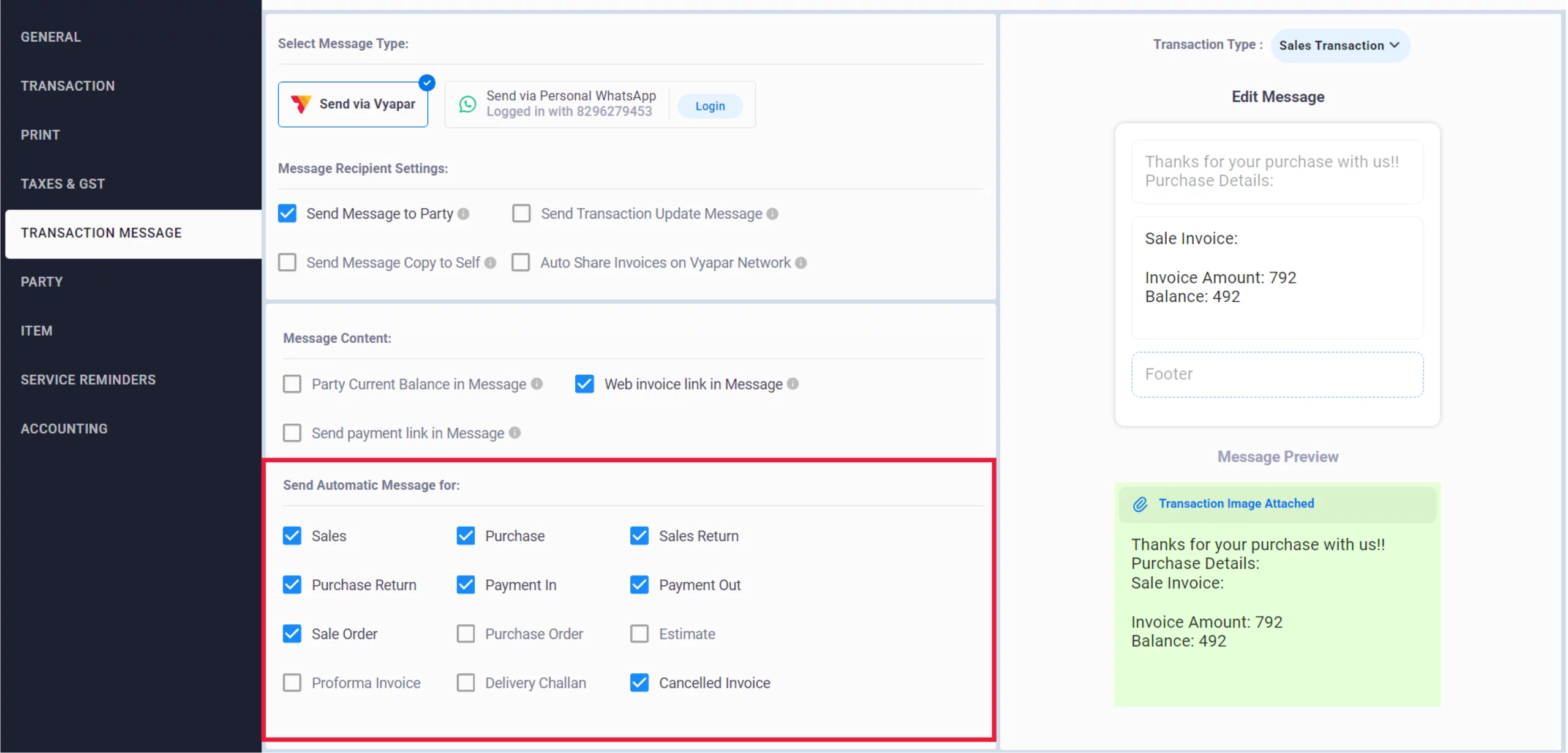
Select Automatic Triggers
Under “Send Automatic Message for:”, toggle the checkboxes for the transactions you want to automate, such as Sales, Purchase, Payment In, or Sales Return, then close the settings window.
07
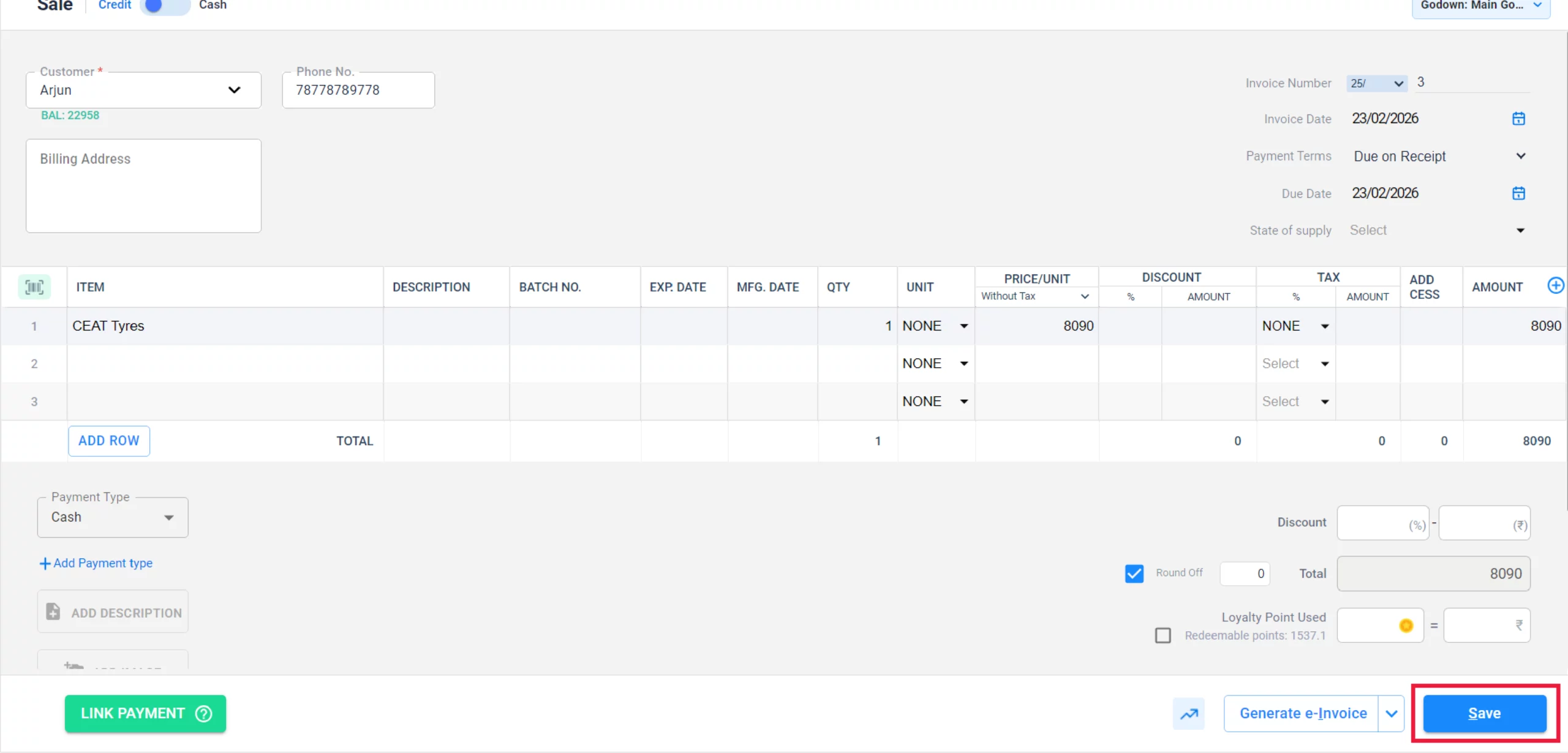
Create and Save
Go to the main dashboard, add a new transaction (e.g., a Sale), and click Save.
08
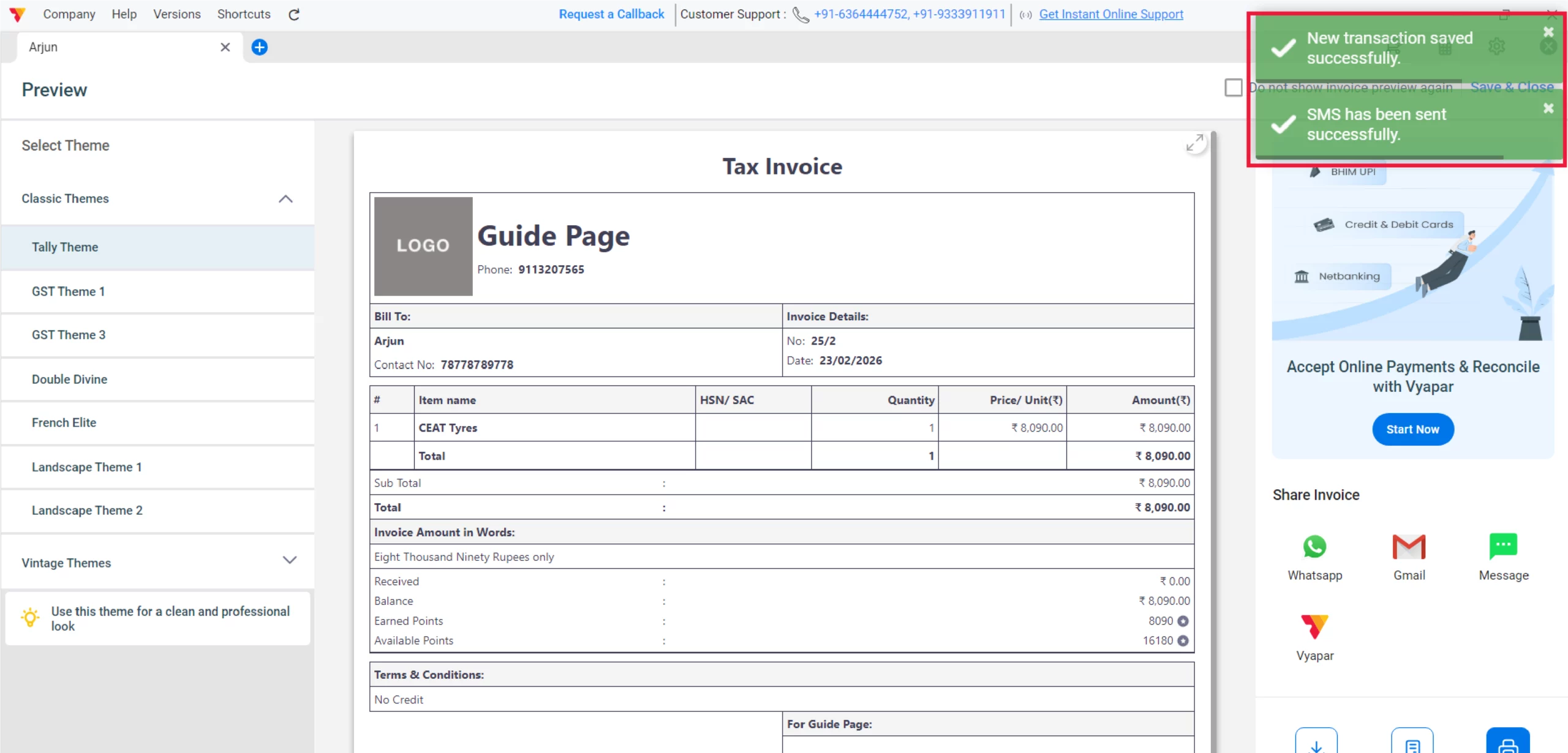
Share Automatic Message
A message will be automatically triggered based on your settings along with the Invoice or Invoice Link.
09
Still stuck? Get help in minutes.
Our support team is ready to help you succeed.
 24/7 Support
How This Benefits Your Business Operations
Automating your transaction-level communication provides several key advantages:

Instant Digital Receipts
Customers receive immediate confirmation on WhatsApp, which builds trust and reduces the need for printed thermal receipts.
Reliable Delivery
The automated SMS backup ensures that even if a customer is offline or not on WhatsApp, they still receive the transaction summary.
Reduced Confusion
By sending details immediately, you prevent disputes regarding prices or quantities while the transaction is fresh in the customer’s mind.
Frequently Asked Questions (FAQs)
Is there a charge for sending messages via Vyapar?
No, there are no charges for sending transaction messages. Sending digital invoices and automated notifications via the integrated WhatsApp system is included as part of your plan benefits and does not incur additional per-message costs.


Can I customize the actual text of the message?
Yes, Vyapar allows you to modify the message templates to match your business tone and include specific fields like Invoice Number or Due Date.
Does the customer need the Vyapar app to see the invoice link?
No. The web invoice link opens in any standard mobile or desktop browser, allowing customers to view and download their PDF directly.
Ready to Eliminate Data Entry Errors?
Enable transaction alerts today and cut reconciliation time by 40%
 Download Vyapar Now





