
How to manage Stock/Inventory in Vyapar App?
Stop manual tracking. Vyapar automatically syncs your physical stock with your financial books, ensuring your stock-on-hand and profit reports are always in perfect harmony.



Before You Start

Enable Stock Maintenance: Go to Settings > Item and ensure “Stock Maintenance” is toggled ON.
Opening Stock: When adding a new item, enter the current physical quantity as “Opening Stock” to establish a baseline.
Low Stock Alerts: Set a minimum stock quantity for each item to trigger automated reorder reminders.
Step-by-Step Guide to Managing Inventory:
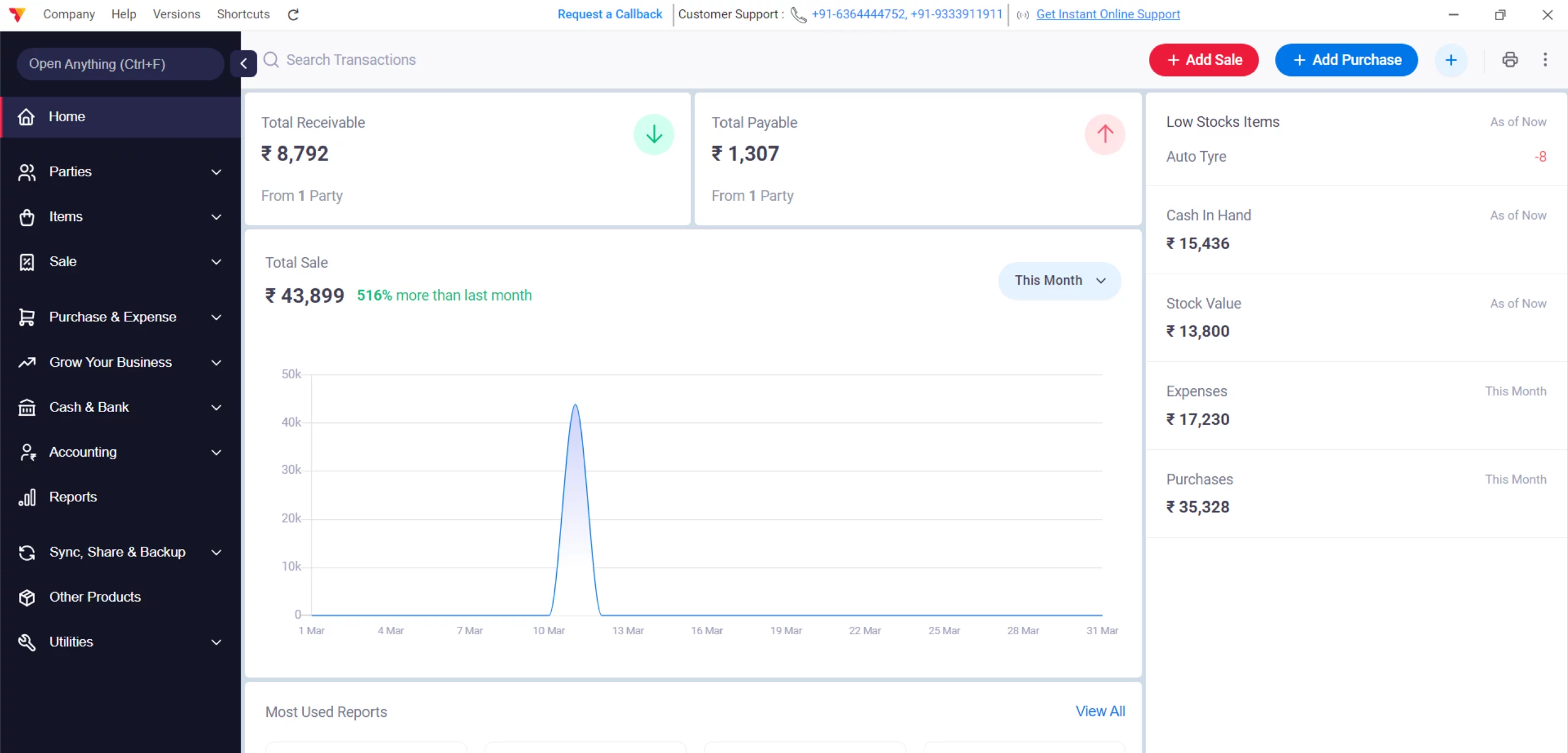
Open Vyapar App
Launch Vyapar inventory management software on your computer.
01
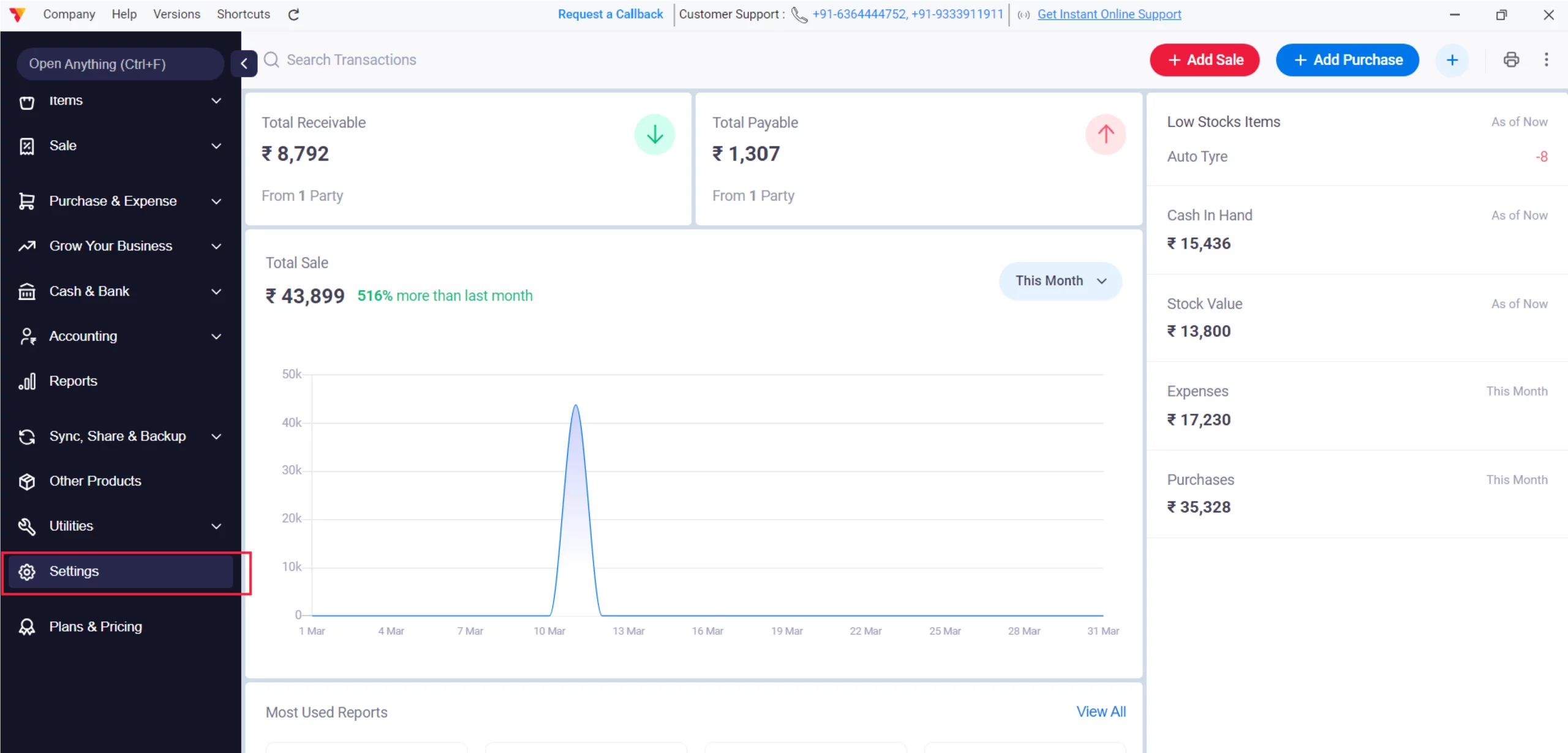
Go to Settings
Click the Settings gear icon in the left-hand navigation menu.
02
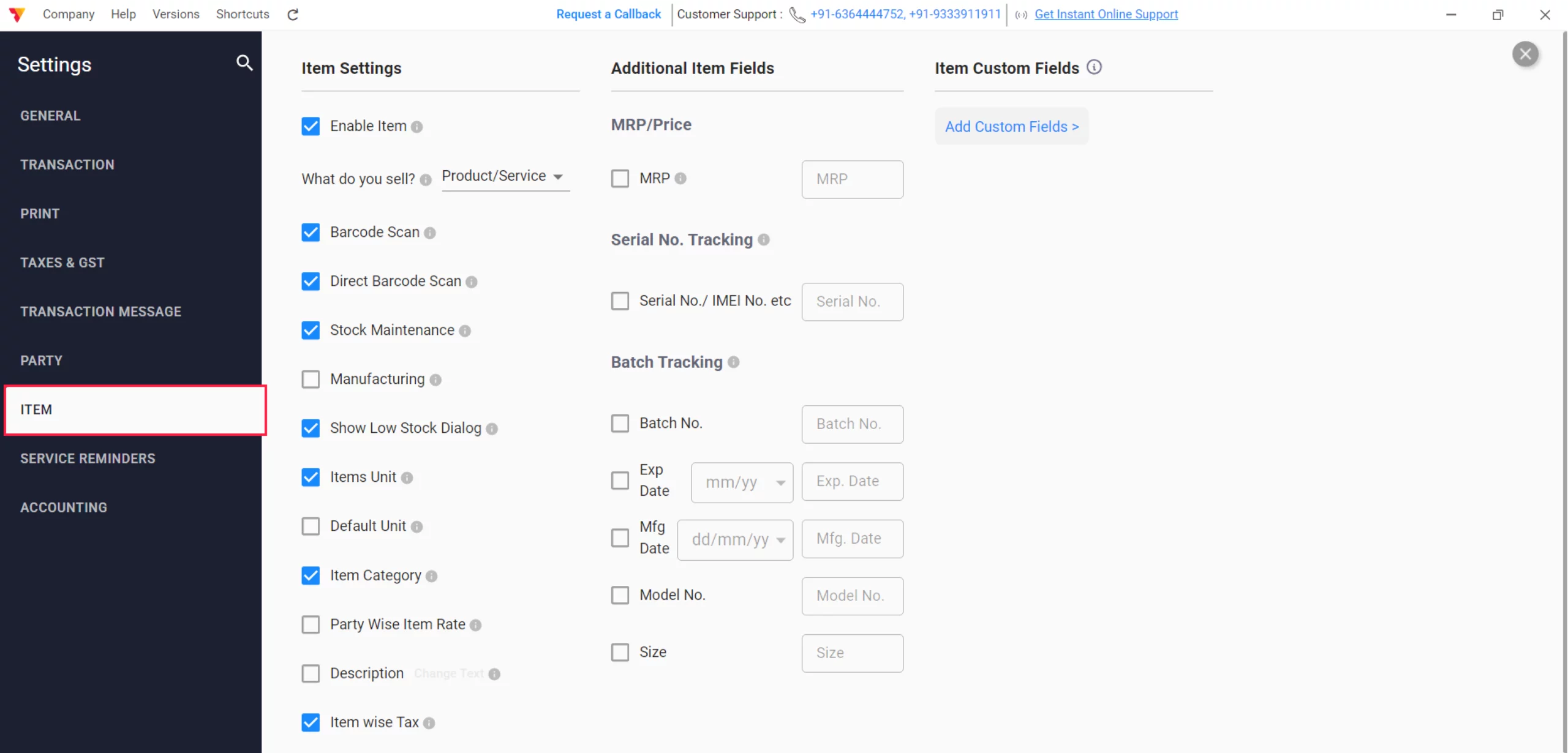
Access Item Settings
Select the Item tab to view all inventory-related configurations.
03

Enable Required Features
Toggle ON “Enable Item,” “Stock Maintenance,” and “Barcode Scan” to activate automated tracking, Stock Maintenance, and the show low stock dialogue and close it.
04
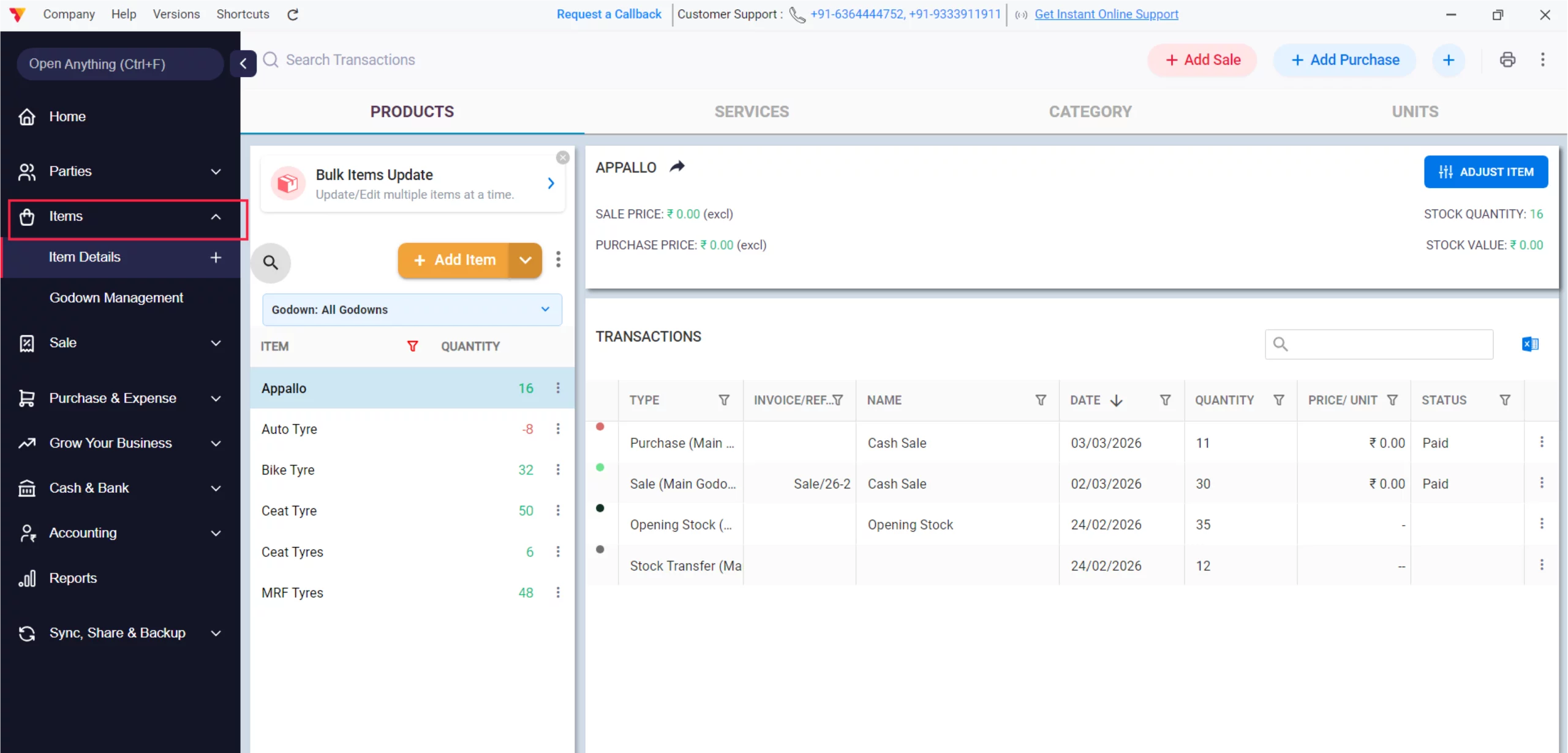
Access Items
Navigate back to the main menu and click on the Items section.
05
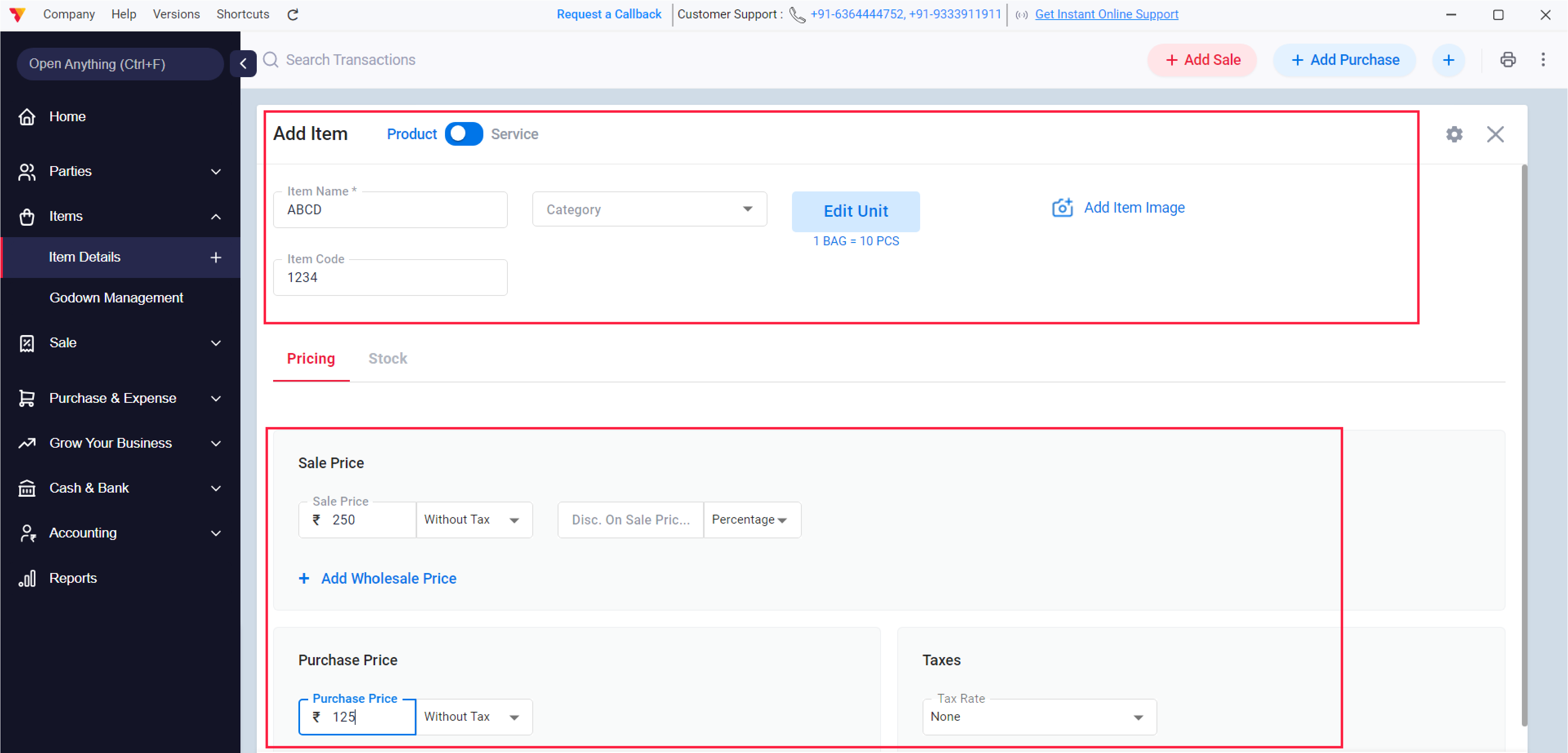
Add Item Details
Click +Add Item and enter the Item Name, Unit, Sale Price, and Purchase Price.
06
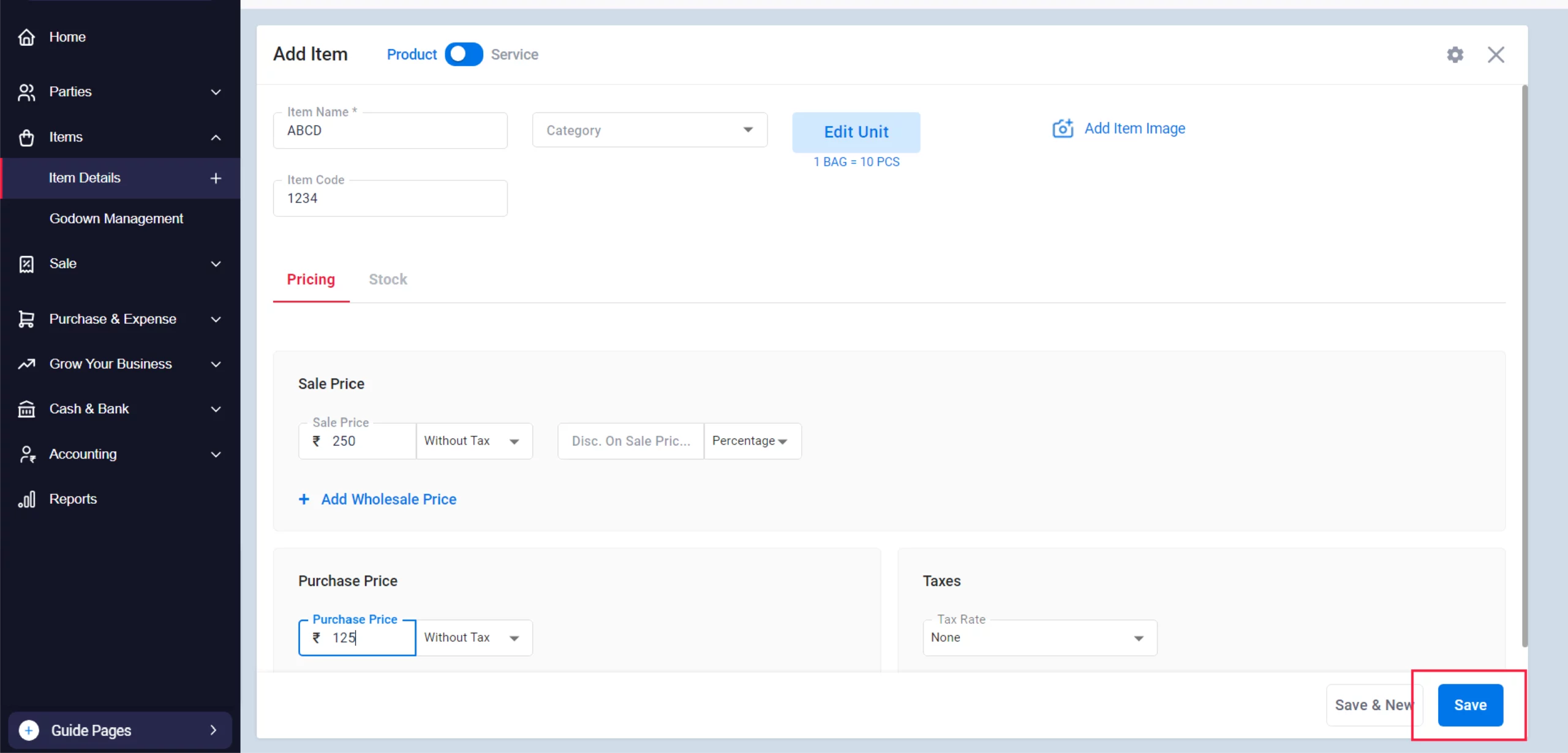
Save The Item
Review the details and click Save to add the product to your company.
07

Create a Purchase Bill
Click on “+Add Purchase” on the home screen. Record a new purchase; Vyapar will automatically increase your stock levels when you save the bill.
08
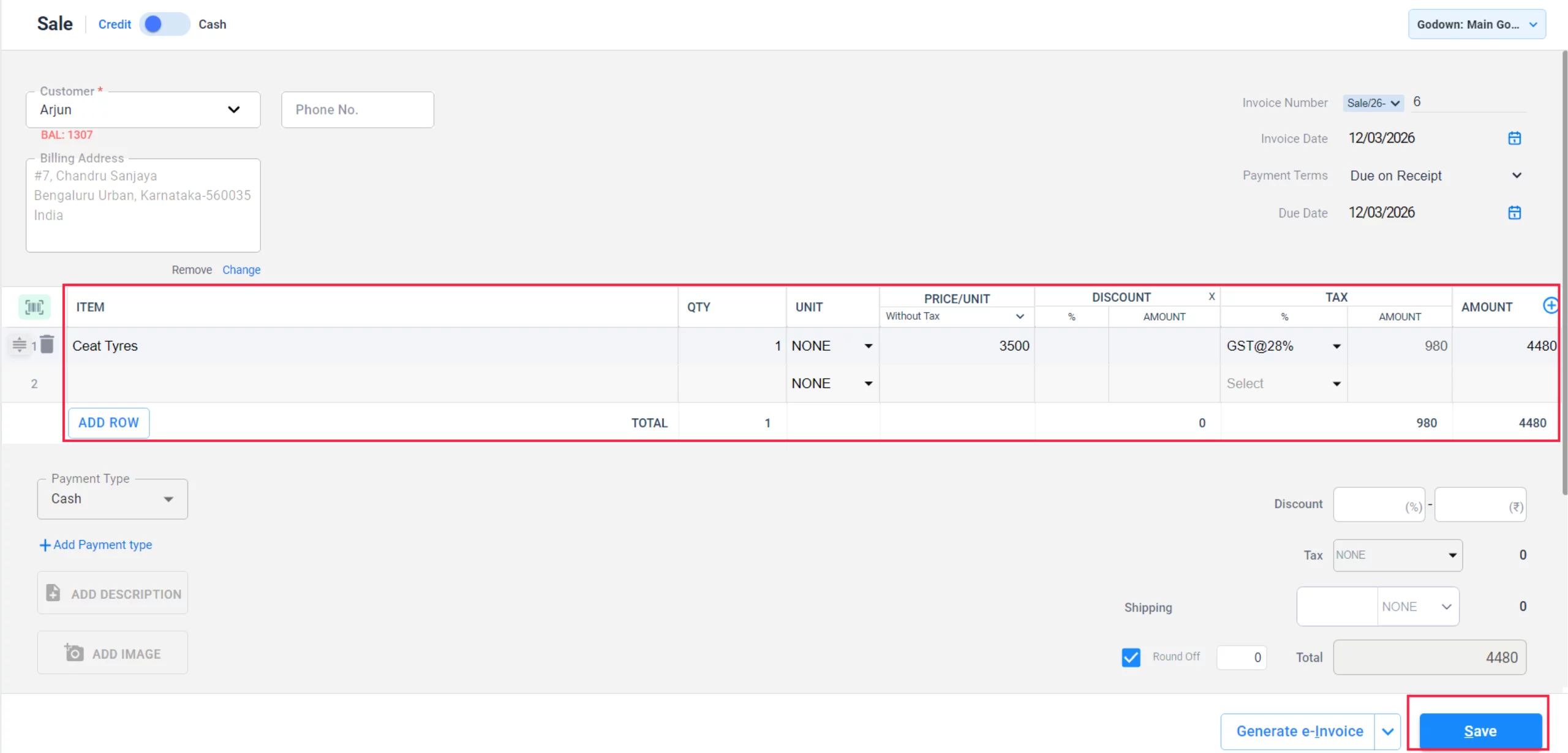
Sell an Item
Click on +Add Sale on the home screen. Create a sales invoice, and the app will automatically deduct the sold quantity from your inventory in real time.
09

Item Dashboard
Click on any item in your list to see its “Item Details,” showing a running history of all sales and purchases.
10
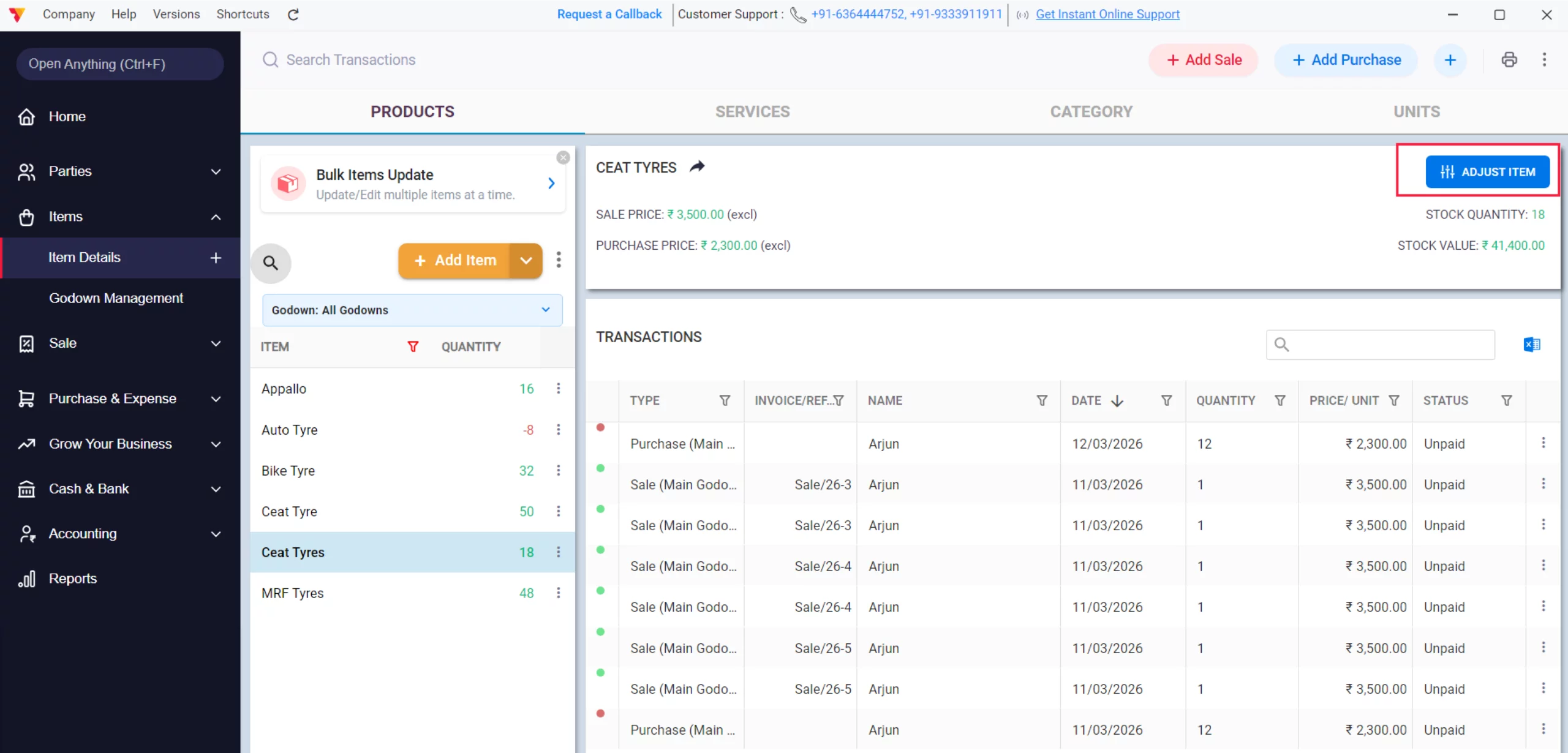
Manual Stock Adjustment
If stock is damaged or lost, click on Adjust Stock within the item details.
11

Validate Adjustment
Enter the “Reduced/Add Quantity” and the reason for the adjustment, then click Save to correct the balance.
12

View Reports
Navigate to Reports > Item / Stock report to view your real-time inventory details as per your convenience. You can access the Stock summary for a high-level view of all stock or the Stock Detail for complete in and out details of every item.
13
Still stuck? Get help in minutes.
Our support team is ready to help you succeed.
 24/7 Support
Why This Automated Flow is Better?
Once you have configured your inventory, Vyapar keeps you informed across three key areas:

Hands-Off Tracking
You never have to manually update stock after a sale; the app does it for you.
Financial Accuracy
Your Profit & Loss and Balance Sheet are always correct because they are tied to these real-time stock movements.
Loss Prevention
Automated low-stock alerts and adjustment logs help identify and stop inventory leakage
Frequently Asked Questions (FAQs)
Do estimates change my stock levels?
No, stock levels only decrease when an estimate is converted into a Sale Invoice.


Can I track stock across multiple locations?
Yes, Vyapar supports Inventory for Godowns/Locations, allowing you to monitor stock in different warehouses or racks.
How do I handle damaged or returned items?
Use the Stock Adjustment feature to manually reduce or remove damaged items from your inventory.
Ready to Stop Stockouts?
Start inventory management today and cut your losses by 50%.
 Download Vyapar Now





