
How to Use Multi-Currency in Vyapar App
Dealing with international clients and suppliers is easy with Vyapar’s multi-currency support. You can create invoices, track expenses, and manage accounts in different currencies while keeping your main reports in your business currency. This guide shows you how to enable multiple currencies and use them when creating invoices.

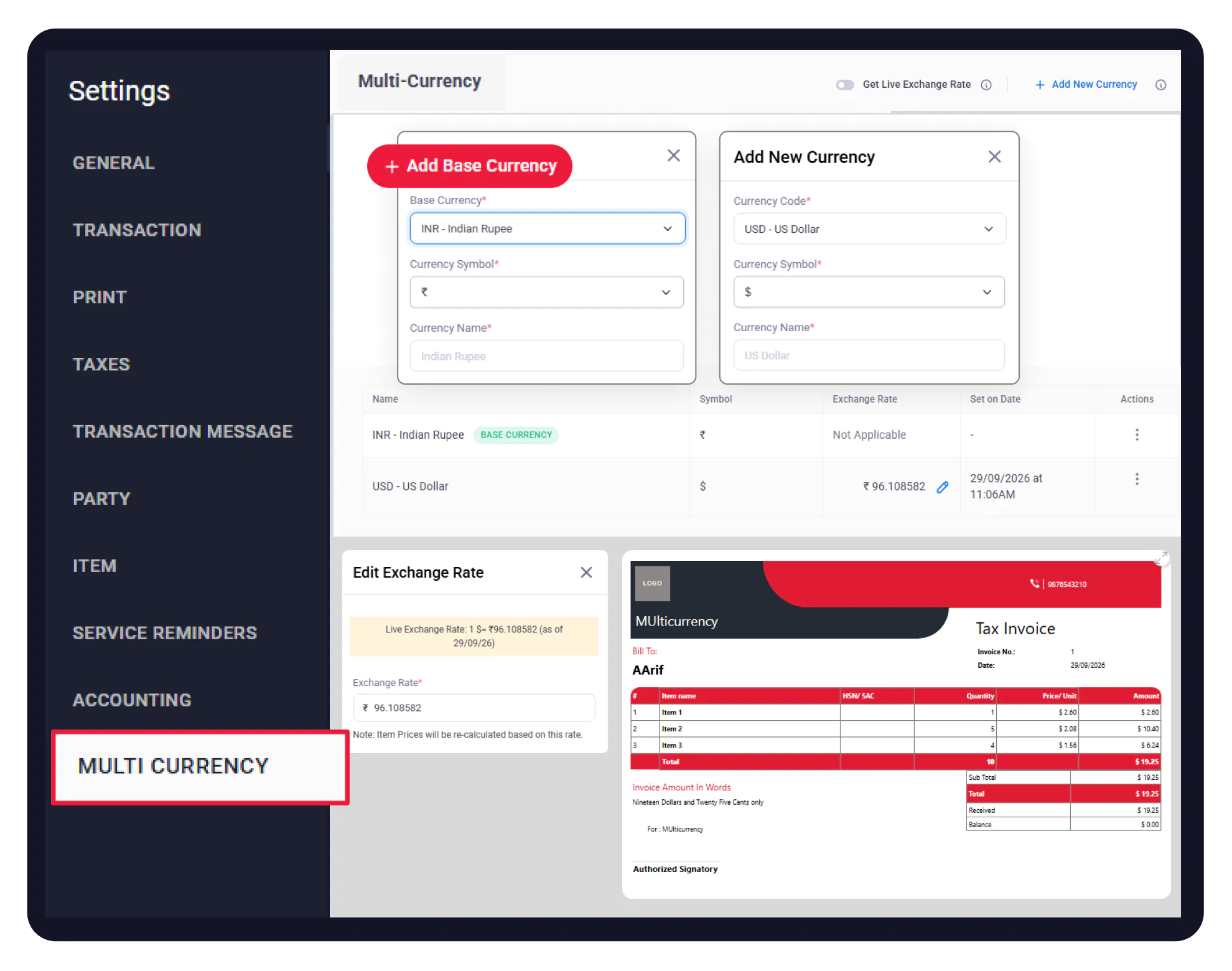

Before You Start

Active Subscription/Plan: Ensure that an active Retail Pro or Platinum plan license is attached to your system.
Identify Your Base Currency: Know which primary currency your business operates in (usually your home country’s currency), as this will be the baseline for all your converted financial reports.
Party Details: The customer (Party) must be GST-registered with their GSTIN correctly saved in Vyapar App.
Guide to Use Multi-Currency in Vyapar App:
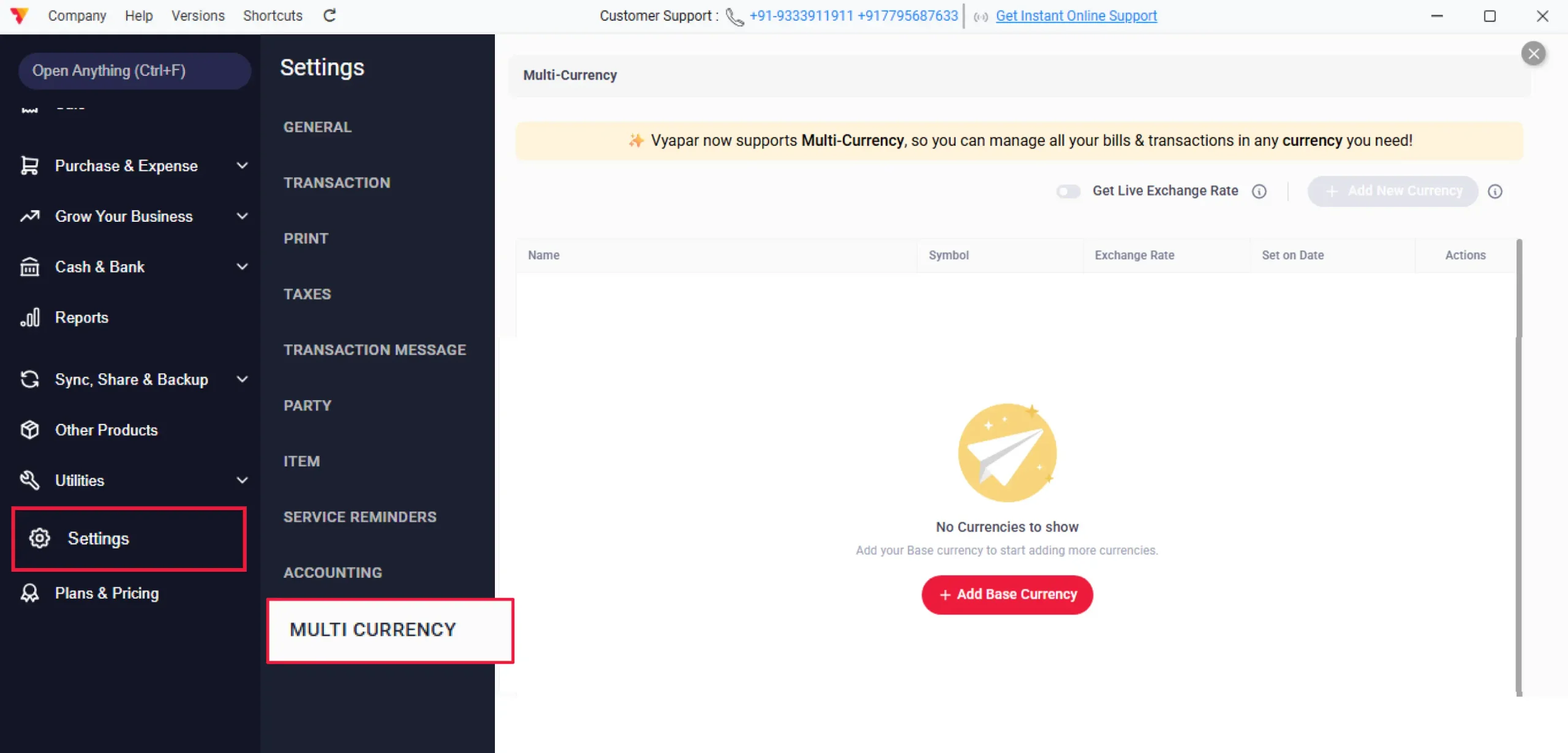
Open Vyapar App and Access Multi-Currency Settings
Open Vyapar app, go to Settings and click on the Multi Currency tab.
01
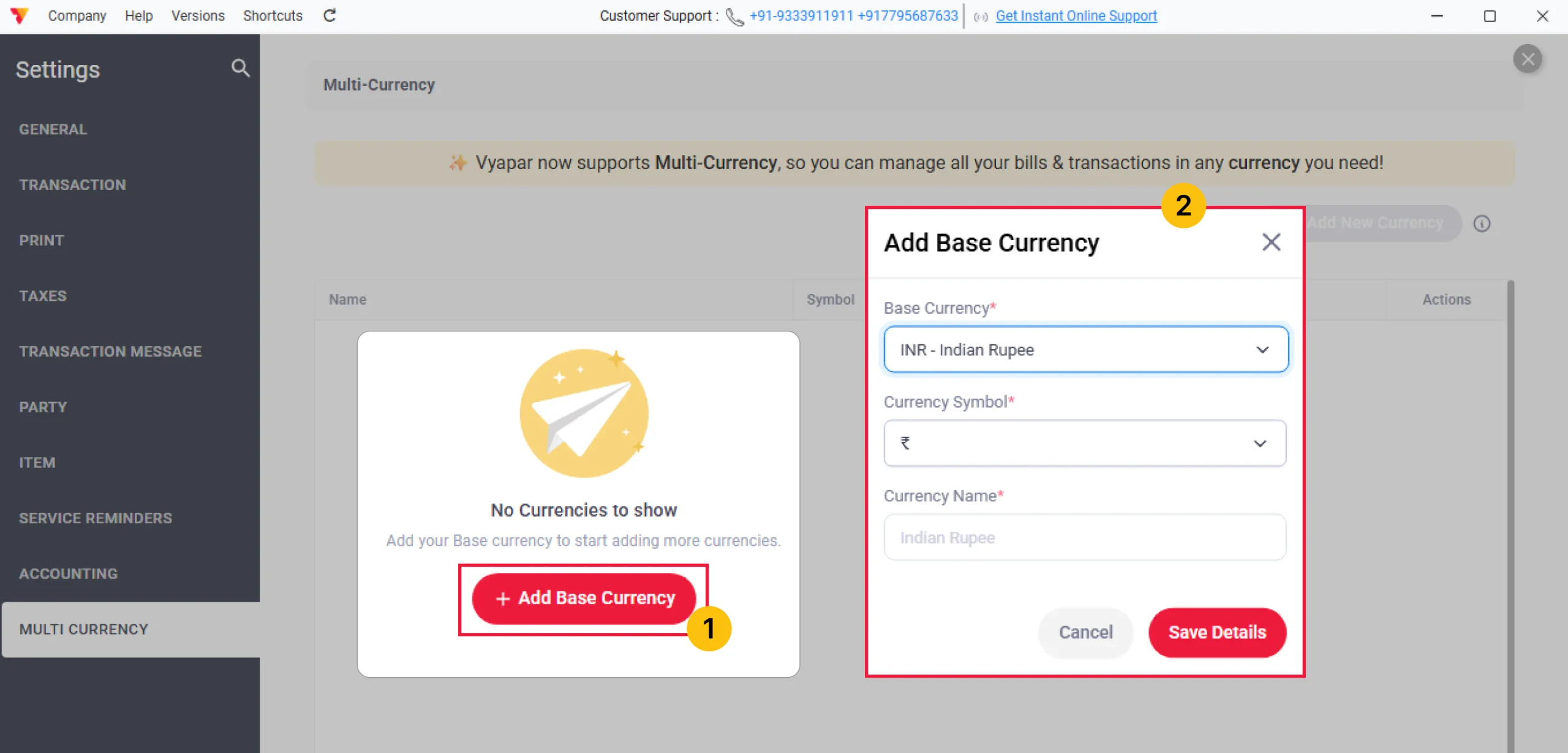
Set Your Base Currency
First, you’ll set your Business Currency. This is your home currency, based on your country. Click + Add Base Currency, select your currency (e.g., Indian Rupee), verify the symbol, and save it.
NOTE: You can set the base currency only once and cannot change it later, so choose carefully!
02
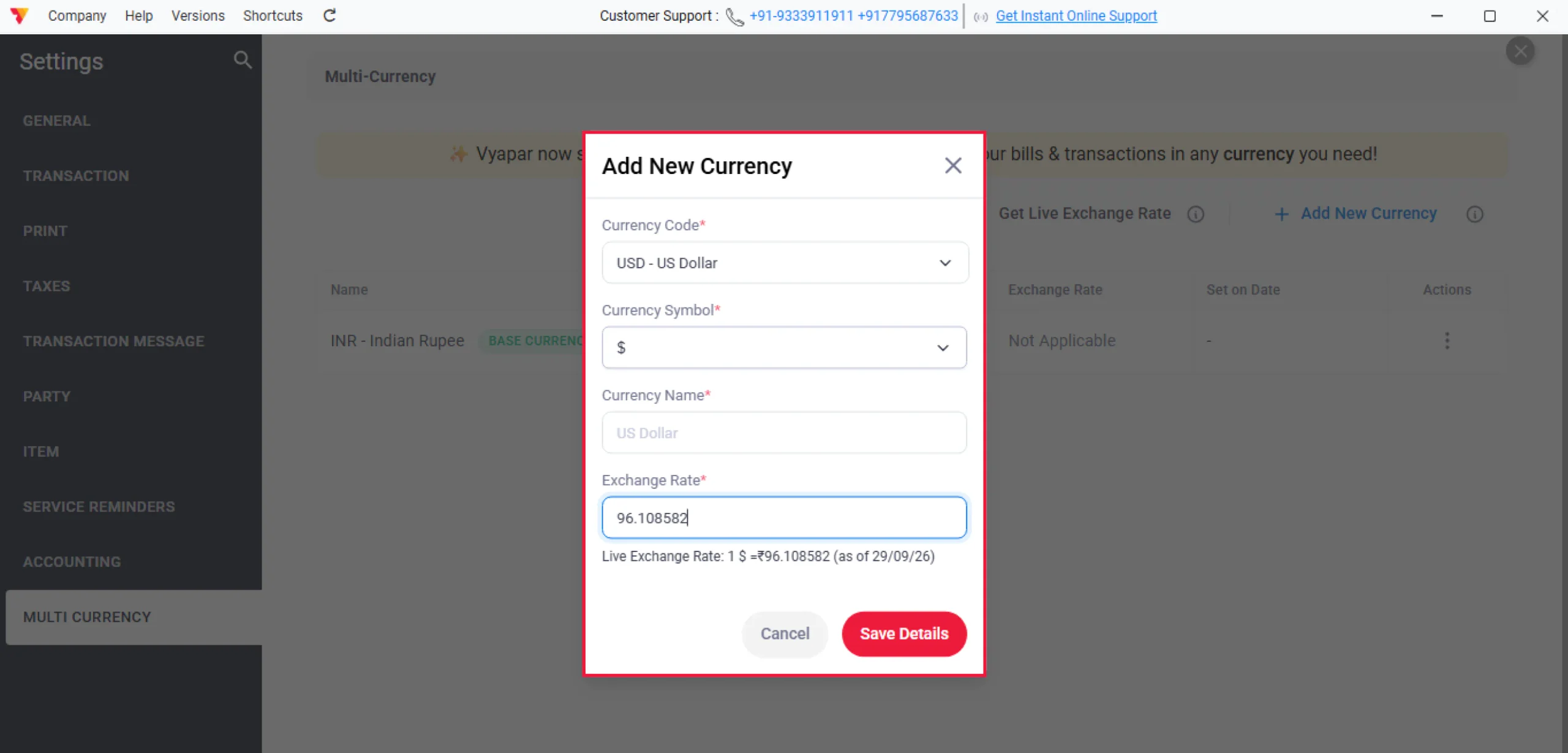
Add a Foreign Currency
Click + Add New Currency and pick from the list (for example, select USD for US Dollar). The symbol and name will fill in automatically. Vyapar will show you the live rate (e.g., $1 = ₹95.11) so you can enter it accurately. Save it, and the new currency will show up alongside your base currency.
03
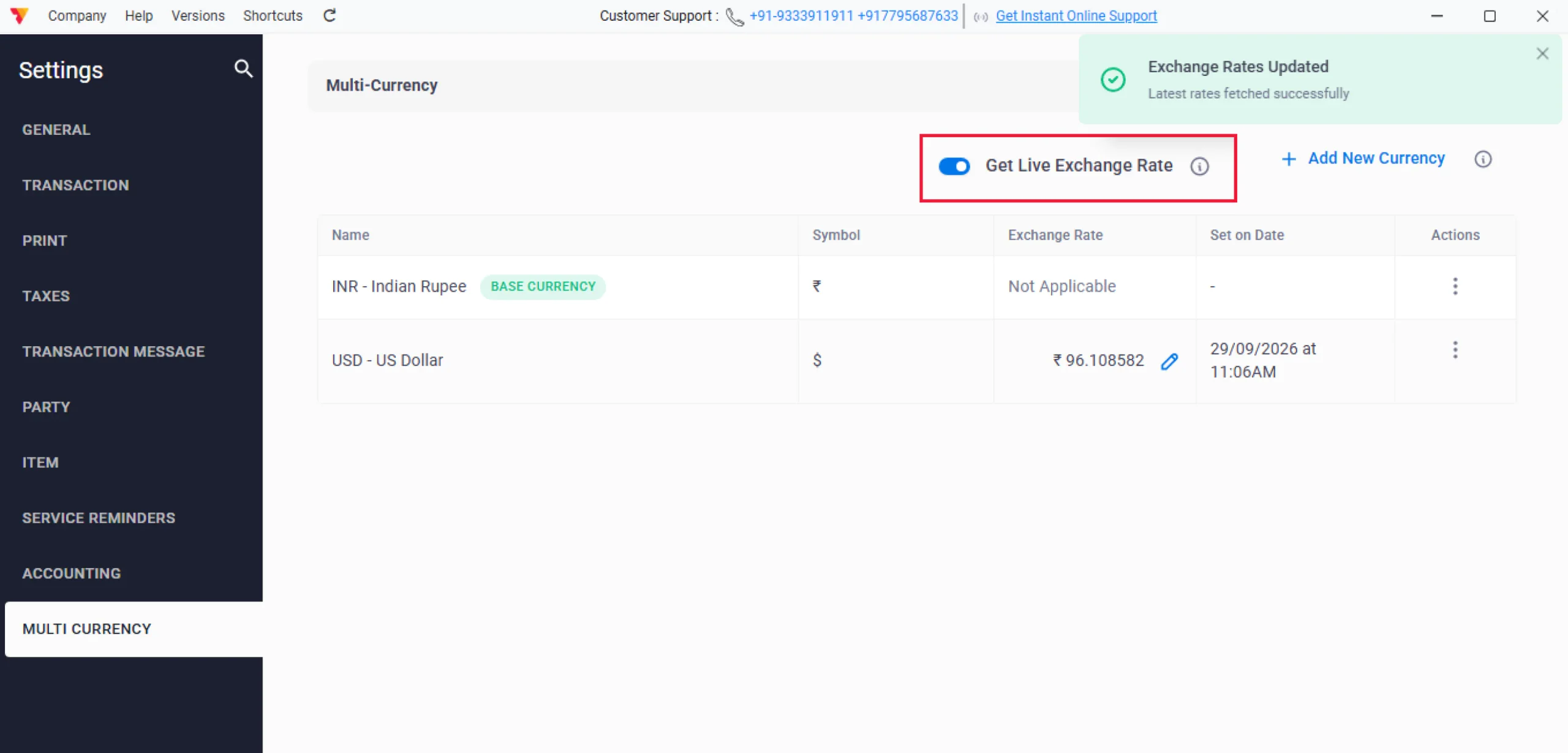
Manage Exchange Rates
If you don’t want to update rates manually every time, turn on Get Live Exchange Rate, and Vyapar will keep it current for you automatically. If you prefer to lock in a fixed rate, simply turn it off.
04
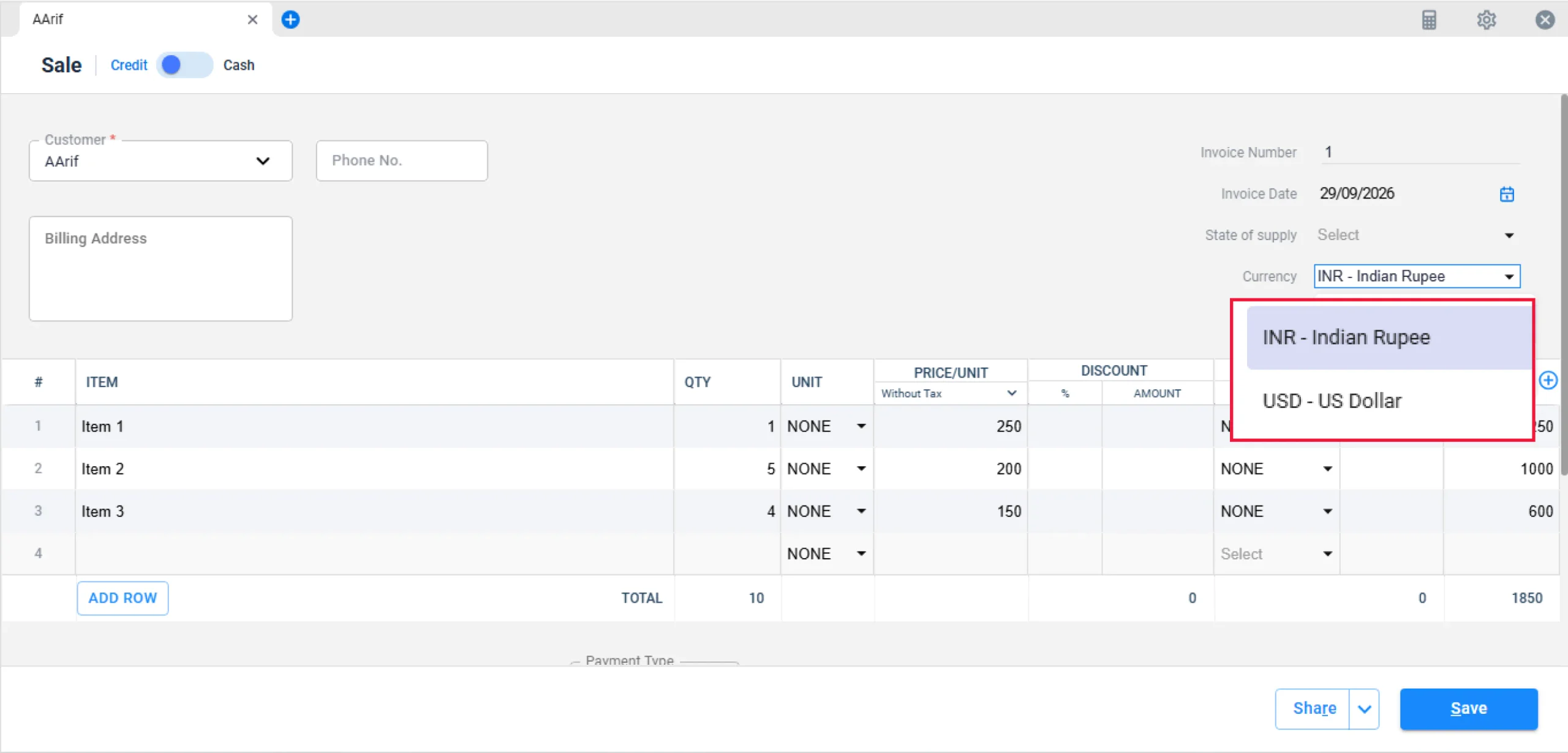
Create a Multicurrency Invoice
Create a new Sale invoice. By default, the currency field is set to your base currency. Since your customer pays in dollars, switch the invoice currency to USD.
05
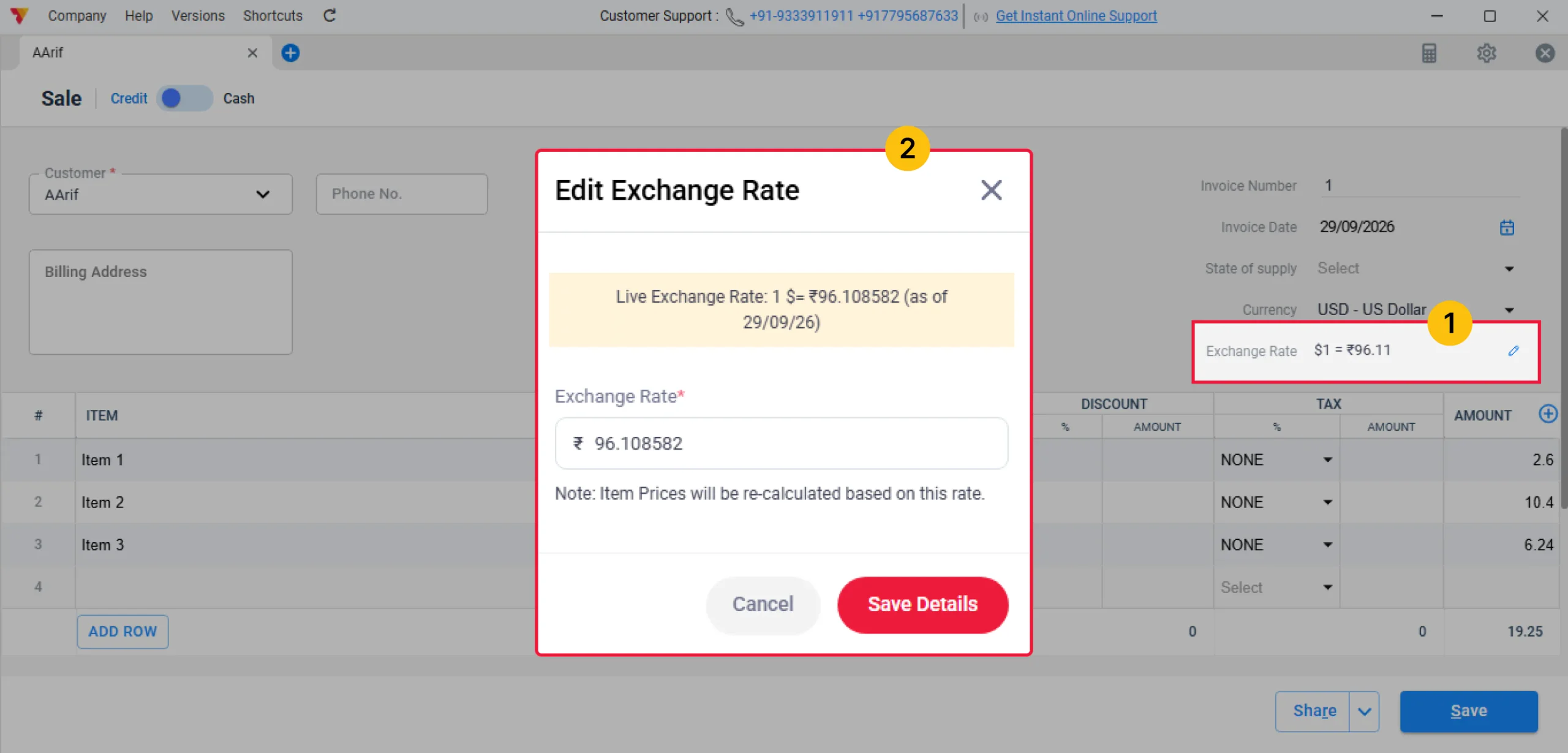
Adjust Invoice-Specific Rates (Optional)
If your bank or vendor quotes a slightly different rate for a specific transaction, you can edit the exchange rate directly on the invoice screen and save it.
NOTE: Adjusting the rate on a specific invoice will not affect your default currency exchange setting in the main app settings.
06
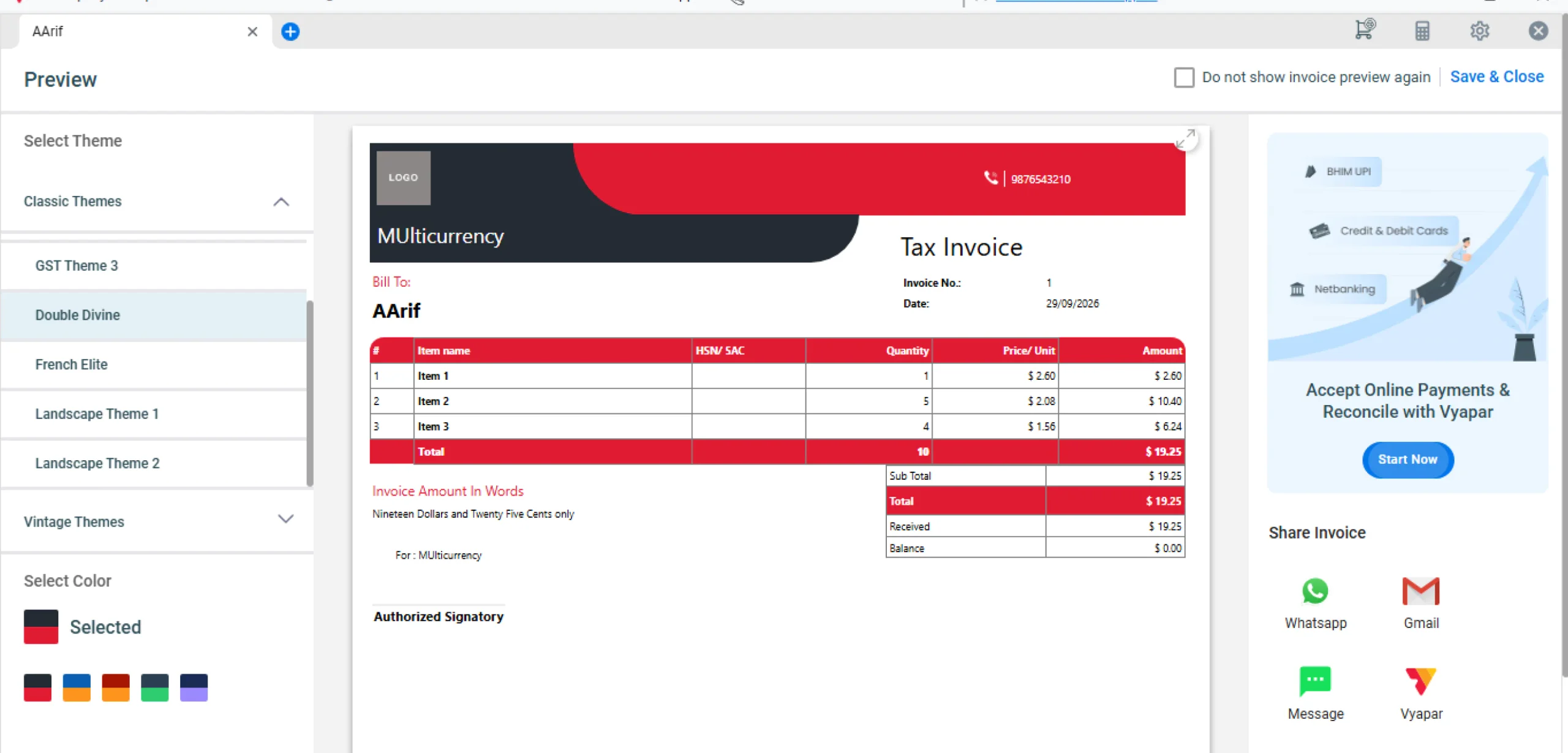
Save and Share
Save the invoice. Your finished invoice is clearly billed in US dollars, looking professional and ready to share!
07
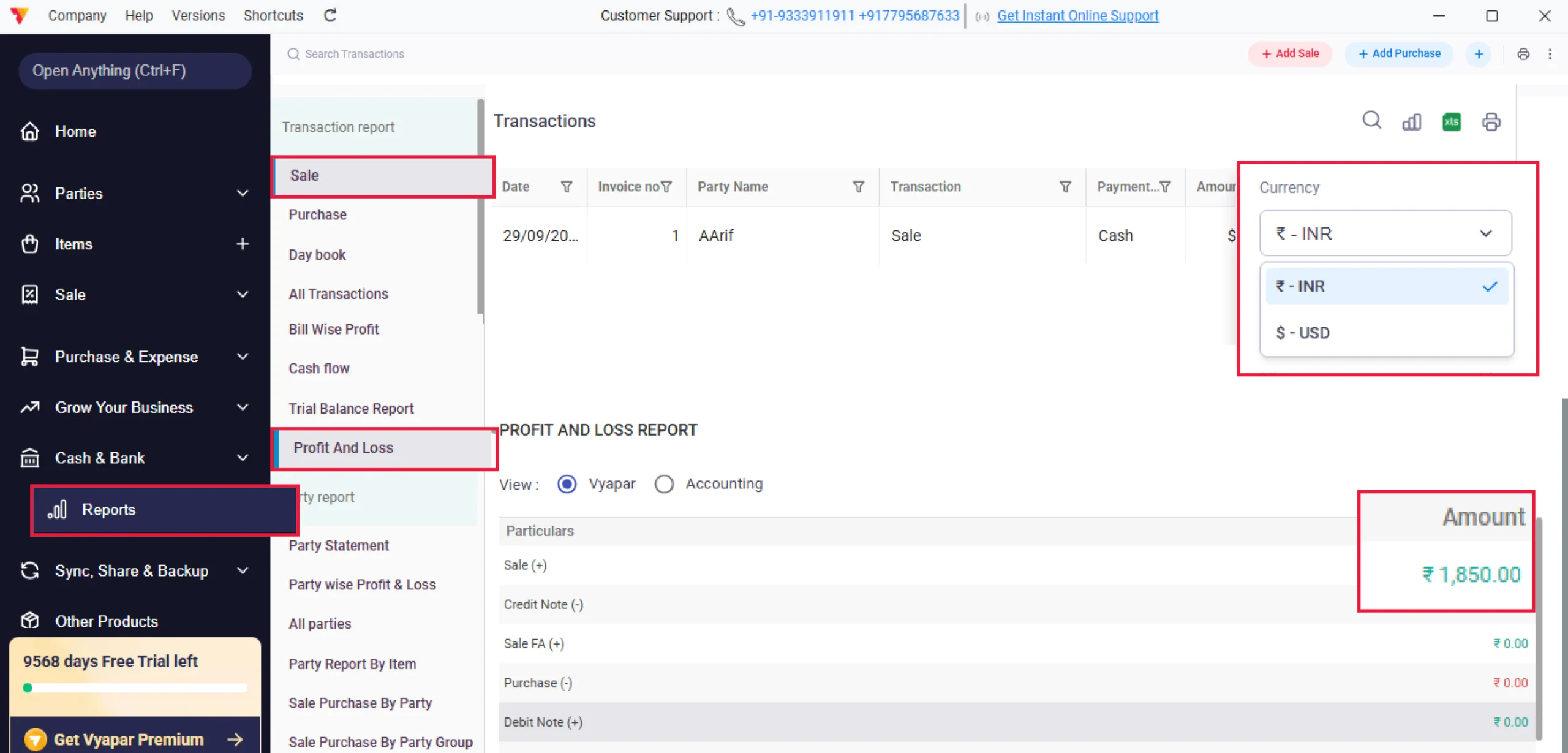
Use Currency Filters & Check Reports
To keep track of your international business:
Filtering Lists: Go to your Sales List or Purchase List. You can use the Currency Filter to view only the transactions made in a specific foreign currency (like showing only USD invoices).
Checking Reports: When viewing standard reports (like Profit & Loss or Day Book), you don’t need to do any manual math. Vyapar automatically converts all your foreign transactions back into your Base Currency based on the exchange rates used, ensuring your overall financial reporting is always unified and accurate.
08
Still stuck? Get help in minutes.
Our support team is ready to help you succeed.
 24/7 Support
Why Is This Important for Your Business?
If you deal with international customers or suppliers, Multi-Currency helps you manage billing
and accounting easily while keeping your business records organised.
Bill International Customers in Their Currency
Create invoices in the currency your customer uses, such as USD, EUR, or GBP. This makes your invoices easier for international customers to understand and helps avoid confusion about the amount they need to pay.
Save Time on Currency Calculations
You don’t have to calculate exchange rates for every transaction manually. Vyapar applies the exchange rate to your foreign-currency transactions, reducing manual calculations and the chances of errors.
Keep Your Business Accounts Organised
You can manage sales and purchase transactions in different currencies while keeping your financial reports in your base currency. This gives you a clear view of your overall business performance.
Frequently Asked Questions (FAQs)
Can I create invoices in different currencies in Vyapar?
Yes. After adding the required foreign currency in Multi-Currency settings, you can select that currency while creating a sales invoice.


Can I change the exchange rate for a specific invoice?
Yes. You can adjust the exchange rate directly on an individual invoice if the rate for that transaction is different from your default rate. This change will only apply to that invoice and will not change the default exchange rate in your settings.
Does Vyapar convert foreign-currency transactions into my base currency for reports?
Yes. Vyapar converts foreign-currency transactions into your base currency based on the exchange rates used for those transactions. This allows you to view standard reports such as Profit & Loss and Day Book in your base currency.
Ready to Bill in Foreign Currency?
Create invoices in the currency your customer uses, while keeping your financial reports in your base currency