
How to Generate a Barcode in Vyapar App?
Want to bill customers 10x faster? Stop searching for items manually during rush hours. With Vyapar’s built-in Barcode Generator, you can create and print custom barcodes for your entire inventory in minutes.
Scanning items at the counter not only speeds up checkout but also eliminates pricing errors. Follow this guide to generate, customise, and print barcodes using any standard laser or thermal printer.


Before You Start

Check Your Hardware: You can use a dedicated Thermal Printer (for stickers) or a regular Laser Printer (with A4 label sheets).
Item Codes: Ensure every item in your inventory has a unique Item Code saved in Vyapar inventory management software. The barcode is generated based on this number.
Guide to Generate Barcode in Vyapar App:
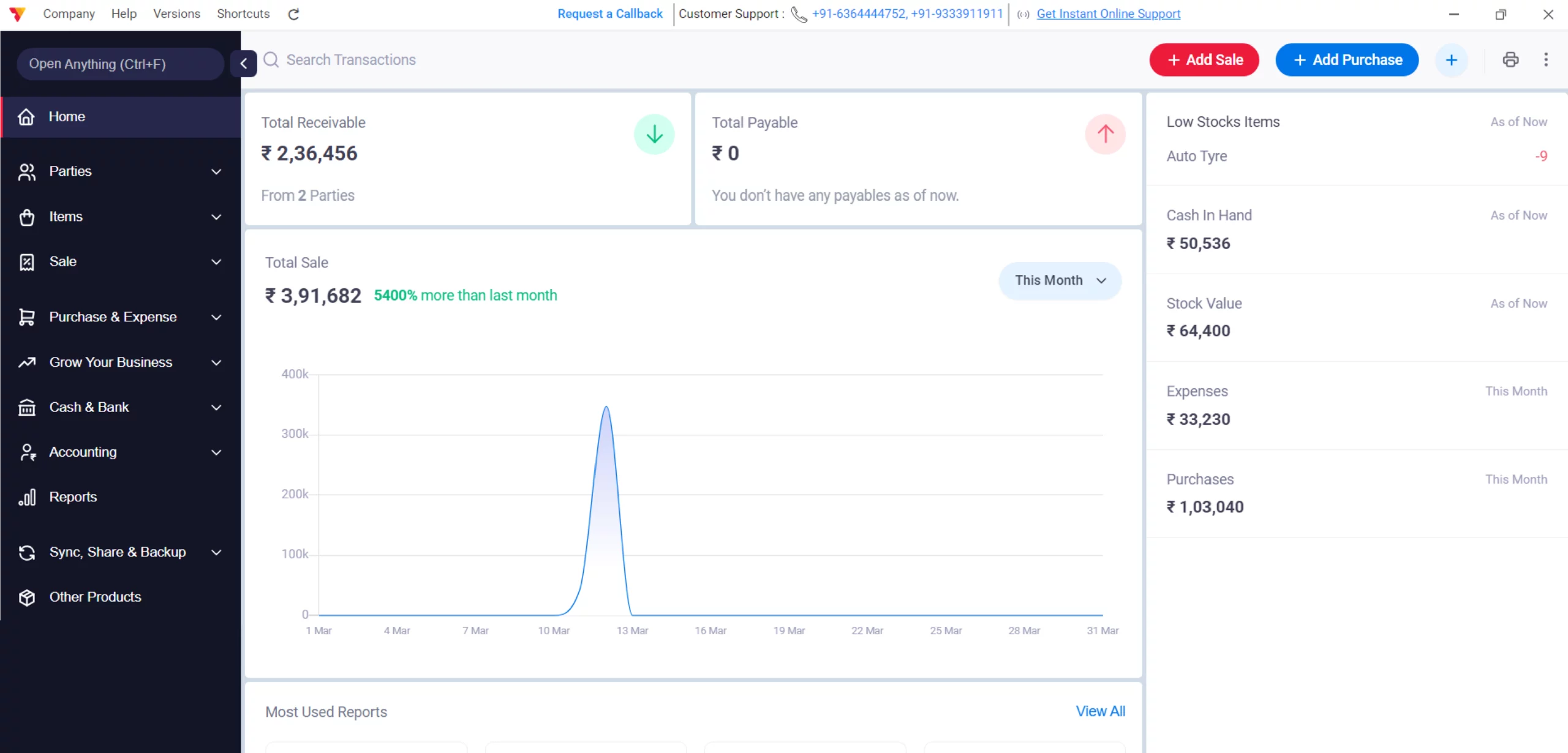
Open Vyapar App
Open Vyapar App on your Desktop
01
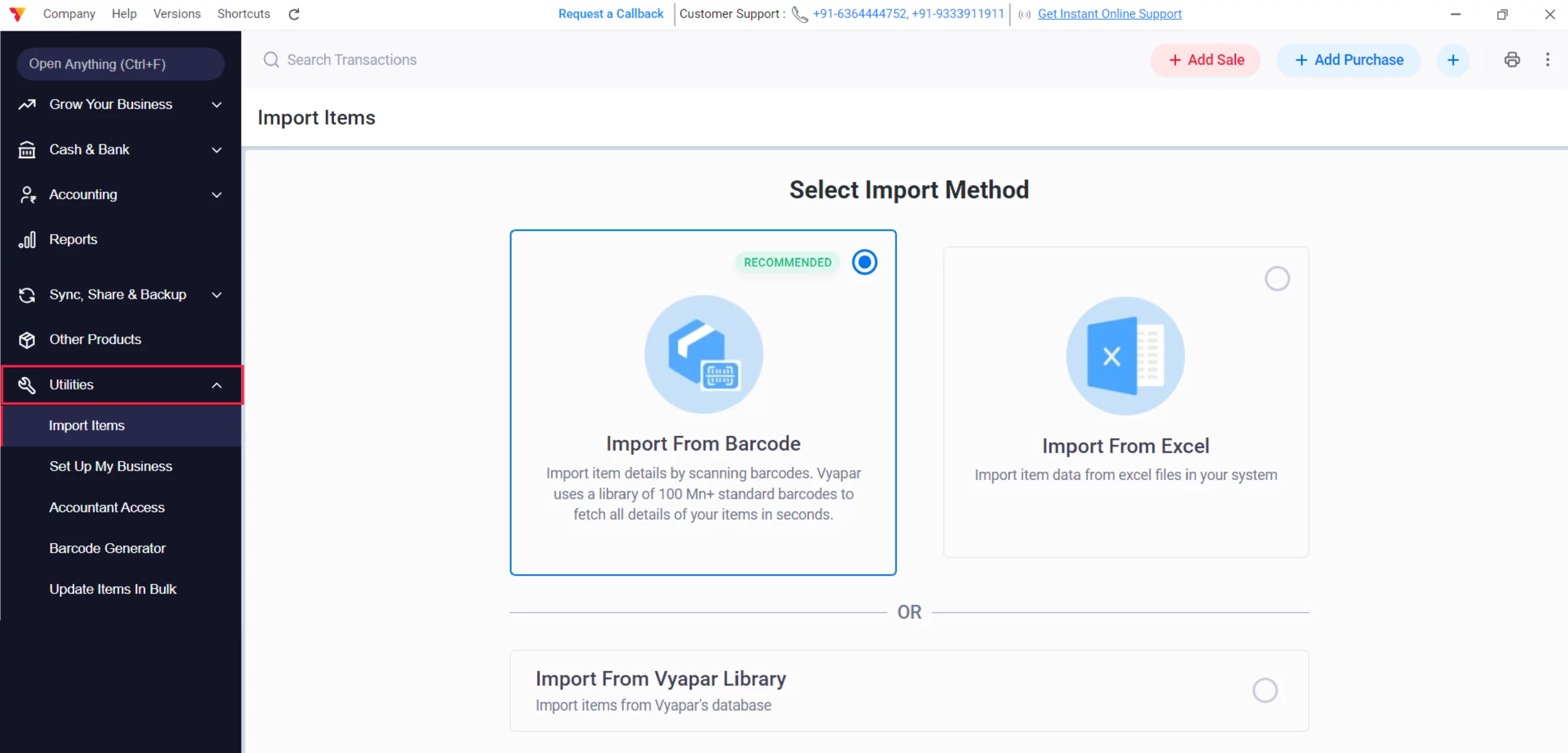
Access Utilities
Go to the Left Menu, scroll down, and click on Utilities.
02
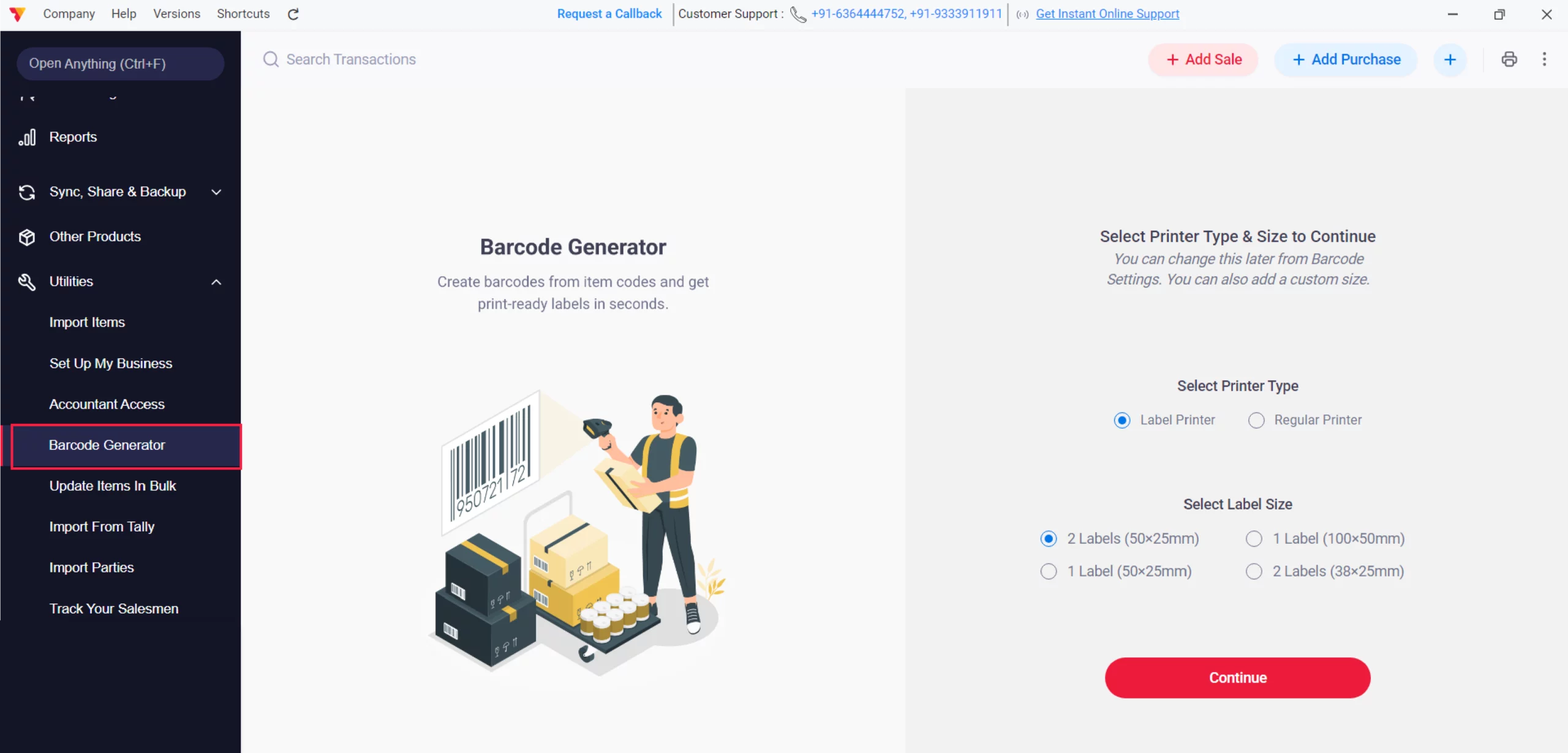
Select Barcode Generator
Click on the “Barcode Generator” from the list.
03
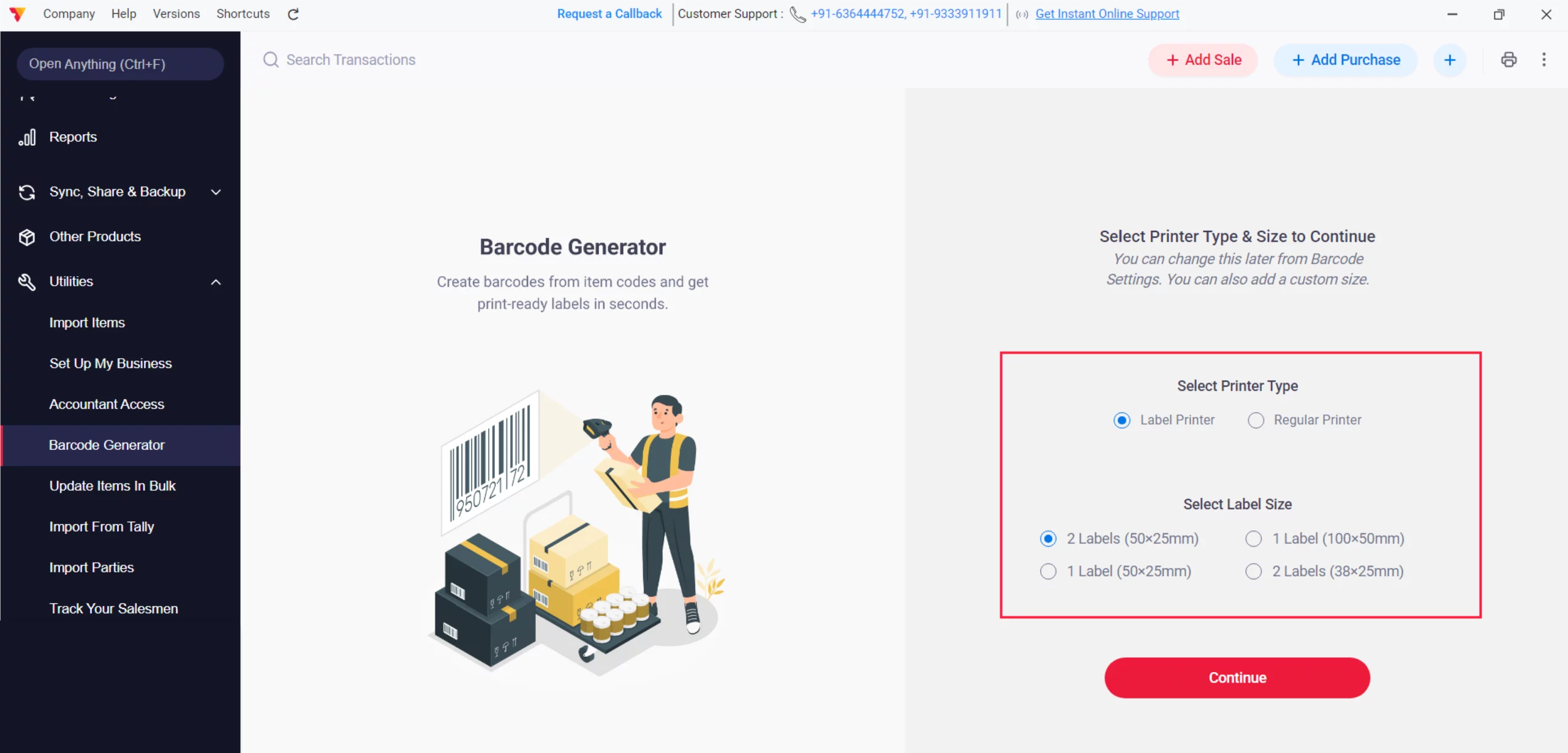
Select Printer
Select the Printer Type & Size from the Options.
04
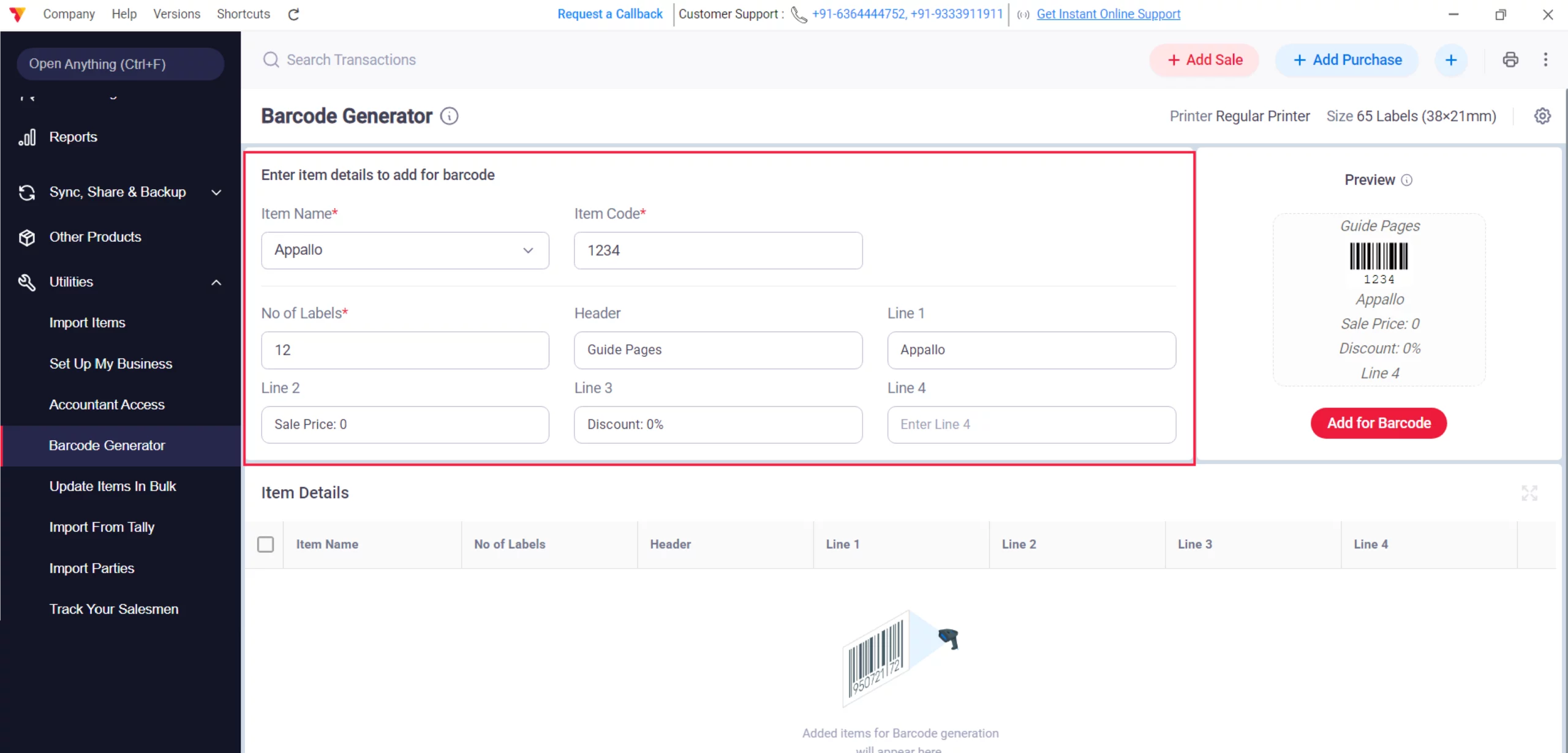
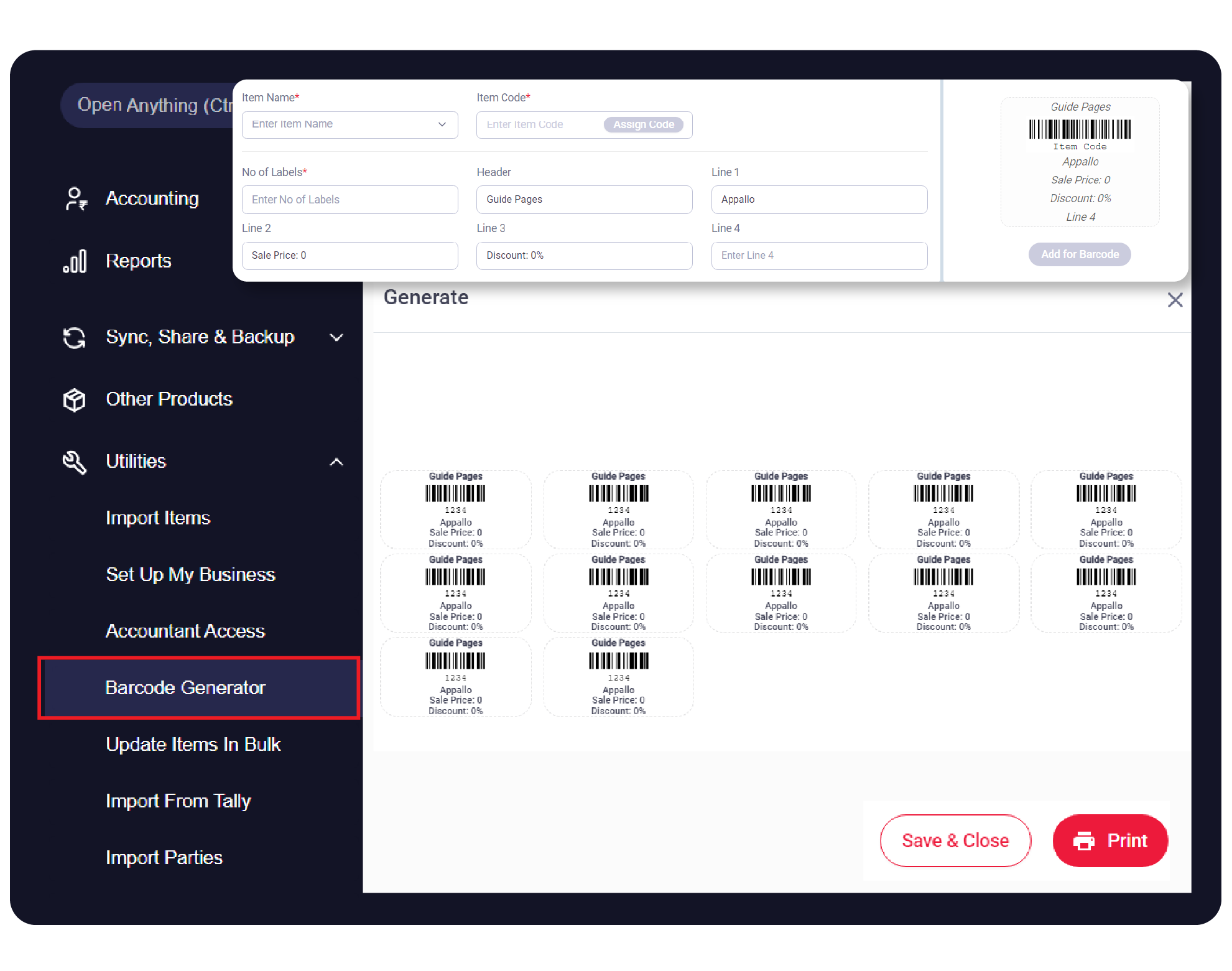
Add Item Details
Select the Item Name. The Item Code will appear automatically (or you can use the code recommended by Vyapar). Enter the No. of Labels you need, along with the Header, Line 1, & Line 2 details.(select from dropdown or you can add manual custom details)
05
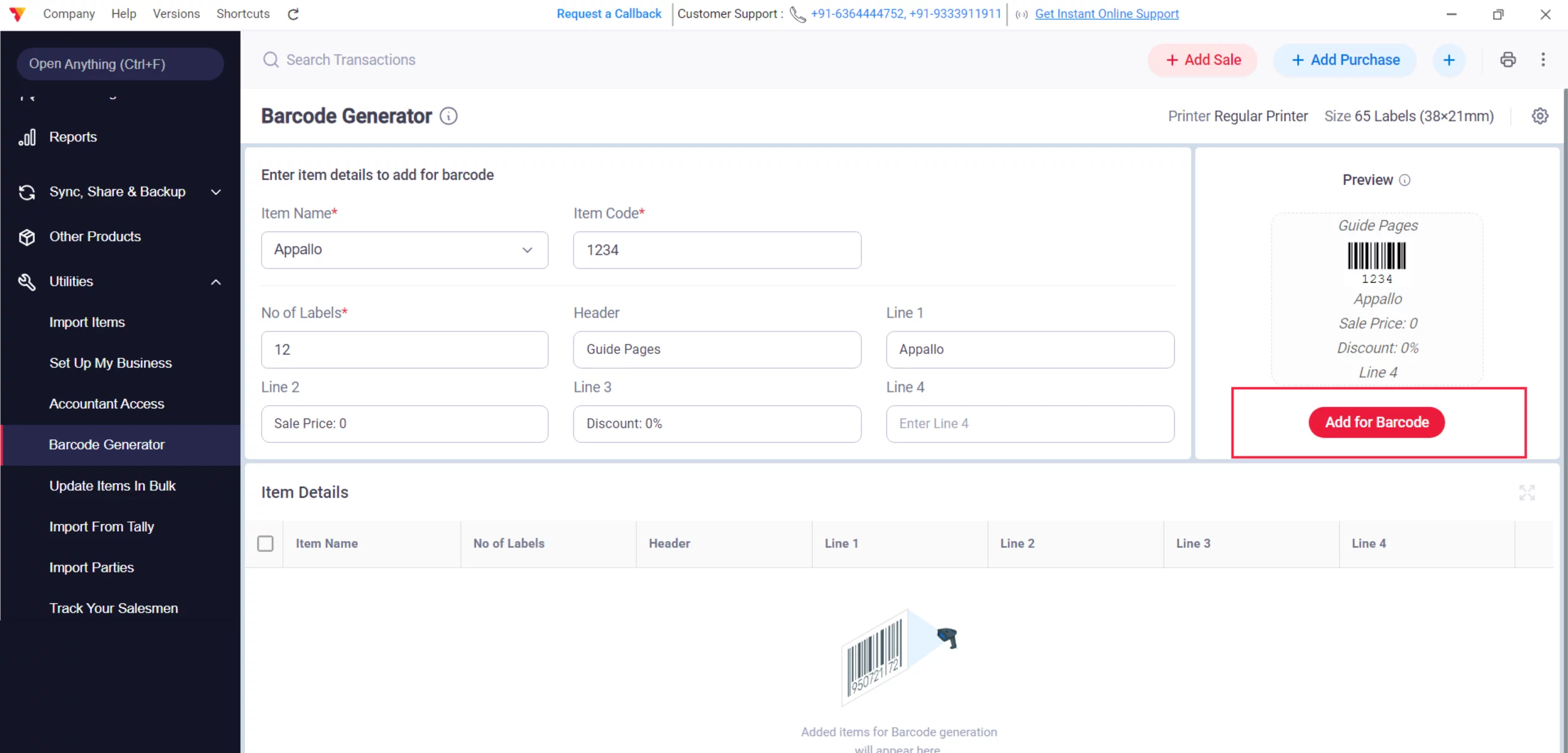
Add Barcode
To print labels for multiple products at once, click on the “+ Add for Barcode” button.
06
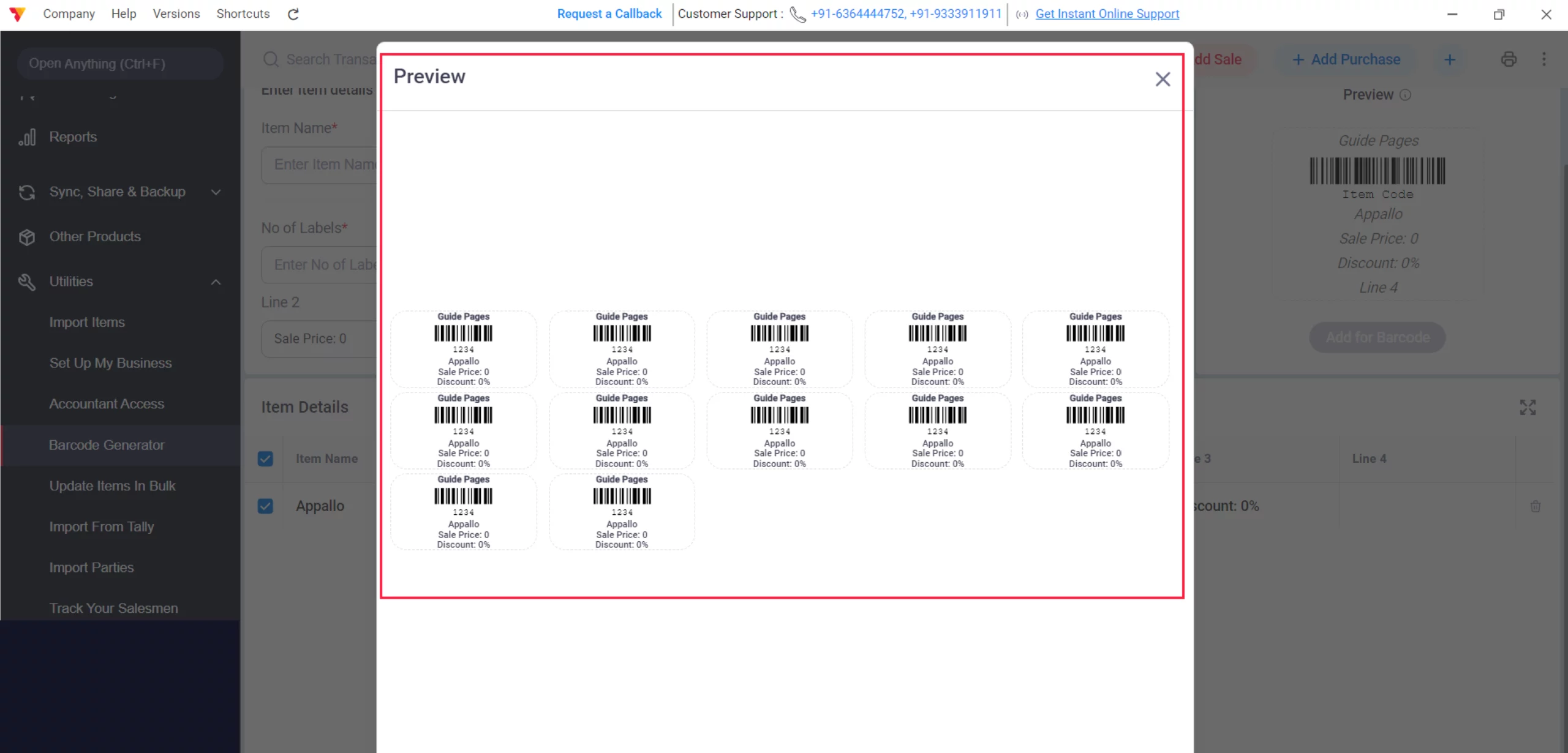
Preview Barcode
Before printing, click the Preview button to see how the labels look, then close it.
07
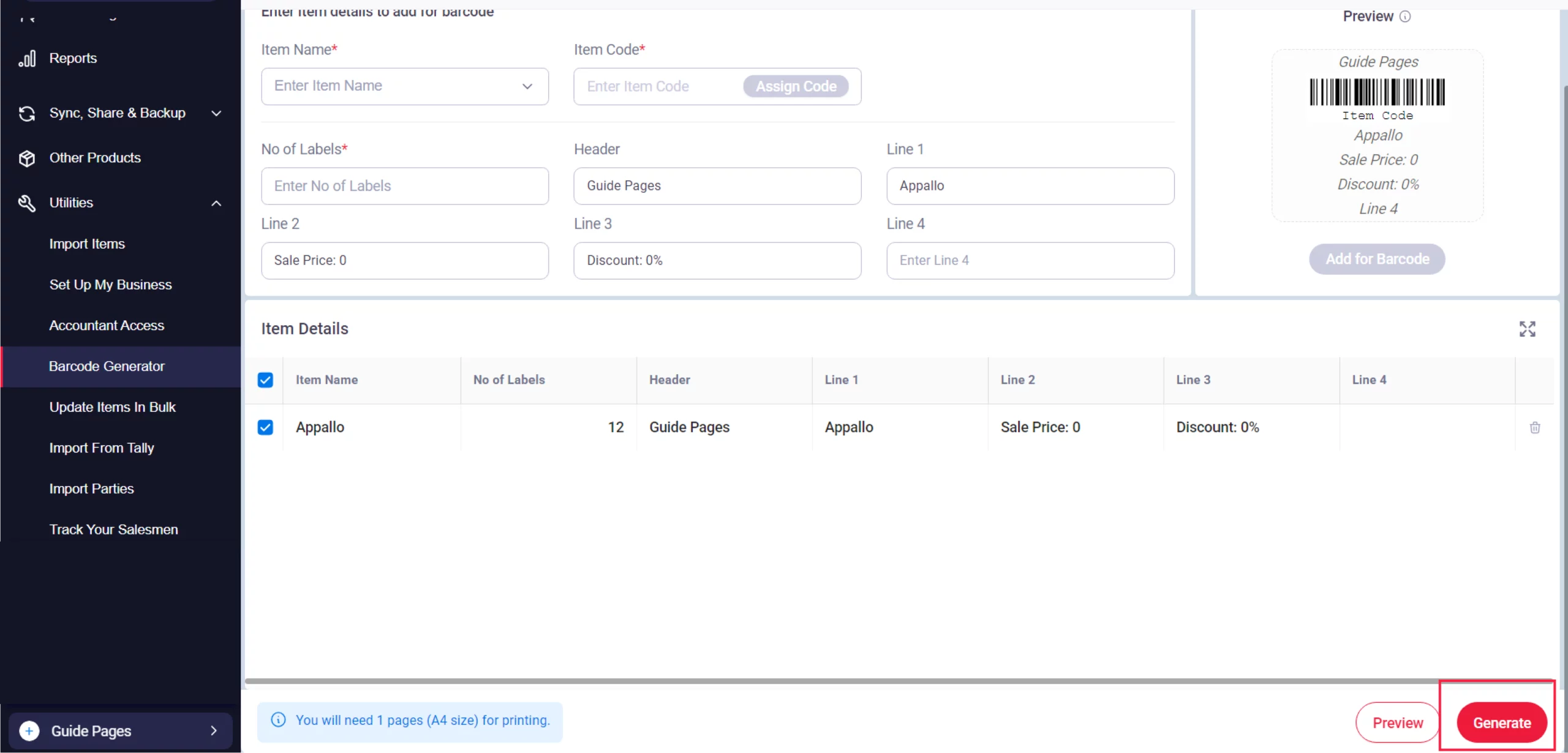
Generate Barcode
If the preview looks correct, click on the “Generate” button.
08
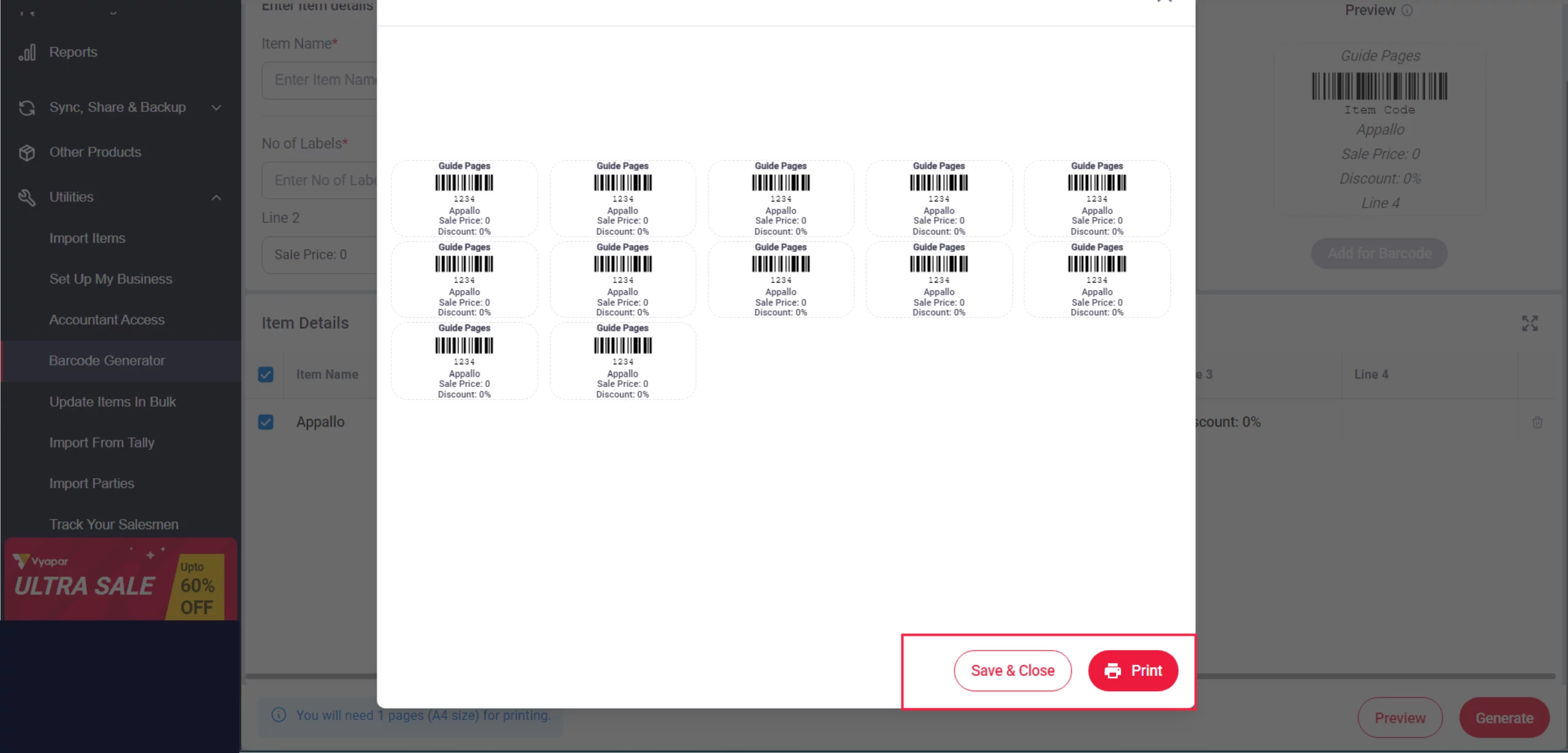
Print Barcode
Finally, click “Print” to print immediately, or click “Save and Close” to save the labels for later.
09
Watch Step-by-Step Video Guide to Generate and Print Barcodes
Generate and Print Barcodes: Desktop Guide.
Still stuck? Get help in minutes.
Our support team is ready to help you succeed.
 24/7 Support
Why Is This Important for Your Business?
Integrating barcodes into your workflow transforms your shop’s efficiency:

10x Faster Billing
Simply scan a product to add it to the invoice instantly—no more typing item names.
Eliminate Human Error
Barcodes ensure the correct item and its latest price are picked up every single time.
Professional Branding
Custom labels with your business name and price headers make your products look premium.
Frequently Asked Questions (FAQs)
Can I use my existing manufacturer barcodes?
Yes. Instead of generating new ones, you can simply scan or type the existing barcode number into the Item Code field in Vyapar to use it for billing.


Which barcode format does Vyapar support?
Vyapar generally supports standard 1D barcode formats, which are compatible with almost all laser and thermal barcode scanners.
Can I print barcodes on a regular A4 printer?
Absolutely. Select the “A4” printer option in Step 04 and use self-adhesive A4 label sheets (like 24-up or 40-up sheets).
Ready to Stop Manual Typing?
Start barcode generation today and finish your billing 3x faster.
 Download Vyapar Now





