
How to Set a Low Stock Alert in Vyapar App
Ever had to turn away a customer because you didn’t realise a product was out of stock? With Vyapar, you can put your inventory on autopilot.
By setting a Low Stock Alert, the app will automatically notify you the moment your stock hits a minimum level, giving you enough time to reorder and keep your business running without interruptions.
Stop manual stock counting. Follow this guide to enable smart inventory alerts on your Desktop app.


Before You Start

Inventory Enabled: Ensure the “Inventory” feature is toggled “ON” in your Item Settings.
Define Your Reorder Point: Know the minimum quantity for each item at which you want to be notified (e.g., “Alert me when I only have 5 units left”).
Opening Stock: Make sure you have entered the current opening stock for your items so Inventory management software can track the deductions accurately.
Step-by-Step Guide to Set Low Stock Alerts:
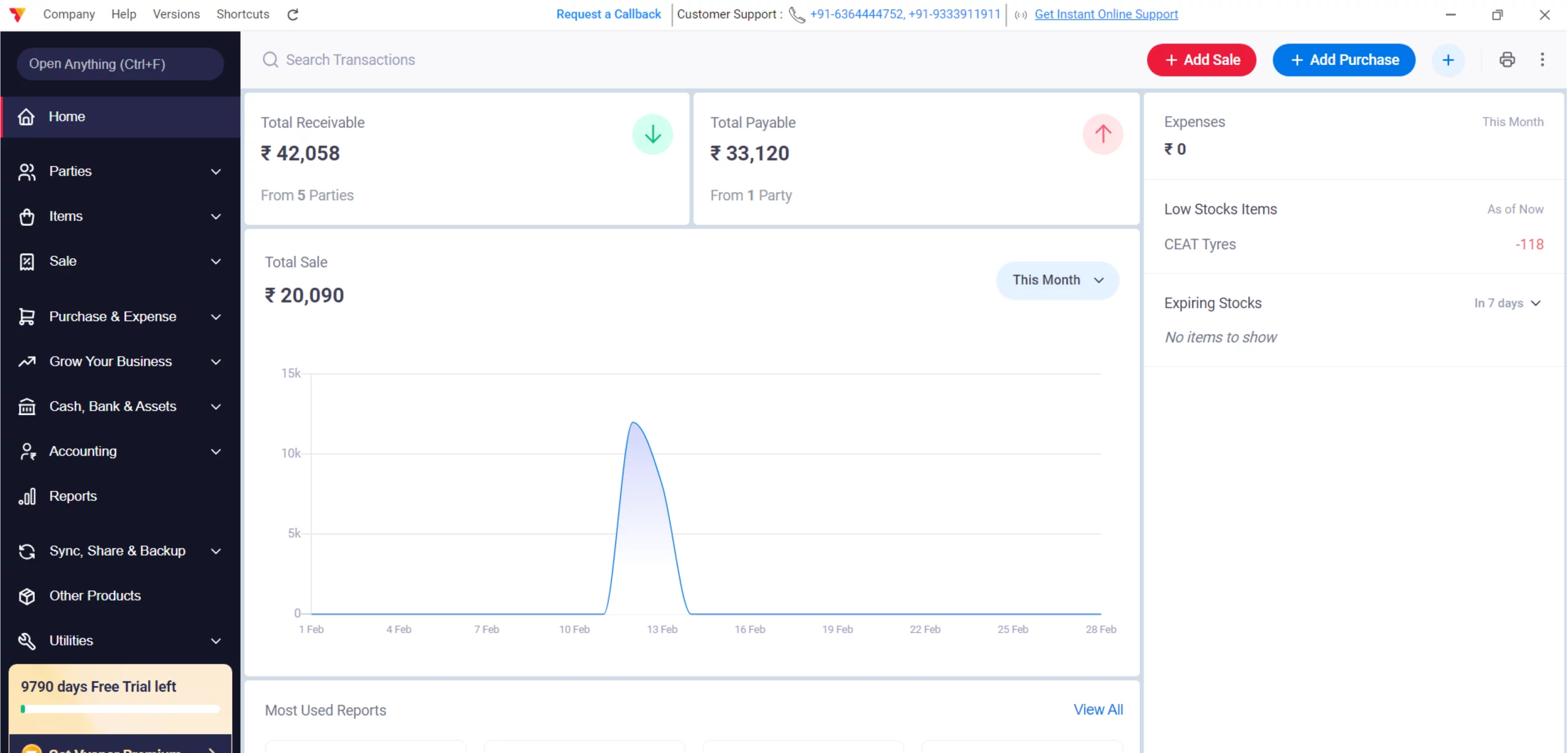
Open Vyapar App
Launch the Vyapar App on your Desktop device.
01
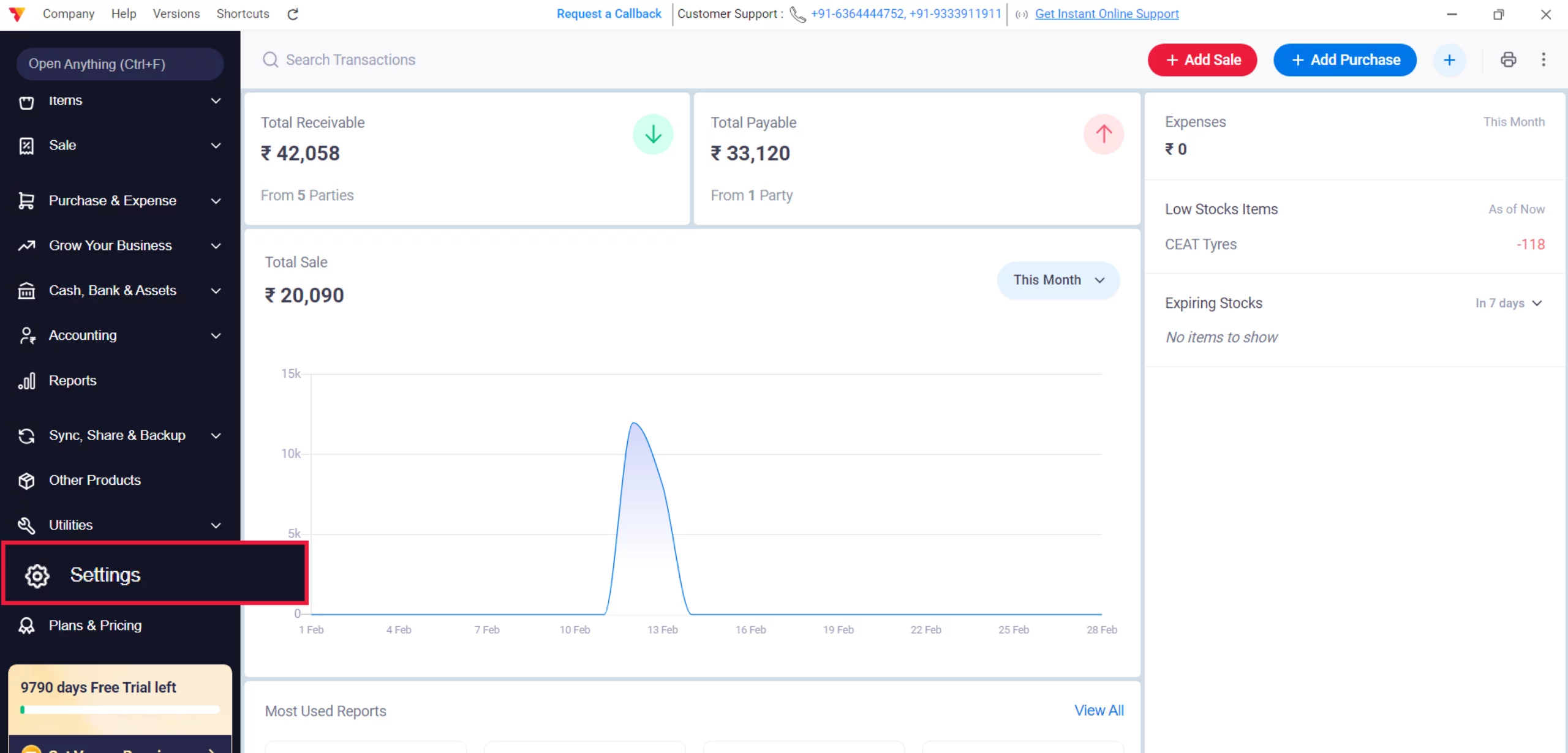
Enabling Pre-Requisition
Navigate to the Left Menu, find Settings, and click it.
02
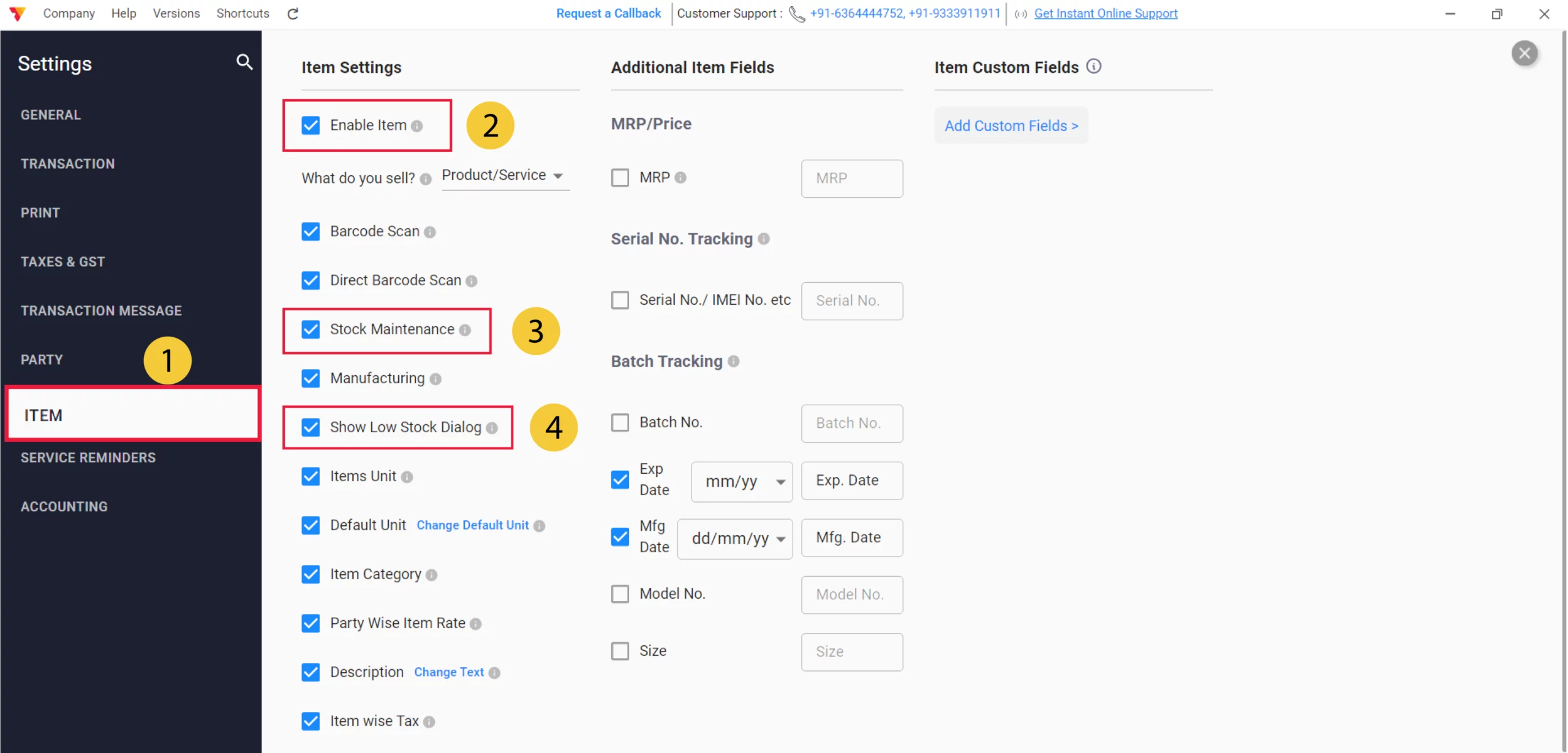
Enable Items & Low Stock Dialogue
From the left-hand sidebar, select the item tab, and ensure the following three checkboxes are selected
Enable Item: Check this box to activate the items module.
Stock Maintenance: Check this to track your quantities accurately.
Show Low Stock Dialogue: Check this box to enable real-time pop-up alerts when your stock levels are low.
03
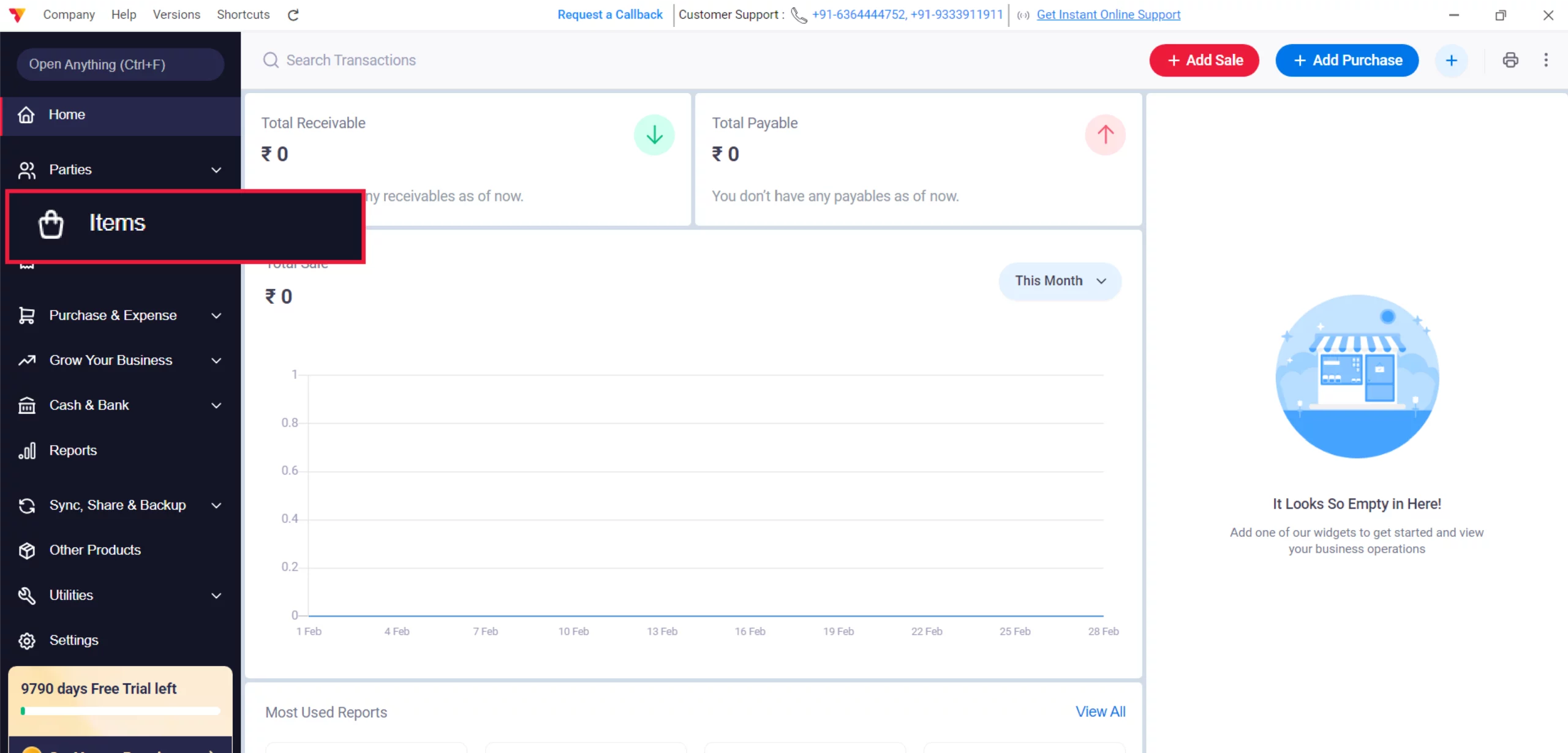
Navigate to Item Master
Go back to the main menu and click on Items.
04
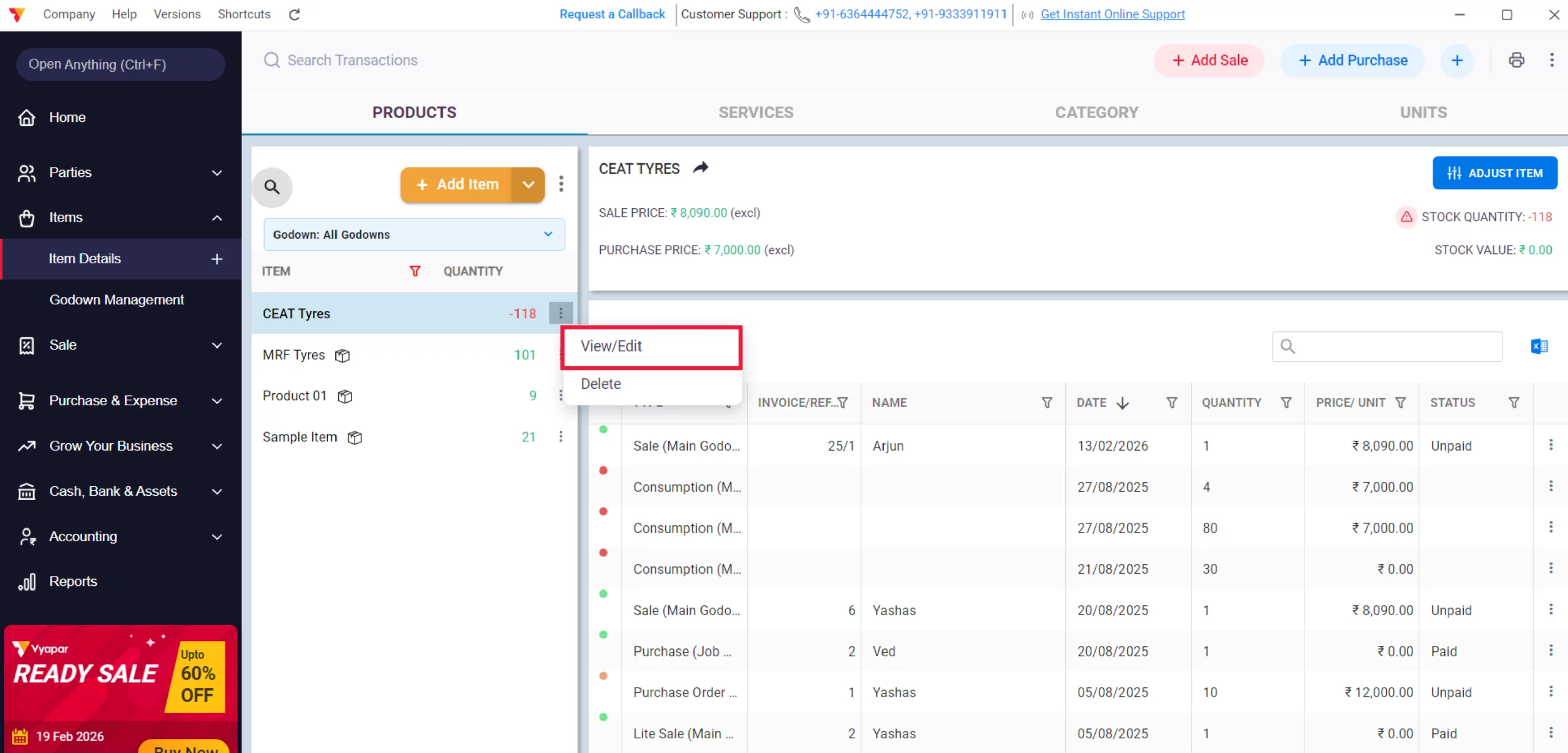
Select Your Item
Select the specific product you want to set an alert for from your item list, and click on the right side of the Item Name and click on View/Edit. Else, double-click on Item
05
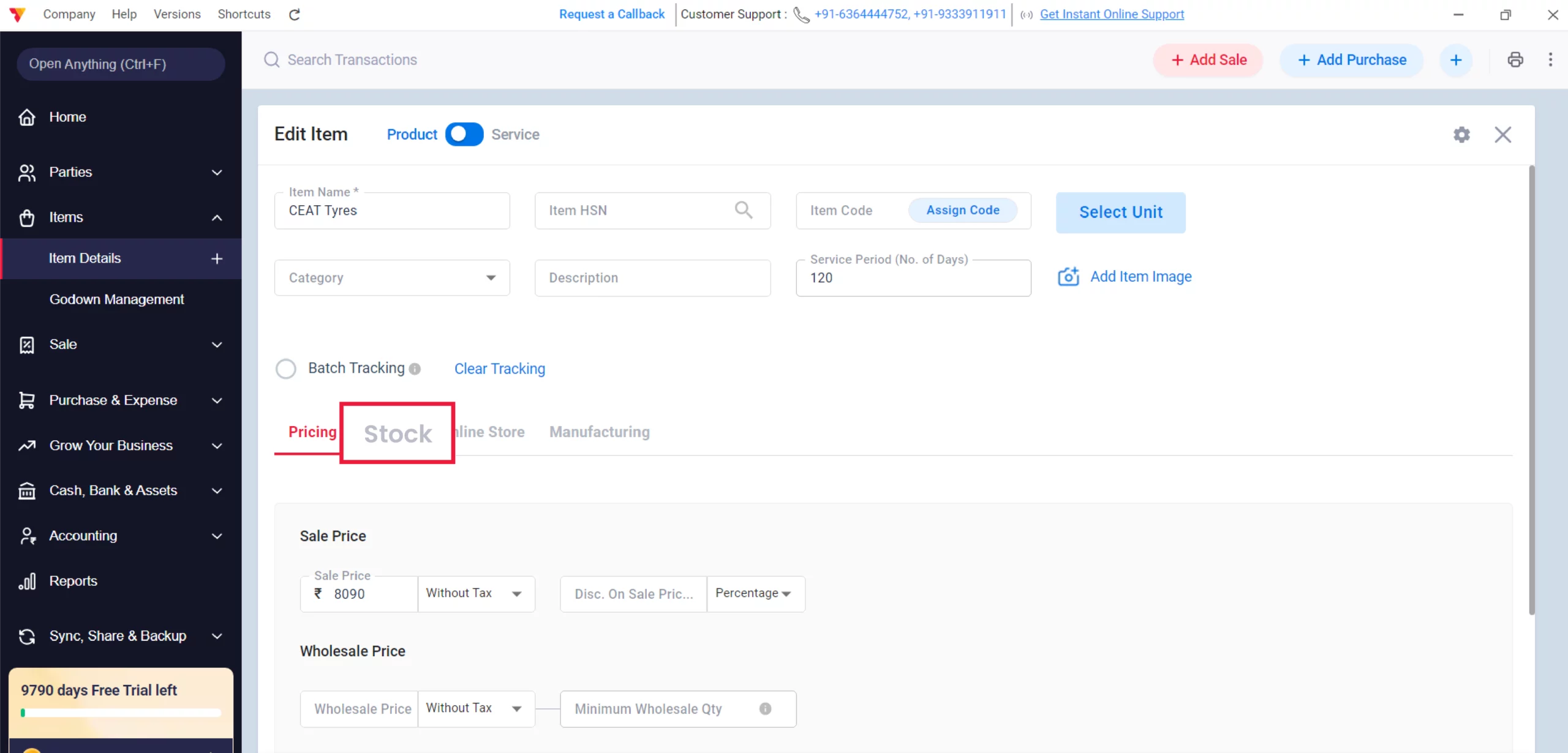
Navigate to the Stock Tab
Once the item is selected, locate the Stock tab within the item details section (found next to the Pricing tab) and click on it.
06
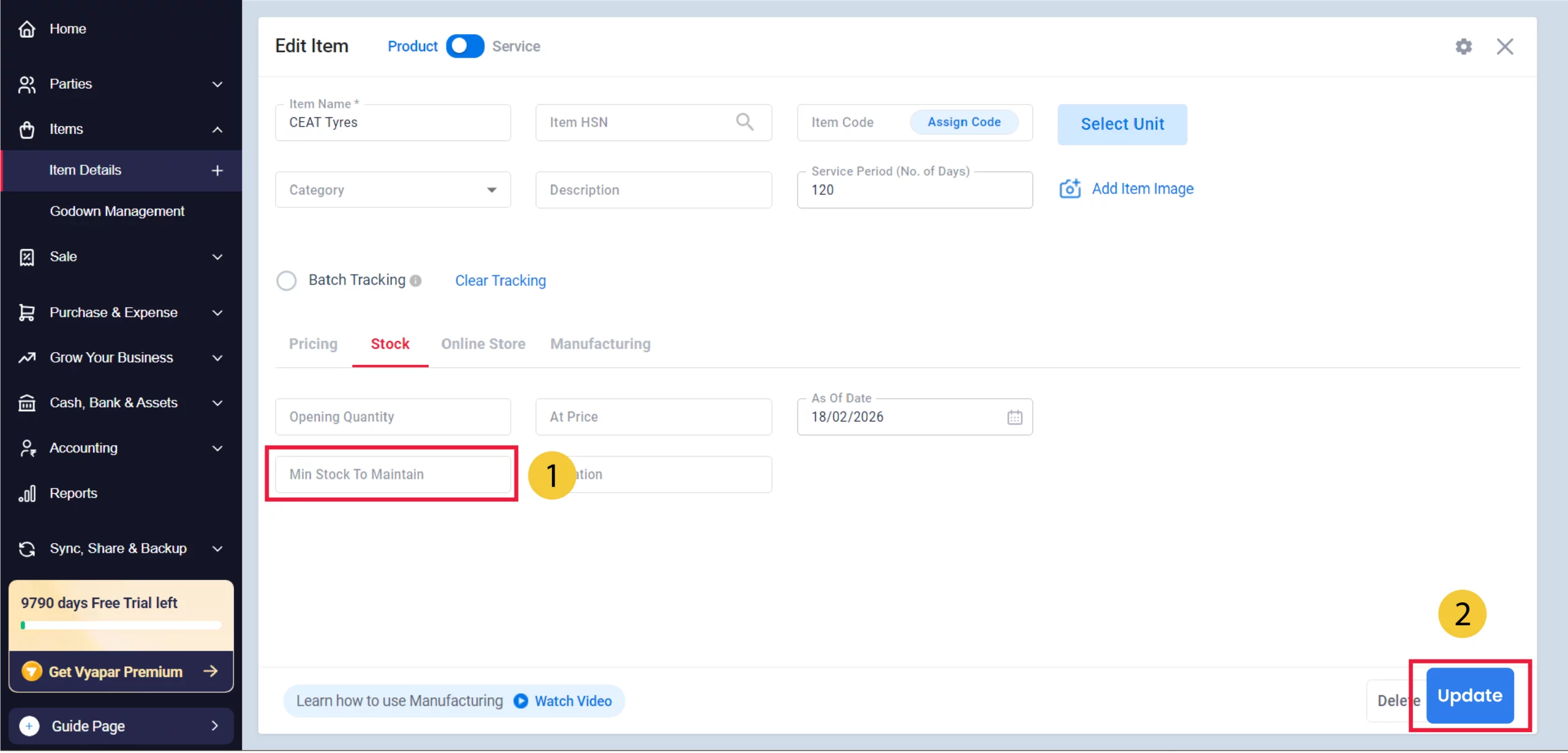
Navigate to “Min Stock to Maintain”
Locate the field named “Min Stock to Maintain,” enter your desired minimum stock value, and click the “Update” button to save.
07
Watch Step-by-Step Video Guide to Set Low-Stocks Alert
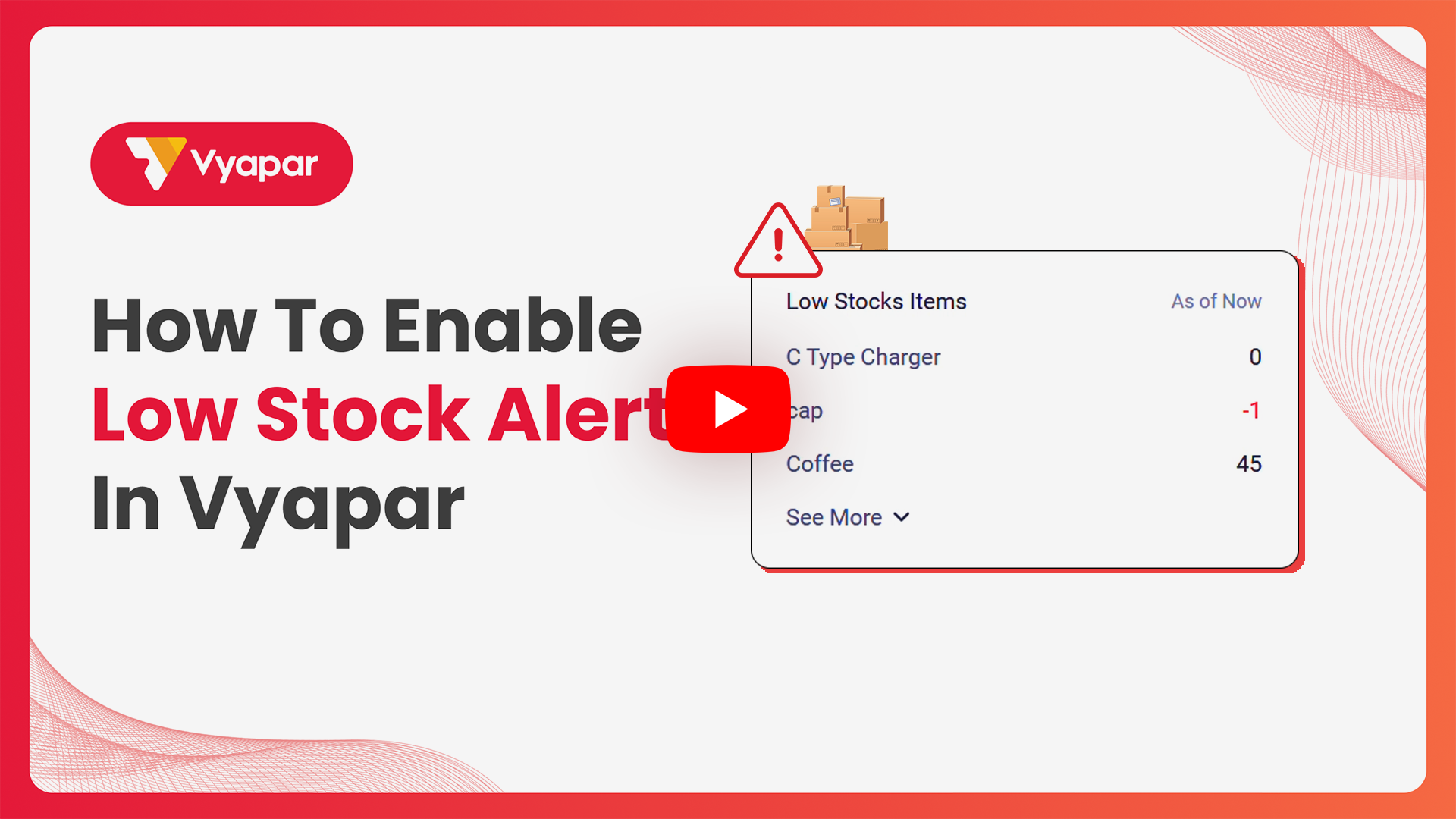
Set Low-Stocks Alert: Desktop Guide.
Still stuck? Get help in minutes.
Our support team is ready to help you succeed.
 24/7 Support
Where Will You See Low Stock Alerts?
Once you have configured your minimum stock levels, Vyapar keeps you informed across three key areas:

Real-Time Billing Alerts
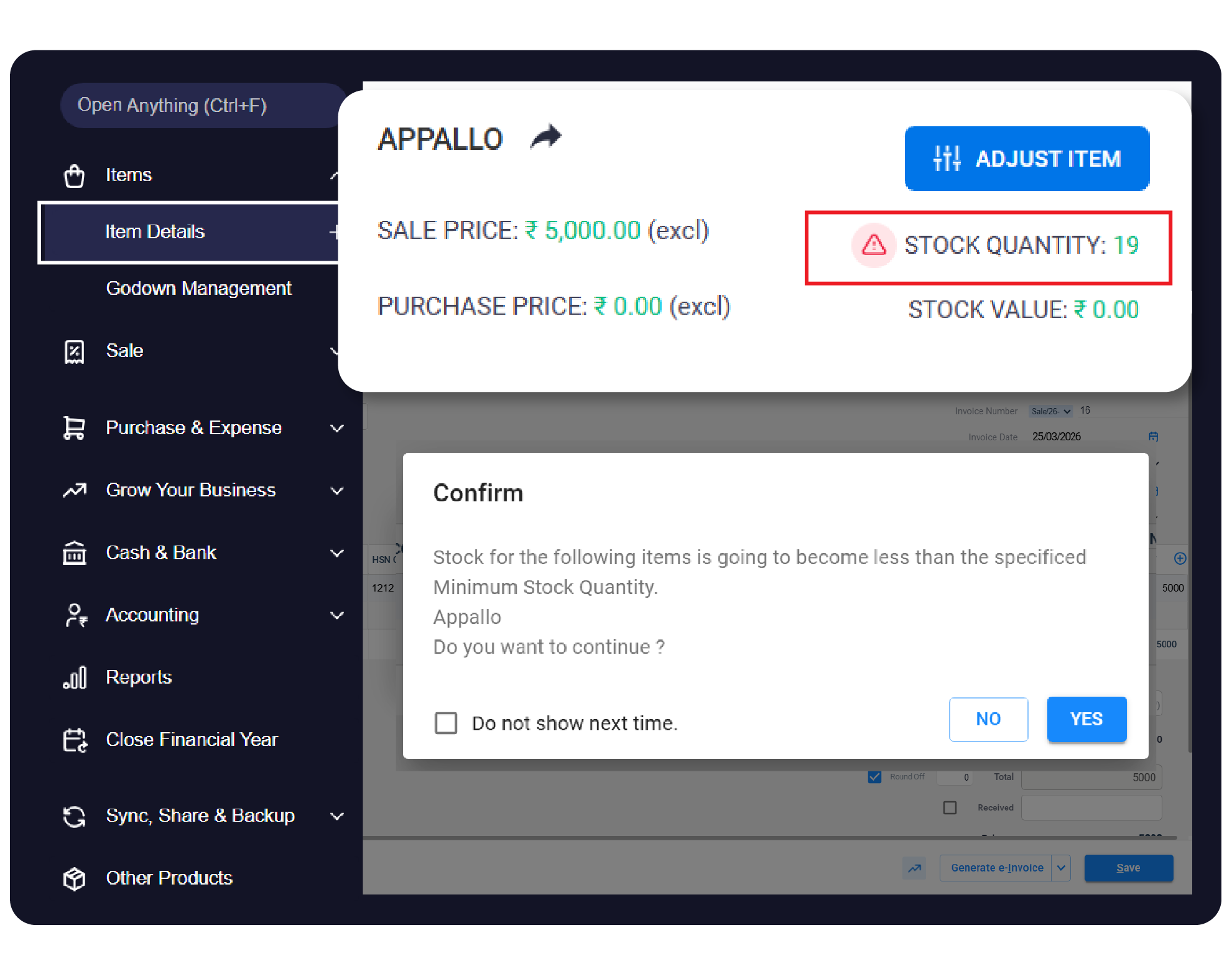
If you enabled the “Show Low Stock Dialogue,” a pop-up warning will appear the moment you add an item to a Sale Invoice that has reached its minimum limit.
Dashboard Notifications
Your main dashboard will highlight low-stock items, giving you an immediate overview of what needs to be reordered as soon as you open the app.
Loss Prevention
Automated low-stock alerts and adjustment logs help identify and stop inventory leakage.
Frequently Asked Questions (FAQs)
Where will I see the Low Stock alert?
Once enabled, a dialogue box will pop up during a sale if the item you are adding is at or below its minimum stock level. You can also see a red warning flag in your Item list.


Can I get a full list of all items that are low on stock?
Yes. Go to Reports > Inventory Reports > Low Stock Report to view and export a complete list of items that need reordering.
Do I need to enable this for every item individually?
You must enable the feature once in Settings (Steps 2-3), but the specific minimum quantity must be set for each item individually in the Item Master.
Will this work if I don’t use “Stock Maintenance”?
No. Stock Maintenance must be enabled so Vyapar can subtract quantities during sales and know when the limit is reached.
Never Miss a Sale Again.
Enable low-stock alerts today and reduce out-of-stock incidents by 100%.
 Download Vyapar Now





