

Inventory

Automatic Stock Update

Stock changes every day with every sale, purchase, or return.
With Vyapar, stock updates automatically in the background, so you always know what is available, without manual counting.
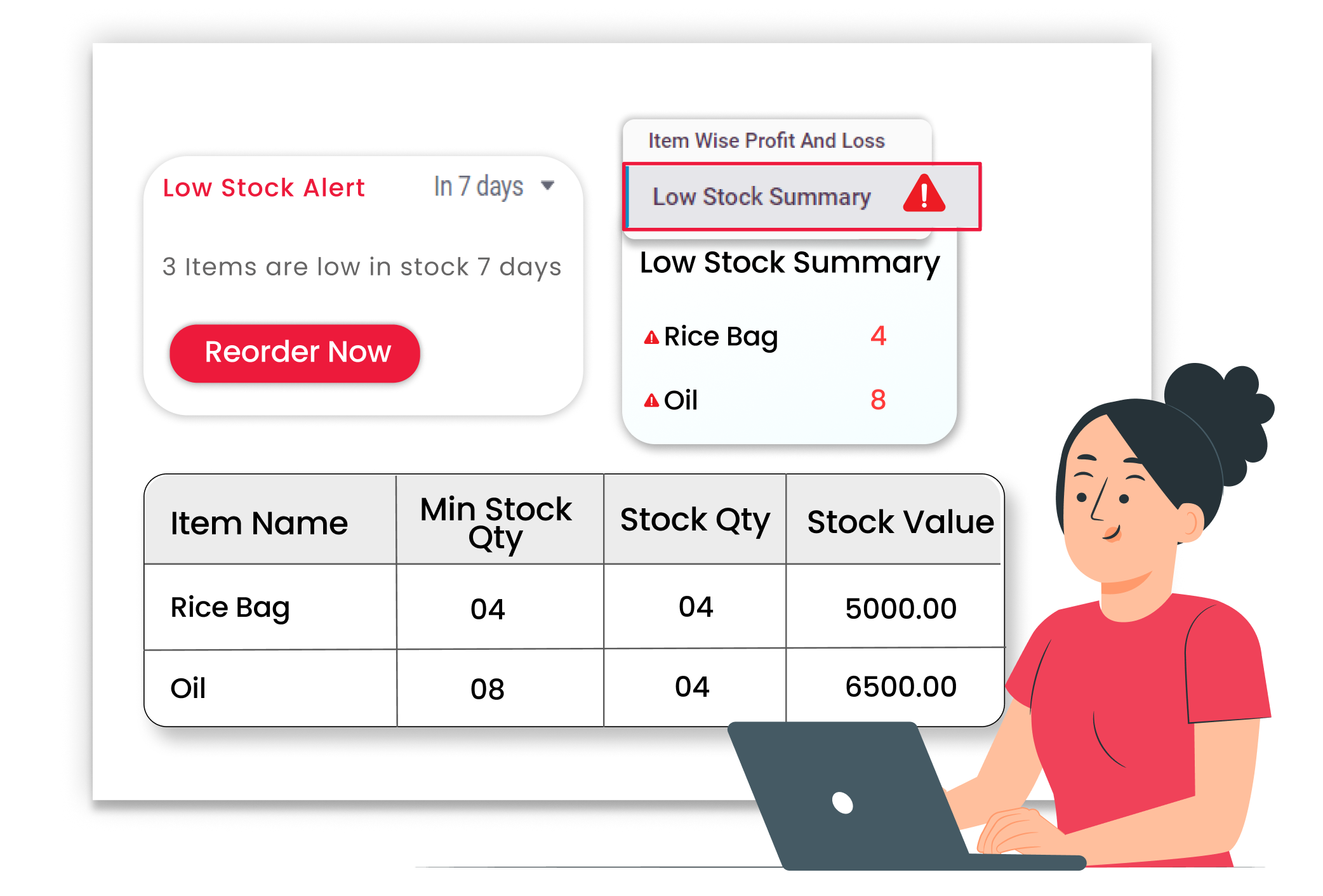
Automatic Stock Update
Why It Matters

Why Automatic Stock Update Matters

When stock is updated by hand, it is easy to miss entries. One missed sale or purchase can show wrong stock and lead to wrong billing decisions. Automatic stock updates help you stay in control every day. You can avoid stock confusion, reduce errors, and plan your next purchase better.

No Manual Stock Adjustments

Stock updates on its own with billing. When you make a sales invoice or a purchase bill, Vyapar updates the item quantity automatically.

Less
manual work

Always Know Current Stock available

See the latest available stock quantity anytime. Because stock updates in real time, you can check what is currently in stock before making the next bill.

Clear
stock visibility

Fewer Billing & Order Mistakes

Avoid selling items that are not available. With correct stock shown, you can prevent wrong commitments to customers and reduce last-minute issues.

Better
order accuracy

The Transformation

Before & After Automatic Stock Update

Before

Without Vyapar

  • Stock updated in notebooks or memory
  • Missed entries after busy billing hours
  • Wrong stock shown during customer orders
  • Extra time spent recounting items

After

With Vyapar

  • Stock updates automatically after each bill
  • Sales reduce stock, purchases increase stock
  • Current stock is visible anytime in the app
  • Less need for manual recounting

Business Impact

Real Results for Your Business

Automatic stock update helps you reduce stock mistakes, save daily effort, and keep item quantity accurate, so billing and purchasing become smoother.

High

Stock Accuracy

Auto updates reduce missed stock entries.

Less

Daily Manual Work

No need to update stock after every sale

Better

Purchase Planning

Buy the right items at the right time with confidence.

How This Feature Solves Stock Update Problems

1

Add Business Details

Add Items with Opening Stock

Set the starting quantity for items.

2

Upload Business Logo

Create Sales Invoice

Stock reduces automatically for sold items.

3

Select Invoice Format

Create Purchase Bill

Stock increases automatically for purchased items.

4

Generate & Share Invoice

 Check Item Stock Anytime

See updated quantity in item list/stock view.

Add Items with Opening Stock

Start with the correct quantity. While adding an item, enter basic details like item name and selling price. Add the opening stock quantity so Vyapar sets your starting stock properly from day one.

Create Sales Invoice

Stock reduces with every sale. When you create a sales invoice and add items, Vyapar deducts quantity automatically. You do not need to update stock separately after billing.

Create Purchase Bill

Stock increases when you buy goods. Whenever you record a purchase bill, Vyapar adds the purchased quantity to your stock. This keeps your stock updated even when you receive goods in parts.

Check Updated Stock Anytime

Know what is available right now. You can open the item list or stock view to see the latest available quantity. This helps you confirm stock before billing, ordering, or restocking.

Auto-Update Your Stock Now

Start free. 7 Days Free Trial.

📍Where This Helps Most

Ideal for These Businesses

This use case is perfect for businesses that sell daily and want stock to stay updated automatically.

Retail Stores

Fast billing with daily stock movement.

Easy to manage with Vyapar

FMCG Distributors

Bulk sales and purchases on a frequent basis.

Easy to manage with Vyapar

Pharmacies

Need the correct stock for repeat items.

Easy to manage with Vyapar

Grocery Stores

Item count and quick stock changes.

Easy to manage with Vyapar

Hardware Stores

Hardware Stores

Manage sizes and multiple item types

Easy to manage with Vyapar

Mobile Shops

Mobile Shops

Track stock by model and variant.

Easy to manage with Vyapar

You can visit the UAE site to view content specific to your location