
How to Get Trial Balance Report – Video
Learn how to generate a Trial Balance Report to check debit-credit balance and view your financial summary instantly.
Transcript
Managing business finances is now easier with Vyapar’s Trial Balance feature.
It helps you ensure your total debits and credits are always equal and gives you a clear snapshot of your financial position.
Now see how it works.
Step 1: Open Vyapar Billing Software
Open the Vyapar Billing Software, and from the left menu, go to the Reports section.
Step 2: Access the Trial Balance
Under Transaction Reports, click on Trial Balance Report.
Vyapar will automatically fetch all ledger data and show it in an easy-to-read format with equal debit and credit totals.
Step 3: Identify and Fix Errors
If you spot any mismatches, you can directly open the related transactions from the report itself.
Make the correction, save it, and return to your Trial Balance instantly — no extra steps needed.
Step 4: View Account Details
You can check details for any account — sales, bank, or tax.
Use Expand All Accounts to see a more detailed version of your report.
Step 5: Filter and Export Reports
Apply date filters to view reports for any time period, and export them easily in PDF or Excel format for audits or analysis.
Step 6: Key Benefits
Instantly check if your books are balanced.
No manual calculations needed.
Spot and fix discrepancies faster.
Save time and stay stress-free with accurate reports.
The Trial Balance feature keeps your accounts perfectly balanced and your finances under control — making business accounting simpler, faster, and more reliable with Vyapar.
Read More
Related Videos

How to Use Audit Trail
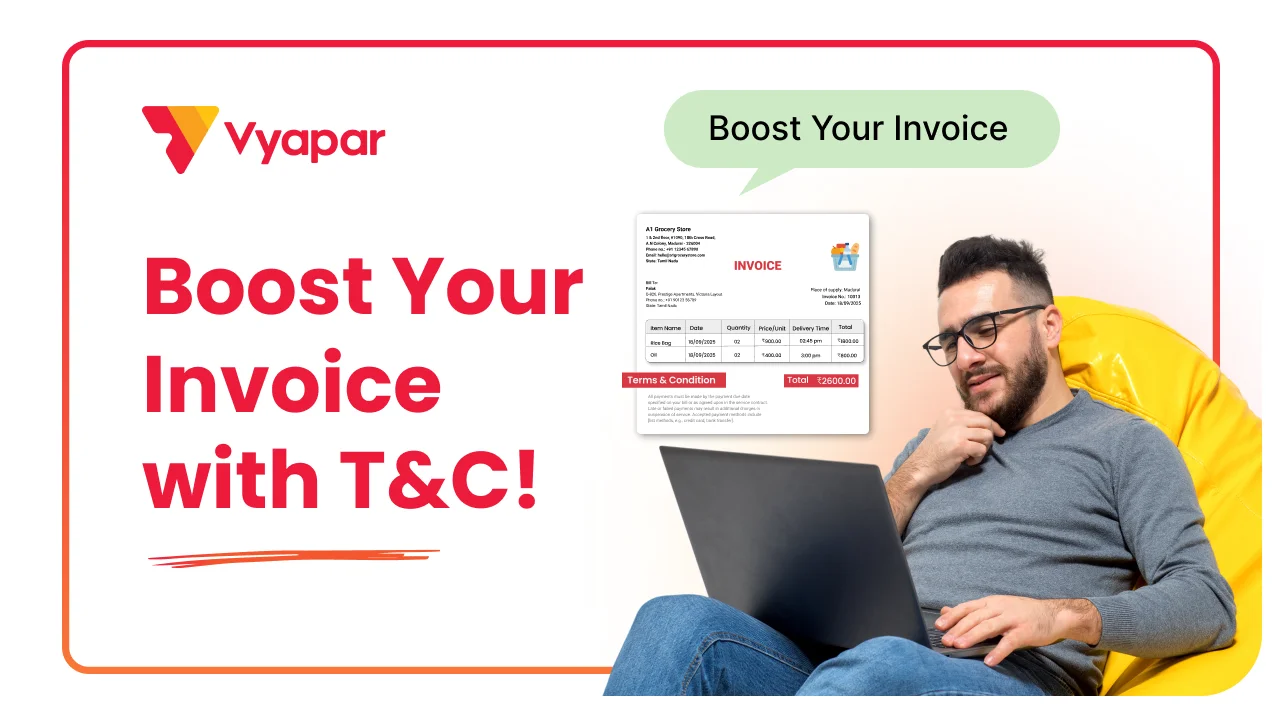
How to Print Terms and Conditions on Invoice

How to Manage TDS
Transform Your Business in Just 5 Minutes – Start Free Today!
Join 1.5 crore + small business owners using Vyapar’s automated billing, inventory & accounting software to save 10+ hours every week.





