
Create Quotation in Vyapar – Video
Learn how to create a business quotation step by step, including items, pricing, terms, and sharing options.
Transcript
Step 1: Enable the Quotation Option
Go to Settings → General Settings and make sure the Quotation option is turned ON.
Step 2: Open the Quotation
Go to Home, click Sale and select Estimate / Quotation, or use the shortcut Alt + M to open the form quickly.
Step 3: Add Customer Details
Enter the customer name.
Choose from saved customers or create a new one by typing the name and pressing Enter.
Step 4: Add Items and Prices
Select items and set quantity, price, discount, tax, and amount.
Add all required items one by one.
Step 5: Add Extra Details and Terms
Use the description box for notes.
Upload images if needed.
Apply saved terms and conditions for the quotation.
Step 6: Save, Share, and Track
Check the total amount and apply round-off if required.
Save the quotation.
Share it via Email, SMS, or WhatsApp, download a PDF, or print it.
Track and convert it into a sale from the Sales section.
A business quotation helps you clearly show prices, items, and terms to your customer before a sale.
By enabling the option, adding customer and item details, applying terms, and sharing them properly, you can manage quotations easily and keep better control over your sales process.
Read More
Related Videos

How to Import Data From Tally
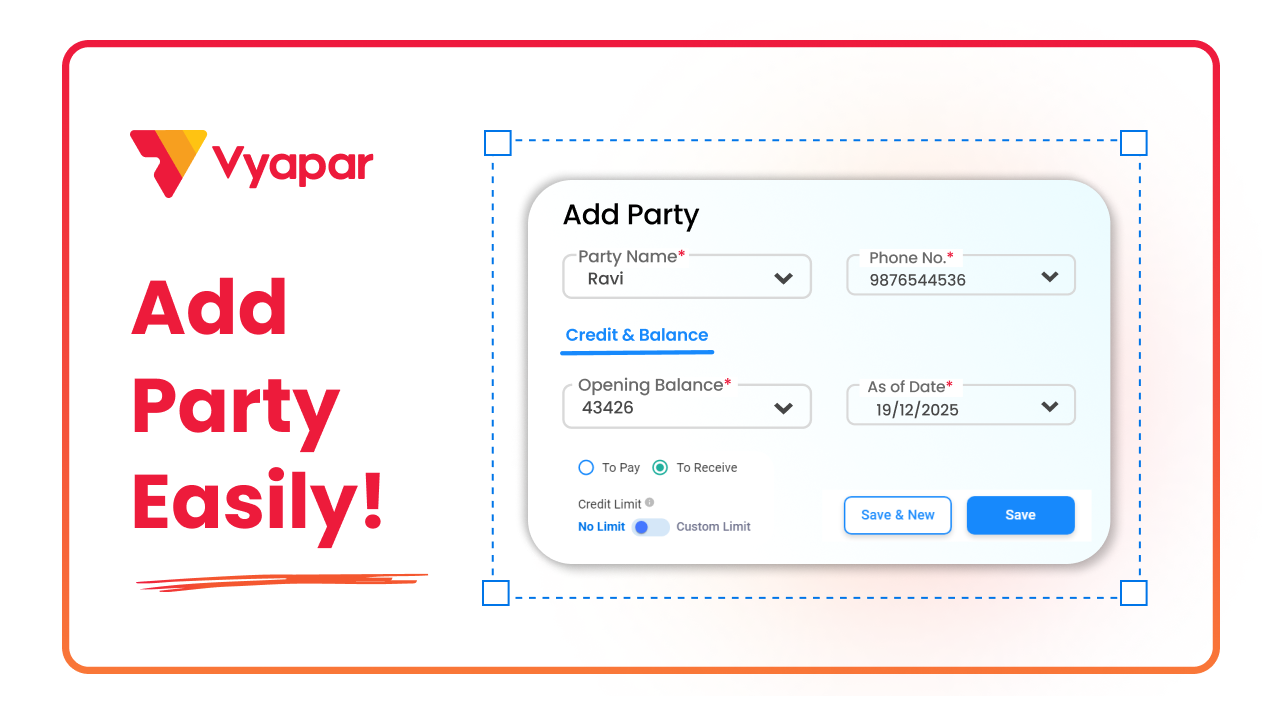
How to Add New Party in Vyapar

How to Add Transaction Time on Invoice
Transform Your Business in Just 5 Minutes – Start Free Today!
Join 1.5 crore + small business owners using Vyapar’s automated billing, inventory & accounting software to save 10+ hours every week.





