
Make Job Work Challan- Video
Watch this video to learn how to make a Job Work entry in Vyapar step by step.
Transcript
Step 1: Enable Manufacturing Module
Open Vyapar Billing Software. Go to Settings → Item Settings → Enable Manufacturing, because Job Work is part of the Manufacturing module
Step 2: Create Job Work Out Challan
Go to the Sales section and click on Job Work Out to create a new challan.
Step 3: Enter Party & Job Details
Add the party name (saved details will auto-fill). Then enter Job ID, Invoice Date, and Delivery Date.
Step 4: Add Finished Goods Details
Enter the finished product name and required quantity (e.g., 10 Blue Checked Shirts).
Step 5: Add Raw Materials & Additional Costs
Enter all raw materials required with quantities. The system shows the estimated cost automatically. You can also add extra costs like labour, electricity, packaging, logistics, etc.
Step 6: Receive Finished Goods & Close Job
Save the challan (status will be Open). Once goods are received, click Received Goods, add job work charges, and save. The status changes to Closed and Converted to Invoice.
The Job Work feature helps you manage outsourced production, track raw materials, calculate costs, and convert the job into an invoice easily.
Read More
Related Videos

How to Use Vyapar App for Accounting
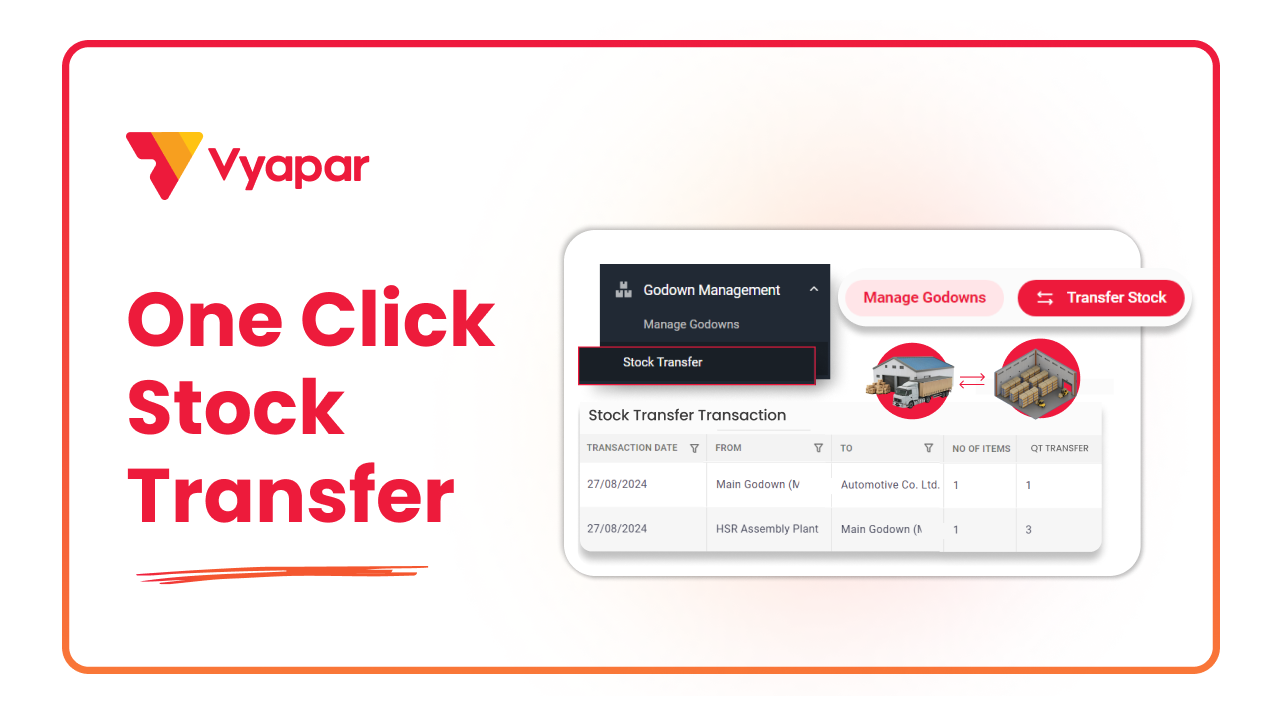
How to Transfer Stock
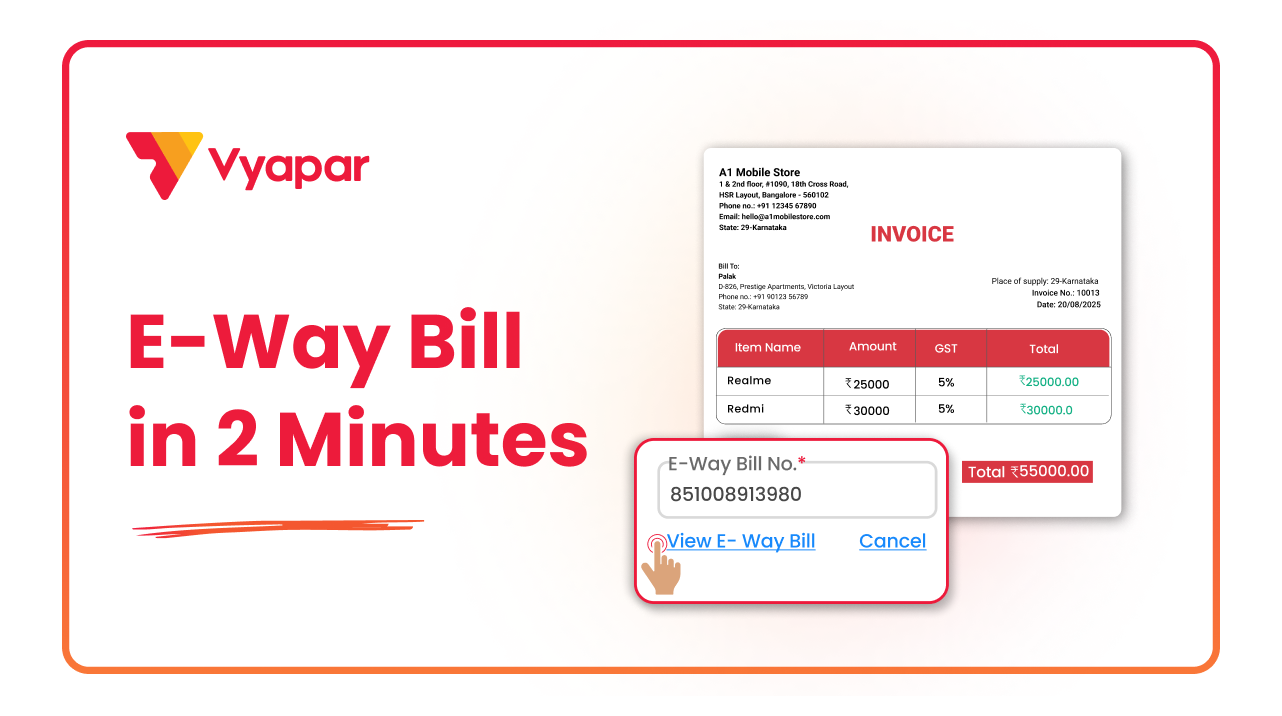
How to Generate E-way Bill
Transform Your Business in Just 5 Minutes – Start Free Today!
Join 1.5 crore + small business owners using Vyapar’s automated billing, inventory & accounting software to save 10+ hours every week.





