
Transfer Stock Across Multiple Godowns – Video
Learn how to manage multiple godowns and transfer stock between locations in a simple way.
Transcript
Step 1: Enable Godown & Stock Transfer Option
Go to Settings → General Settings and enable Godown management & Stock transfer to activate godown management.
Step 2: Create Godowns
Open Godown Management under item section and add godown details like name, type, contact details, and address. You can add and edit unlimited godowns.
Step 3: Start Stock Transfer
Click on Transfer Stock, select transfer date, and choose the source and destination godowns.
Step 4: Add Items and Quantity
Select items, check available stock, enter transfer quantity, and add multiple items if required.
Step 5: Save Stock Transfer Entry
Save the entry to complete the stock transfer.
The stock will move from one godown to another automatically.
Step 6: Use, Track, and Control Stock
Create invoices using stock from any godown, assign stock keeper roles, track godown-wise inventory, and view Stock Transfer Reports.
Managing stock across multiple godowns becomes easier with the proper stock transfer and tracking feature in Vyapar app.
By selecting the right godown during transactions, businesses can avoid inventory mismatch and maintain accurate stock records across locations.
Read More
Related Videos
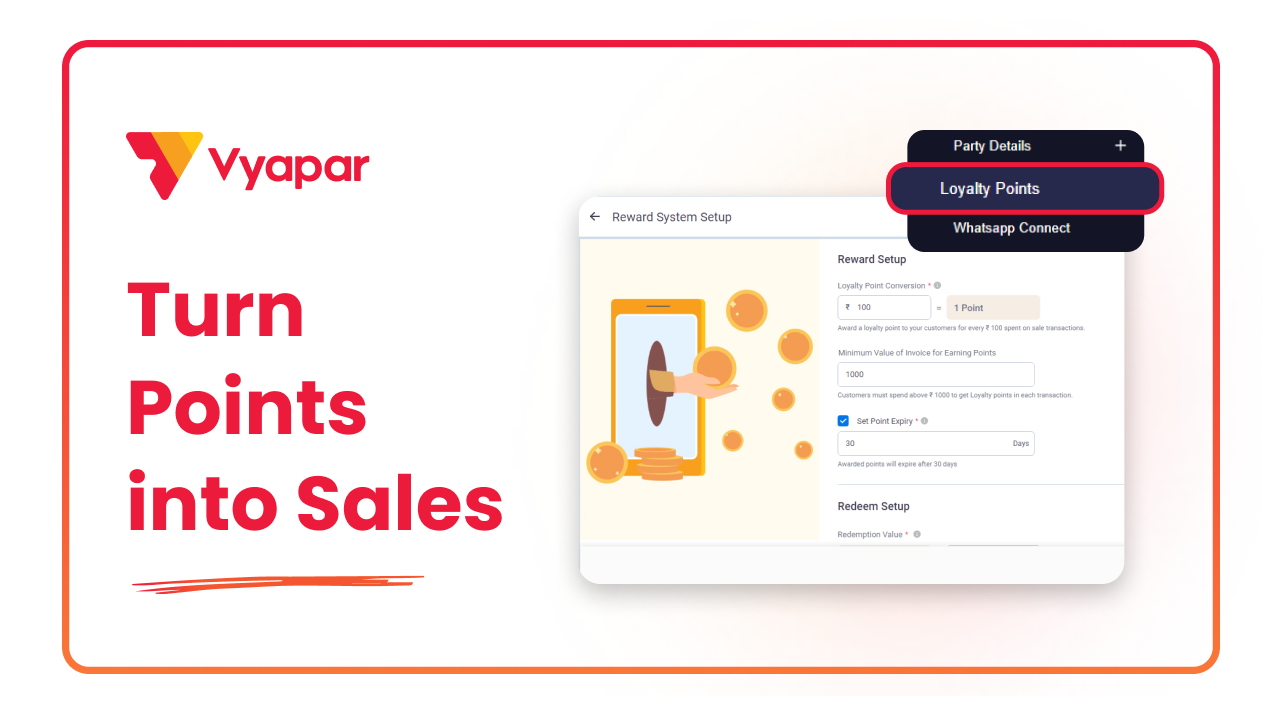
How To Use Loyalty Points
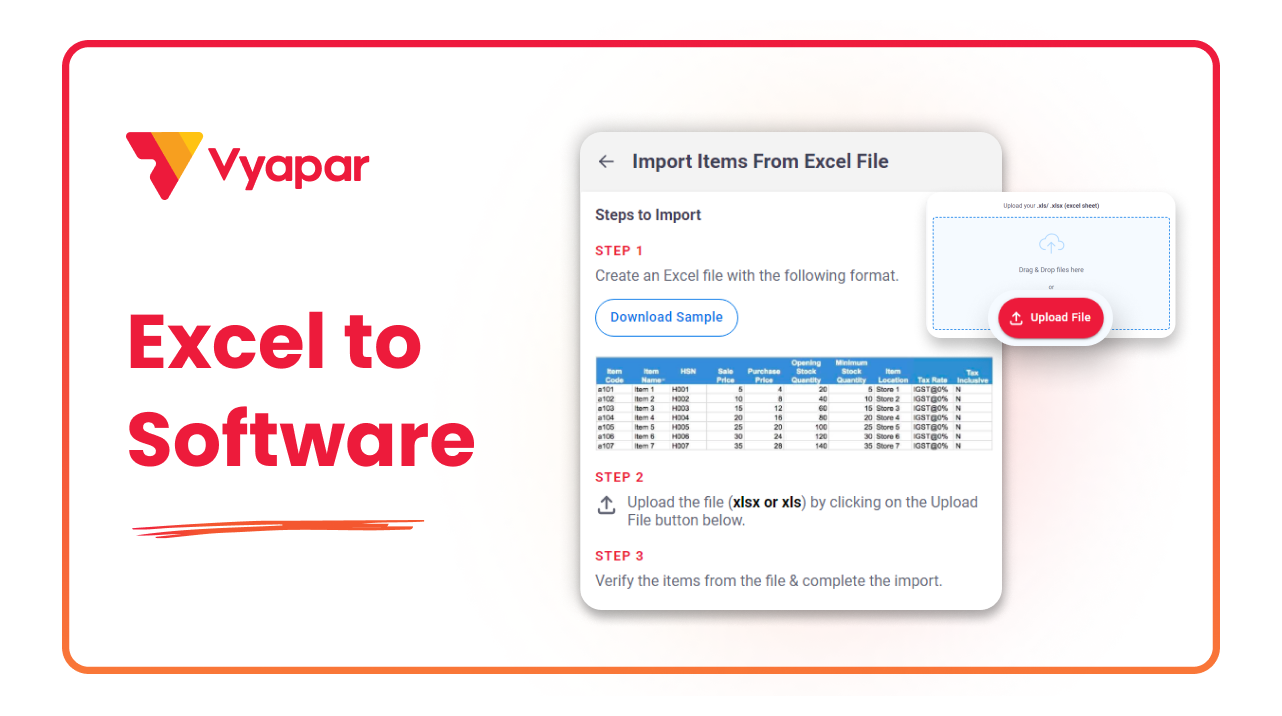
How To Import Batches Through Excel
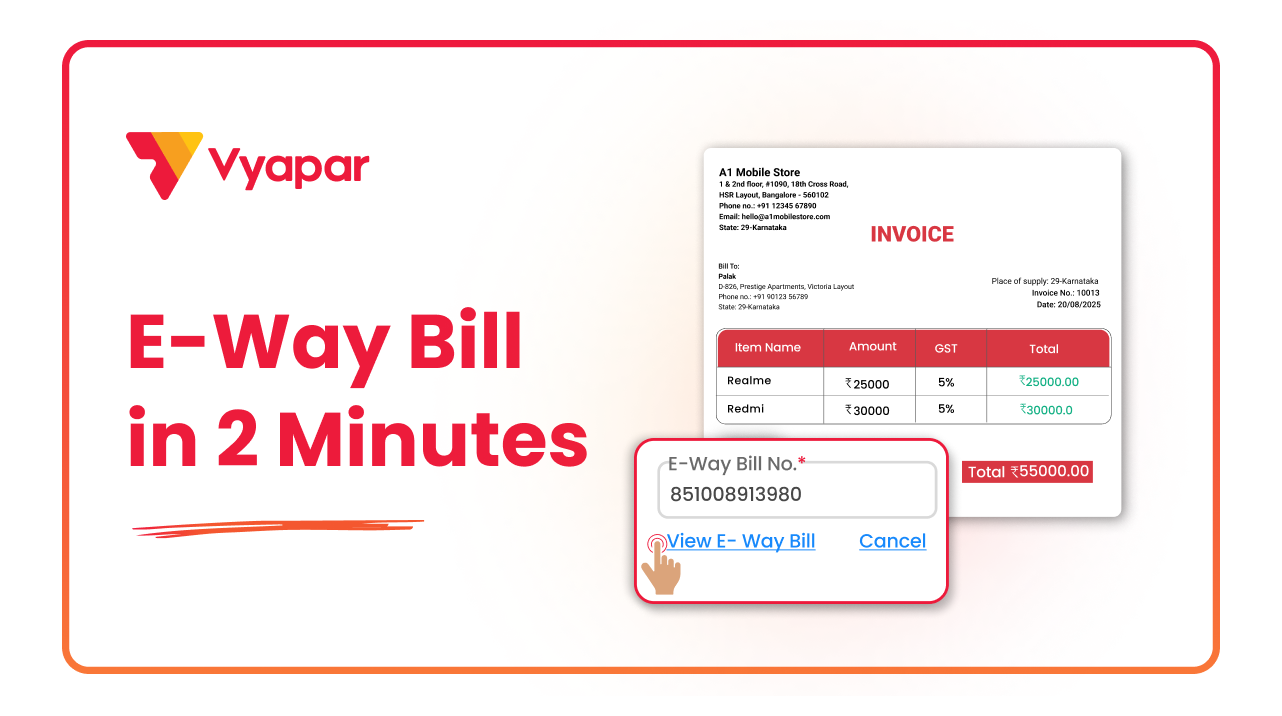
How to Generate E-way Bill
Transform Your Business in Just 5 Minutes – Start Free Today!
Join 1.5 crore + small business owners using Vyapar’s automated billing, inventory & accounting software to save 10+ hours every week.





