
Generate E-way Bill – Video
Learn how to generate and manage E-Way Bills for GST invoices in a simple way.
Transcript
This guide explains how to generate an e-Way Bill using the Vyapar app. An e-Way Bill is required when goods are transported, and the invoice value crosses a certain limit.
Step 1: Understand e-Way Bill Requirement
An e-Way Bill is mandatory when goods are transported from one place to another, and the invoice value exceeds the required limit. It must be attached to the transporter during delivery.
Step 2: Create Sales Invoice
Open the Vyapar app – on the home dashboard, click “Add Sale”. Select or add a customer (party) for whom you want to generate the e-Way Bill.
Step 3: Add Party Details
Enter party name, GST number (if available), and mobile number. The billing address will auto-fill from GST details. You can also add a shipping address manually if needed. Then click Save.
Step 4: Add Items and Check Invoice Value
Select the items for the invoice. Make sure the total invoice value meets the required limit for generating an e-Way Bill.
Step 5: Enter Transportation Details
Add transporter name, vehicle number, delivery date, and delivery location. After entering all details, find and click the “Generate e-Way Bill” option.
Step 6: Generate and View e-Way Bill
Verify all details like GSTIN, party details, PIN code, item details, and transport information. Then click “Generate e-Way Bill”. Once generated, you can view the e-Way Bill number and check the complete document.
By following these steps, you can easily generate and manage e-Way Bills in the Vyapar app, ensuring smooth and compliant transportation of goods.
Read More
Related Videos
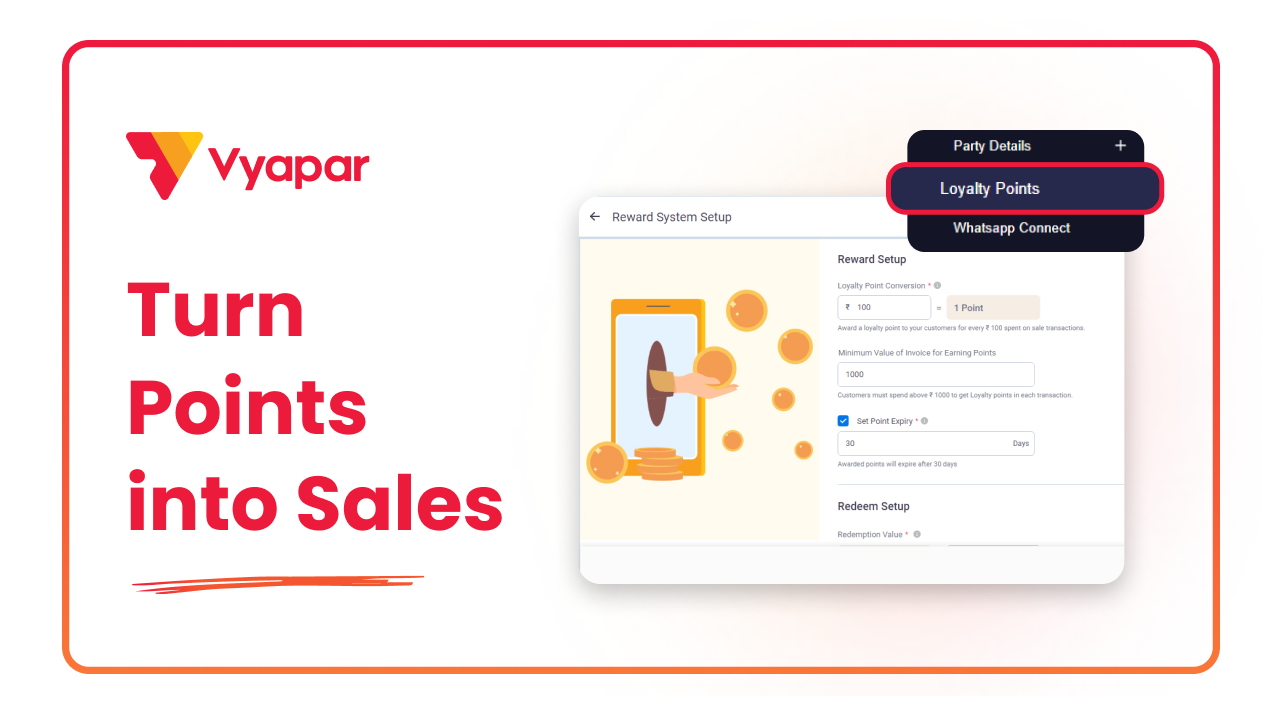
How To Use Loyalty Points
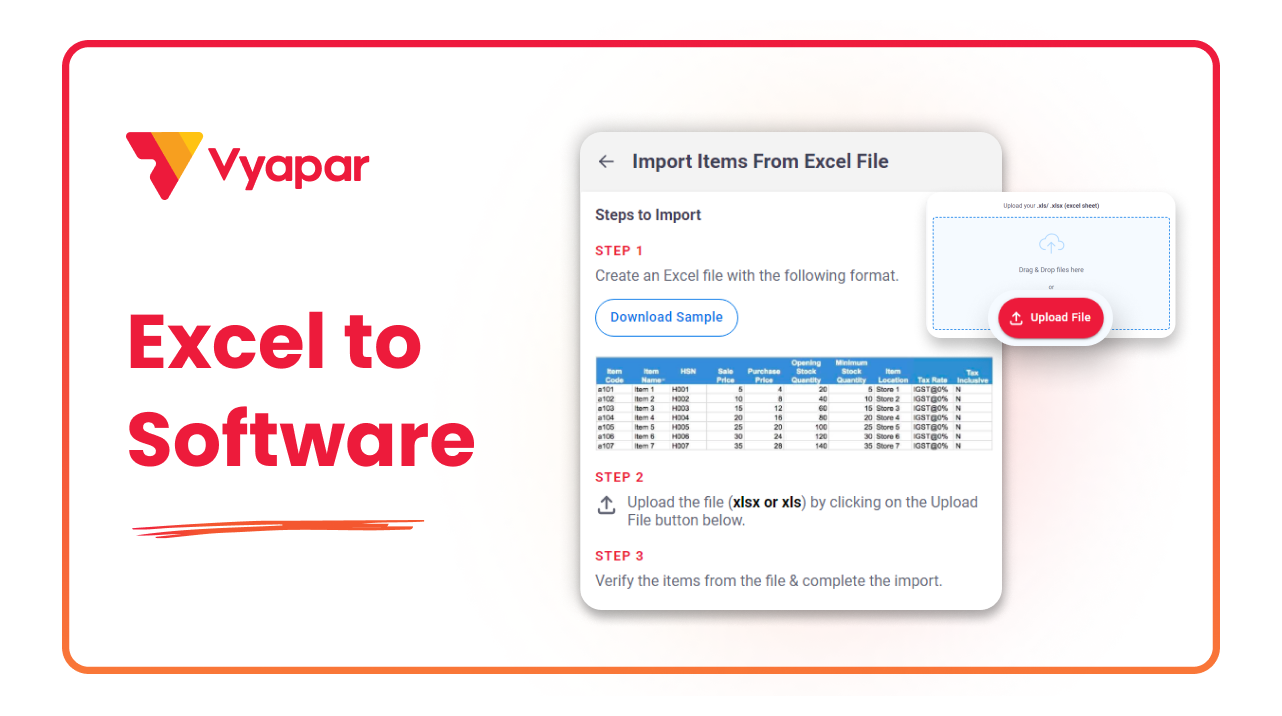
How To Import Batches Through Excel
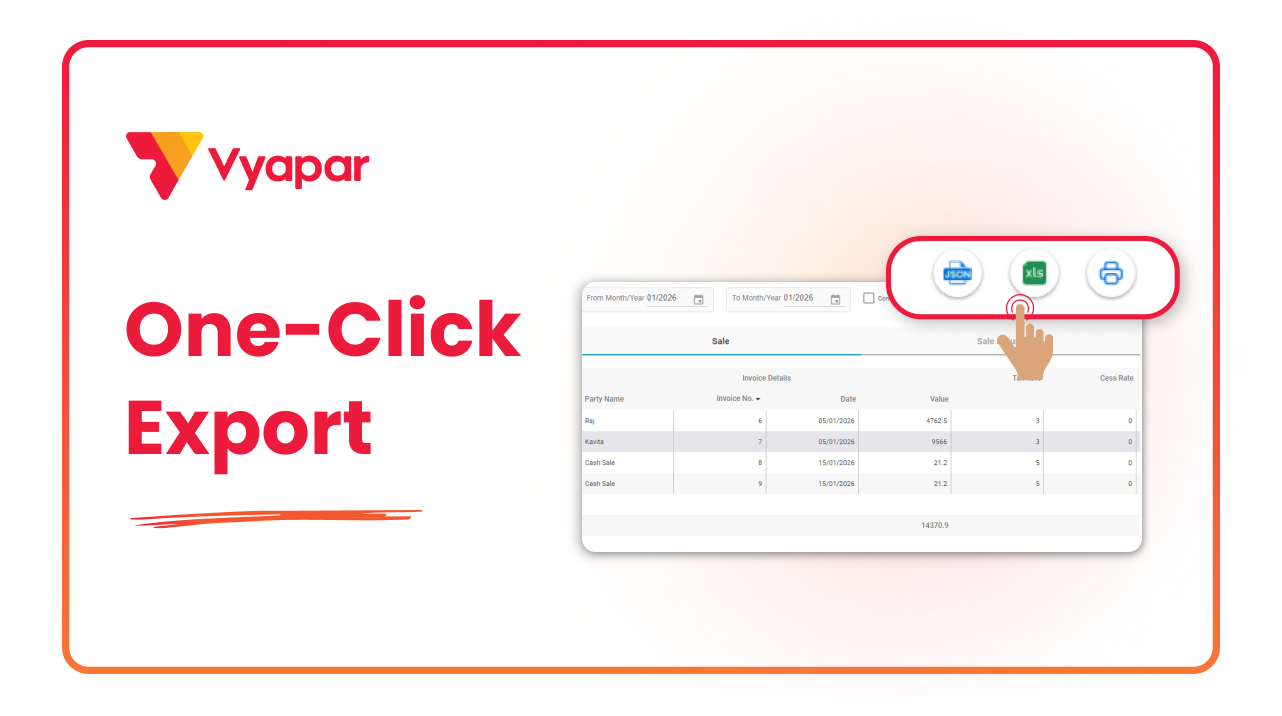
How To Download JSON File
Transform Your Business in Just 5 Minutes – Start Free Today!
Join 1.5 crore + small business owners using Vyapar’s automated billing, inventory & accounting software to save 10+ hours every week.





