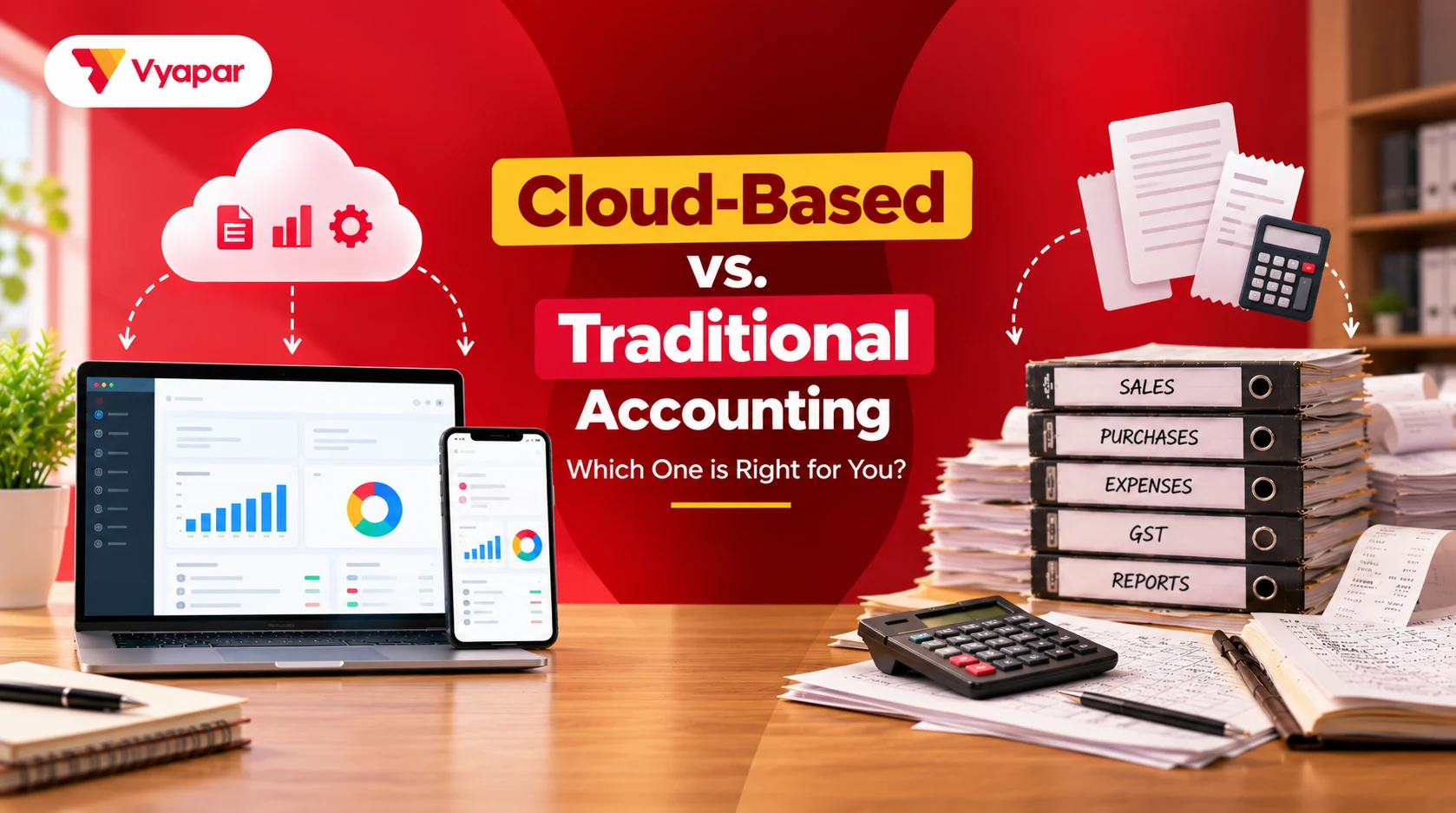
Cloud accounting keeps your books on a provider’s servers, and you open them over the internet from any phone or computer. Traditional accounting keeps them on one computer with installed software, or on paper and Excel. Cloud suits several users and remote access. Desktop suits a single counter with weak internet. Many apps now combine both.
Quick Summary
Cloud accounting stores your books on the provider’s servers, while installed desktop software stores them on your own computer.
A browser-based cloud system needs an internet connection to access your latest data, while desktop software can work offline on one machine.
GST law allows books to be kept electronically, provided the required backup arrangements are maintained so records can be restored within a reasonable time, as covered under CGST Rule 57.
Section 36 of the CGST Act sets the retention period for GST records, while the CGST Rules address the preservation of electronic records for the required period.
A hybrid app can save bills on your device without an internet connection and sync them to the cloud when the connection returns, depending on the app’s features.
What is Cloud Accounting?
Cloud accounting means your accounting software and data run on the provider’s servers, and you use them through a browser or app. “Cloud” simply means someone else’s computers that you reach over the internet.
You log in from a phone, laptop or shop PC and see the same books. The provider installs updates and runs the servers. You usually pay a monthly or yearly subscription instead of buying a licence once.
Your partner, staff or CA can log in from another city with their own user ID. Nobody needs to carry a pen drive or email a backup file.
Traditional accounting usually means accounting software installed on one computer, or on a few computers in the same office network. Some people also use the term for paper ledgers and Excel sheets.
With installed desktop software, the data file sits on your own hard disk. You buy a licence, keep the computer running, install updates and take your own backups. Other people can reach the books only if they sit at that computer or join the office network.
Paper books and Excel still work for very small shops. They get hard once you file GST returns. Every invoice has to be typed again into the GST portal or a return tool before each of the GST return filing due dates.
Most “cloud vs traditional” comparisons mean cloud vs installed desktop software, so this guide uses that meaning.
Cloud vs Traditional Accounting: The Key Differences
The main difference is where the data lives. Cloud keeps it on the provider’s servers, and desktop keeps it on your own computer. That one fact decides access, backups, updates and internet needs. The table below adds the hybrid option that many Indian shops now use.
Factor
Cloud (browser-based)
Installed desktop
Offline-first app with cloud sync
Where data lives
Provider’s servers
Your computer’s hard disk
On your device, with a copy synced to the cloud
Access from other devices
Any device with a login
Only that computer or office network
Phone and computer, once synced
Internet needed
Yes, to open and enter data
No
Only to sync; billing can continue offline
Who takes backups
Provider keeps server copies; you should still export your own
You
Cloud copy via sync; you should still keep your own backup
Who installs updates
Provider, automatically
You
You update the app; servers are run by the provider
Several users or branches
Easy, with separate logins
Hard beyond one office
Possible, with separate logins
Sharing with your CA
Give the CA a login
Send a backup file
Give the CA a login or share data
Cost pattern
Subscription, no server to buy
Licence plus computer, UPS and upkeep
Usually a subscription for sync; app may have a free tier
If your device is lost
Data is safe on the server
Data is gone unless backed up elsewhere
Synced data can be restored on a new device
If you stop paying
Access may be limited; export first
Software keeps running on the old licence
Sync may stop; local data stays on the device
Cloud trades internet dependence for easy access and less upkeep. Desktop trades upkeep and backup work for full offline control. The hybrid tries to give you both, but you still need to keep your own backup.
Who is Responsible for What?
Cloud moves some jobs to the provider, but not all of them. You still own the data, the logins and the decision to keep a copy you can restore.
Task
Cloud
Installed desktop
Running the server or computer
Provider
You
Software updates
Provider
You
Server backups
Provider
You
Your own exported copy
You
You
Testing that a backup restores
You
You
User logins and staff access
You
You
Power and internet at the shop
You
You (power only)
Note: A provider’s backup is not the same as your own copy. Some providers’ terms make backups the user’s responsibility, so read the terms before you rely on theirs.
Tip: Export a full backup once a month and store it away from the shop computer. Restore it once on a spare device to check that it opens.
Does Cloud Accounting Work Without Internet?
A browser-based cloud system does not work without internet. You cannot open the latest books or save a new bill until the connection returns.
An offline-first accounting software works differently. It saves each bill on the phone or computer first, then syncs it to the cloud once the internet is back. Desktop software never needs internet, but it stops just the same in a power cut without a UPS.
Example: Sharma General Store, a kirana, bills about ₹40,000 a day over 10 hours, so about ₹4,000 an hour. Say mobile data drops for 2 hours and the shop cannot bill offline. About ₹8,000 of sales then go on handwritten slips. Someone must enter them later, and some may be missed. (Illustration only.)
The same shop on desktop software would keep billing in that outage. If its only laptop died with no backup, though, it would lose its whole sales history, not just 2 hours.
Is Cloud Accounting Safe?
Cloud accounting is not automatically safer or riskier than desktop software; the risks are different. The habits of the people using it matter as much as the system.
Desktop risks: a stolen or damaged laptop, a failed hard disk, ransomware on the shop PC, and backups kept on the same machine.
Cloud risks: a weak or shared password, a provider outage, and difficulty moving your data out later.
Risks in both: staff sharing one login, no record of who changed what, and no tested backup.
A few controls help in any model. Give each staff member their own login with only the access they need. Turn on two-step login where the system offers it. Keep a monthly export outside the system.
What GST Law Says About Electronic Books
GST law allows you to keep accounts electronically, on a computer or in the cloud, if you follow the record rules. The same rules apply whichever model you choose.
The CGST Rules allow a registered person’s accounts and records to be kept in electronic form (CGST Rule 56).
Under CGST Rule 56, entries must not be erased, effaced or overwritten. Electronic records must keep a log of every entry edited or deleted.
CGST Rule 57(1) asks for a backup that lets you restore your records after an accident. The rule says:
“Proper electronic back-up of records shall be maintained and preserved in such manner that, in the event of destruction of such records due to accidents or natural causes, the information can be restored within a reasonable period of time.”
Under CGST Rule 57, you must produce your electronic records on demand, in hard copy or in any electronically readable format.
The CGST Rules say these records must be preserved for the period set in Section 36 of the CGST Act. You can read the record rules on the CBIC page on GST accounts and records rules.
Your CA can confirm which of these rules apply to your business.
Which One Fits Your Business?
The right model depends on your internet, your number of users and branches, and how closely you work with your CA. These Indian cases show the type of setup that usually fits.
1. A single-counter kirana with patchy mobile data
An offline-first app suits this shop, because billing continues when the network drops. Installed desktop software also works, if a daily backup goes somewhere other than the shop PC.
2. A wholesaler with two branches and five staff
Cloud or a cloud-synced app suits this business, because both branches see the same stock and party balances. If stock is the main worry, look for inventory tracking that keeps one stock count across branches. Give each staff member a separate login with limited rights.
3. A trader whose CA wants live access
Cloud or synced multi-user access saves sending backup files every month. The CA logs in and checks entries. They can also match purchase records with GSTR-2A and prepare returns from the same books.
4. A private limited company
Any model can work, but company law has its own rules for books kept in electronic form, including backups. Ask your CA what applies. Ask the provider where its servers are, and keep that answer in writing.
5. A very small shop happy with paper or Excel
Paper or Excel can be enough when bills are few, and the shop is not registered for GST. Watch for the point where you start re-typing bills for returns; that is the time to move.
If this matters most
Consider
Weak or patchy internet
Offline-first app with sync, or desktop with an off-site backup
Several branches or staff
Cloud or cloud-synced app with separate logins
CA needs regular access
Cloud or synced multi-user access
Company law record rules
Any model, once your CA confirms the backup rules that apply
Very small and simple
Paper, Excel or a free billing app
How to switch from desktop or paper books to the cloud
Switch at the start of a month or quarter, and run both systems side by side for one month. That keeps your GST returns clean while you check the new books.
Pick a cut-over date: choose the first day of a month or quarter, never the middle of a return period.
Move your masters: export parties, items and opening balances from the old system and import them.
Match the numbers: check opening stock, party balances and cash against the old books on the cut-over date.
Run both for a month: compare sales and GST totals before you stop the old system.
Set user roles: create a login for each person with only the access they need.
Archive the old data: keep a readable copy for the full GST retention period under Section 36 of the CGST Act.
Common mistake: Cancelling the old software before exporting everything. Once the licence or subscription ends, you may not be able to open the old file.
How It Works in Vyapar
Vyapar Cloud accounting software follows the hybrid model. You can make bills without internet on Windows desktop and Android, and they sync between mobile and desktop once you are back online. Device sync is part of the paid plans.
To use one company on a second device, the primary user opens Sync and Share and adds that user or device. The second device then joins the company and syncs.
The app can also back up automatically to Google Drive, or save a backup to your phone or email. Backups stay your responsibility, so keep your own copy too.
Common Mistakes
Many data losses in small businesses come from habits, not from the choice of cloud or desktop. These are the mistakes to avoid.
Mistake
Why it matters
Fix
Never testing a restore
A backup that does not open is no backup
Restore once a quarter on a spare device
One laptop as the only copy
Theft or disk failure wipes out years of books
Keep a copy off the shop computer
Staff sharing one login
You cannot see who changed or deleted an entry
Give each person their own login
No export before a subscription lapses
Access to old books may be limited
Export a full copy before you cancel or change
Relying only on the provider’s backup
Some providers’ terms make backups your job
Keep your own monthly export
Switching mid-period without matching balances
GST returns and party balances stop matching
Switch at the start of a month and reconcile
Deleting old books too early
GST records must be kept for the period set in Section 36 of the CGST Act
Archive old data in a readable format
Frequently Asked Questions
Is cloud accounting cheaper than desktop software over time?
It depends on your setup. Cloud accounting spreads the cost through a subscription and may not require you to buy a separate server. Desktop software may involve a licence, computer, UPS, and maintenance costs. Compare the total cost over three to five years before deciding.
Can I use cloud accounting on a mobile phone?
Yes, many cloud and hybrid accounting systems offer a mobile app or mobile-friendly website. Before relying on it, check whether the mobile version lets you access the same business records as your computer and supports the features you need.
What happens to my data if I stop paying for a cloud service?
Your access may become limited or stop when your subscription ends. How long your data remains available depends on the provider’s terms. Export your business records before your subscription expires and confirm that you can access the exported files.
Can I take my own backup of cloud data?
Yes, if your accounting software supports data exports or downloads. Save a copy outside the software, store it securely, and check that the exported files open correctly and contain the records you need.
Is Excel enough for GST bookkeeping?
Excel may be enough for a business with only a few bills and simple records. However, maintaining GST details and preparing reports can require extra manual work, and errors become harder to manage as transactions increase. Compare Excel with accounting software as your billing volume grows. The amount of duplicate data entry depends on your existing workflow and the tools you use.
Do I own the data I put into a cloud accounting system?
Data ownership and access rights depend on the provider’s terms and applicable laws. Review the terms covering data ownership, export, and account closure before signing up. Keep a copy of your business records that you can access independently of the service.
Anshika Jain is a Product Manager at Vyapar, building products that empower millions of MSMEs to digitize, market, and grow their businesses. With experience in product strategy, user research, and customer-centric product development, she focuses on solving real business challenges through simple and scalable technology.
KEY TAKEAWAYS The 3 Golden Rules: They help decide which account to debit and which to credit. Know the Account Types: Identify whether an account is Personal, Real, or Nominal before applying the rule. Every Transaction Has Two Sides: Each transaction affects at least two accounts through debit and credit. Apply Them to Daily Transactions:…
Introduction Retail businesses today need much more than basic bookkeeping. Between GST compliance, inventory valuation, expense tracking, profit monitoring, vendor payments, and daily sales reconciliation, managing finances has become increasingly complex.. To help retailers choose the right solution, I’ve compared five of the most popular accounting software options in India based on ease of use,…
Introduction Running a small business in India in 2026 means going through GST returns, e-invoicing, e-way bills, inventory, and daily bookkeeping, usually without a full-time accountant. The right GST accounting software for small business automates the heavy lifting and frees you to focus on growth. We’ve compared the five most widely used names in India,…